
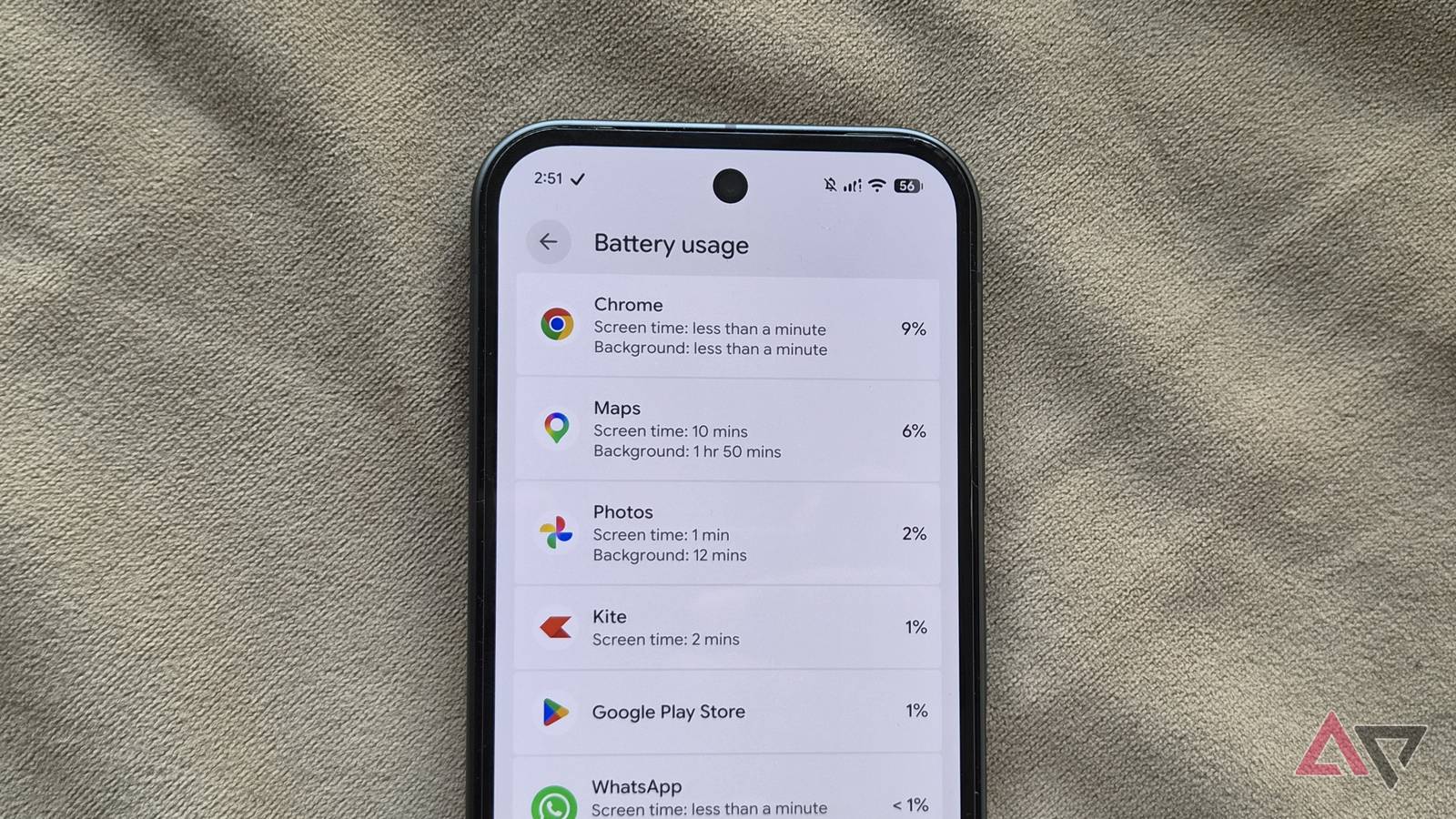
Navigation is a demanding task for a phone, so it wasn't a surprise when I saw Google Maps chew through so much battery on my Samsung Galaxy S26. Over time, though, that drain became hard to ignore, especially on long trips. By the end of a trip, my phone's battery would often have dropped by 20% to 25% from navigation alone. So, I went through my Google Maps settings and made a few tweaks. Sure enough, these reduced Maps' battery usage by more than 50%. Turn off satellite mode Those fancy features aren't worth it The satellite view in Google Maps is great to look at. It shows real-world photographic images instead of that plain, flat map view. Those details can be handy when you want to see what a building or route to it looks like before you get there. The only problem is that satellite imagery is heavier to load. So when you use it, your phone's GPU has to work overtime, which drains more battery than usual. That's why I stick to the default view. You can switch to it by tapping the layers icon in the upper-right corner of the Maps screen and selecting Default. I sometimes switch back to satellite view any time I need to check something. Enable dark mode or built-in power-saving mode Let your screen go easy while you drive By default, Google Maps automatically switches between day and night themes during navigation. For the rest of the app, it defaults to the theme you're using on your phone. I've set both of these to dark mode permanently because it helps reduce battery use. Google mentions this on its support page. Dark mode is easy on modern phone screens, like the one on my Samsung Galaxy S26. In this mode, the screen only has to light up pixels that need to be lit. That means a mostly black interface uses very little power across large portions of the screen. You can enable dark mode by tapping the profile icon in Maps and choosing Settings. Then, go to App & display > Theme, select Always in dark theme, and tap Save. Go back to the previous menu, tap Navigation, and set Color scheme to Night. Google Maps also has a built-in power-saving mode that works on the same idea, but it's exclusive to the Google Pixel 10 and 11 series. You can enable it by going to Maps Settings > Navigation > Power saving mode. Navigate with screen off on long trips Save battery with voice navigation Switching to dark mode helps, but turning off the screen entirely while navigating helps even more. I regret figuring this out a little late, but Google Maps' voice guidance is usually all I need on long trips. I can keep my phone locked and still get turn-by-turn directions to my destination without issues. This setup works because I can still check the map anytime by double-tapping the screen or pressing the side button. There's no need to unlock the phone. The most helpful thing is that voice guidance works even during phone calls, so I'm not worried about missing a turn if I'm talking to someone through my car's infotainment system. Change Maps' location permission It's good for privacy too Google Maps is one of the few Android apps that can ask for constant location access. And it makes sense if you're into features like Google Maps Timeline or location sharing. I don't use either of those, so tweaking the location access was an easy decision. I've set it to Allow only while using the app instead of Allow all the time, and Maps works just as well. I haven't noticed any downsides or performance differences while navigating or using Maps in general. To do this, long press the Maps icon and choose App info. Go to Permissions > Location and choose Allow only while using the app. Switch to offline maps Download once, drain less forever Google Maps has had offline maps for years, but they're usually recommended to save data or for places where the signal may be spotty. But I prefer them because they save battery. Downloading an offline map for an area or even a city means the app doesn't need to fetch any data, which also helps save mobile data. To download an offline map, tap the profile icon in Maps, go to Offline maps, and choose Select your own map. Drag the box over the area you want saved, then tap Download. I don't use offline maps all the time, mainly because they have a few downsides. For one, it can't show walking directions or transit options. You also miss out on live traffic updates and alternate routes. I mostly stick to offline maps in areas where I don't need all those extra features. Using Google Maps feels less stressful now Google Maps isn't optimized for battery life out of the box, which is fair. But for anyone who uses it as much as I do and doesn't want to keep the phone plugged in throughout the drive, these tweaks help. The good thing is that these changes don't ruin the navigation experience. I'm not turning off precise location or adding battery-usage restrictions to the app. Still, Google Maps' battery usage is almost half of what it was before.
How to reduce Google Maps battery drain on Android
Full Article
Original Source
Read the full article at Androidpolice →KhanList aggregates and links to publicly available news content. We do not host full articles from third-party sources. Always verify important information with original sources.