
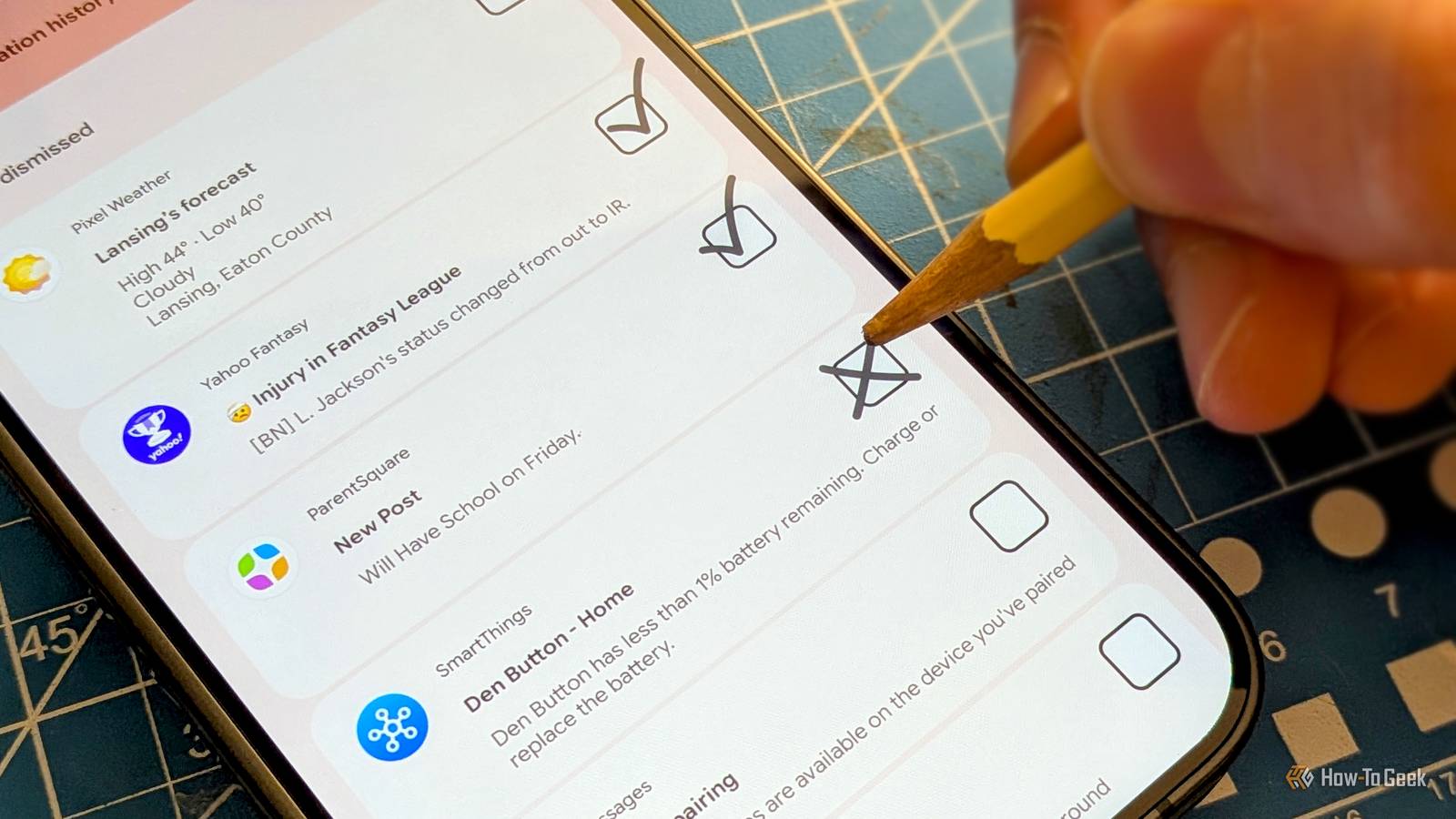
Published Nov 7, 2026, 1:00 PM EST Joe Fedewa has been writing about technology for over a decade. Android and the rest of the Google ecosystem have been a focus for years, as well as reviewing devices, hosting podcasts, filming videos, and writing tutorials. Joe loves all things technology and is also an avid DIYer and food blogger. He has written thousands of articles, hundreds of tutorials, and dozens of reviews. Before joining How-To Geek, Joe worked at XDA-Developers as Managing Editor and covered news from the Google ecosystem. He got his start in the industry covering Windows Phone on a small blog, and later moved to Phandroid where he covered Android news, reviewed devices, wrote tutorials, created YouTube videos, and hosted a podcast. From smartphones to Bluetooth earbuds to Z-Wave switches, Joe is interested in all kinds of technology. After several years of jailbreaking and heavily modifying an iPod Touch, he moved on to his first smartphone, the HTC DROID Eris. He's been hooked ever since. Keeping notifications on my phone under control is a constant battle. I try to disable annoying ones when they arrive, but sometimes it's just easier to ignore the problem. That's where Android's "Notification History" comes in handy, but not for the usual reasons. Notification history keeps receipts But you have to turn it on For the uninitiated, Android has long included a feature called "Notification History" that does exactly what it sounds like. Once it's enabled, it keeps a log of every notification that arrives on your phone. It's incredibly useful when you accidentally swipe away a notification. The thing to know, however, is that it's not enabled by default. The location of the feature depends on the device, but it's usually found somewhere in Settings > Notifications. This is where you can turn it on and see the history. Now, if you're just turning it on for the first time, you'll have to wait for it to populate. Notification History generally keeps a log of the last 24 hours of notifications. That's plenty of time for finding an accidentally dismissed alert, but that's not all it's good for. What the log actually tells you Your phone is a lot chattier than you think Once you have a day's worth of notifications, you'll likely be shocked by just how many there are — I know I am. A couple alerts here and there never feels like too much, but it all adds up. Just like how you may not think you unlock your phone a lot until you check the Screen Time numbers. That's why I like to use Notification History to take inventory. Scroll down to the "Last 24 hours" section, and you'll see notifications grouped by app. In very plain text, I can see exactly how often each app has bothered me today, and expand it to see if those notifications were worthwhile. The big offenders always stick out like a sore thumb. I should mention that there's a second place worth checking, too. In the main "App Notifications" page, Android lists apps that have sent notifications recently. However, you can sort that list by "Most Frequent" as well. This doesn't show the exact notification details, but it's a good "big picture" perspective. Sorting the keepers from the junk I wish I could swipe right or left Taking inventory of notifications is really no different than cleaning out a messy garage. I simply scroll through the log and ask myself, "Would I be upset if I missed this notification?" If the answer is yes, the notification stays. Those are messages from actual humans, calendar events, doorbell camera alerts, etc. I try to be aggressive with my "no's." If I'm going to check the app regardless, I don't need yet another notification to pull me in. I'll see it when I see it. Thankfully, Android doesn't make you choose all-or-nothing for app notifications. When you select a notification that's older than a couple of hours, you'll be taken to the options for that specific "category." A single app might have notification categories for "Promotions," "Subscriptions," and more. So you can turn off some alerts, but leave others. You have to enable this on Samsung phones. For notifications that fall somewhere in the middle, I like to set the category to "Silent." The notification still shows up in my shade, but it doesn't make a sound or vibrate. It's useful for stuff I want to see eventually, but don't need to know about right now. Notification creep is real I'd love to tell you this is a one-time fix, but it isn't. Apps are very good at finding new ways to ask for your attention. Installing new apps also often means granting notification permissions before you know what you're getting yourself into. But this isn't a daily task, either. The Notification History is only a 24-hour snapshot, but it's always there. Once or twice a month, I'll pop it open and give it a glance. It only takes a few minutes, and I don't try to fix everything in one sitting. Baby steps.
How I use Android's Notification History to clean up annoying apps
Full Article
Original Source
Read the full article at Howtogeek →KhanList aggregates and links to publicly available news content. We do not host full articles from third-party sources. Always verify important information with original sources.