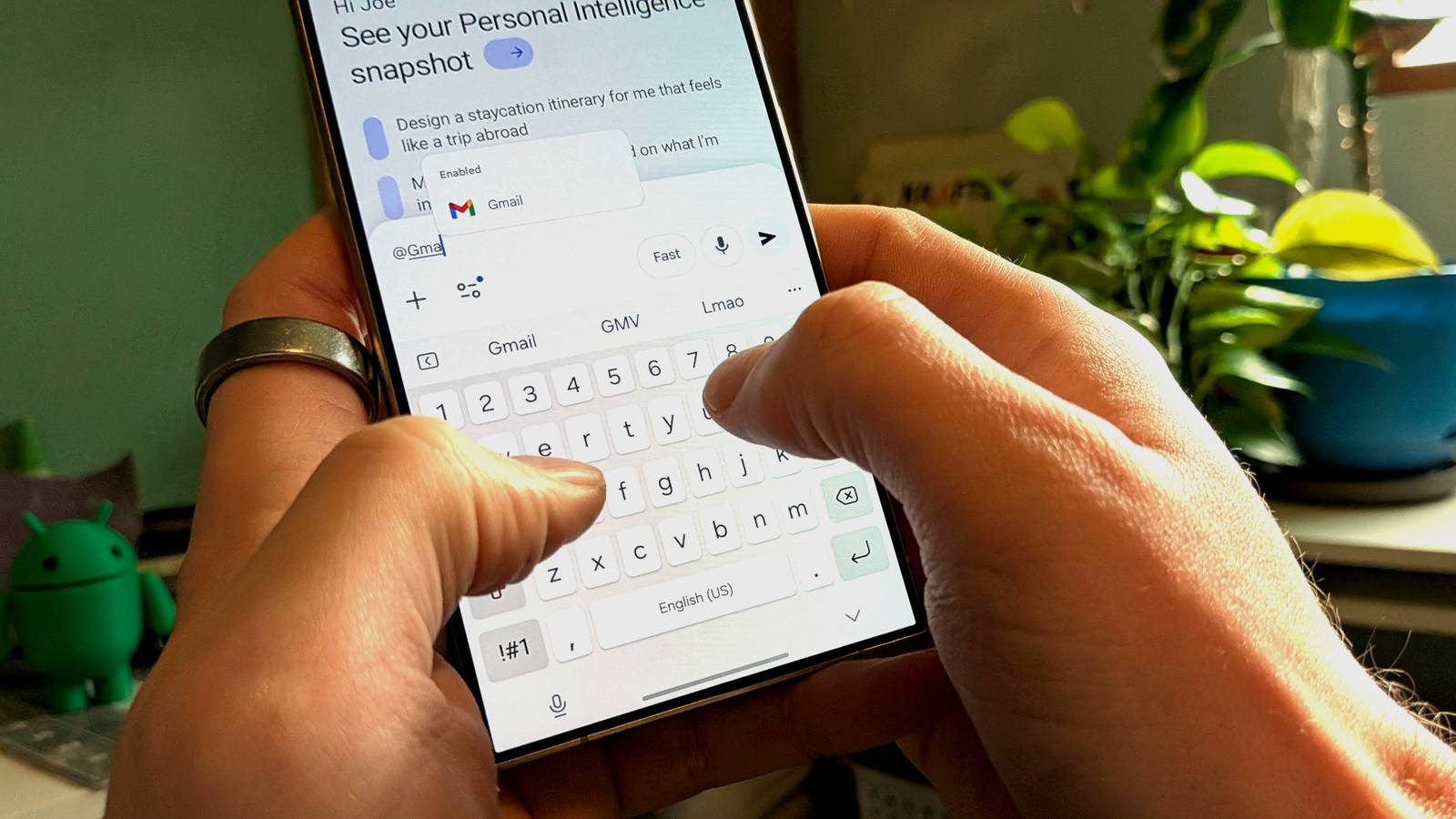
Published Jul 18, 2026, 11:15 AM EDT Dibakar Ghosh is a tech journalist at How-To Geek, where he focuses on Linux, Windows, and productivity tools. His goal is simple—help readers at every skill level get more done with the tech they use every day. He began his writing career in 2016 with WordPress tutorials, later moving into digital marketing, where he spent years reviewing complex tools for marketers. His work has also appeared on Authority Hacker, where he’s shared in-depth guides on digital workflows and online productivity. That experience now shapes his journalism, blending analytical depth with practical, real-world advice. When he’s not writing or testing software, Dibakar is usually watching movies or playing video games. He’s a huge Christopher Nolan fan and a strong proponent of the theater experience. In gaming, he has sunk hundreds of hours into Insomniac’s Spider-Man series, Returnal, Prototype, Darksiders, and Final Fantasy titles. Are you deeply invested in the Google ecosystem? Do you actively use Google Keep, Tasks, Calendar, and Drive in your day-to-day life? Individually, each of these is an excellent tool—minimal by design but solid in functionality. The only problem is that these apps are mostly isolated from one another. But if you add Gemini as an orchestration layer, all of these tools can start talking to each other. That's exactly what I did, effectively turning Gemini into my personal project management system. How my Gemini-powered project management system works Who needs Notion when you already have Gemini Credit: Justin Duino / How-To Geek I recently wrote about Claude’s hidden project management system built around its Productivity plugin. Enable it, and you get a set of skills that use some clever prompting and system design to capture tasks spread across your different apps, centralize them in a single TASKS.md file, and let you view everything through a local HTML dashboard. It's clean, powerful, and has genuinely become my main project management system. However, not everyone pays for AI chatbots. Maybe you have Gemini Pro instead as an added benefit of subscribing to Google One. In that case, you can technically recreate that exact Claude workflow using Antigravity, which is Google’s harness for letting Gemini work on your PC with access to your files. The catch is that Antigravity is tied to one specific computer, and you can’t control or access it remotely like you can with Claude Cowork—at least not at the time of writing. Now, I wanted something that works on whatever device I'm using—my PC, my phone, or a laptop—and that's where Gemini comes in. Borrowing the same core idea I developed with my Claude PM system, I use Gemini as an orchestration layer for all my other tools, effectively turning it into a central project management system. Gemini is already connected to your Google apps by default. It has access to Keep for notes, Tasks for to-dos, Calendar for scheduling, Drive for storage, and Docs for documents. These tools are isolated on their own, but Gemini can bridge them, moving information from one place to another on your behalf. And once that's happening, the whole setup starts functioning like a project management system. Capturing and retrieving tasks, ideas, and projects However the idea arrives, it ends up in the right place This is by far the most powerful part of the setup—Gemini makes capturing ideas, tasks, and projects ridiculously simple. It's honestly become one of my favorite ways to capture information. Here's what it looks like in practice. I go about my day, and ideas show up in all sorts of forms. I jot something down on paper. I see something interesting outside and take a picture. I screenshot a post I liked on social media. I bookmark articles and YouTube videos. Then there are the newsletters I have sitting in Gmail. And when I'm not in the mood to write anything at all, I just ramble into a voice note. All of that—photos, screenshots, links, voice notes—gets dumped into Gemini for processing. I can have a normal, casual conversation about it or use a preconfigured prompt as a Gem. Gemini extracts whatever needs to happen from the mess. Notes and reference materials get moved into Google Keep for safekeeping. Actual tasks get saved to Google Tasks along with times and due dates. The Keep part has a hidden benefit worth calling out. Normally, if I save an image, I usually can't find it later using text-based search. But when it passes through Gemini first, I can extract the text inside the image and save it alongside the image—so that a quote or remark in the photo becomes searchable. Retrieving your notes and tasks also works the same way. You can always open Keep and search for a note or open Tasks and hunt for an item manually. But if you only vaguely remember a note—not the precise wording—you can just ask Gemini to search for it. My Keep library has around 200 notes, and my Tasks list sits at about 50 to 60 items. In my experience, Gemini has been able to find what I'm looking for pretty quickly and accurately. Setting reminders and due dates Because a task without a deadline is just a wish You're using Gemini to capture notes and build up a to-do list—but how do you actually remember what's due and when? Well, there are two ways to handle this. The first is Google Tasks, which is what I prefer. If something is due on a particular date at a particular time, I have Gemini save it as a task with that due date attached, and Tasks handle the reminder. The alternative is Google Calendar. If you're someone who regularly opens their calendar for time blocking or because you share your schedule with other people, then creating calendar events through Gemini is the better fit. There’s also a hidden benefit to using Google Calendar. Since Tasks is only available as a mobile app—not as a desktop app—your Tasks reminders will only show up on your phone rather than on your PC. However, if you save your due dates and reminders as calendar events, you can sync Google Calendar with a desktop calendar app, such as Notion Calendar, and get those notifications right on your desktop. Collaborating with others From solo notes to shared plans—without having to start over If you use Keep and Tasks to capture and track everything by default, you can't really collaborate with someone else on any of it. Out of the box, both tools function as “personal” note-taking and task management systems. However, with Gemini, you can add a collaboration layer. Say you want to share a few of your ideas and current tasks with a potential collaborator. You can ask Gemini to reference specific notes you've saved along with specific tasks, compile all that information, and turn it into a Google Doc—properly formatted and organized for easy reading. You can then share that Doc and have them respond to it. Once you've settled on a direction, you can take the document back to Gemini and use it as a reference point to modify your existing tasks or create new tasks and notes. Google Gemini Google Gemini is a multimodal AI models and an integrated assistant developed by Google. It understands and combines text, images, audio, video, and code. As an AI assistant, it helps with writing, planning, learning, and productivity, integrated into Google Workspace apps (Docs, Gmail) and on mobile devices. This process becomes infinitely better on an Android phone Everything I've described here works with the web version of Gemini. But you get the best experience on an Android phone with Gemini set as your default assistant because it streamlines the entire process. You can invoke Gemini by holding the power button, it has access to what's on your screen, it can save information accordingly, and you can give it voice commands without typing anything. That's essentially how I use it, and it makes for a far better user experience. And with Android 17 integrating Gemini more deeply into the operating system, these kinds of workflows will only become more streamlined.
Gemini turned Google's apps into my project management system
Full Article
📰 Original Source
Read full article at Howtogeek →KhanList aggregates and links to publicly available news content. We do not host full articles from third-party sources. Always verify important information with original sources.