
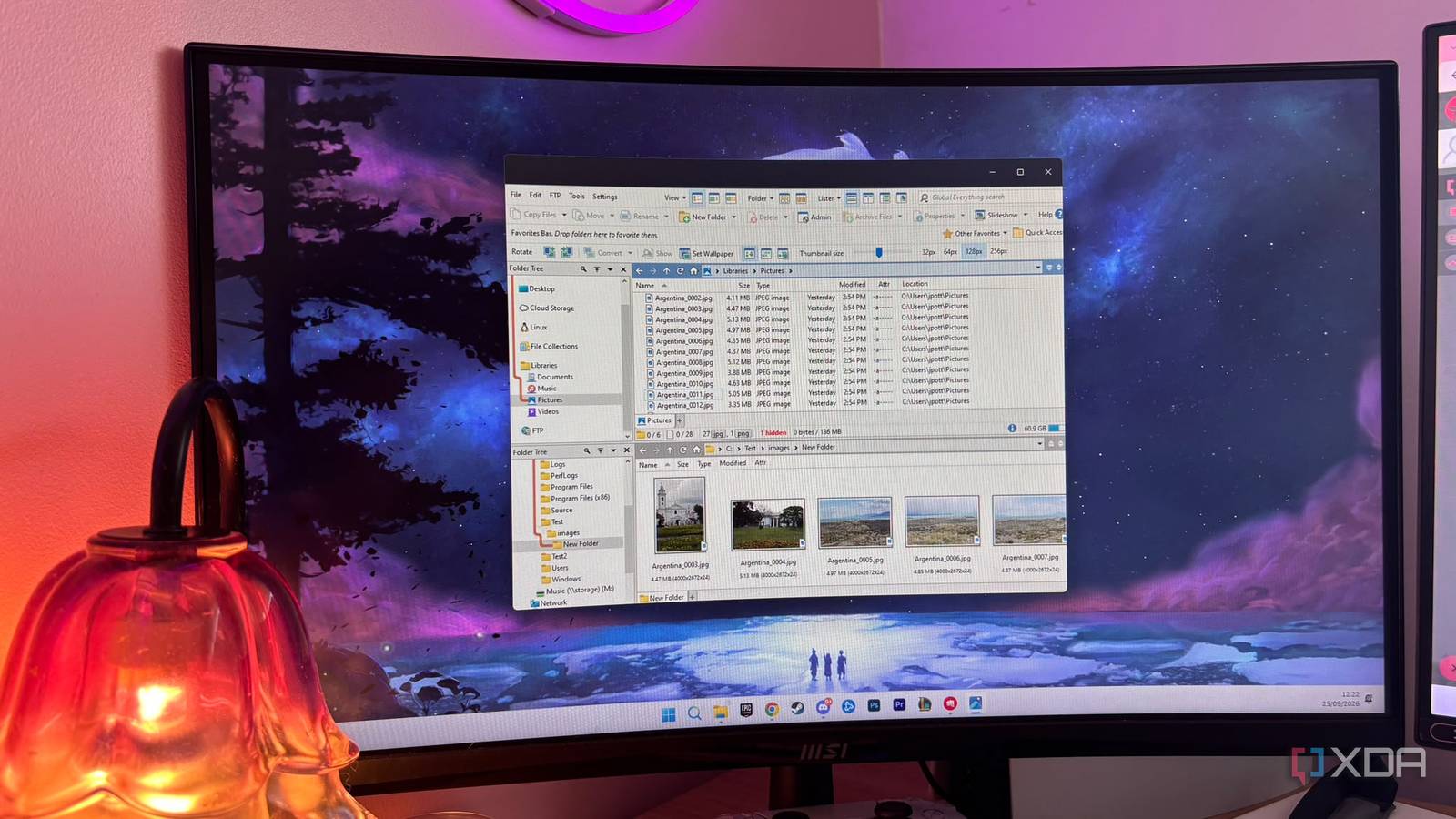
Published Sep 26, 2026, 4:00 PM EDT Jasmine is Software and PC Hardware Author at XDA with years of tech reporting experience ranging from AI chatbots right down to gaming hardware, she's covered just about everything. Whether it's breaking news about the latest AMD NPUs or creating video tutorials on social media platforms, Jasmine has contributed to the world of AI and tech in a variety of ways including interviewing the CEO of Razer, AMD's Director of Product Marketing and the VP of Lenovo. Passionate about gaming and PC technology, she has built countless computers, keyboards and other peripherals - knowing them inside and out. For most power users, there's a universal workflow bottleneck. Let's say you're organizing server backups, moving media files, or staging code directories. It's easy for your screen to become a chaotic mess of overlapping Windows Explorer or Finder windows, but I realized there are so many ways to make file navigation easier. You can dive past the default single-pane view and unlock advanced dual-pane navigation, integrated tabs, and built-in operation queues features that are mastered by tools like Total Commander, Directory Opus, or modern power user replacements. We spent years installing fragmented third-party micro utilities for FTP, batch renaming, archiving, and multi-window transfers, completely ignoring the fact that there are multiple options for properly configured, feature-rich file managers that can handle all of that under a single unified interface. Single-pane browsing is not fun And no queuing tasks Single-pane browsing is the bane of my existence. It absolutely slows you down because of the friction of traditional file navigation. It's easy to get lost between multiple tabs, especially if you also have third-party applications open, as well as an unzipping tool and maybe even a duplicate file finder, and then are moving files between a local NVMe scratch disk and a remote NAS directory tree. Trying to do this in a single-pane explorer requires opening two separate windows, snapping them side by side, and risking misclicks. It's just a frustrating experience. As if that wasn't enough, File Explorer also lacks queued operations for single-pane browsing. Basic OS file copy dialogs crash or bottleneck when handling hundreds of thousands of small files, like a massive node_modules folder or even a large photo library. There's also a lack of pause/resume controls or speed throttling. Which dual-pane manager you opt for is up to you You get a range of new features The best feature to implement when using a file explorer is dual-pane layouts and advanced tabbing. These features absolutely change everything. It turns your file manager from a passive viewer into a productivity engine you don't have to watch while you wait for files to transfer. With a true dual-pane workflow, having source and destination side by side or top and bottom natively within the same window makes everything so much simpler. Dragging, comparing directory sizes, and syncing structures becomes an instantaneous mechanical motion rather than a window-management puzzle where you have to keep alt-tabbing between the countless windows you have open. On top of that, you get tabbed context isolation, since keeping separate tabs for your active code repos, active download staging, and remote server paths lets you skip digging through nested directory trees every time you want to move a file. The exact UI and layout of your dual-pane file manager will depend on which one you choose. I decided to go with Directory Opus just because I found that Total Commander looked a little bit vintage for my style, and I wanted to fit in seamlessly with my environment. You can get rid of so many other apps You no longer need 4 different apps for single functions Once you've mastered a proper file manager, you can purge a lot of bloatware you installed over time to fix the problem. With Directory Opus, I was able to complete all of these tasks within the file manager itself, meaning I could delete all of these specific single-purpose apps that I've downloaded. For example, I no longer need a separate FTP/sFTP client, since advanced file managers like Directory Opus include native remote server connections that let you browse, edit, and transfer files directly to your home lab or remote VPS without opening a separate instance. I also didn't need a dedicated bulk renaming utility, as I could utilize robust built-in multi-file tag renaming engines in order to clean up messy media metadata or photo batches with regular expression support. On top of that, I no longer had to wait literal hours for my file manager to finish. And lastly, I no longer needed clunky extraction tools, as managing TAR, ZIP, 7Z, and ISO structures could happen transparently within the file manager as if they were regular folders (allowing you to peek inside archives without full extractions all the time). I can't believe I ever used single-pane file managers Dual-pane is the only way forward for me After using a dual-pane file browser for a while, I don't understand how I ever managed with single-pane. It is extremely limiting and has been the norm for decades. It needlessly clutters your taskbar with single-purpose utilities and completely covers your desktop when you're trying to organize your files. Unlocking advanced dual-pane workflows changes how you interact with your machine entirely, especially if you're someone who's managing a range of different files consistently. Stop juggling a dozen different helper apps and you can configure a proper dual-pane file manager. Learn the core keyboard shortcuts and turn your file navigation system from a chore into a high-speed workflow.
Dual-pane file managers replaced so many apps I didn't need to install in the first place
Full Article
Original Source
Read the full article at Xda-developers →KhanList aggregates and links to publicly available news content. We do not host full articles from third-party sources. Always verify important information with original sources.