
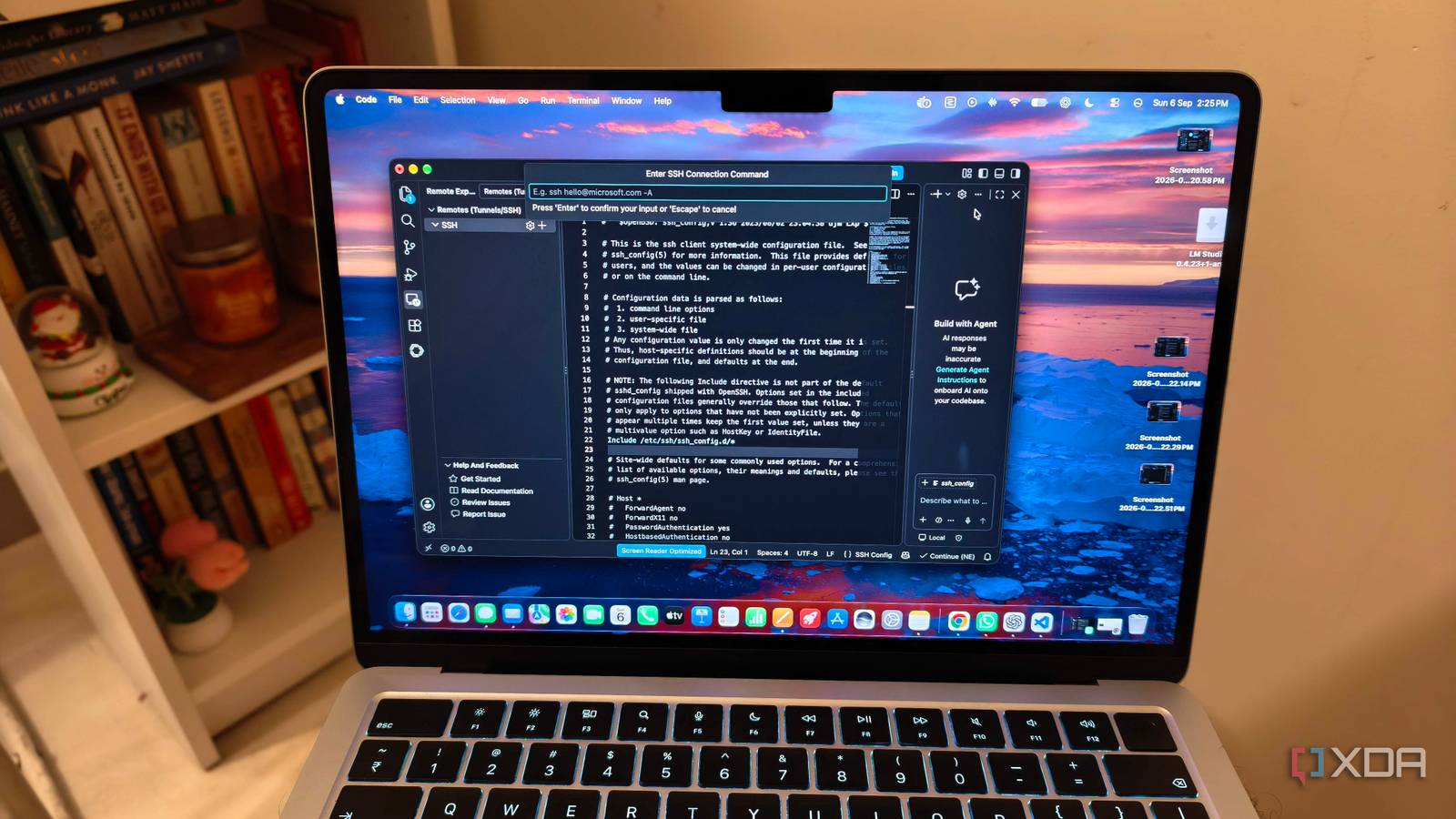
Published Sep 26, 2026, 5:30 PM EDT Anurag is an experienced journalist and author who’s been covering tech for the past 5 years, with a focus on Windows, Android, and Apple. He’s written for sites like Android Police, Neowin, Dexerto, and MakeTechEasier. Anurag’s always pumped about tech and loves getting his hands on the latest gadgets. When he's not procrastinating, you’ll probably find him catching the newest movies in theaters or scrolling through Twitter from his bed. VS Code is great, and every now and then I come across a feature I had no idea existed. I recently found Remote Tunnel Access tucked away in the Accounts menu. Once you turn it on, you can code on your desktop from a browser, even when you’re using another computer. You can open the files that are already there and run the project without copying it to the device in front of you. That device only needs a browser and the link VS Code gives you. Your files and development tools stay on the desktop, which has to remain on for the tunnel to work. The remote machine doesn’t have to be your desktop, either — a VM or a cloud instance works too. Remote Tunnels is a surprisingly useful feature It runs VS Code Server on the machine you’re connecting to Remote Tunnels runs VS Code Server on the machine you’re connecting to. The browser shows the editor, but terminal commands, builds, debugging, and workspace extensions run on that machine. If your project needs Node.js, Python, or Docker, you still need to install those tools on the host. You don’t need to install them on the computer you’re using to connect. That’s different from opening vscode.dev on its own. The web editor lets you browse a repository and make changes, but it doesn’t have a terminal or a runtime to run your project. Connecting it to a tunnel gives it access to the host’s tools. You can also connect from another installation of desktop VS Code if you’d rather work in the app. The host connects out to Microsoft’s dev tunnels service, so you don’t need to open a port on your router or set up an SSH server. You sign in with the same GitHub or Microsoft account on both ends, and VS Code encrypts the connection over the tunnel. The link alone won’t give someone access to your machine. One limitation is that a VS Code Server instance is designed for one client at a time, so you can’t use the same tunnel as a shared coding workspace. Setting up Remote Tunnel is easy It's a 5-minute job On the computer you want to reach, open desktop VS Code and click the Accounts icon in the lower-left corner. Select Turn on Remote Tunnel Access and sign in with GitHub when prompted. VS Code starts the tunnel and gives you a vscode.dev link in a notification. Copy that link to the device you want to use. Open it in a browser and sign in with the same account. You’ll get VS Code in the browser, connected to the original computer. Open a project folder on that machine and try a command in the integrated terminal. The command runs on the host, and any changes you save go straight to the files there. VS Code supports current versions of Chrome, Edge, Firefox, and Safari, though some keyboard shortcuts work differently in a browser. If the machine you want to reach is a VM without desktop VS Code, you can install the standalone VS Code CLI on it and run the code tunnel command instead. The command starts VS Code Server and prints a link you can open in the browser. Before you leave the host, make sure it won’t go to sleep. The tunnel is available only while VS Code remains open on that machine. Closing VS Code or shutting down the computer ends the connection. When you’re finished using remote access, press F1 on the host and run Remote Tunnels: Turn off Remote Tunnel Access. Remote Tunnels is not the same as Remote SSH Remote SSH has nothing on Tunnels If you’ve used VS Code’s Remote - SSH extension, tunnels will be familiar. Both let you open a project on another machine and use its files, terminal, and computing power through VS Code. I’ve used Remote SSH to debug problems that only showed up on a staging server or in Linux, and I’ve also tried it with an old Windows laptop at home. For that experiment, I made an older Ryzen 5 Lenovo the remote machine and connected to it from my M5 MacBook Air. The choice was backward if I wanted more processing power, but I wanted to see whether an ordinary Windows laptop could work as a development host. It did. I could browse the Lenovo’s files, run commands in its terminal, manage Git, and debug from VS Code on the MacBook. The difference is in how you connect. For my Lenovo setup, I had to enable OpenSSH Server, start the sshd service, and add the laptop’s local IP address to Remote SSH. A tunnel would let the Lenovo connect out to Microsoft’s service instead. I wouldn’t need to run an SSH server, find its IP address, or work out how to reach it over SSH when I’m away from home. The computer I’m connecting from wouldn’t need desktop VS Code or an SSH client, either. I can open the link in a browser, sign in, and get back to the files and tools on the Lenovo laptop. Tunnels is something I'd actually use I can see myself using Remote Tunnels when I’m away from my desk and have access to a browser, but not my usual setup. You’ll still need to leave the desktop running. Once you do, you can get back to the same project and tools without setting up another computer for coding.
VS Code has a tunnel feature buried in the account menu, and it turned my desktop into a machine I can code on from any browser
Full Article
Original Source
Read the full article at Xda-developers →KhanList aggregates and links to publicly available news content. We do not host full articles from third-party sources. Always verify important information with original sources.