
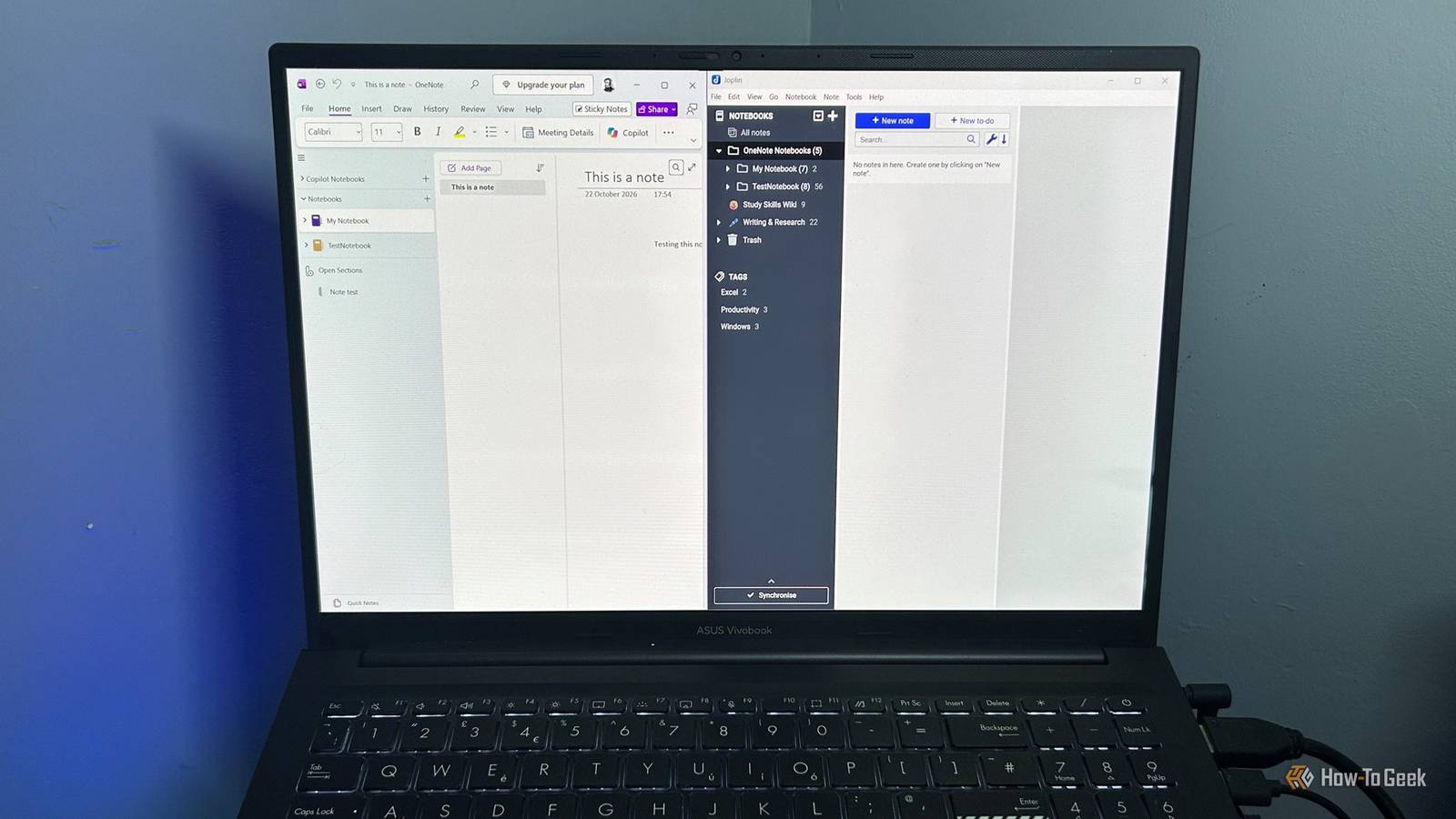
Published Oct 25, 2026, 7:01 AM EDT Tony Phillips is an experienced Microsoft Office user with a dual-honors degree in Linguistics and Hispanic Studies. Prior to starting with How-to Geek in January 2024, he worked as a document producer, data manager, and content creator for over ten years, and loves making spreadsheets and documents in his spare time. Tony is also an academic proofreader, experienced in reading, editing, and formatting over 3 million words of personal statements, resumes, reference letters, research proposals, and dissertations. Before joining How-To Geek, Tony formatted and wrote documents for legal firms, including contracts, Wills, and Powers of Attorney. Tony is obsessed with Microsoft Office! He will find any reason to create a spreadsheet, exploring ways to add complex formulas and discover new ways to make data tick. He also takes pride in producing Word documents that look the part. He has worked as a data manager in a secondary school in the UK and has years of experience in the classroom with Microsoft PowerPoint. He loves to encounter problems in Microsoft Office and use his expertise and legal-level training to find solutions. Outside of the Microsoft world, Tony is a keen dog owner and lover, football fan, astrophotographer, gardener, and golfer. Finding a good alternative app is the easy part. The hard part is deciding what to do with everything you're leaving behind. Years of OneNote notebooks can hold everything from recipes and saved links to work notes you still need. The good news is that moving them into Joplin is easier than you might expect. Why switch from OneNote to Joplin? Joplin gives you more freedom With Joplin, you decide how your notes are stored and used. It's free and open-source, and you can organize your collection using notebooks, sub-notebooks, and tags. I've found Joplin useful for much more than keeping research notes. I can draft entire articles in it, structure my writing with headings and lists, attach supporting files, and turn notes into to-do lists with deadlines. Its Markdown support makes it a comfortable writing environment, while plugins let me add functionality to suit my workflow. Synchronization is another advantage. Joplin can keep your notes consistent across devices using OneDrive, Dropbox, Nextcloud, and other options. You can also export notes into formats such as Markdown, HTML, and PDF, giving you flexibility over how you use and preserve your information. Of course, you don't have to use every feature. If all you want is a home for your recipes, saved web pages, and everyday notes, Joplin does that nicely. If you're ready to make the move, here's how to bring your collection along. Import OneNote notebooks from the web Download multiple notebooks at once If you keep your OneNote notebooks in a personal OneDrive account, you can bring one or more of them into Joplin without exporting every page individually. You'll need Joplin 3.5.1 or later, and you'll do the actual import using Joplin's desktop app. This web-based method may run into problems with notebooks larger than around 2–4GB. If you've accumulated a particularly hefty collection over the years, or the download doesn't work as expected, try exporting it from the OneNote desktop app instead. This alternative requires Windows, as explained below. Open OneDrive in your browser and locate the folder containing the OneNote notebooks you want to move. Check My Files > Documents > OneNote Notebooks first, as this is a common location. If your notebooks are stored in different folders, though, right-click each one, select Move to, and move them into the same folder before downloading. Open the folder to double-check everything's there, then click Download to save it as a ZIP file. Wait for the download to complete, then open Joplin on your computer and select File > Import > ONE - OneNote Notebook. Choose the ZIP file you downloaded from OneDrive, click Open, and let Joplin import the notebooks it contains. Once the import finishes, you'll find a notebook named after the folder you downloaded, with each imported OneNote notebook nested inside it as a sub-notebook. Browse the imported notebooks and make sure the things you rely on made it across. In my testing, Joplin failed to import a password-protected section, reporting an error with the section's data. Check any protected sections separately, and don't delete your original notebooks until you've confirmed that everything important has made it across. Import notes from the OneNote desktop app Export notebooks one at a time You can also export your OneNote notebooks directly from the Windows desktop app, provided you're using Joplin 3.5.5 or later. The only downside is that there isn't a way to transfer all your notebooks in one go like you can with the web method—you have to do them one at a time. First, make sure you're using the right version of OneNote. The desktop app has an Export option under its File menu, but OneNote for Windows 10 is a different app and doesn't follow these instructions. If you're unsure which version you have, check Microsoft's explanation. Select the notebook you want to export. Then, click File > Export, select Notebook from the Export Current list, choose OneNote Package (*.onepkg) from the Select Format list, and click Export. Save it somewhere you can find easily. Notebook packages (*.onepkg) can only be imported into Joplin on Windows. If you're using Joplin on macOS or Linux, or prefer to move your notes in smaller batches, export individual sections instead. In OneNote's Export menu, select Section, then choose OneNote 2010–2016 Section (*.one/*.onex) as the format. Save the file, then import it into Joplin using the steps below. Repeat this process for each section you want to move. Alternatively, use the web-based method described above, which doesn't require the OneNote Windows desktop app. Whether you've exported a notebook or an individual section, open Joplin and select File > Import > ONE - OneNote Notebook. Find the file you exported from OneNote, click Open, and let Joplin handle the import. Repeat these steps for each notebook or section you want to transfer. When the imports have finished, take a little time to poke around your newly migrated notes. Check that your notebooks and sections look the way you expect, and open a few notes with tables, drawings, or attachments to make sure everything came across. It's easier to leave Microsoft behind than you think Moving your notes is a good first step if you're looking to leave more of Microsoft's ecosystem behind. Free and open-source alternatives like LibreOffice and ONLYOFFICE can open many of your existing Office files, while Thunderbird can connect to your existing email accounts. You don't have to replace everything at once. Start with the Microsoft apps you most want to leave behind, and see how well the alternatives fit your needs.
Don't let years of OneNote notes stop you from switching to Joplin
Full Article
Original Source
Read the full article at Howtogeek →KhanList aggregates and links to publicly available news content. We do not host full articles from third-party sources. Always verify important information with original sources.