
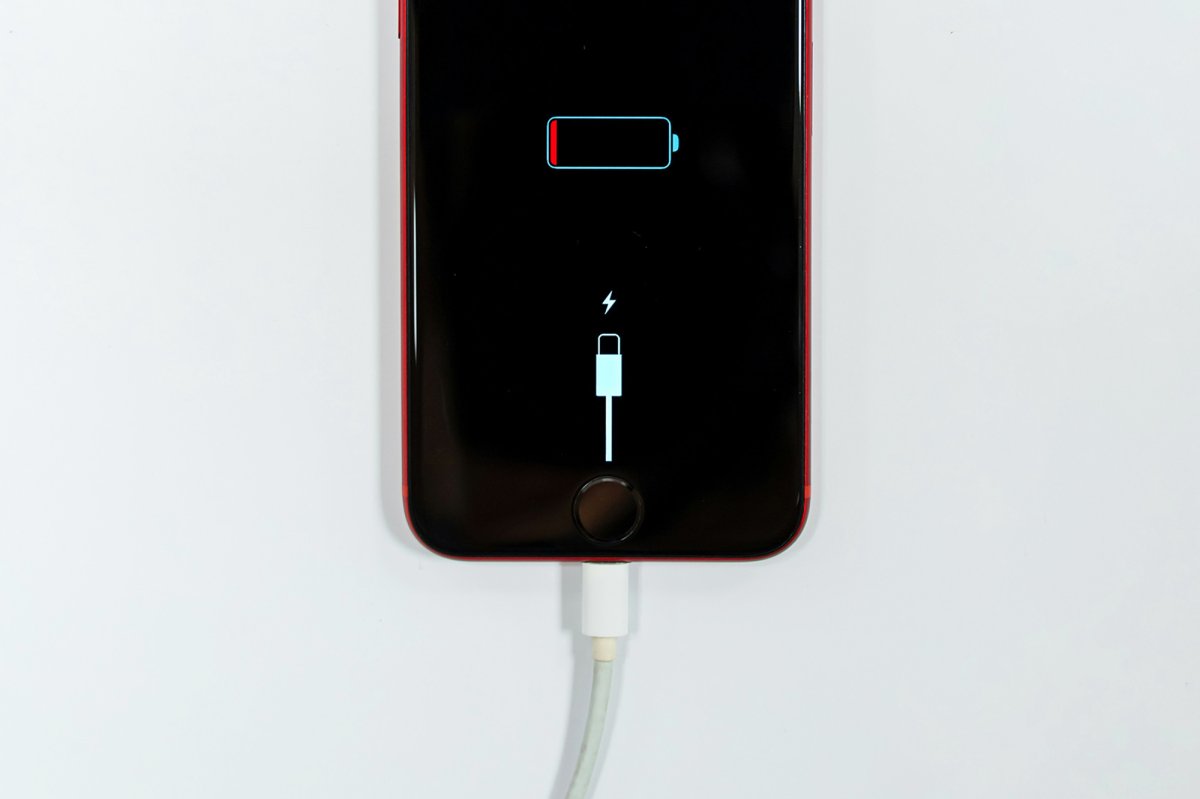
Many of us have a nightly ritual of charging our phones. Wengang Zhai/Unsplash Everyone’s nighttime routine is different: Perhaps yours involves crosswords, hot milk, doomscrolling, putting the pets to bed, setting out breakfast for the morning, or none of the above—but a habit many of us have picked up over time is putting our phones on to charge overnight. It makes sense that you want a fully charged smartphone ready and waiting for you as you face another day, and if you don’t charge your phone overnight, you run the risk of having to scramble around for a plug socket somewhere. It’s a good habit to have, but it’s also a habit you can add a few selected upgrades to. Set charge limits Setting charge limits on iOS. David Nie As phone manufacturers will tell you, charging your phone to 100 percent every time can reduce its overall lifespan over time. It’s not dangerous to do this, and it’s partly personal preference, but it does mean your phone battery will wear out sooner than it ordinarily would. You can combat this by setting charge limits on your phone: 80 percent is typically the recommended limit. On an iPhone, go to Settings and tap Battery > Charging to choose a limit between 80 and 100 percent. On a Pixel, it’s Battery and charging > Charging optimization in Settings; on a Galaxy, it’s Battery > Battery protection in Settings. This does mean you have less battery life to get through the day with, so you might want to vary this setting from day to day—you can easily set the limit back to 100 percent when you know you’ll need a full battery in the morning. Control your notifications Your phone may already have a ‘sleep mode’ set up. David Nield You don’t want your phone pinging and buzzing all the way through the night—it’s bad for your sleep quality, and slows down recharging too—and some careful control of your notification settings can ensure you’re not disturbed overnight. Most phones now let you set specific Do Not Disturb routines for overnight, so you can quieten the majority of notifications while still letting through calls and texts from the most important people in your life—just in case they need you. You can set the specific times the rules are applied, too. From Settings on an iPhone, pick Focus to start making changes and customizing your rules. In the Settings screen on a Pixel, it’s Modes, and on the Settings screen on a Galaxy phone you want the Modes and Routines menu entry. Keep yourself safe Look out for a fast charging mode on your phone. David Nield You shouldn’t have to worry about your phone catching fire while it’s charging overnight—modern handsets (and charging plugs) are packed with a range of safety features to stop this from happening—but it’s still very much worth putting precautions in place. Make sure you’re using a charger that’s officially approved to work with your phone (the manufacturer should offer one, which is ideal). If your handset has a quick charge mode, it’s worth turning this off overnight—these modes often generate more heat, and you’re in no rush if you’re recharging while you’re asleep. The environment matters too. While your phone is charging, keep it in a cool and dry place as much as possible, away from other electronics and in a spot where there’s enough ventilation. If your phone is in a case, it’s a good idea to take it out while it’s charging. Get ready for the morning Use the Shortcuts app on iOS to set up routines for the morning. David Nield Making preparations for the morning during the evening before can save a lot of time after you wake up, whether it’s getting food ready or laying out your work clothes, and these principles apply to your phone as well. When you’re setting it down to charge for the night, give some consideration to how you’d like to wake up. You might not have realized it, but your phone can automatically read out the forecast, give you the news headlines, or turn on your smart lights when you wake up in the morning—in some cases, you can associate these actions with silencing your alarm, so they happen as soon as you wake up. This is handled differently on different phones, but the routines are easy to set up: Head to the Shortcuts app to create an automation on an iPhone, use the alarm settings in the Clock app if you’re on a Pixel (tap Routines under the alarm), or choose Modes and Routines from Settings on a Samsung phone. 2026 Popular Science Home of the Future Awards 39 products that will improve your everyday life.
Charging your phone overnight may be hurting it. Here’s what to do to fix that.
Full Article
Original Source
Read the full article at Popsci →KhanList aggregates and links to publicly available news content. We do not host full articles from third-party sources. Always verify important information with original sources.