
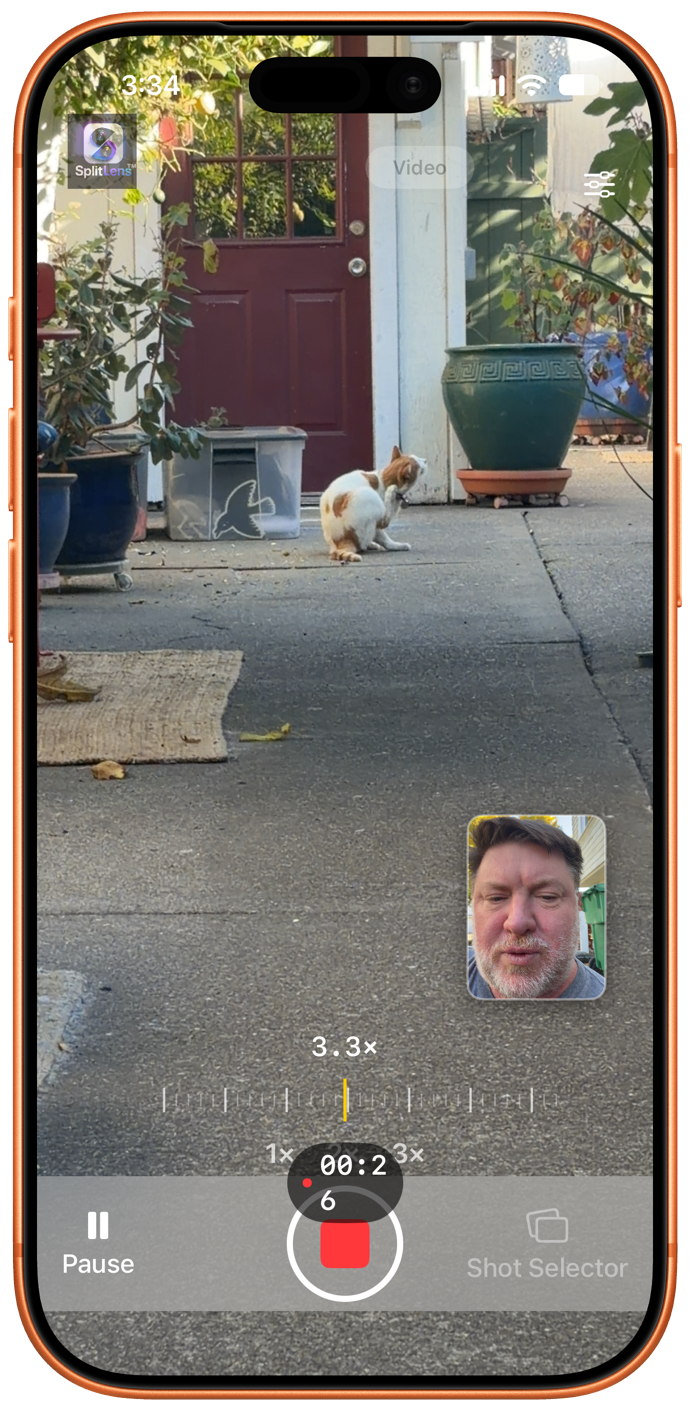
Let’s set aside the Mac this week and turn our app spotlight to the iPhone… and a more specific part of the iPhone at that — the camera. A few of the following apps promise to extend the capabilities of your iPhone’s cameras, even if you haven’t paid up for the more sophisticated setup found on the Pro models. As for the rest, they’ll help you manage the photos you wind up taking and storing on your phone. Do you have an app you’d like us to take a look at? Send an email to apps@sixcolors.com with a brief description — the app’s name, what it does and what it costs. We consider every app tip we receive, though due to the heavy volume, we won’t be able to respond to each and every email. Now let’s turn our attention back to the big picture of this week’s camera-focused apps. SplitLens Your iPhone comes with multiple cameras. SplitLens lets you use two of them at the same time to capture the same shot from different angles. Specifically, you can use SplitLens to shoot in Wide + Telephoto mode to capture the wider scene along with a close-up in one take. (In the case of my iPhone 17, the app uses the 2x optical-quality zoom built into the phone’s main camera.) Another mode lets you capture a portrait and landscape shot simultaneously, so that you can shoot horizontal and vertical video at one time. You can also record with the front and rear cameras simultaneously, either stacking the images on top of each other or using a picture-in-picture effect. You can use SplitLens in either camera or video modes, with the option of saving output from the different cameras to Photos as separate files or combined into a split-screen effect. Testing SplitLens, I was able to film my cat on a walkabout in my backyard while I narrated the scene from an inset captured by the iPhone’s Center Stage camera. You can download SplitLens for free and try it out for three days. Afterwards, you’ll need to pay for a subscription — either $5 per month or $50 for the annual rate — to use the app. According to the SplitLens site, those are discounts off the regular price. PhotoSynthesis Like SplitLens, PhotoSynthesis captures shots from two of the iPhone’s rear cameras at once, only here the focus is entirely on letting you produce shots that feature a detailed scene with a wider surrounding area. “Scope plus detail” is how the developer describes the resulting shot. On Pro models, you use either the zoom or ultrawide lenses to shoot alongside the main camera. When I tested with an iPhone 17, I used my phone’s main camera and the ultrawide shooter. The resulting image continued to look sharp even as I zoomed in on the detail area captured by my iPhone’s main camera. You get unlimited use of PhotoSynthesis for two weeks; after that, you can still capture and edit photos, though you’re limited to five exports in a month. A $3/month subscription removes all limitations, and you can also opt for an annual ($15) or lifetime ($50) instead. 36Frames 36Frames takes a more off-beat — and old-school — approach to augmenting your iPhone’s camera capabilities. Rather than bring cutting-edge capabilities to the camera, 36Frames takes you back in time to the days of film rolls and waiting to see how your pictures turned out. 36Frames in action (left); the author’s output (right). When you snap a photo with 36Frames, you don’t see how it turned out on your iPhone’s display. Instead, you continue to shoot photos until you’ve taken every last shot on your virtual roll of film. You then send the photo off to the lab to be developed — or at least, you do that virtually, with the app working in the background to produce the kind of grain and color rendering you’d get from the cameras of several decades ago. In a nod to verisimilitude, 36Frames can make you wait between two and five days before your pictures come back, though there is an express option that produces shots in an hour. Is this a lot of fuss to go through just to shoot a photo? Probably. But it’s also a bit of fun and certainly a break from the ordinary. While I wouldn’t turn to 36Frames for everyday photography, I could see using the app to enjoy some throwback fun or to give your images a stylized look. And yes, there is a bit of a thrill waiting to see if that photo of your cat turned out. When you download 36Frames, you get two free rolls of film — one in color and one monochrome. After you shoot those images, you can unlock the app with a one-time payment of $5. Piqt Now that you’ve shot all these photos, whether with the built-in Camera app or some of the third-party options mentioned above, how do you organize the many images stored in your Photos library? Piqt offers to take on that role by scanning your library and calling out the real keepers. I’ve got in the neighborhood of 1,500-plus photos and videos on my iPhone. Piqt went through them all and rated them using different criteria, including Apple’s own aesthetic model, a NIMA model trained on human-related images, technical quality, faces in frame and how often I shot in a particular location. All of this analysis, which took place on my phone, produced a score, with the top-rated images set aside as favorites in a Show Off folder. While Piqt seems to be more about resurfacing your best shots, it also helps clear up clutter by flagging duplicate photos, blurry shots and videos that take up a lot of space. There’s also a Clippings section to easily find things like screenshots and receipts that you’ve photographed for safekeeping. Browsing and scoring images in Piqt is free, but if you want to move favorited items back into the photo library, clear out duplicates or get rid of blurry shots, you’ve got to upgrade to a Plus license for $4/month or $30/year. And to be clear, items marked for deletion are put in a folder that you then delete from the Photos app — a safeguard Piqt adds that I appreciate. Ayer One of my favorite iPhone home screen widgets comes from Apple’s Photos app, which surfaces photos from my library so that I can rediscover old shots. Ayer looks to do much the same thing with a very specific focus — it brings up photos that you’ve shot on this same day, going back however many years your library stretches. You can view Ayer’s findings in the app itself, where you can scroll through a calendar to look at photos on particular days. But the app — which is an anagram of “Year” — also features a widget of its own for delivering on-this-day imagery straight to your home screen. If that doesn’t grab your attention, then Ayer’s price tag will: the app is a free download. PhotoFloor Last time, I mentioned DumpPixels, an app that helps free up space in your photo library by storing the text from screenshots so that you can toss the images themselves in the trash. That same developer also makes PhotoFloor, which has the same end goal of freeing up library space but a different target. PhotoFloor pinpoints the files taking up the most room like videos, screen recordings and screenshots. PhotoFloor skims your library, separating out videos and screenshots into separate lists. You can then go through each list and mark off the ones you want to delete. Of course, if you want PhotoFloor to handle the actual deletion, you’ll need to pay the one-time $20 fee to unlock the full app. If I have a complaint about the app, it’s that PhotoFloor only shows a thumbnail of the things it wants to delete, with no ability to play back videos or zoom in on screenshots. It also doesn’t list the dates, just the file sizes. I have a lot of videos of my daughter on my phone, some of which are worth keeping and some of which are just brief snippets of us being silly. I wish PhotoFloor made it easier to tell which was which. Nevertheless, since you can download PhotoFloor for free and have it scan your library, you can get a pretty good sense of whether its approach to video management fits your needs before paying to unlock the full app. [Philip Michaels has been writing about technology since 1999, most notably for Macworld and Tom’s Guide. He currently finds himself between jobs, so if you need someone who can string a few sentences together (or make your sentences read a lot better), drop him a line.] If you appreciate articles like this one, support us by becoming a Six Colors subscriber. Subscribers get access to an exclusive podcast, members-only stories, and a special community.
App Report: Picture perfect
Full Article
Original Source
Read the full article at Sixcolors →KhanList aggregates and links to publicly available news content. We do not host full articles from third-party sources. Always verify important information with original sources.