
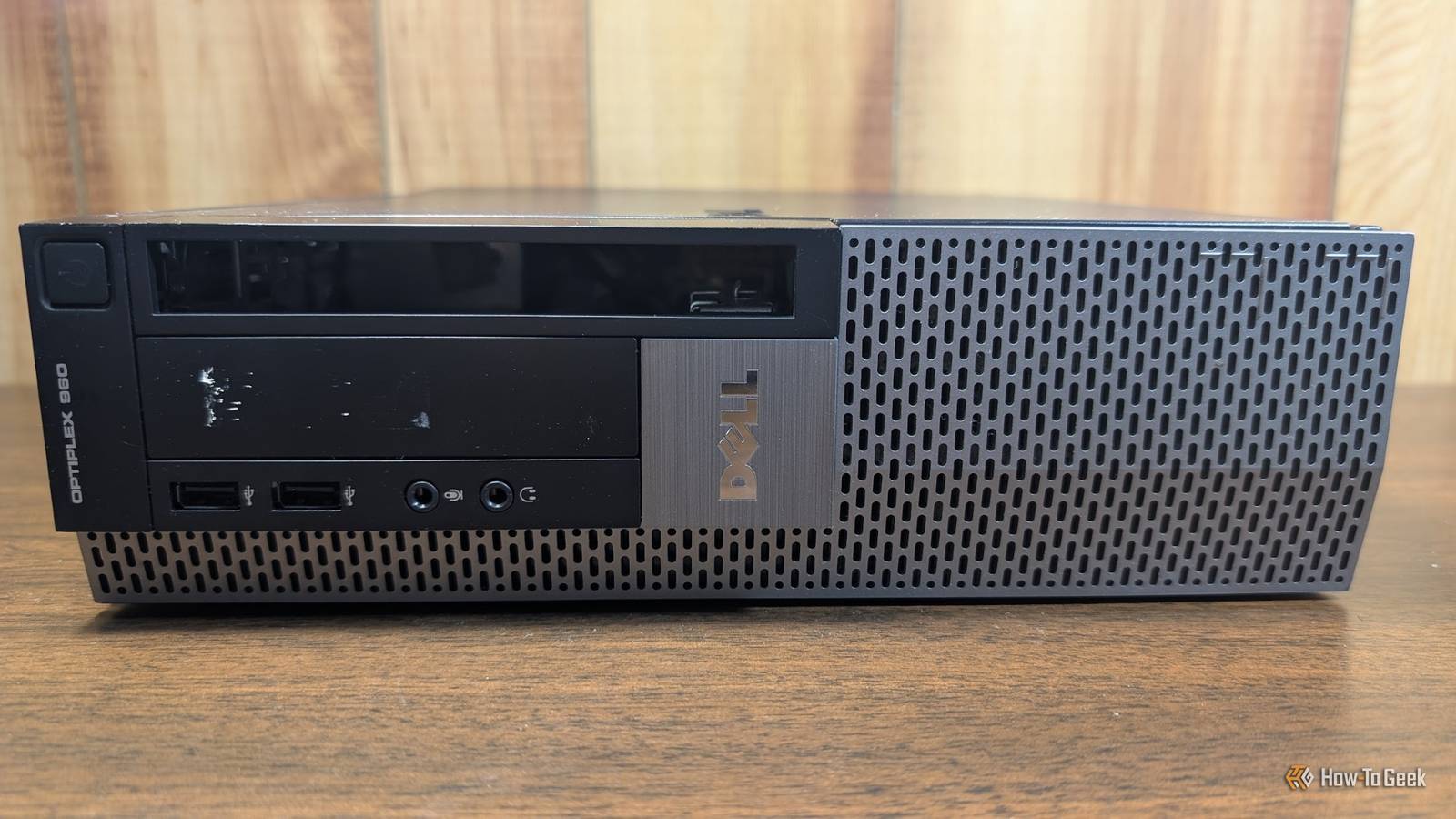
Published Oct 25, 2026, 11:30 AM EDT Ismar is a Senior Author at How-To Geek. He previously worked as a writer, editor, and general manager at a content agency before joining the team in 2023. He began his writing career in 2021 after completing a BA in English Language and Literature. Beyond How-To Geek, Ismar has contributed to Red Stag Fulfillment and Authority Hacker. He has also worked on various SEO projects to help clients improve their search visibility. Ismar has been around Windows PCs since the age of three, so friends and family naturally chose him as the resident tech support. His projects often involve tinkering, such as disassembling mechanical keyboards and gaming mice to mod his beloved gear. He also enjoys pushing hardware to the max through overclocking while staying on a reasonable budget. An avid gamer, Ismar has logged thousands of hours across various genres, including first-person shooters, RPGs, racing games, and roguelites. When he is not at his desk, he is probably exploring other people’s phones to discover their quirks and features or experimenting with the latest AI tools. In his free time, Ismar enjoys spending time with his wife, working out at the gym, playing guitar and bass, cooking gourmet meals, and traveling. Above all else, he’s a proud cat owner. When people think of homelabbing, they often picture endless racks of servers and tangled cables. In reality, a $50 refurbished office PC can be all you really need to start self-hosting apps on a home server. But before spending your money on one, run through this checklist to make sure you're actually getting a good deal rather than buying e-waste. Make sure the processor can handle everything you want to run An old Core i7 isn't always better than a newer Core i5 One of the most important parts of a home server is the CPU that powers it. Depending on the workloads you want to run, you might need considerable processing power for demanding tasks such as running VMs, small local LLMs, and machine-learning workloads like Immich's Smart Search. Of course, you can't expect much from an old $50 office PC in the first place, but at the very least, check whether the CPU supports hardware virtualization if you plan to run VMs. You don't need a powerful 6-core CPU to run lightweight services like AdGuard Home and Home Assistant, which can run on something as modest as a Raspberry Pi. However, running multiple services at once adds up. An older 4-core Intel Core i5, or a suitable Core i7 with Hyper-Threading, can provide useful headroom for these tasks. The exact CPU model and generation matter, too, not just the branding. Another major plus is an Intel CPU that supports Quick Sync Video for hardware-accelerated transcoding. This is a big advantage if you're building a Jellyfin or Plex media server. Check how much RAM the motherboard has and supports before buying RAM upgrades can make a cheap office PC much more versatile Aside from the CPU, RAM is another critical component that dictates how much work the office PC can handle before it grinds to a halt. While you can run a basic homelab with as little as 2GB of RAM, having more gives you extra headroom to run additional services. The generation matters, too. For $50, you should be able to find a PC with at least DDR3 RAM — assuming it hasn't been previously removed to be sold separately. I had no trouble getting around 15 lightweight self-hosted apps running on my old 4GB laptop home server, but it got less and less reliable as I continued to tack more services onto it. By the time I had 25+ Docker containers running simultaneously, my laptop started freezing every other day. 8GB is a pretty solid starting point, and if you plan to run multiple VMs, you might need even more. Don't sweat it if the office PC doesn't currently have 8GB of RAM, though. It's a pretty easy and often cheap upgrade to make on older DDR3 office PCs. That's why you need to check whether the motherboard has any empty RAM slots and, if you know the exact motherboard and CPU models, look them up to see how much RAM the system supports and how much you can add. Make sure the previous owner hasn't removed the storage Some refurbished office PCs arrive without a single drive Aside from RAM, storage drives are another common PC component that resellers sometimes remove before selling an office PC. So, don't assume the PC comes with an SSD or HDD just because the listing describes it as a working machine. You don't need all that much storage for a super-basic homelab, and it's something you can easily upgrade, but having a drive to start with is a nice bonus. If the PC lacks storage completely, make sure to factor the cost of a replacement into the price when comparing your options. Of course, if you also plan to use the PC as a NAS for storing media and backups, you're probably going to need to upgrade the storage anyway. Check how much expansion the motherboard offers Make sure there's room for all the drives and peripherals you plan to connect A big advantage of starting your homelab journey with a desktop office PC over something like a mini PC, NAS, or laptop is expandability. The motherboard's internal SATA ports, PCIe expansion slots, and possibly even M.2 slots all offer extra room for future upgrades, such as additional storage drives, a dedicated graphics card, or a network card. If the office PC uses a proprietary motherboard instead of off-the-shelf components, you may face limitations when upgrading it, so this isn't a spec you should overlook. The I/O ports on the back matter, too. Gigabit Ethernet should be the minimum, and extra USB ports are great to have. Even if you run out of room inside the case, you can always add external storage drives. You can also use the USB ports for things like Zigbee adapters, ESP boards, and other homelab peripherals. Check how much electricity it'll use if you plan to run it 24/7 Your $50 bargain needs to be cheap to run, too A homelab PC needs to stay powered on for most or all of the day, which is why many people leave their servers running 24/7. This keeps their self-hosted services running in the background and available whenever they're needed. However, this convenience comes at a cost that's reflected in your power bill. Don't just look at the TDP rating to estimate how much power the PC will consume, though. Try to find measured idle power consumption for the entire system, since it'll spend much of its time doing very little. Newer CPUs tend to be more efficient, and if you don't need much processing power to begin with, it can make sense to pick an office PC with a newer Core i3 and lower power consumption rather than a more powerful but older Core i7. Other PC components draw power, too, including the motherboard, RAM, storage drives, and cooling fans. A dedicated graphics card can considerably increase power consumption further, so take the whole system into consideration. Find the right used office PC, and you may not need to spend more for years A cheap office PC is an excellent starting point for your homelab, but it's important to pick the right one so you don't outgrow it after a few months of self-hosting. Who knows? If your needs don't grow too much over time, this little investment could serve you well for many years to come.
A $50 office PC can run your homelab, but check these 5 things first
Full Article
Original Source
Read the full article at Howtogeek →KhanList aggregates and links to publicly available news content. We do not host full articles from third-party sources. Always verify important information with original sources.