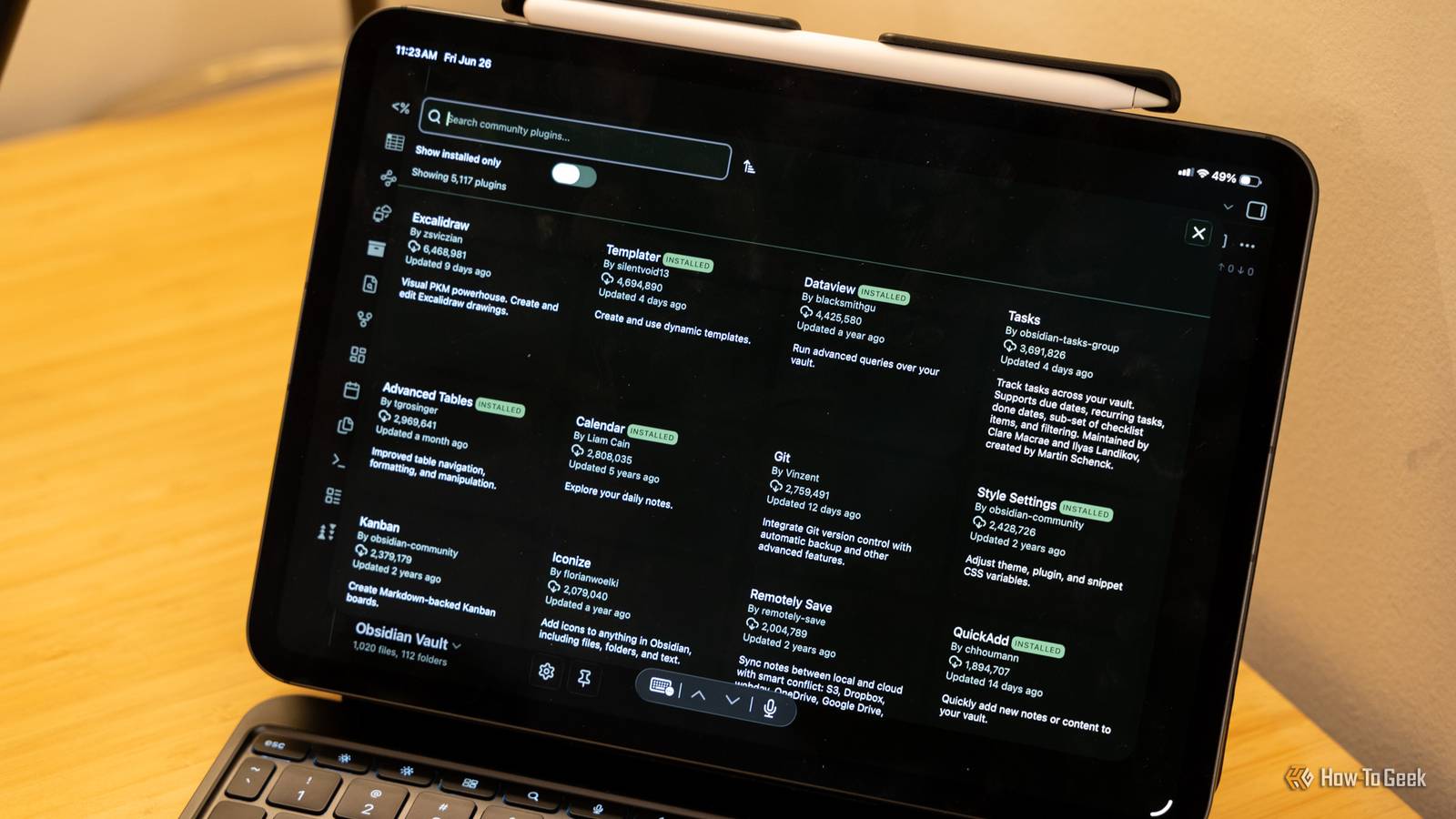
Published Jul 27, 2026, 10:30 AM EDT Faisal Rasool has been a feature writer at How-to Geek since early 2024. He brings years of professional experience in simplifying technology for his readers on topics like mobile devices, PCs, and online privacy. He tries to help people get the most out of their gadgets and software with the least effort. In his teenage years, he spent hours every day tinkering with Android phones and Linux builds. Faisal started his career at WhatMobile in 2019 (mostly out of his obsession with Android) where he published over 2,000 news stories. Currently, he contributes to the news section over at AndroidHeadlines. He also authored more than 100 feature articles for SlashGear, covering Android, iOS, Web, Chromebooks, online privacy/security, and PC content. Faisal has a Bachelor's in English literature, and loves to read and write. He also loves watercolors, retro video games, animation, and cats. These are some of my trusty community plugins Obsidian that I use daily on my phone and my computer. For readers who don't know, Obsidian is a markdown app where you can take notes, build knowledge libraries, draft and publish your writing, etc. You can use it vanilla too, but it's missing some critical features out of the box, which I patch with open-source plugins developed by the Obsidian community. Recent Files No need to dig through your file tree The vanilla Obsidian just gives you a scrollable file tree. It sort of works when you only have a handful of notes, but as your vault grows, this menu doesn't cut it. That's why you'll see most people using the command palette or keyboard shortcuts to pull up their notes. Most of the time, you'll be jumping between just a few notes anyway. The tree navigation will slow you down because you have to scroll past dozens or hundreds of notes just to find the right one. The Recent Files plugin shows a handy menu of recently opened files and saves you the trouble of scrolling. Slurp "Slurp" web pages into your vault You don't need a separate website or extension to save pages to read later, if you have Obsidian. All you need is the Slurp plugin, which takes the web page URL and creates a nicely formatted markdown file from it. It strips away all the ads and visual clutter, leaving you with a neat and readable Obsidian note. Slurp does more than just save a link to read for later. The "slurped" note preserves the formatting, links, image thumbnails of the web page. It even saves the metadata of the article, like the author byline, the site where it was published, date of publication, links, tags, etc. You can then edit this web page inside Obsidian like a normal note or even mention it in links. Notes Refactor Plus Create a new note from a text selection Part of my work is writing drafts based on ideas I've captured in my notes. Normally, I would create a new note for the draft. Then I would link it to the note where all my ideas are saved. Creating interactive links on that note keeps all my work drafts in one place. Since I create and link a lot of these notes every day, I wanted a way to just select some text and have it create a new note with the text selection as the title. Notes Refactor Plus does exactly this job. Just select some text, right-click, and select Extract to auto-create a note with the selected text turned into the title. You can also choose whether to include the selection as the first line of the new note. LiveSync Sync notes between devices for free This plug-in isn't for everyone but I install it wherever I have Obsidian. Normally, you need an Obsidian subscription to sync notes between devices. Instead of paying Obsidian, I've assembled a free system that syncs changes between notes in real time. The changes show up on other devices as you type. Credit: obsidian-livesync/GitHub Whatever you type on one device will show up at the same time on other devices too. It requires access to a server (virtual private server, a home server, or anything that can run the CouchDB backend 24/7). You'll have to do some technical work, but it's just as good as Obsidian's official sync. The documentation for the setup process is available on the project's GitHub repo. Natural language date Type dates and times normally One thing that has always bugged me about Obsidian is that it makes you type out the date and time. The Natural Language Date plugin easily lets you create date and time stamps using natural language. Want to write the current date and time? Just type @now and hit Enter. String dates and times together, type something like @next Friday 7 pm and hit Enter. It's wonderfully practical. Iconize Make beautiful notes with icons! This plugin adds a selection of icons and emojis to your Obsidian editor. You can add them anywhere you can type text and beautify your notes. To insert an icon inside the editor, type : and then li followed by the icon keyword. All the icons in the Iconize plugin library have the prefix li for pulling up the line icons. Obsidian doesn't accept the colon as a valid character in the note titles. However, you can "iconize" note titles in the navigation tree by right-clicking on a note and selecting Change Icon. The Obsidian community gives you a huge collection of free plugins, but I keep coming back to these 5. To me, the best kind of plugin adds missing functionality which should have always been part of the app. Other than the live sync feature, which can be obtained with the $5 or $10 a month Obsidian subscription, vanilla Obsidian lacks all the features these plugins nicely provide.
5 open-source Obsidian plugins I can't live without
Full Article
Original Source
Read the full article at Howtogeek →KhanList aggregates and links to publicly available news content. We do not host full articles from third-party sources. Always verify important information with original sources.