
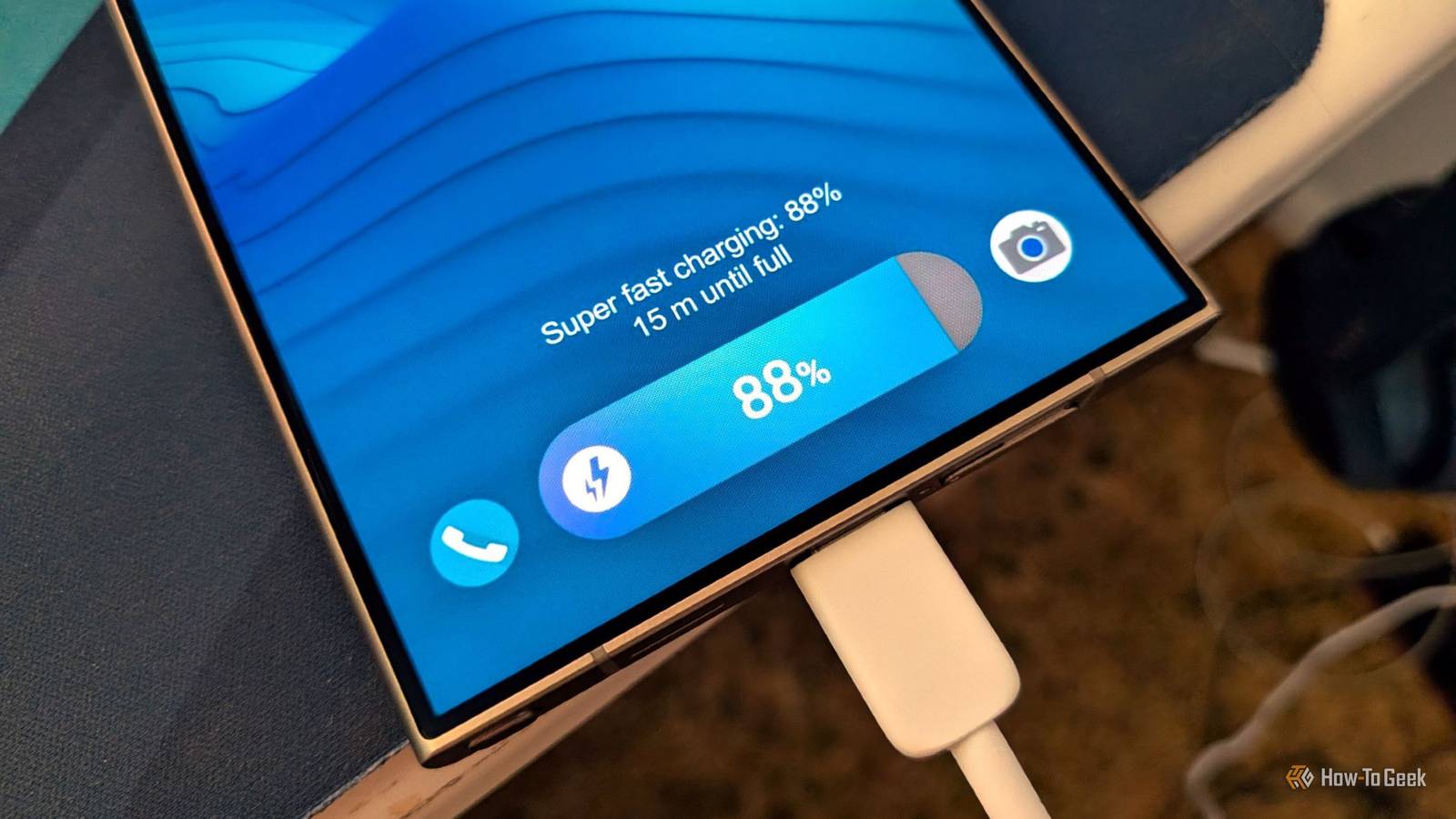
Published Oct 8, 2026, 9:00 AM EDT Ever since he got his first smartphone, the legendary Nokia 6600, back in 2005, Goran became obsessed with technology. This obsession had only gotten worse after he received his first gaming PC a couple of months later. He fell in love with video games in the early '90s, shortly after embarking on his gaming journey with the Sega Master System II and SNES. Since then, he has built dozens of PCs, played thousands of games, and authored hundreds of articles about PC hardware, gaming hardware, and video games. He knows everything there is to know about the PC gaming and PC hardware space, and while his console gaming knowledge isn't as comprehensive, he considers himself a console veteran. Goran has almost a decade of experience writing about tech and video games for numerous web publications including TechSpot, TechPowerUp, and EsportsHeadlines. He has been writing for How-To Geek since December 2022. When he isn't gaming or deciding which component of his PC to upgrade next, you can find him strolling around Novi Sad while listening to music and contemplating what to play next. If you're a longtime Android user, you've probably heard some of the "must-follow" rules that every Android phone or tablet owner is supposed to stick to. While some of them hold up, like the idea that your phone's battery will degrade more slowly if you keep it charged between 30% and 80%, or that some apps can drain your battery if you let them freely access your location, there are a number of other myths that are just that: myths. They simply aren't true, and they should be banished from the collective mindset of Android users once and for all. You should manually close apps to free up RAM and save battery This has never been true Your phone can manage RAM on its own, and it will only kill background apps when it needs more space. Idle RAM is wasted RAM, and since phone memory uses about the same amount of power whether it's empty or full, manually closing apps that sit in the background won't save you any battery. In fact, doing so causes more harm than good. That's because once you close an app from the recent apps screen or by tapping the magic "clean" button in your favorite performance optimization app, your phone has to work extra hard when you open it again. Instead of staying in RAM, which means it needs fewer resources to fully open once you tap its icon, the app will be fully closed, and your phone's CPU will have to load it from scratch. Not only that, but your phone also has to load the app back into memory, which uses more power than leaving the app running in the background. Beyond using more resources, including battery, to constantly cold-start apps you've manually killed, this can also break some apps. Many need to work in the background to deliver timely notifications, sync with the cloud or other devices (like a smartwatch), or provide regular updates, like live score or weather apps. That said, certain apps can drain your battery when left to run unrestrained. If so, be surgical: kill only the apps that waste battery, or better yet, disallow or restrict their background activity. For instance, on Pixel phones, you can go to Settings -> Apps, pick any app, tap App battery usage -> Allow background usage, and select Optimized instead of Unrestricted, which can lower the app's battery usage considerably. If you know that an app is a battery hog and you don't need it to work in the background, you can simply turn off the Allow background usage toggle altogether. Disabling Bluetooth and Wi-Fi saves battery The two features sip your phone's battery when enabled I was one of those people who thought Wi-Fi and Bluetooth should be turned off when not in use. However, after testing my battery life years ago with both left on all the time versus turning them off when I didn't need them, I found that they didn't use any noticeable extra battery while idle. Nowadays, I keep them on all the time and only turn off Wi-Fi — and mobile data — when I go to bed, because I don't want to receive notifications while I sleep. My phone's Bedtime mode has let a few emails slip through, so I don't trust it to block them completely. My findings are backed up by a MakeUseOf test, which found that leaving Wi-Fi and Bluetooth on used only 3.4% more battery over 24 hours than keeping them off. In other words, disabling Wi-Fi and Bluetooth when you're not using them saves you only a minuscule amount of battery per day. What can waste battery is keeping your phone connected to a weak Wi-Fi signal, since it has to work overtime to maintain the connection. In the same test, a phone connected to a weak Wi-Fi network used nearly three times as much battery as when both features were turned off. Of course, if you turn off Wi-Fi and Bluetooth for privacy reasons, that's fair game, but if you keep them off to improve battery life, you don't need to. Fast charging your phone will damage its battery It will degrade it, but at about the same rate as slow charging Another widespread myth is that fast charging your phone degrades your battery faster than slow charging. This is technically true when it comes to iPhones, since fast charging degrades their batteries about half a percentage point more than slow charging after 500 charge cycles, as shown by the HTX Studio YouTube channel. That said, the Android phones they used for testing actually had their batteries degrade a tad less with fast charging than with slow charging. This means your phone's battery will degrade at about the same pace over time, whether you use slow or fast charging. In other words, feel free to fast-charge your phone; it will top up much faster without its battery degrading any faster. You need to use an antivirus app on your phone Your phone already has a built-in antivirus app You probably didn't know this, but your Android phone has a built-in antivirus app. Google Play Protect is part of Google Play services, which means it's built into your phone, not just the Play Store. It scans every app you install via Google Play for malware and also scans any app you sideload, keeping your phone safe. Chrome also has Google Safe Browsing built in, which warns you about dangerous websites and downloads and helps prevent you from inadvertently installing malware. On top of that, Google releases monthly security updates, and your phone will get them as long as the manufacturer still supports it. That said, some vendors don't release every monthly update. Google provides monthly security updates to all Pixel phones it still supports, and Samsung does the same for its newer flagships, but many other Samsung phones only get them quarterly or twice a year. So, in general, if you're a regular Android user who has a relatively new phone that's still officially supported by the manufacturer, you really don't need an antivirus app. However, if you're running a custom ROM that doesn't include Google services, sideload a bunch of apps, or have an old phone that stopped receiving security updates a while ago, using an antivirus app might be a good idea. Bitdefender is a solid choice if you ask me. Your phone is smarter than you think; it's a smartphone, after all Some of the Android myths I've covered here, like the one that says you should manually close apps to free up RAM and save battery, have been around since Android's early days. Yet many people still swear by them, even though no evidence backs them up. The fact of the matter is that modern Android phones are much smarter than they used to be, and most of the time, they can manage their memory, battery, and security just fine without your help.
4 Android battery and security myths you should stop believing
Full Article
Original Source
Read the full article at Howtogeek →KhanList aggregates and links to publicly available news content. We do not host full articles from third-party sources. Always verify important information with original sources.