
Though other iPhone software updates can boast a greater number of changes, iOS 27 still marks a significant release for Apple, as it ushers in an overhaul of Siri that adds greater intelligence to the device you likely have with you at all times.Whereas past versions of Apple's assistant have struggled with basic queries, iOS 27's take on Siri delivers a more capable helper that can perform more tasks, find our more information and prove to be every bit as indispensable as the iPhone itself.Siri dominates any list of changes introduced by iOS 27, though it's not the only thing that the updated software brings to the table. Even if you don't have an iPhone that's capable of supporting Apple's AI features, you'll still find plenty to like about iOS 27.I've been using the software update since the iOS 27 beta debuted over the summer, and I've found plenty of new additions that have worked their way into my regular iPhone routines. Here are twenty iOS 27 features I'd recommend trying if you've got the updated software installed on your iPhone.Get the new Siri (Image credit: Future)If you've upgraded to iOS 27 and wonder why Siri doesn't look any different, there's a very simple answer — you've got to enable Siri AI.It's simple enough to do. Launch the Settings app, and select Siri. On the ensuing screen, you'll tap Try Siri AI (Beta), followed by Continue to confirm that you want to give Siri with Apple Intelligence a try. That adds you to the waitlist, but the wait shouldn't be too long — it only took a matter of minutes for a notification to appear on my iPhone that Siri AI was ready to use.Once Siri AI is active, the entire look of the on-device assistant will change, with a bubble-style interface that pops out from the top of your iPhone display. The dedicated Siri app will also appear on your home screen.Sign up to the Tom's iGuide weekly newsletter with coverage on everything from product launches to software updates, this is your go-to source for the latest updates on all the best Apple content.Not every iPhone that can run iOS 27 will support Siri AI. You'll need an iPhone 15 Pro or later, including the new iPhone 18 Pro models.Adjust the look of Liquid Glass Image 1 of 2 (Image credit: Future) Introduced with iOS 26, Apple's Liquid Glass is here to stay. But iOS 27 makes the not-always-beloved interface a little bit easier to tweak to your liking.From Settings, tap Appearance, followed by Liquid Glass. On the next screen, you see an image of Apple Park beneath a search field; just below that is a slider. You can then slide it to the left to make the search filed look more transparent, while sliding to the right adds more contrast between on-screen controls and content.Any adjustments you make will be reflected once you leave Settings and resume using your iPhone.Get info from Siri directly from the Camera (Image credit: Future)The Camera app in iOS 27 now offers a Siri mode alongside the standard Photo and Video toggles where you can point your camera at an object, touch a button and get information about what Siri sees. I've used the feature to look up the specific name of hardware items so that I can ask the clerk at the store to help me find the right part; Siri can also let me know about different cat breeds.This is essentially an update to the Visual Intelligence feature that was available previously on iPhones that supported Apple Intelligence. It's a much better experience in iOS 27.Have Siri organize your Safari tabs (Image credit: Future)You've been able to group tabs together in the iOS version of Safari for a while now, but up until iOS 27, the burden of doing that has fallen on your shoulders. If you've got an iPhone capable of supporting Safari AI, though, iOS 27 lets you shift some of the responsibility to your on-device assistant.Within the Safari app, tap the overlapping windows icon next to the URL/search field, and then select the filter button at the top of the screen. (It's the one that features three lines stacked on top of each other.) Select Organize Tabs, and choose the Automatically Create Topics option. Safari will then group related tabs together in a more easy-to-manage window.For instance, I've got a number of open tabs to articles about college football for a project I'm working on. Safari has automatically grouped those together into a College Sports for quick access.Get better search results in Mail (Image credit: Future)Finding older emails on the iPhone used to be a hit-or-miss affair, but matters seem to have improved in iOS 27 Mail thanks to a new ranking system. According to Apple, relevant results now appear at the top of your messages, and you can further refine searches to drill down to the result you need.As an example, when I type "Disneyland" into Mail's search field, my top results include email about a trip I previously took but also issues of an email newsletter I write that mentioned the park.Set different alarm and alert volumes (Image credit: Future)In previous versions of Apple's iPhone software, alarms and alerts arrived at the same volume as ringtones. That's changed in iOS 27.Head to the Sounds & Haptics screen in Settings where you'll find toggles for Alarms and Volumes as well as Alerts and System Sounds. Turning those toggles on lets you independently adjust volumes. I like my alarms to be good and loud, for example, but I find the pings from incoming alerts to be a bit distracting. So I've lowered the volume on those.One note about changing the Alarms and Timers volume: It won't affect the volume of the Wake-Up Alarm if you've opted to enable that feature in the Clock app.Pin camera controls to the top of the Camera screen (Image credit: Future)If you've got a go-to camera control that you're always adjusting, iOS 27 lets you make sure that it's always close at hand. You're able to pick and choose the controls that sit above the camera frame for easier access.In the Camera app, tap the Camera Control button — the stack of six dots that sits next to the shutter button. From there, click Edit and then select the tools you always want at the top by tapping the plus button next them. There's space for six controls, and tapping the minus button removes the ones you don't need to be readily available.As an example, I've added the aspect ratio control — represented by the [4:3] icon — so that I can easily change the size of my shots without having to dig into the Camera app's controls.Shift the perspective of your photos (Image credit: Future)Smarter AI tools in iOS 27 bring new editing features, and one of the best is Reframe, which allows you to move around the angle of a photo to produce a more striking shot. It's a great tool if you want to take some of the guesswork out of framing your subject since you can always adjust things after the fact.In the Photos app, go into editing mode and tap the AI Tools Icon on the bottom of the screen. Reframe is one of the three AI-powered options available along with Reframe and Clean Up. (More on that latter tool in a moment.)Once you select reframe, you'll be instructed to drag your finger around the screen to readjust the perspective of your shot. The built-in AI takes over from there, shifting things around and cleaning things up for a different take on your original image — like shifting the angle on the statue in the above example. (Image credit: Future)Apple has made a number of changes to the iCloud Shared Albums feature in iOS 27, highlighted by the fact that even people without an Apple account or device can now contribute to your album. That lets Android and Windows users join in on the fun. If you prefer, you can also create temporary shared albums that disappear after 30 days — ideal for short-term collaborations.Photos and videos in Shared Albums can now appear at full resolution, though that counts against the iCloud storage limits of whoever owns the album. There are more ways to react to photos as well, thanks to new emojis.Have Siri help you out while cooking (Image credit: Future)Among the benefits of having smarter AI on-board your iPhone is that Siri now can recognize what's on your screen and answer questions about it. If you're like me and cook a lot of recipes you find online, you'll see the benefit of this new capability right away.Now, when I forget how much of an ingredient I need to use or what temperature the oven needs to be, I don't have to scroll across my iPhone screen with my food-covered fingers to find the right spot on the open Safari tab. I simply say, "Hey Siri, how much celery do I need to chop," and I can ask follow-up questions like "And how much red onion" without stumping the assistant.Put your Apple TV remote on your iPhone's home screen (Image credit: Future)You probably knew that you could operate your Apple TV from the Control Center on your iPhone via a handy icon. But iOS 27 takes that functionality out of the Control Center and moves it to the Home screen.If you swipe down from the Home screen and search for Remote, you see a remote icon appear in the search results. Press it and hold, and you'll be able to drag it straight to wherever you want it on your home screen, meaning that controlling your set-top box is simply a tap away.Use Siri to create a shortcut (Image credit: Future)Shortcuts is a powerful app that a lot of us don't take advantage of for the simple reason that building automations step by step can be a bit intimidating. iOS 27 removes some of that barrier by letting you describe the shortcut you want, and having Siri build it for you.Just launch the Shortcuts app, tap the plus button at the bottom of the screen and either type or dictate your idea for a shortcut in the field provided, whether it's to text someone your ETA when you leave work or to email and then delete screenshots the moment you take them. Siri might ask you a few follow-up questions, but the grunt work of piecing your shortcut together happens entirely in the background.Check out Siri's understanding of personal context (Image credit: Future)One of the big improvements in Siri AI is that it understands your personal context — but what does that mean exactly? In essence, it means that your on-device assistant knows the things that are on your phone and can use that knowledge to provide relevant answers and actions.I have an entry in the Notes app where I jot down the names of nearby restaurants I want to try. Searching through Notes to find that particular entry might prove difficult, especially if I've created a lot of other new notes since my last addition. In iOS 27, I can simply ask Siri to "show me the note that includes Oakland restaurants," and the assistant can track down exactly what I'm looking for.Have Siri create Calendar entries (Image credit: Future)Now that Siri's picked up new smarts for iOS 27, it's a lot easier to create events in the Calendar app. All you have to do is speak naturally like you would to a real-world assistant, and Siri will carry out what you ask.For instance, to block out time in the Calendar app, all I have to say is something along the lines of "Create an event where we'll be recording a podcast for two hours on October 17, and it starts at 7 p.m." Siri will put that event on my calendar, saving me the trouble of having to enter it manually. I may have to go in and tweak particulars, like people I want to invite or what calendar the event is assigned to, but just to be able to create the initial event with plain language is a real time-saver.Explore iOS 27's new child safety features (Image credit: Future)iOS 27 also delivers an extensive overhaul to Apple's parental control tools, including a setup assistant that helps parents decide on which apps and websites their kids can access. The existing App Limits feature has been rechristened Time Allowances, with parents determining how long kids can spend in Games, Entertainment, and Social Media apps, with the ability to fine-tune those limitations for different days of the week.To me, the standout additions to Apple's parental controls include Ask to Browse, which lets children ask permission via the Messages to access websites. It's essentially an extension of the existing Ask to Buy feature for downloading apps. I also like new streamlined controls in the Family settings that allow you to pause device use or allow unlimited usage without having to dig deep into the controls you've set up.One note about the revamped parental controls — every device you own has to be running the latest software from Apple for the new features to appear. That includes Macs and iPads, which need to be upgraded to macOS 27 and iPadOS 27, respectively.Better transitions between Wi-Fi and cellulariOS 27 focuses on a lot of under-the-hood improvements, which can be hard to quantify. But there's one change you should notice right away if you've ever been using your iPhone just as you leave the reach of your home Wi-Fi network. The updated iPhone software promises more seamless switching between Wi-Fi and cellular networks.And believe me — that's something I've noticed. Prior to iOS 27, I was always reluctant to look up directions from the passenger seat as my wife and I pulled out the driveway for fear that the activity beginning on our home Wi-Fi would hang the moment we turned the corner. Thanks to iOS 27, the switchover to my carrier's network is a lot less jarring. (Image credit: Future)Find My sees a few changes thanks to iOS 27, including some interface tweaks. But the biggest enhancement expands how long you can share your location with other people.In past versions of the app, you could share a location with somebody for an hour, a day or indefinitely. iOS 27 lets you fine-tune that, giving you the power to adjust the days, hours and minutes in which you share location. Just select Custom from the menu that appears when you go to share a location with a contact.In addition, Find My gains the ability to hide your location from anyone whom you've set to share with indefinitely. The person on the other end won't know that your sharing status has been disabled; they'll just be unable to get your current location for however long you remain hidden.Use multiple iPhone cameras during a FaceTime call (Image credit: Future)iOS 27 adds dual capture capabilities to FaceTime so that you can chat face-to-face with someone using your iPhone's front camera while the rear camera reveals whatever you’re seeing to the person on the other end of the conversation. You'll need an iPhone 17 or later to take advantage of the new feature, but it adds another dimension to video chats.To use Dual Capture, just tap your tile during a FaceTime call, and hit the Flip button. By default, both the front and rear cameras on the iPhone will start showing images. The person on the other end of the call will see what the rear camera is capturing, while the front camera's view of your face will shrink to a smaller square. If you only want to share the rear camera's video, tap the icon featuring a person with a slash through it.Use Siri in the Magnifier app (Image credit: Future)Siri's ability to see what your iPhone's camera sees doesn't stop with the Camera app. It extends to Magnifier, too, as you can ask the assistant for more details on whatever it is you're magnifying. This is great news for anyone with impaired vision or if you're me and don't have your reading glasses handy.Say I'm out in a restaurant and can't see what I need to pay thanks to a combination of tiny print on the bill and dim lighting. I can use the Magnifier app to get a look at the bill and ask Siri for the total.Find out what's trending in Maps (Image credit: Future)Most of us use Maps to get from one place to another, but Apple has been building up tools that help you discover new places in its mapping app. iOS 27's contribution to this effort takes the form of Local Lists, which pulls from map usage data to show you what's trending around you and what you might want to explore.Finding the Local Lists feature is as easy as typing "Local Lists" into the search field on Maps. In my area, there are guides for nearby cites that highlight kid-friendly spots, local attractions and lots of restaurants.In fact, restaurants seem to be a big focus for Local Lists, with the latest version of Maps even adding a Trending Restaurants carousel to its search tab. To find it, just scroll down the screen below your recent searches and suggested places. Follow Tom's Guide on Google News and add us as a preferred source to get our up-to-date news, analysis, and reviews in your feeds. More from Tom's GuideApple and AT&T confirm iPhone 18 Pro Max connectivity issues — here's why you need to go to an Apple or AT&T store to get a hardware replacementDon't rush into a new phone plan without checking their service first — these phone carriers offer free trialsYour iPhone secretly locks down after 72 hours — this forensic tool may have found a way around it
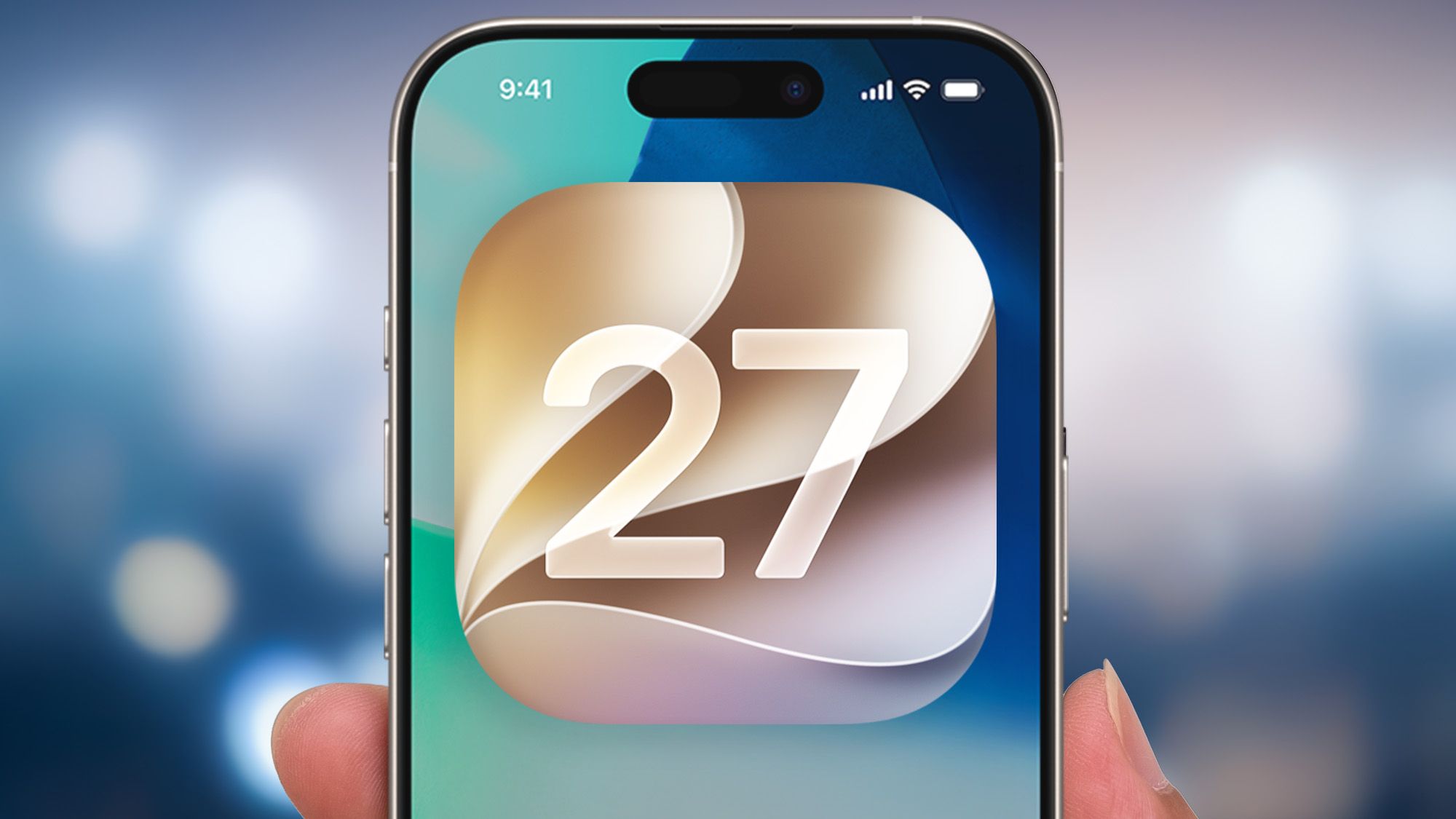
20 smart iOS 27 features that will make your life easier — and how to use them
Full Article
Original Source
Read the full article at Tomsguide →KhanList aggregates and links to publicly available news content. We do not host full articles from third-party sources. Always verify important information with original sources.