
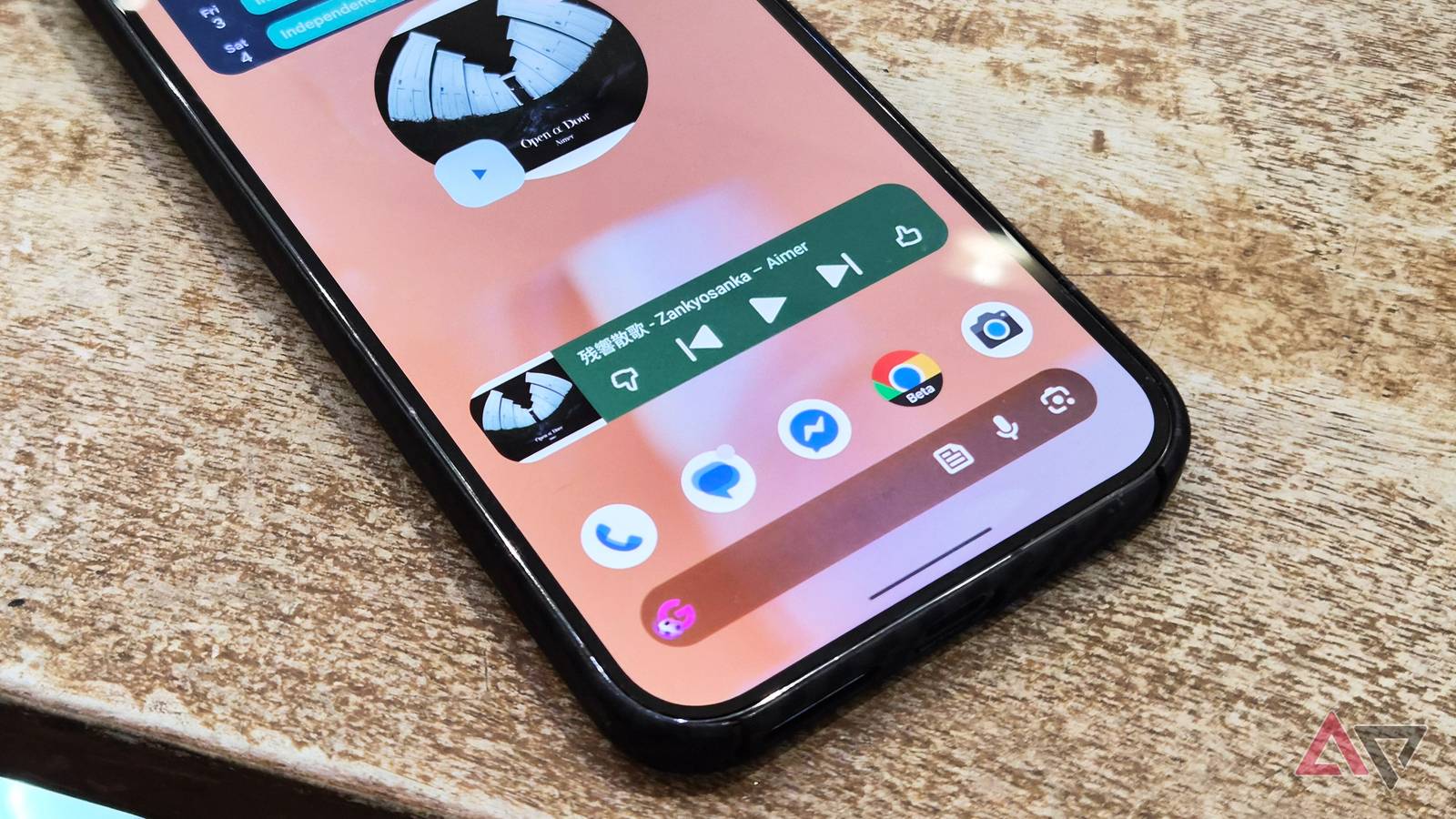
Published Aug 24, 2026, 9:30 AM EDT Irene Okpanachi is a Features writer covering Android devices, laptops, portable projectors, VR headsets, software, and AI recorders for Android Police and Talk Android. She has five years' experience across the Tech, E-commerce, and Food niches, with over 1,000 posts published. The Tech space is where she geeks out most, particularly Android. Irene holds certifications in Graphic Design (HerTechTrail), Writing in Plain Language (LinkedIn), and English for IT (Cisco Networking Academy). Beyond writing, Irene is a gamer, singer/songwriter, food lover, and a Jack of all trades. The streaming subscription model has finally become overwhelming for me. It was bittersweet giving up Deezer, Amazon Prime, and a handful of other subscriptions, but it needed to be done to manage my budget realistically. Music playback was the biggest casualty because I had to switch to the free tiers Spotify and YouTube Music offered. I've found the basic version is more than enough for me. More importantly, my Android phone has let me sidestep the one major feature I needed from paid tiers. These three features made it possible. I have floating windows on my home screen They showed me a more efficient listening experience YouTube Music Premium sells itself on ad removal, downloads, and background playback. But ads are momentary, and I can afford to spend data on streaming at a few kilobytes per second. Background playback is the most convincing subscription perk, in my book, because it decouples audio from the phone screen and supports multitasking. I stopped paying for it because Android gives it to me for free through floating windows. Floating windows rolled out on my Infinix phone with XOS 16 in early 2026. It lets me shrink full-screen apps into a small, resizable window when I swipe up with three fingers from the bottom of the screen. I can further collapse it into a small icon by dragging it to any side of my screen, and stack multiple apps there. It's reminiscent of Android 17's upcoming App Bubbles feature built for Google Pixel phones. If the swipe gesture doesn't work for you, go to Settings > Accessibility & Features > Floating Windows and enable the feature. I mainly use it to bypass the restriction that shuts off music the moment I switch apps. It works on YouTube Music but not YouTube itself. Because YouTube Music supports free playlist creation, I curate different playlists for different moods and occasions and let them run in the bubble while I work or go about my day. I mostly listen with earbuds when I'm out, in an Uber, or waiting somewhere, to tune out the surrounding noise. At home, I rarely play music this way. If anything, I watch a movie with my speakers. I did the math and discovered streaming services cost me $2.40 every time I opened the app. It was a lot for a $12-a-month subscription across the five days I realistically used it. It's not that I'm too cheap to let a few dollars go. Breaking the numbers down this way shows how much I was paying for one feature bundled into a dozen I didn't need. Although the floating window trick is impressive, it's not without its quirks. Locking my screen ends the background process. It took some muscle memory to stop accidentally closing the app. I got used to it eventually. I enjoy isolated sounds simultaneously Sometimes, you can have your cake and eat it too I can't collapse YouTube Music into a floating window bubble. But this limitation was easy to work around on my Samsung Galaxy phone using Separate app sound. The feature routes audio from one app to a different audio output while everything else on the phone plays through my phone's built-in speaker. I go to Settings > Sounds and vibration > Separate app sound and toggle it on. Next, I tap Apps. This menu lets me choose which apps route to my Bluetooth device instead of the phone's speaker. Preselected options include Google Chrome, Google TV, Samsung Browser, Spotify, TikTok, YouTube, and YouTube Music. But I can add more apps as long as they support this bypass capability. I usually select all the streaming services because I jump between apps unpredictably, and I don't want to keep reconfiguring the settings. Then I return to the Separate app sound menu and select Audio device to ensure my Bluetooth speaker remains the output for everything I picked. Selected apps aren't permanently locked to the Bluetooth speaker. The routing only kicks in after the external device is connected. Without one, sound defaults back to the phone. Regardless, whenever I'm enjoying songs at home or faux DJing at a friend's place, I can scroll through social media or reply to messages without accidentally blasting notifications in the middle of a jam. My browser doubles as a music player YouTube hates to see it coming As much as I love Chrome, it doesn't have everything I need. I supplement its shortcomings with other browsers. Brave is one of my favorites, and it's built on the same Chromium engine Chrome runs on. So, I'm not moving far from the familiarity of Google's ecosystem. Brave has a background play feature under Settings > Media. It keeps the audio playing when I switch to another tab or app. It works even when my screen is off, letting me enjoy my saved YouTube podcasts and hour-long videos. It's interesting because the only other way I'd known to get YouTube audio to play behind the scenes was through custom filters. I would add non-native scriptlet rules into Brave's ad-blocking engine using standard Adblock filter syntax. I once added two, where one forced background video playback, and the other disabled the page visibility API YouTube uses to detect when a tab goes inactive and pauses itself. Normally, I'm on the risk side of these things, but I'm becoming more cautious. It's not particularly illegal, but it sits in a gray area outside YouTube's Terms of Service. YouTube's help documentation states plainly that blocking its ads violates its Terms of Service. If you keep using an ad blocker, it may block your video playback. In repeated or severe cases, it may suspend or ban your account entirely. Leave wasteful entertainment behind YouTube Music is a versatile platform even without a plan, and my new streaming system largely hinges on its playlists. Even that has its quirks, but they're largely fixable when you find your way around them. For example, I switch off autoplay in its settings menu. It stops the app from forcing its own picks into my ears when my playlist ends. Outside the app, I continue looking for more features buried in my phone that work as substitutes for capabilities they were never intended for.
YouTube Music's free tier is enough now that I discovered these Android workarounds
Full Article
Original Source
Read the full article at Androidpolice →KhanList aggregates and links to publicly available news content. We do not host full articles from third-party sources. Always verify important information with original sources.