
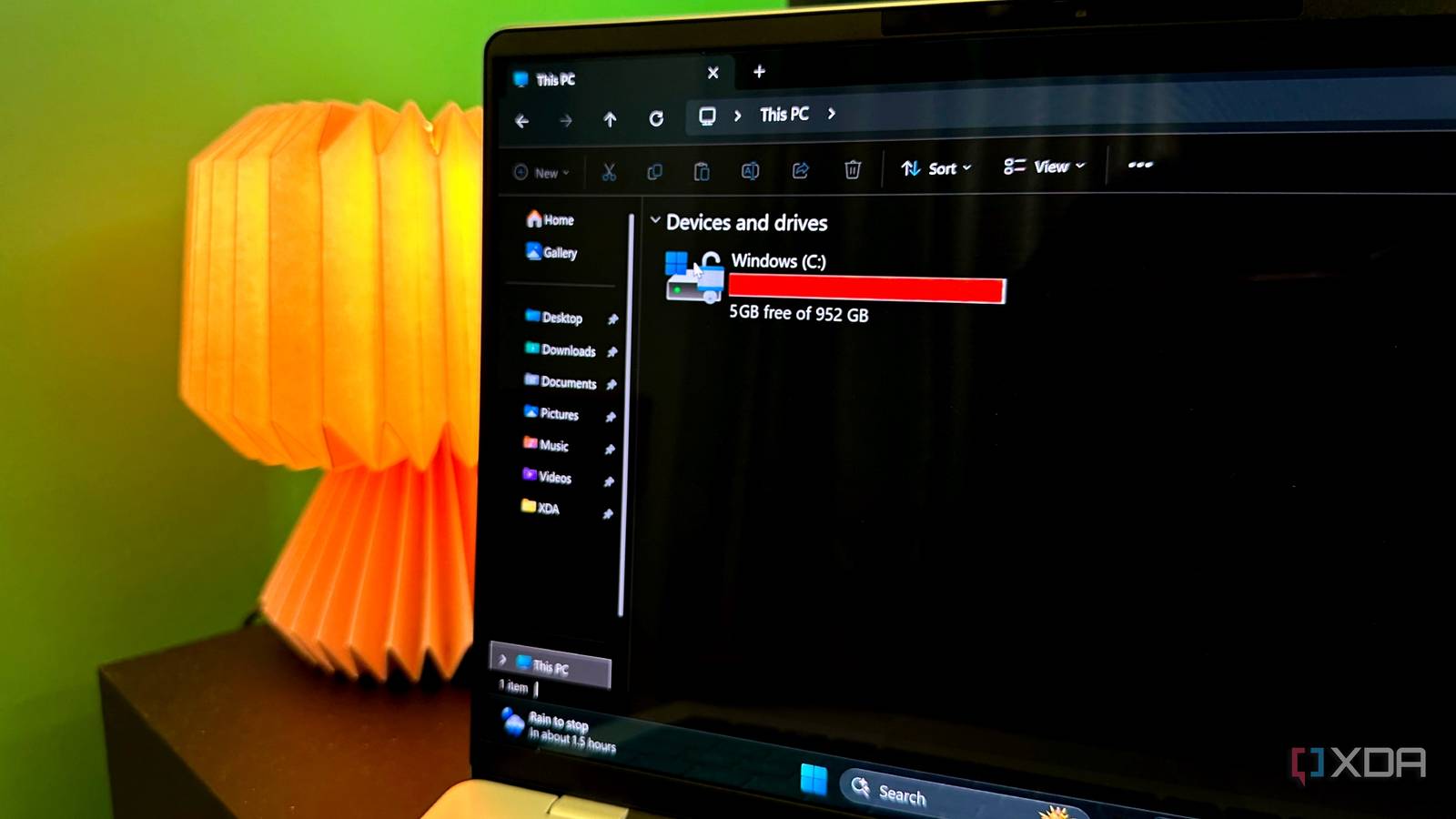
Published Sep 15, 2026, 1:30 PM EDT Gaming has been Samarveer’s greatest passion, and the Literature graduate in him takes immense joy in dissecting games for their themes, messages, and impact. Samarveer holds a deep appreciation of gaming, and considers the platform to be the most immersive and impactful across all media. He can be found engaging with gaming communities online, always ready to debate the finer points of ray tracing or itching to write an 8-page collegiate thesis on any game that impacts him emotionally. I can't recall the last time I manually downloaded hundreds of gigabytes on my PC (apart from a game or two). And yet, I've seen my disk fill up behind my back despite not having installed or downloaded anything unusual. Tens of gigabytes have disappeared into folders I barely remember, and it's not even all junk. Making matters more confusing is that I can't just find the biggest folder and hit Delete before calling it a day, either. It's important to know exactly which folders on your Windows PC can keep growing, which files Windows considers temporary, and what it expects you to clean through its own tools. The clutter that keeps growing on your PC isn't all deletable, sadly. There's a lot there that you've got to keep around, ranging from folders you can delete recklessly to those you shouldn't touch with a ten-foot pole. Temp folders are the easiest cleanup win Delete the contents, but not the folder Temp folders on Windows exist for programs that need a place to dump the files they expect to use temporarily. However, some apps mistake "temporary" for "until retirement." By default, Windows has two Temp locations — a user temp folder and a system-wide one. The former can be accessed by typing in %TEMP% into the Run dialog box (Win + R), and the latter is located at C:\Windows\Temp. Both of these Temp locations are pretty easy to clean up, because you can safely delete the contents of both folders. There's a safeguard in place where files that are currently in use will simply refuse to be deleted. So, if Windows says a file is in use, just skip it, which is the whole point. It's imperative you don't delete the Temp directories themselves, though. All the content you can delete is inside the folder, so select what's in there and clear it out. In doing so, you may recover anything from a few hundred megabytes to several gigabytes if you're doing this cleanup for the first time. Your browser cache, too, eats your storage You can delete it freely, but it's a regular job Chrome, Edge, Brave, or Firefox all maintain caches because downloading the same images, scripts, fonts, and other website assets every single time would be inefficient. It makes sense in practice, so cache trades storage for speed by keeping a local copy of things your browser can reuse. On the flip side, leaving it alone can make the convenience turn into a chunky pile of files. It's safe to clear the browser cache — cached web content, by nature, is disposable, after all. When you delete it, the browser will just rebuild it when you browse the next time. The catch, of course, is that websites will take a little longer to load the first time afterward, which is the cache rebuilding itself. Contrary to popular belief, cookies, saved passwords, autofill information, and site data that's stored in your browser are not cached files. As such, make sure you are clearing the cache rather than every other category in your browser's "delete browsing data" screen. If your goal is to reclaim storage without disrupting your browsing life, the cache is the door you want. The Windows Update cache can get surprisingly large It's safe to clear, but don't delete it like ordinary junk I have my fair share of complaints about Windows Update, and its cache is only one of them. By default, Windows Update downloads installation files into C:\Windows\SoftwareDistribution\Download before they are needed. After an update finishes, fails, or gets superseded, these files can stick around, though. All the while, Windows tends to carry on as though nothing happened. If you're wondering, this disposable working data, not your installed updates. You can clear the contents of this folder, but it's important to go through the right door when beginning the process. Windows Update may have some of these files open, so manually deleting them while the service is active can produce errors, or it will leave you fighting permissions for no good reason. The clean and correct approach is to just use Disk Cleanup or Storage Sense. Alternatively, for the completely manual route, you can just stop the Windows Update service first and then clear the Download folder. Remember to delete the contents of the SoftwareDistribution\Download folder rather than the folder itself. There's no prize for making Windows Update angry, though. Clearing its downloaded cache won't uninstall Windows updates, and Windows can simply download what it needs again. The upside, though, is reclaimed storage, all of which you get without disturbing the OS itself. Windows.old is the biggest easy win Delete it through Windows and reclaim tens of gigabytes immediately After a Windows upgrade or reinstall, the OS creates C:\Windows.old. It does so in order to preserve the previous installation so you can roll back if the new version misbehaves in any way whatsoever. This makes it extraordinarily useful, but only immediately after an upgrade. Once you know you're keeping the new installation, Windows.old can be extraordinarily wasteful, and depending on the upgrade, it can consume tens of gigabytes. As such, you can remove it, but it's important to know how. Don't just open Explorer, select the Windows.old folder, and send it straight to the Recycle Bin. Even though this folder is from a previous installation, Windows still treats it as protected system data. As such, use Disk Cleanup, and select the previous Windows installation option instead. Windows very helpfully handles the permissions and associated cleanup for you. There's also a built-in expiration date for this. Windows normally removes the previous installation after about ten days. If your new installation is stable, and you have no intention of rolling it back, then removing it sooner can get you back a significant chunk of storage without sacrificing anything too important. WinSxS looks guilty, but leave it alone Let DISM do the housekeeping One of Windows' biggest optical illusions is C:\Windows\WinSxS. Explorer can report a frightening number, making it look like the operating system has been hoarding duplicates for no apparent reason at all. However, much of that apparent size is due to hard links, so the folder's reported size doesn't actually represent the storage consumed, despite what Explorer might seem to suggest. It's never a good idea to manually delete files from WinSxS, so, don't. Windows uses this component store for updates, repairs, enabling features, and maintaining different versions of system components. Removing files from the WinSxS folder can break servicing and leave Windows unable to repair or update itself properly. While we’re here, skip deleting your Prefetch files. This is a recommendation that's echoed everywhere, but Windows manages it itself, and wiping it can actually slow down your next few launches. However, if you do need to trim it, you can reliably use Windows' own servicing tools. For this, run an elevated PowerShell or Command Prompt window (run as Administrator). Then, type in the following line of code: DISM /Online /Cleanup-Image /StartComponentCleanupDoing this removes superseded components that Windows no longer needs. The bottom line here is that WinSxS can always be cleaned, but you should always let Windows itself decide what is disposable and when it is safe to remove. Windows Installer isn't a junk drawer It's best just to steer clear entirely Another folder that practically begs to be deleted is C:\Windows\Installer. A quick look will show you that it keeps ballooning and consumes several gigabytes, and it contains files with some rather cryptic names, and offers almost no indication why it exists. What's important, however, is to resist the temptation to do so. This is where Windows Installer keeps cached installation packages and patches. These files can come in handy later when an application needs to repair itself, apply another update, or uninstall cleanly. The nasty part is that even if you delete one of these massive files, you may not notice anything immediately — the breakage could arrive months later. By that time, you'd have forgotten touching the Installer folder. Since Windows can't assume that these packages are expendable, there's no general-purpose cleanup button for this folder. The best course of action when dealing with this folder is to leave it alone. If storage is tight, uninstall the applications you no longer use, and just let Windows and those apps manage their installer data. After all, a mysterious folder is still better than a mysteriously broken application. Windows 11 Pro A USB installation drive and license key for Windows 11 Pro, with additional features like Hyper-V and Windows Sandbox support. A cleaner PC starts with knowing when to stop An enormous folder doesn't always mean something is wrong — Windows could just be doing its job the way it should. Freeing up storage on Windows is less about becoming ruthless with the Delete key and more about understanding what your operating system is doing in the first place. By itself, if a folder is enormous, it doesn't mean that something has gone wrong. Sometimes it just means that Windows is doing its job the way it's supposed to, even if it does so like a squirrel preparing for winter. As a matter of principle, storage cleanup should always leave your PC more predictable, not less so. Reclaiming space shouldn't result in a full afternoon of troubleshooting, after all. That's why it's important to know which files are disposable, which ones need Windows to handle them, and which ones are better left alone. Your SSD will thank you, and your future self, especially so.
Your Windows SSD is full because of these 6 folders — and most of them are safe to empty
Full Article
Original Source
Read the full article at Xda-developers →KhanList aggregates and links to publicly available news content. We do not host full articles from third-party sources. Always verify important information with original sources.