
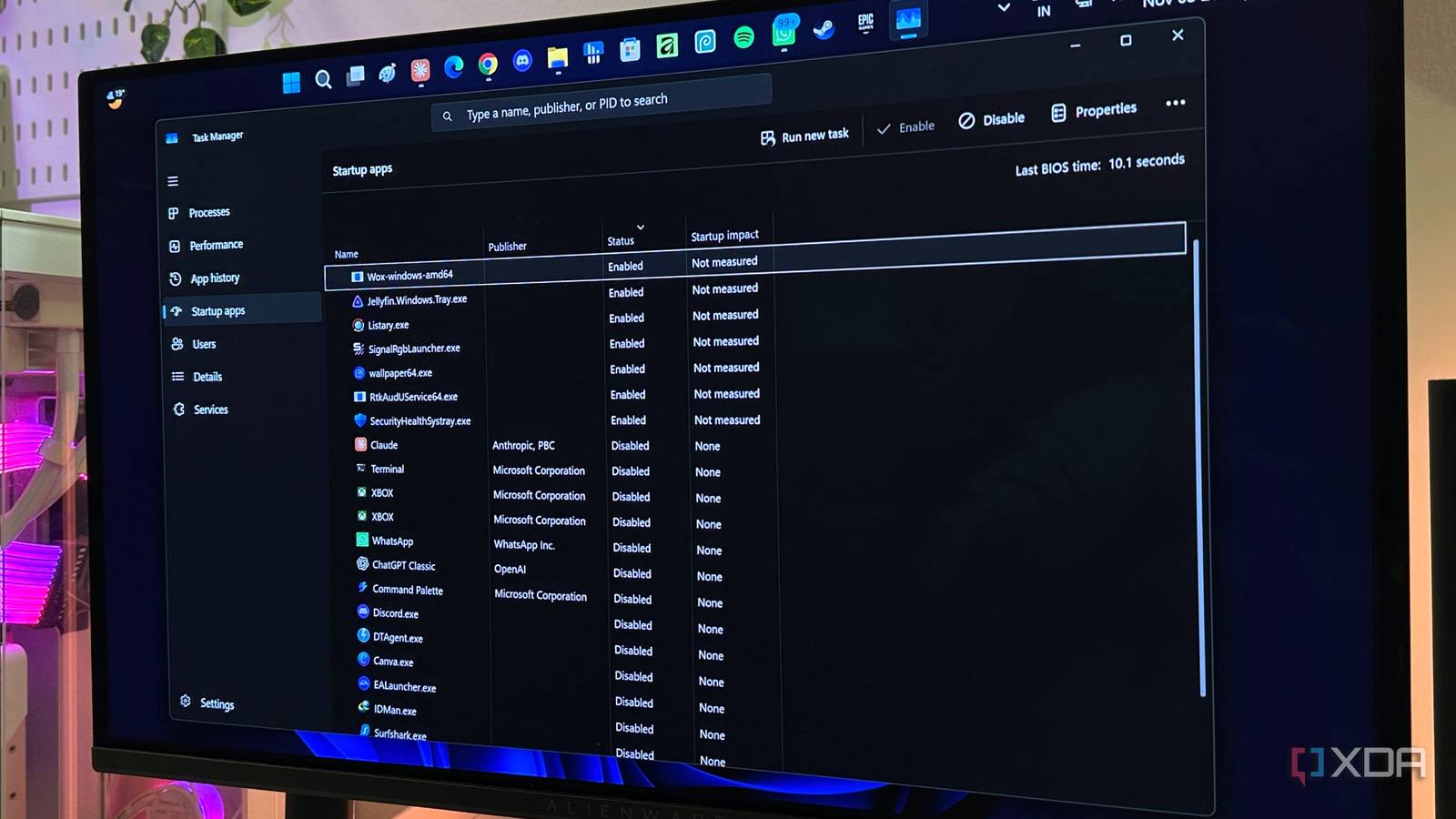
Published Nov 5, 2026, 8:00 PM EST Gaming has been Samarveer’s greatest passion, and the Literature graduate in him takes immense joy in dissecting games for their themes, messages, and impact. Samarveer holds a deep appreciation of gaming, and considers the platform to be the most immersive and impactful across all media. He can be found engaging with gaming communities online, always ready to debate the finer points of ray tracing or itching to write an 8-page collegiate thesis on any game that impacts him emotionally. The Startup tab in the Task manager is a pretty convenient way to identify any apps that launch when you sign in. It comes in pretty handy when you're trying to declutter Windows and speed up your PC. There's a catch, however. Task Manager doesn't actually show you everything that's running in the background, and believe me, there's a lot. That's why relying exclusively on Task Manager can leave you with an incomplete picture of what's happening on your machine. If you've ever wondered why certain apps keep running despite disabling their startup entries, there's a good chance you've been looking in the wrong place. Task Scheduler is hiding more startup apps behind the curtain Scheduled tasks can launch apps without ever showing up in Task Manager Before you blame Windows for mysteriously launching background applications, the one place you must always investigate is Task Scheduler. Plenty of modern software developers have figured out that they don't need to register an application in a conventional startup location to get it running when you sign in. Instead, they can create scheduled tasks that trigger automatically at log on, conveniently bypassing Task Manager's Startup tab. To check out the Task Scheduler, press Win + R, type taskschd.msc, and hit Enter. In the window that opens up, expand the Task Scheduler Library option on the left, and then start inspecting the tasks listed in the middle pane. Don't overlook any software-specific subfolders, either. Here, you can double-click any suspicious entry and switch to its Triggers tab. Look for any triggers labeled At log on — that's what indicates that the task can execute whenever a user signs in. Chrome, Edge, Teams, Adobe, and OneDrive components are among the most notorious culprits here that may be using scheduled tasks for running in the background. Do remember, though, that not every scheduled task is an unwanted startup application. Some run periodically or only when specific conditions are met. Check the Actions tab to identify what each task actually launches before disabling anything. Not everything that launches with Windows qualifies as an app Windows services and Startup folders have their own startup mechanisms Task Scheduler isn't the only place where Windows hides background activity from Task Manager. Plenty of installed applications rely on Windows services to run processes independently of whether you've actually opened the associated software. Press Win + R to bring up the Run dialog box, type services.msc, and hit Enter to open the Services console. Sort the list by Startup Type to find services configured as Automatic or Automatic (Delayed Start). Unlike conventional startup applications, these services can start during Windows boot or shortly afterward, often without appearing in Task Manager's Startup tab. However, don't go disabling unfamiliar entries just because their names sound suspicious. Windows relies on hundreds of background services, and breaking the wrong one can cause considerably more trouble than a few extra processes. There's also a more conventional hiding spot worth checking, which is the Startup folders. Press Win + R and enter shell: startup to inspect your personal startup folder. For entries that apply to everyone using the PC, enter shell: common startup instead. You might be surprised by what you've been overlooking. Dig a little deeper into Windows' actual startup configuration PowerShell and Registry Editor reveal startup entries that Task Manager overlooks Apart from doing the entirety of the digging yourself, you can also get Windows to do plenty of the investigative work for you. PowerShell has a handy command that consolidates all conventional startup entries into a nice and readable list. Run PowerShell and type in the following — Get-CimInstance Win32_StartupCommand | Select-Object Name, Command, Location, User | Format-List This pulls startup entries from registry Run keys and Startup folders across user and machine contexts. The Name property tells you what's launching, while the Command property tells you how it's launching. The Location and User properties help you understand which account it's associated with. If you're a single user on your PC, that last part is pretty much redundant. Even the Registry Editor shows you exactly what's running in the background of your PC, provided you know where to look. Primarily, there are four locations inside the Registry Editor that can present a proper list of all the apps that are secretly setting themselves to auto-start with Windows. Just press Win + R and then type in regedit to open the Registry Editor, and then type in the following addresses one-by-one to see which apps try to jump over the fence without knocking at the gate first. Computer\HKEY_CURRENT_USER\Software\Microsoft\Windows\CurrentVersion\Run Computer\HKEY_LOCAL_MACHINE\Software\Microsoft\Windows\CurrentVersion\Run Computer\HKEY_LOCAL_MACHINE\Software\Microsoft\Windows\CurrentVersion\RunOnce Computer\HKEY_LOCAL_MACHINE\Software\Wow6432Node\Microsoft\Windows\CurrentVersion\Run From the entries that show up in these lists, you can simply pick one you don't like, or don't want starting without your express permission, and simply right-click and delete the entry. It won't delete the software from your PC, but it will stop it from booting automatically with Windows the next time you turn on your PC. Always make sure you Export your Registry Editor backup before making any changes. With the Registry Editor open, click File > Export and save it in an accessible location. Autoruns also shows you what Task Manager refuses to When Windows' built-in tools aren't enough, Microsoft has already made a better one If you want the closest thing to a complete inventory of everything that starts with Windows, Microsoft's Sysinternals Autoruns is the tool to use. This utility doesn't limit itself to just a few familiar startup locations, and actually digs through Run keys, scheduled tasks, services, drivers, Winlogon entries, Explorer extensions, and plenty of other places where software can quietly place itself. Download and run Autoruns, then start with the Everything tab. It can look slightly terrifying at first because, well, it shows you absolutely everything. You can even go deeper and search for a specific application, properly inspect where it registered itself, and untick an entry to prevent it from launching without immediately deleting its configuration. However, "inspect" is a pretty important word here. Autoruns exposes plenty of legitimate Windows components that you really shouldn't disable just because you don't recognize them or know what they do. If you're unsure about an entry you spot in Autoruns, then the best course of action is to check its publisher, description, image path, and VirusTotal status before touching it. Task Manager was never meant to be the whole story Windows has spent years accumulating clever ways for software to make itself available on your machine. I, for one, am grateful for that convenience, but it also means that I can't just rely on the old method of "check Startup and disable what you don't need." If your PC behaves strangely, treat startup activity like any troubleshooting problem — follow the evidence, find what is launching, and then decide whether it deserves to stay. Once you do know where to look, though, you realize that Windows gives you the tools you need, and that's what makes the supposedly "mysterious" background activity a lot less mysterious. Autoruns
Your Windows PC has more auto-starting apps than Task Manager lets on, and you can find them in minutes
Full Article
Original Source
Read the full article at Xda-developers →KhanList aggregates and links to publicly available news content. We do not host full articles from third-party sources. Always verify important information with original sources.