
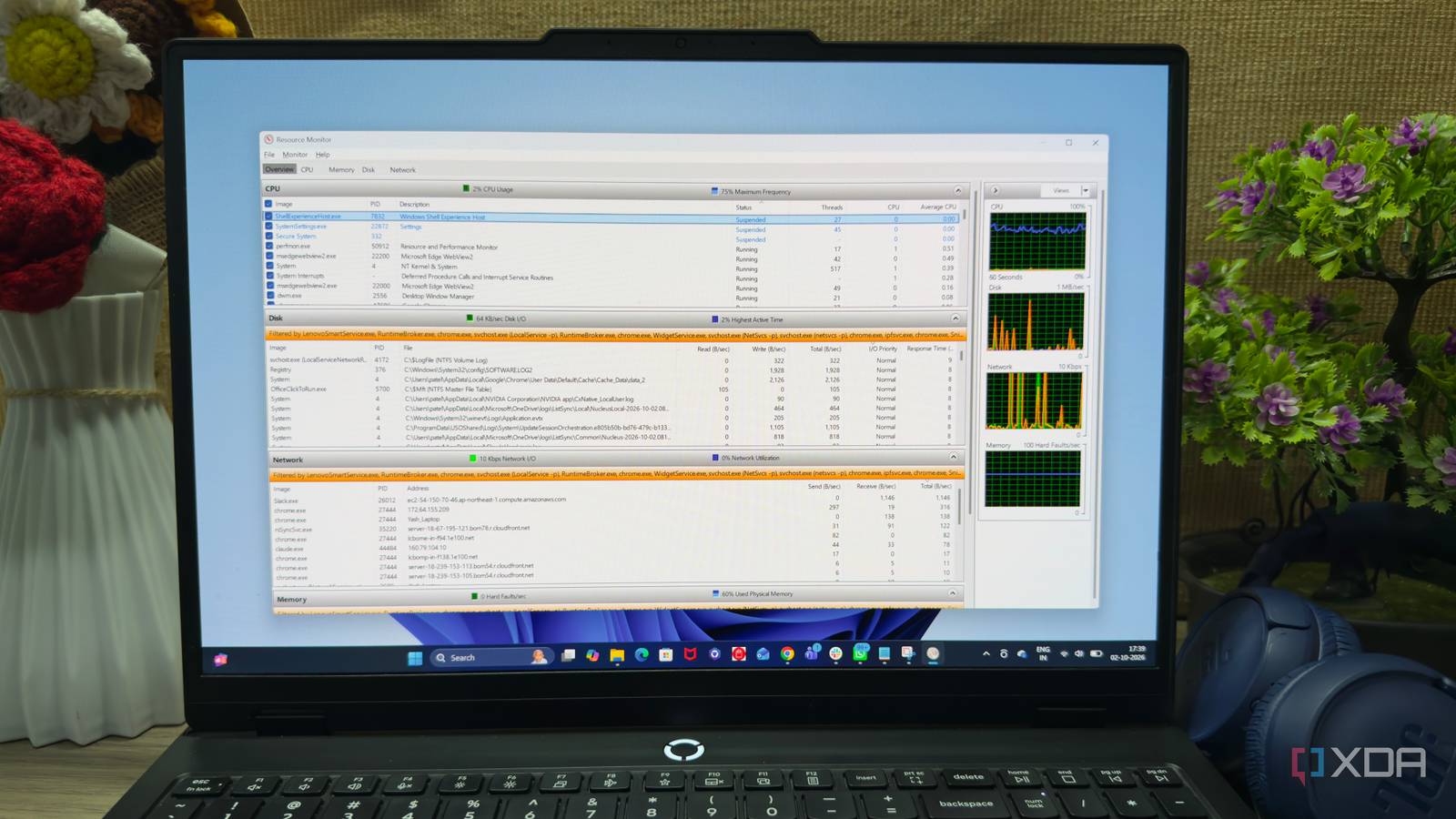
Published Oct 4, 2026, 1:30 PM EDT Beginning his professional journey in the tech industry in 2018, Yash spent over three years as a Software Engineer. After that, he shifted his focus to empowering readers through informative and engaging content on his tech blog – DiGiTAL BiRYANi. He has also published tech articles for MakeTechEasier. He loves to explore new tech gadgets and platforms. When he is not writing, you’ll find him exploring food. He is known as Digital Chef Yash among his readers because of his love for Technology and Food. I’m always surprised by how many useful Windows features stay out of sight. We often download another app when we need better control over our PC, assuming the built-in options are too basic. I’ve done the same thing more times than I can remember. But while looking for a better way to understand what was happening on my system, I came across a Windows utility called Resource Monitor that feels far more capable than its age suggests. It isn't new, flashy, or heavily promoted, but it can reveal details that are easy to miss elsewhere. And the best part? I already had it installed. Resource Monitor is hiding in plain sight The hidden monitor Windows already includes I had used Windows for years without paying much attention to Resource Monitor. I knew Task Manager and plenty of third-party monitoring tools, but Resource Monitor somehow never became part of my regular toolkit. I eventually came across it and realized Windows has been quietly including this tool for years. Opening it is simple. I press Win + R, type resmon, and hit Enter. I can also search for “Resource Monitor” from the Start menu. There is no installation, setup wizard, account, or extra service to configure. It is already part of Windows, so I can open it whenever I need it. The interface still looks old compared to modern system-monitoring apps, and that was probably one reason I overlooked it for so long. There are no flashy dashboards or polished visuals trying to grab my attention. It looks more like an old Windows utility than something I would expect to use regularly. But that doesn't bother me anymore. I now keep Resource Monitor in mind whenever I need a closer look at what Windows is doing behind the scenes. It quietly sits there, ready whenever I need it. It tells me exactly what is slowing down my PC I can track down performance bottlenecks This is where Resource Monitor became genuinely useful for me. When my PC starts feeling sluggish, I don't have to guess which application is causing it. Resource Monitor gives me a much clearer view of what is happening, and I can sort the information to quickly find the process using the most resources. The CPU section helps me spot processes that suddenly start consuming a lot of processing power. I can also see how much memory individual processes are using, which is useful when an application seems to be getting heavier the longer I leave it running. The Disk section is another one I use when something feels unusually slow. It shows which processes are actively reading from or writing to my drive. I can even see the files being accessed, which makes it easier to understand what is keeping the disk busy. I like that I can select a process and investigate it instead of simply ending it. It turns Resource Monitor into a troubleshooting tool rather than just another screen full of numbers. Seeing what's happening behind connections The network section was another part of Resource Monitor that I didn't expect to use this often. Instead of showing me only how much data my PC is sending or receiving, it lets me look at which processes are actually making network connections. That extra detail makes a big difference when I'm trying to figure out what is communicating in the background. I can see active TCP connections and the processes behind them, along with details such as the local and remote addresses. Resource Monitor also shows listening ports, so I can check which processes are waiting for incoming connections on my PC. I find this useful when an application starts communicating unexpectedly or when I simply want to understand what is happening behind the scenes. For example, I can select a process and see the connections associated with it instead of trying to figure everything out from a long list of applications. It isn't a dedicated network-analysis tool, but for everyday troubleshooting, I find this level of visibility more than enough. I don't need another utility just to see which Windows process is talking to the internet. Not everyone needs a paid system monitor The free option is enough After spending more time with Resource Monitor, I stopped feeling the need to install another system-monitoring app just for basic troubleshooting. I understand why people like paid tools. They often have cleaner interfaces, attractive dashboards, alerts, and extra customization. But I don't always need all of that. For the things I regularly check, Resource Monitor already gives me the information I need. It is built into Windows, costs nothing, and doesn't require me to install another application that runs alongside everything else on my PC. What I like most is that it doesn't try to turn system monitoring into another complicated workflow. When I need to investigate something, I open it, check what is happening, and close it when I'm done. There is no subscription to manage or another utility I need to keep updated. I wouldn't say it replaces every specialized monitoring tool. If I needed advanced hardware monitoring, long-term statistics, or highly customized dashboards, I would still look elsewhere. But for everyday Windows troubleshooting, I now see little reason to pay for something I already have. Sometimes the best Windows tools are the ones you overlook Resource Monitor changed how I think about Windows utilities. I used to assume useful system-monitoring tools had to come from third-party developers, but Windows already has some surprisingly capable options tucked away. Resource Monitor isn't flashy, and that's part of its charm. It simply does its job without demanding attention. Now, whenever I need to understand what's happening on my PC, I know exactly where to start. Sometimes, discovering a useful tool is better than installing a new one.
Your Windows PC has a free tool that outperforms every paid system monitor, and nobody knows about it
Full Article
Original Source
Read the full article at Xda-developers →KhanList aggregates and links to publicly available news content. We do not host full articles from third-party sources. Always verify important information with original sources.