
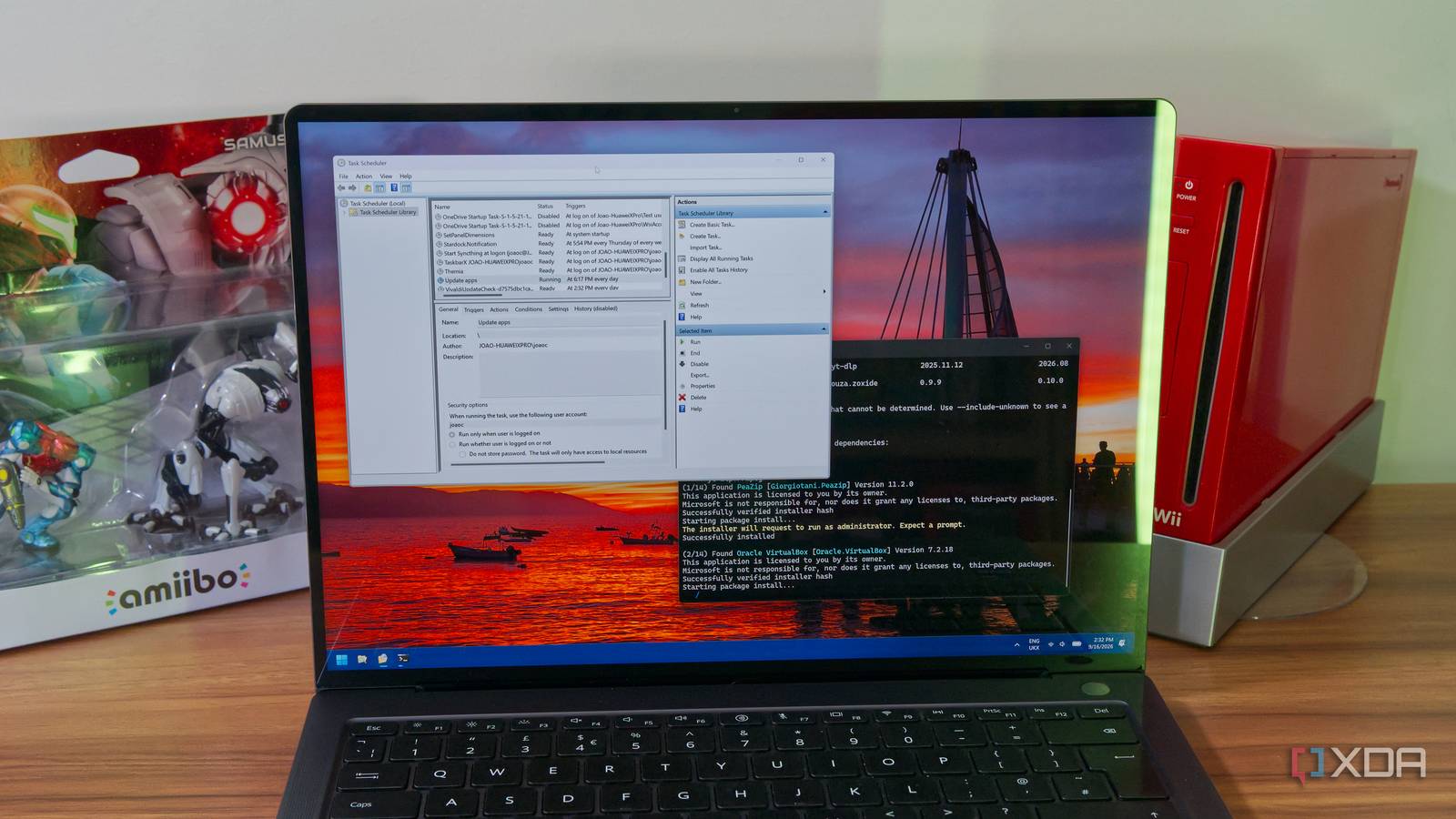
Published Sep 19, 2026, 9:00 AM EDT João has been covering the tech world for over 7 years, with a heavy focus on laptops and the Windows ecosystem. I also love all things tech and videogames, especially Nintendo, which he's always happy to talk about. Prior to joining XDA in 2021, he worked at Neowin: https://www.neowin.net/news/poster/jo%C3%A3o-carrasqueira/ Getting more performance out of our computers for as long as possible is something we all wish for, and a lot of optimization apps have cropped up as a result. There's a lot you can do to clean up and optimize your PC, but what you might not know is that much of that can be done without any third-party tools. The best optimization tool for Windows 11 is actually built right in, and it's called Task Scheduler. It may not be the prettiest tool out there, but it does its job surprisingly well if you know how to use it. Here are some ways it can help you. Clean up temporary files Automate the cleanup The thing about Task Scheduler is that it's not really an optimization tool in itself, but it can automate a lot of other Windows tools and scripts to keep your PC running smoothly. The first thing you can do is set up Disk Cleanup to run on a regular basis, deleting cached files you don't need in order to free up space on your computer. Now, Disk Cleanup won't always boost your performance, but it's good to run it on a semi-regular basis to keep things clean and avoid running out of space in the long run. It may not always be a benefit, but an occasional cleanup could speed things up a bit if you're low on storage. To run Disk Cleanup automatically, you just need to create a task that runs Disk Cleanup with the specified set of cleanup choices. That means you first have to define those cleanup choices using the command line, which you can do with this command: cleanmgr.exe /sageset:1 This allows you to set the parameters you want for your cleanup, which you can then use as an argument for your automated task in Task Scheduler. To do this, you can open Task Scheduler, set it to run the cleanmgr.exe command, and then add sagerun:1 to run the cleanup you defined with the parameters above. You can use different numbers to define different cleanup parameters, too. For a command like this, you might want to set it to run maybe once a month, though it won't hurt if you space it out even more. There's no need to clean your disk that frequently, and deleting cached files too often can actually make things feel slightly slower. You could also schedule disk optimization and defragmentation, which is especially useful for HDDs, but Windows actually automates this by default, so you shouldn't need to. Delete your browser's cache, too It can pile up quickly Disk Cleanup is great, but it's only really designed to clean files generated by Windows, whether it's through updates or simple cached files like thumbnails. Most people probably spend a lot of time in their web browser, and cleaning it up is usually done entirely separately from Windows itself. The data you want to delete can vary, but for me, I only care about deleting cached files, since they take up a lot more space than the other kinds of browser data, like cookies or history. Plus, deleting those last two would negatively affect my experience with those browsers, so I just prefer deleting the cache. The way to do this is by creating a PowerShell script, which you can do relatively easily using Notepad. In my case, I use Vivaldi as my primary browser, so I just had to open Notepad and enter this: Remove-Item -Recurse "C:\Users\joaoc\AppData\Local\Vivaldi\User Data\Default\Cache\Cache_Data" This command will vary a bit depending on a few things, but the structure is generally the same. For example, for Chrome, you can just replace Vivaldi with Chrome in that path, and the folder structure is the same otherwise. You just have to replace joaoc with your own Windows username, and if you have multiple user profiles in your browser, change Default to the name of the profile you want to clean. You can always browse in File Explorer to find the exact path you're looking for. Once you have that down, use the Save As option in Notepad and set the file type to All types, then choose any file name you'd like, as long as it ends in .ps1, which makes it a PowerShell script. Save it in a folder where it won't get accidentally deleted. In my case, I kept it in my Documents folder. With that done, you can create a task in Task Scheduler where you set it to run powershell.exe and add the path to your script as an argument. Again, this is something you can run just once a month to save some space. Update your apps Keep things running smoothly One of the more annoying parts of keeping up with your computer is making sure all your apps are up to date, but Task Scheduler can help here, too, especially if you use the Windows Package Manager (or Winget). Winget typically runs inside PowerShell or the command line, but it's actually its own executable, so you can create a task that runs it with the proper arguments. First, you'll need to get the path to the Winget executable. You can type in Winget on the start menu search bar and then choose Open file location to find it. In Task Scheduler, you can create a new task to run a program and insert the full path to the winget.exe file. You can see the full path I used below, though you may want to double-check that it's the same for you: "C:\Program Files\WindowsApps\Microsoft.DesktopAppInstaller_1.30.140.0_x64__8wekyb3d8bbwe\winget.exe" Then, to get updates, add the following in the Arguments field: upgrade --all --silent --accept-package-agreements --accept-source-agreements --disable-interactivity --nowarn --include-unknown This will allow your updates to install without interrupting your workflow, at least for the most part. Personally, I'd run this on a daily basis, but you should be fine setting it to run every week. Scan your disk health Make sure everything is up to snuff A lot of optimizer apps will sell you on the idea of improved performance, but something potentially more important when it comes to your PC's upkeep is your disk and operating system's health. Windows has built-in commands to do this, but most people don't bother running them until they run into issues. That's not an unreasonable approach to things, but consistent maintenance is best, and you can create a task that run these commands. As we've seen above, you can run PowerShell commands using Task Scheduler, so simply create a task that runs powersehell.exe as the command, and add this in the arguments: sfc /scannow This will scan the file system for errors and things like corrupted files, though keep in mind that for this one, you'll need to go into the task properties and enable the Run with the highest privileges checkbox, since the command needs to be run as an administrator. You can also create a separate task to run another PowerShell command, this time using this as the argument: chkdsk This will check the health of your drive and try to detect bad sectors that could cause data loss. If you want to combine this into a single task, you can also create a PowerShell script, as I did above for deleting the browser's cache. These commands are something you shouldn't need to run frequently at all, unless you know your drive is on its way out. In normal conditions, I would set these to run once every six months, give or take. Disabling tasks can also be optimization Not everything needs to run on a schedule I've mostly talked about how you can use Task Scheduler to automate certain parts of maintaining your PC's performance, but in some ways, the best optimization tricks have to do with using Task Scheduler less. A lot of programs you might install actually create automated tasks in Task Scheduler, which can launch self-updaters or just run the app in the background. Sometimes, this is so you can more reliably use those tools without waiting for them to launch, but many automatically created tasks may have no real benefit to you. As such, one thing I highly recommend is actually going through the list of tasks already in Task Scheduler and determining what needs to be there in the first place. Turning off some of the scheduled tasks enabled by other programs can help reduce the load on your computer and improve overall performance, and it's something I always recommend doing, especially if you've installed a lot of software over time. Who needs third-party tools? The examples above are just some of the things you can with the built-in tools right inside Windows, but with Task Scheduler and PowerShell scripts, there could be even more ways to help optimize your PC. Finding custom scripts online can be risky, but if you have a source you trust, there can be some great ones to help improve your overall experience. Plus, as I mentioned above, Task Scheduler can also hide a lot of unnecessary tasks that you can and should disable, so that alone is an optimization trick many people don't know.
Your Windows PC has a built-in maintenance tool that outperforms every paid optimizer on the market
Full Article
Original Source
Read the full article at Xda-developers →KhanList aggregates and links to publicly available news content. We do not host full articles from third-party sources. Always verify important information with original sources.