
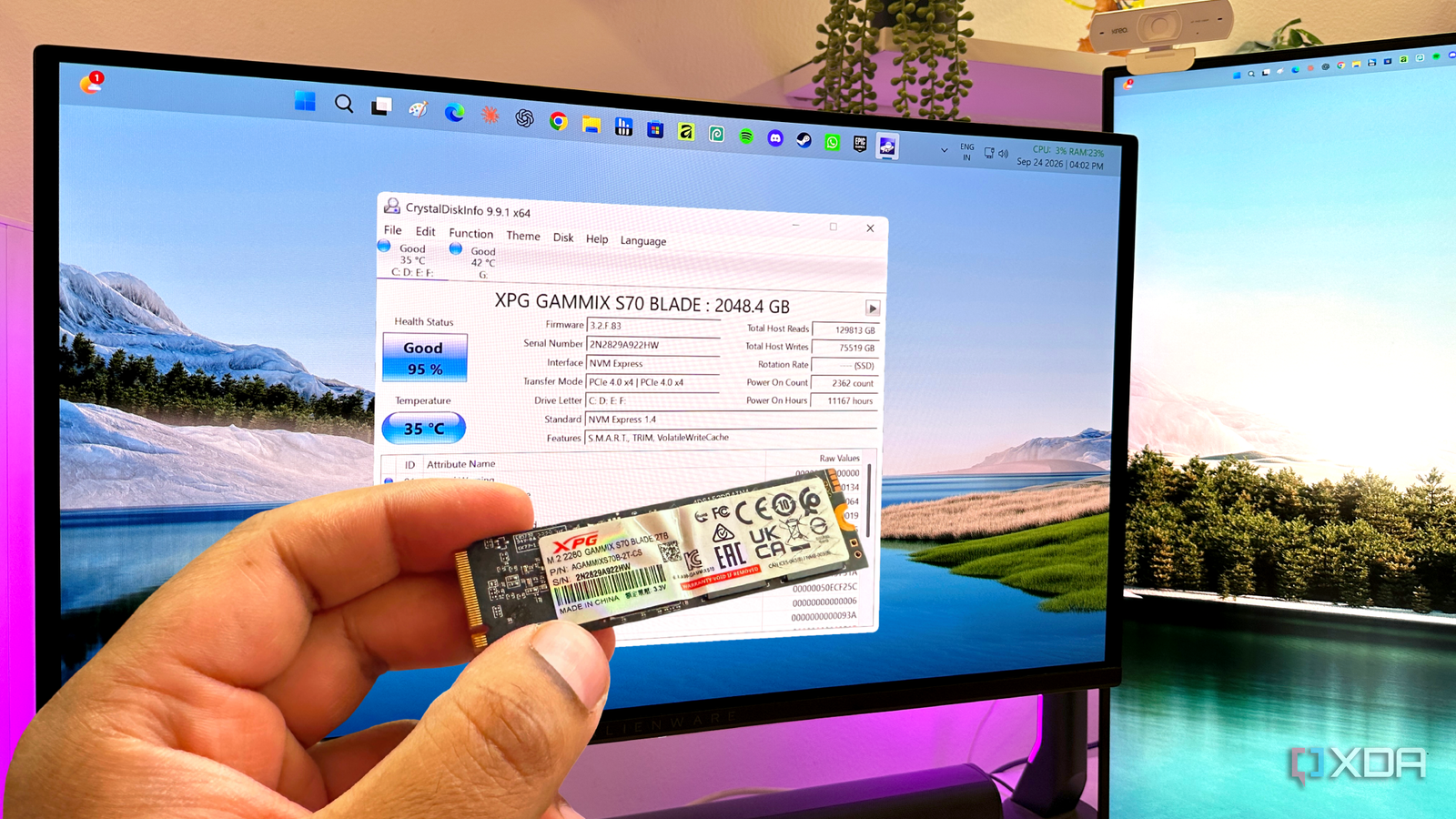
Published Sep 26, 2026, 12:01 PM EDT After a 7-year corporate stint, Tanveer found his love for writing and tech too much to resist. An MBA in Marketing and the owner of a PC building business, he writes on PC hardware, technology, and Windows. When not scouring the web for ideas, he can be found building PCs, watching anime, or playing Smash Karts on his RTX 3080 (sigh). SSDs might not be prone to mechanical failure like hard drives, but they still have a limited lifespan. NAND flash can't be written to forever, so manufacturers rate every SSD for a limited number of write cycles. Users can track this metric to know their drive's remaining lifespan, but that's not where the story ends. If you ignore everything else about your SSD, you're likely to miss glaring errors or faults that might indicate impending drive failure. The drive health percentage is simply an estimate of SSD wear; it doesn't take into account several other factors that can lead degrade your SSD's lifespan. The health percentage tracks a single metric, which doesn't tell you much It's a rough prediction at best Most people are content with tracking their SSD's health percentage once or twice a year, and being done with SSD maintenance. The overarching "SSD health" that you see in your drive's software or CrystalDiskInfo isn't a comprehensive metric. The only thing it measures is the amount of data that you've written to your SSD to date. It then subtracts that from the TBW (terabytes written) rating of the drive, and displays the remaining lifespan. This gives you an estimate of how long your SSD will last, assuming no changes in your workload. Tracking this metric is helpful in case you notice a sudden drop in a matter of months. You can then observe your workloads and eliminate anything that contributes to excessive writes. However, it's not a guarantee that your SSD will last till it exhausts its TBW rating. The SSD health percentage doesn't tell you anything about the data integrity faults or errors your drive has encountered in the past. It may already be risky to trust your SSD with your data, but a 100% or 95% health percentage can make you believe everything is fine. SSD health cannot predict any power, thermal, or firmware-related faults either, which could kill your drive way before the NAND cells wear out. Take a deeper look into your SSD's S.M.A.R.T. data It's where the real faults are hiding You may already be using CrystalDiskInfo to check your SSD's health a few times a year, but that's not enough. The rest of the S.M.A.R.T. data shown below the health percentage is much more important to assess your drive's true condition. The two primary metrics you should keep an eye out for are Media and Data Integrity Errors and Critical Warning. The former refers to the number of instances when your SSD's internal error-correction mechanism failed to fix a read or write error. This is considered a serious failure and indicates that your drive's physical cells have started degrading. The Critical Warning metric, on the other hand, takes into account Media and Data Integrity Errors, Available Spare (number of buffer cells that can be used to replace retired cells), and Temperature metrics. In a nutshell, if you see anything other than "0" in Media and Data Integrity Errors or Critical Warning, you should consider moving your data off the drive. You can RMA the SSD if it's still under warranty; if not, it's best to employ it in an unimportant system or ditch it entirely. Your SSD's operational conditions are more important than the health percentage Protect your SSD from premature failure Instead of being hyper-focused on tracking the SSD health percentage, you should ensure you aren't stressing it unnecessarily. This means keeping it relatively cool, safe from power-related damage, and avoiding unreasonable write activity. To prevent SSD overheating, ensure you're using your motherboard's heatsink, especially if you're using a high-performance Gen4 or Gen5 drive. Your SSD should ideally remain under 70–75℃ under load for safe operation. Keeping your PC case dust-free and improving the airflow will improve the passive cooling around your SSD. Using a UPS for your PC is recommended to prevent interruptions and damage from power surges. It also protects your storage from data corruption and even lasting damage in case of severe power surges. You could use a dedicated surge protector, but a UPS with built-in surge protection kills two birds with one stone. Finally, don't treat your SSD like an enterprise drive. Running virtual machines and containers on it, using it as a scratch disk, or filling it to the brim should be out of the question. Each of these will lead to write amplification, leading your SSD to an early grave. Your SSD may be healthy, but don't take its word for it Tracking your SSD's health should involve more than just the wear percentage. You should be aware of critical data integrity errors on your drive, which you can see in CrystalDiskInfo. Even a so-called "healthy" drive can have non-zero critical warnings, and should be considered unsafe for your data.
Your SSD's "100% health" is lying to you, and here's how to check what it's actually hiding
Full Article
Original Source
Read the full article at Xda-developers →KhanList aggregates and links to publicly available news content. We do not host full articles from third-party sources. Always verify important information with original sources.