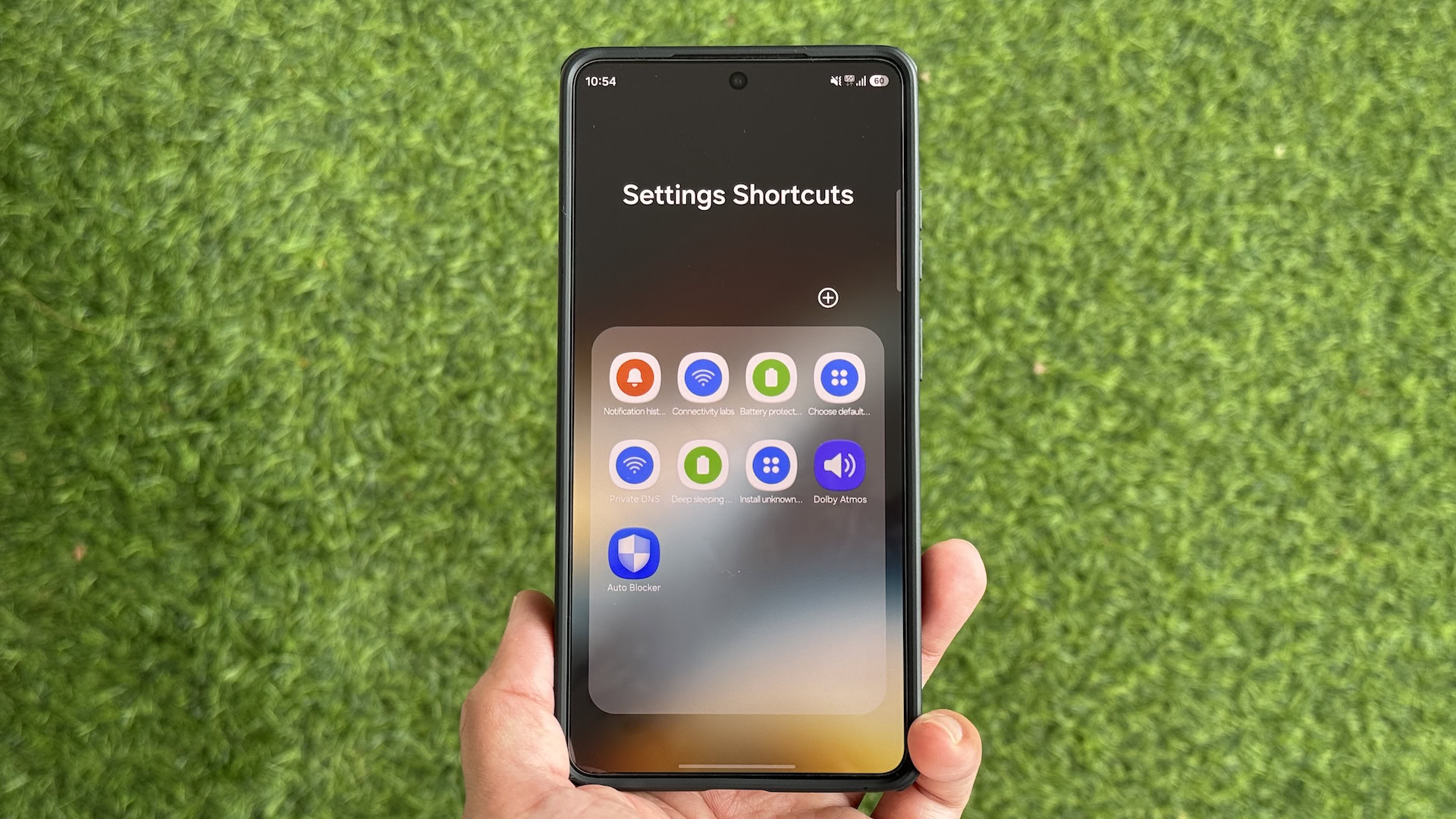
Yash Wate / Android AuthorityNo matter what Android phone you use, navigating the Settings app can often feel tedious. Sure, you can use the built-in search to look up a setting directly, but it isn’t effective until you type the right keyword, which isn’t always possible.If you use a Samsung Galaxy phone, though, there’s a nifty trick to make your frequently used settings more accessible. It involves creating shortcuts for your most-used settings and using them whenever you want to visit their page in the Settings app. I’ve been using it on my Galaxy S26 Ultra for a while, and it’s saved me a lot of hassle every day.Interested? Here’s how to set it up on your Samsung phone right now.Do you struggle to find settings in the Settings app?0 votesHow to create shortcuts for anything in the Settings app Samsung doesn’t allow you to create shortcuts for system settings in One UI by default. Instead, it provides a toggle to unlock that functionality in the RegiStar Good Lock module.To enable it, first download the Good Lock app from the Galaxy Store on your phone if you don’t have it already. Then, open Good Lock, go to the Plugins tab, and tap the Life up tab at the top. Locate RegiStar and tap the download icon next to it to install it.After it’s installed, tap the RegiStar module. Here, select Search options and toggle on the Allow creation of a shortcut option. Once it’s enabled, you can create a shortcut for any setting in the Settings app like this: Open the Settings app and navigate to the setting you want to create the shortcut for. Remember the title at the top of this page. Go back to the Settings app’s home page. Tap the Search bar and type the title of the setting you made a mental note of. When you see an exact match for your search term under Results, tap and hold it until you see a Add to Home screen? pop-up on your screen. (If you can’t find the exact page, type the name of the previous page.) Hit the Add button on the prompt. This will create a shortcut for that setting and place it on your phone’s home screen. Exit the Settings app and go to the home screen. You should see an app-like icon for that setting (with its name) here.Repeat the steps to create shortcuts for more settings. If you’re unsure what shortcuts to create, think of settings you visit more frequently or visit occasionally but find too hard to navigate to.Once you’ve created the settings shortcuts you need, move them into a folder on your home screen, as I did. Not only will this prevent settings shortcuts from cluttering the home screen, but it will also keep them organized so you can find them easily.What settings I’ve created shortcuts for and how they help meYash Wate / Android AuthorityI’ve got plenty of shortcuts for various settings on my phone across different categories, like Wi-Fi, notifications, battery, apps, and more.For example, I’ve created a shortcut for the Notification history setting that lets me quickly check my missed notifications. I also have one for Auto Blocker. It lets me quickly toggle off the option so I can install an APK I downloaded from the web. Similarly, there’s a shortcut for Install unknown apps that I can use to allow an app to install another app.Then, there’s the shortcut for Choose default app, which helps me quickly change default apps when I need to. Another handy shortcut I have is to the Deep sleeping apps settings page. I use it any time I want to view the apps currently in deep sleep and quickly enable them. Some other settings I’ve set up shortcuts for include Battery protection to change charging style, Connectivity labs to troubleshoot Wi-Fi issues, Dolby Atmos to quickly toggle it, and Mouse and Touchpad to change their settings in Samsung DeX.Settings shortcuts are great, but they have a minor quirkYash Wate / Android AuthorityWhile the ability to create shortcuts for your frequently used settings is quite handy, you should note that not all settings pages can have their own shortcuts. For instance, you can’t create a direct shortcut to the Connectivity labs page. Instead, you have to set it up for the previous page, Intelligent Wi-Fi, and then select Connectivity labs from it. Even if you create a shortcut to the Connectivity labs page, it still takes you to the Intelligent Wi-Fi page. However, I still prefer creating a shortcut to the exact page — Connectivity labs in this case — since it highlights the exact setting I want, so I don’t have to locate it manually.Despite this quirk, though, settings shortcuts can still save you plenty of taps and time every day. You should definitely consider using them on your Galaxy phone if you aren’t already.Thank you for being part of our community. Read our Comment Policy before posting.
Your Samsung phone has a hidden Settings shortcut menu — here’s how to enable it
Full Article
Original Source
Read the full article at Androidauthority →KhanList aggregates and links to publicly available news content. We do not host full articles from third-party sources. Always verify important information with original sources.