
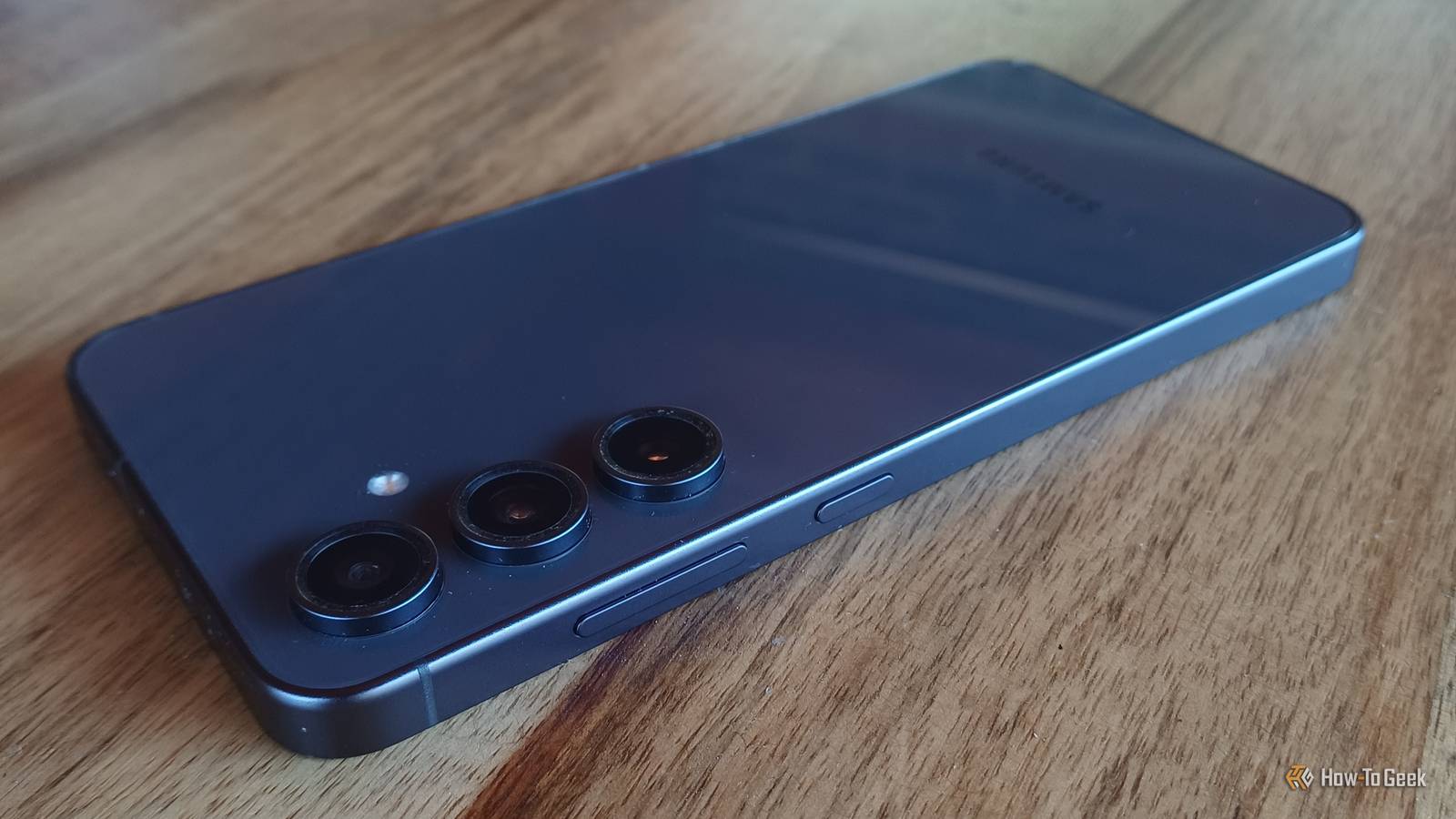
Published Oct 12, 2026, 4:30 PM EDT Tyler is an journalist and content contributor at How-To Geek with over three years of experience covering the automotive and tech industries. His work focuses on delivering clear, well-researched, and engaging content that helps readers better understand the vehicles they drive and the technology that they use everyday. Before entering automotive media, he spent five years as an academic editor, developing a strong foundation in research methodology, factual accuracy, and structured analysis. This background informs his journalistic approach today, ensuring that every article balances technical insight with accessibility for a broad audience. When Samsung decided to stop the side button from acting as a power button, a lot of people, myself included, were a little annoyed. There are still some good arguments for why it was a poor decision on Samsung's part, but what the side button has transformed into might be good enough to overshadow the power button for a lot of users. Most Galaxy owners know that their side button can be used for a couple of simple tasks, such as waking your Bixby, opening your camera, or taking a screenshot. What a lot of people don't realize, however, is that you actually have more control over what this button does than you'd think. The power button is gone, and in its place is a shortcut key Times have changed Back in the day, the big button on the side of your Galaxy phone used to act as a power button, as well as a button to wake and to lock your screen. Samsung decided a couple of years ago to remove its functionality as a button to power your device on and off, instead moving that function into your phone's quick panel. For a couple of years, some Samsung devices came equipped with a dedicated Bixby button which you would press to wake the AI assistant. Starting with the Galaxy S20, the brand integrated this feature into the side button. Now, when you hold your side button down, it will either wake Bixby or Gemini. Alongside being able to wake your AI assistant with a long press, you can also double-tap the side button. By default, pressing the side button twice in quick succession should open your camera app. What a lot of people don't know is that your side button is actually a super useful shortcut key, and you can pretty easily change what it does from your settings menu. 'Double press' acts as a shortcut for whatever you want This makes the side button pretty versatile As mentioned, when you boot your Galaxy device up for the first time, your side button will be programmed to open the camera app when you tap it twice. If you go into your settings, head to 'advanced features', and then find the tab for your side button, you'll immediately see that it can actually do a whole lot more. The first thing you'll notice is that you can actually toggle whether double-pressing the side button does anything. If you accidentally find yourself double-pressing the button a lot, you can turn it off completely. Turn it on and tap on the 'double press' tab, however, and you can customize what is assigned to the shortcut. You'll see that all of your Samsung Galaxy's core tools, like the flashlight, voice recorder, and even your digital wallet, can pretty easily be assigned to the double-press shortcut. With some of these tools, you can even specifically customize what the app does when it opens by tapping the gear icon. As well as this, you can simply set the shortcut to open whatever app. If you make use of Samsung's Modes and Routines, you can also get pretty creative. You can go simple and have it so that double-tapping the side button puts your phone into a particular mode, like Do Not Disturb, or you can have your phone execute much more complicated routines. You don't have to use Samsung's default AI assistants Whatever assistant you want Long-pressing your side button should bring up your default AI assistant, which would most likely be Bixby, Samsung's assistant. Google Gemini is usually also offered as a pre-installed option. Bixby is generally a little better for on-device controls and settings, whereas Gemini is generally better at information gathering and generative content. There is a lot less customization when it comes to this shortcut, which is a bit of a bummer. I would personally rather set it to function as a power button again, but I can understand why a lot of people might want easy access to their AI assistant of choice. Luckily, that is what you have control over. You can change whether long-pressing your side button will wake Gemini or Bixby, but you can also have it wake up a separate assistant. Simply download the app for the AI that you want, tap the 'long press' tab in your side button settings, and change your default AI assistant to the one of your choice. There are some limitations as far as compatibility is concerned, but the most popular AI tools do work, such as ChatGPT, Claude, and Perplexity. Samsung offers quite a lot of customization over your side button Losing the power button is a relatively small price to pay for the level of control that Samsung gives you over your side button. It is a pretty powerful shortcut key that can be reprogrammed to open whatever app you want, and to wake whatever AI assistant you prefer. Its a feature that flies under the radar, and one that Samsung should do a better job of advertising.
Your Samsung Galaxy's side button can do a lot more than you think
Full Article
Original Source
Read the full article at Howtogeek →KhanList aggregates and links to publicly available news content. We do not host full articles from third-party sources. Always verify important information with original sources.