
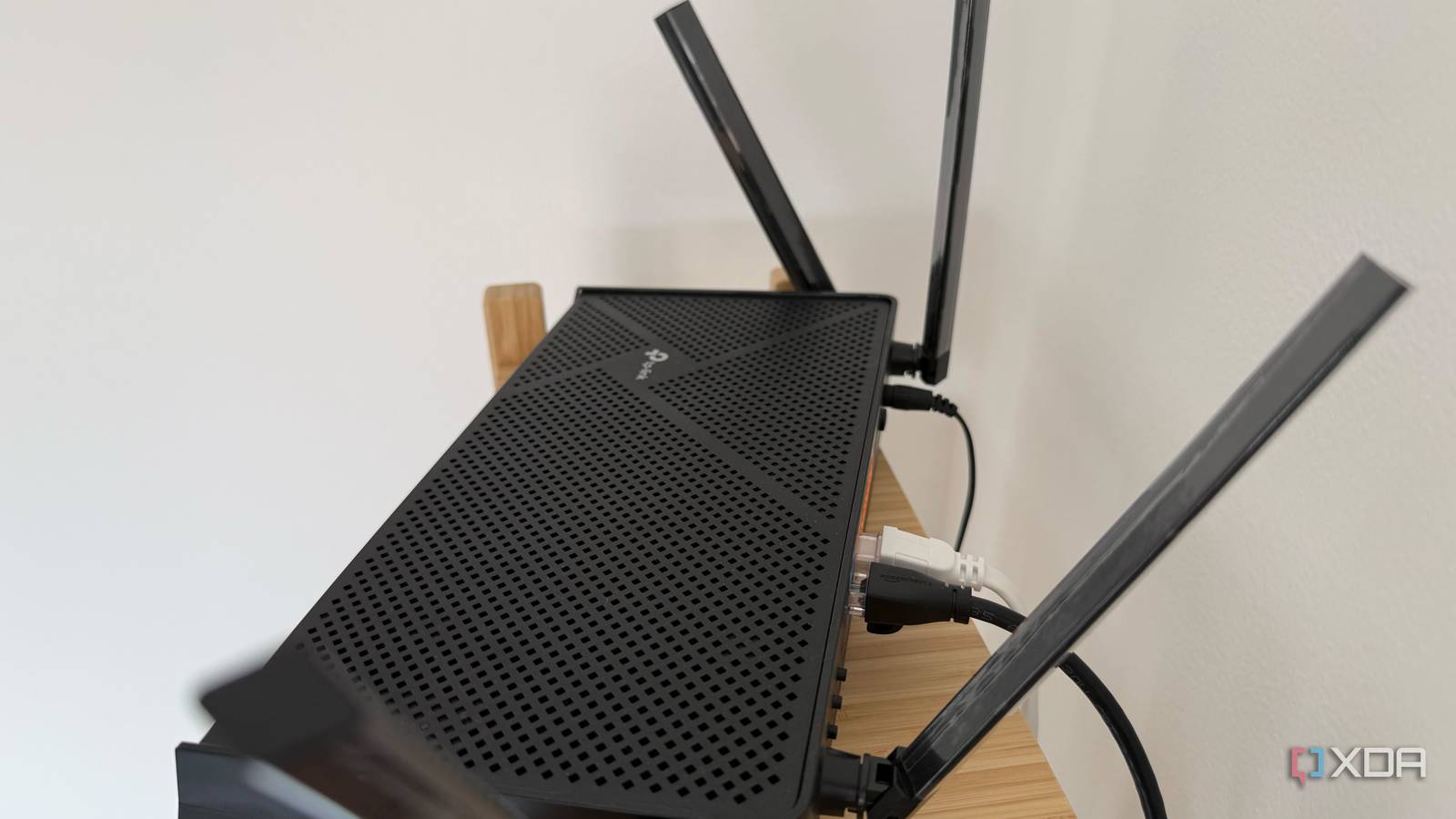
Published Oct 5, 2026, 5:00 PM EDT His love of PCs and their components was born out of trying to squeeze every ounce of performance out of the family computer. Tinkering with his own build at age 10 turned into building PCs for friends and family, fostering a passion that would ultimately take shape as a career path. Besides being the first call for tech support for those close to him, Ty is a computer science student, with his focus being cloud computing and networking. He also competed in semi-pro Counter-Strike for 8 years, making him intimately familiar with everything to do with peripherals. For the vast majority of people, which DNS their network uses is an afterthought, and by default, it's usually set to the one their ISP runs for them. That's not a bad thing, but most ISPs select their DNS server for ease of support if something were to go wrong with your connection, not because it's the fastest or most impervious to outages. Changing it on your devices one-by-one can take up a good chunk of your time, and it's not even possible to do so on some devices. The best course of action is to change it at the router, and it takes just a few minutes to do so. Your router picks your DNS server You never got a say when the initial setup happened Every time a device on your network opens a site, it first asks a DNS resolver to turn the domain name into an IP address. Which resolver answers completely depends on your ISP and their defaults. When your router connects to the internet, your ISP assigns it an IP address along with the addresses of the ISP's own DNS resolvers. The router then tells every device that joins the network to send DNS queries to the router itself, and it forwards those queries upstream to the ISP. The result is that phones, consoles, and PCs all appear to use the router for DNS, while the ISP does the work. On my TP-Link Archer BE3600 router, the internet status page showed two DNS addresses that belonged to my ISP, and running ipconfig /all on my Windows PC showed the router's own address as the DNS server. This is all expected behavior, and while it's not broken, it can have an impact on speed. You do have a choice as to what DNS server all of your devices use, and changing it is really simple. A slow resolver can add a delay before anything loads at all DNS affects speed, but not how you think DNS has no effect on how fast a file downloads or how smooth a stream looks once it's playing. It only affects the period before the connection is actually established: a lookup has to finish before your browser can contact a server, and a modern web page pulls assets from dozens of domains, each needing its own lookup the first time. Answers are cached afterward, so the only time you really feel a DNS is on first visits and on anything whose cached entry has expired. I used dnsspeedtest.online to build a shortlist, since it benchmarks a long list of public resolvers from the browser in a few seconds. It tests DNS-over-HTTPS, though, so its numbers include encryption overhead, and it also can't test an ISP's resolver, which makes it more of a relative ranking. The fix is two fields in your router's settings That is, if your router allows you to do so On virtually all consumer routers you can buy and deploy on your network, the DNS settings will be exposed. There should be fields for primary and secondary DNS addresses, where the latter is only used in cases where the first isn't responsive. There are a few edge cases where this change won't take effect: browsers with secure DNS turned on, Android phones with Private DNS configured, and some smart devices with hardcoded resolvers skip whatever the network is set to. If your ISP provides IPv6, the router may also carry a separate IPv6 DNS setting that needs the same change. Unfortunately, if you're stuck using your ISP's router, there may not be a DNS setting exposed to you to change, and in which case, your only option is to change DNS on a per-device basis. A DNS sinkhole is how you take this to the next level Running your own DNS can be done easily Docker failing to deploy a Pi-hole container Credit: Once you know where the setting is, the next step is running the resolver yourself. A DNS sinkhole such as Pi-hole answers queries on your own hardware and refuses to resolve known ad and tracker domains. Mine is an ESP32-S3 running the open-source ESP32_AdBlocker project, which returns 0.0.0.0 for anything on its blocklist and forwards everything else upstream. There are a couple of small caveats to this, the first one being that if that device drops off the network, whether it's an ESP32, Raspberry Pi, or full-fat x86, DNS drops off for everyone. The ESP32 implementation of this also has no IPv6 capabilities, so you'll have to disable it for it to catch everything. DNS defaults are fine, but usually not optimal The DNS server your network uses was chosen for your ISP's convenience, not necessarily for speed. Changing it takes only a few minutes, and there are some tried-and-true options available. Alternatively, you can set up your own resolver to block ads using something as small as an ESP32.
Your router is probably using your ISP's slow DNS, and you can fix it in minutes
Full Article
Original Source
Read the full article at Xda-developers →KhanList aggregates and links to publicly available news content. We do not host full articles from third-party sources. Always verify important information with original sources.