
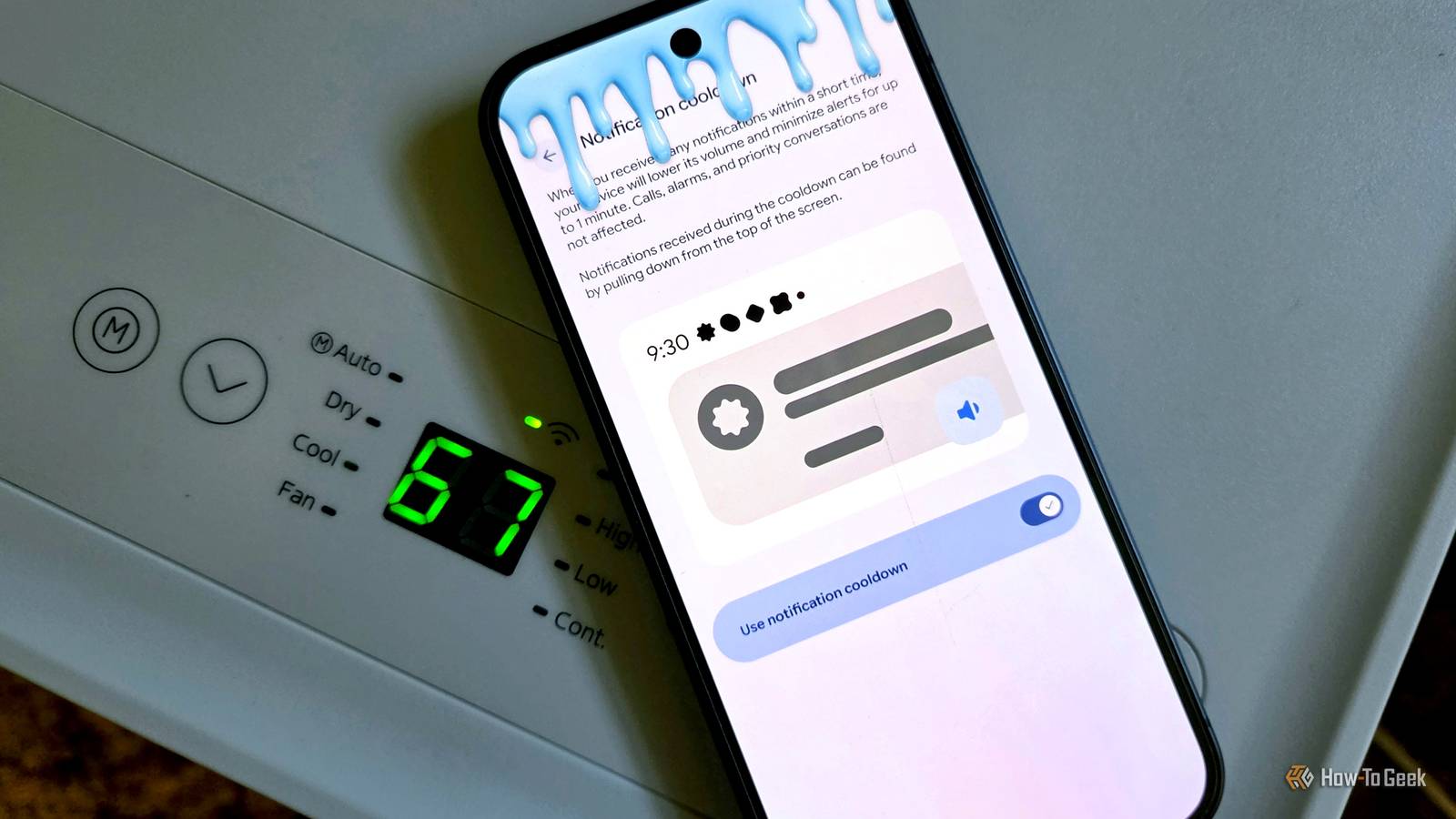
Published Sep 13, 2026, 9:00 AM EDT Joe Fedewa has been writing about technology for over a decade. Android and the rest of the Google ecosystem have been a focus for years, as well as reviewing devices, hosting podcasts, filming videos, and writing tutorials. Joe loves all things technology and is also an avid DIYer and food blogger. He has written thousands of articles, hundreds of tutorials, and dozens of reviews. Before joining How-To Geek, Joe worked at XDA-Developers as Managing Editor and covered news from the Google ecosystem. He got his start in the industry covering Windows Phone on a small blog, and later moved to Phandroid where he covered Android news, reviewed devices, wrote tutorials, created YouTube videos, and hosted a podcast. From smartphones to Bluetooth earbuds to Z-Wave switches, Joe is interested in all kinds of technology. After several years of jailbreaking and heavily modifying an iPod Touch, he moved on to his first smartphone, the HTC DROID Eris. He's been hooked ever since. Whether we like to admit it or not, notifications are the primary reason why so many of us are attached at the hip to our phones. No one wants to miss an important one. Android handles notifications the best, but if you have a Pixel phone, it gets even better. “Notification Cooldown” is a feature that was first slated for release along with Android 15 back in 2024. It eventually arrived with a Pixel Drop update last year, and it has since been refined even more with Android 17 this year. If you have a Pixel phone, you have it — here’s why it’s worth using. What is Notification Cooldown on a Pixel phone? You need to calm down Credit: Joe Fedewa / How-To Geek Notification control is undoubtedly one of Android’s biggest strengths. It offers plenty of methods to fine-tune which apps can bother you, what type of notifications can appear, and when they’re allowed to come through. As great as these options are, they’re also pretty rigid. You’re either permanently toggling something on or off, or setting up a strict schedule. There are times when notifications become too much, and you just need a short break, but unlocking your phone and enabling a mode is just one more thing on your plate. That’s where Notification Cooldown comes in. Here’s how Google describes it in the Settings: When you receive many notifications within a short time, your device will lower its volume and minimize alerts for up to 1 minute. Calls, alarms, and priority conversations are not affected. Notifications received during the cooldown can be found by pulling down from the top of the screen. The idea is that your Pixel phone will automatically detect when a notification overload is occurring and take action. The notifications won’t be completely blocked, but they’re tucked away in the notification shade, and alerts are temporarily silenced. When peace arrives again, everything goes back to your regular settings. Does it actually work? It’s quick, effective, and unnoticeable Google’s description mentions that alerts are minimized for “up to 1 minute.” That may not sound like very long, but it doesn’t need to be. Don’t think of it as a “mode” that runs for an extended period of time. It kicks in instantly and turns off just as quickly — maybe multiple times in the span of a few minutes. For example, when I receive two notifications just a few seconds apart, Notification Cooldown automatically lowers the alert volume for the second notification. The volume continues to decrease if more arrive in quick succession. So, while I received a handful of notifications, I was essentially only bothered once. That’s why I like it. We’ve all had those moments where a bucket of notifications gets dumped all at once. If I’ve already been alerted to the first one, another sound or vibration is just going to be a nuisance. This is especially true as someone who always wears a smartwatch. Notification Cooldown is not enabled by default on Pixel phones. To find it, open the “Settings” and head to the “Notifications” section. You won’t have to scroll far to find “Notification cooldown.” Unsurprisingly for a Pixel feature, there’s not much granular control here — just a toggle switch. In this case, the simplicity is welcomed. You can simply turn on Notification Cooldown and enjoy a bit more peace in times of chaos. No further action required.
Your Pixel has a hidden setting that silences notification spam automatically—here's how to turn it on
Full Article
Original Source
Read the full article at Howtogeek →KhanList aggregates and links to publicly available news content. We do not host full articles from third-party sources. Always verify important information with original sources.