
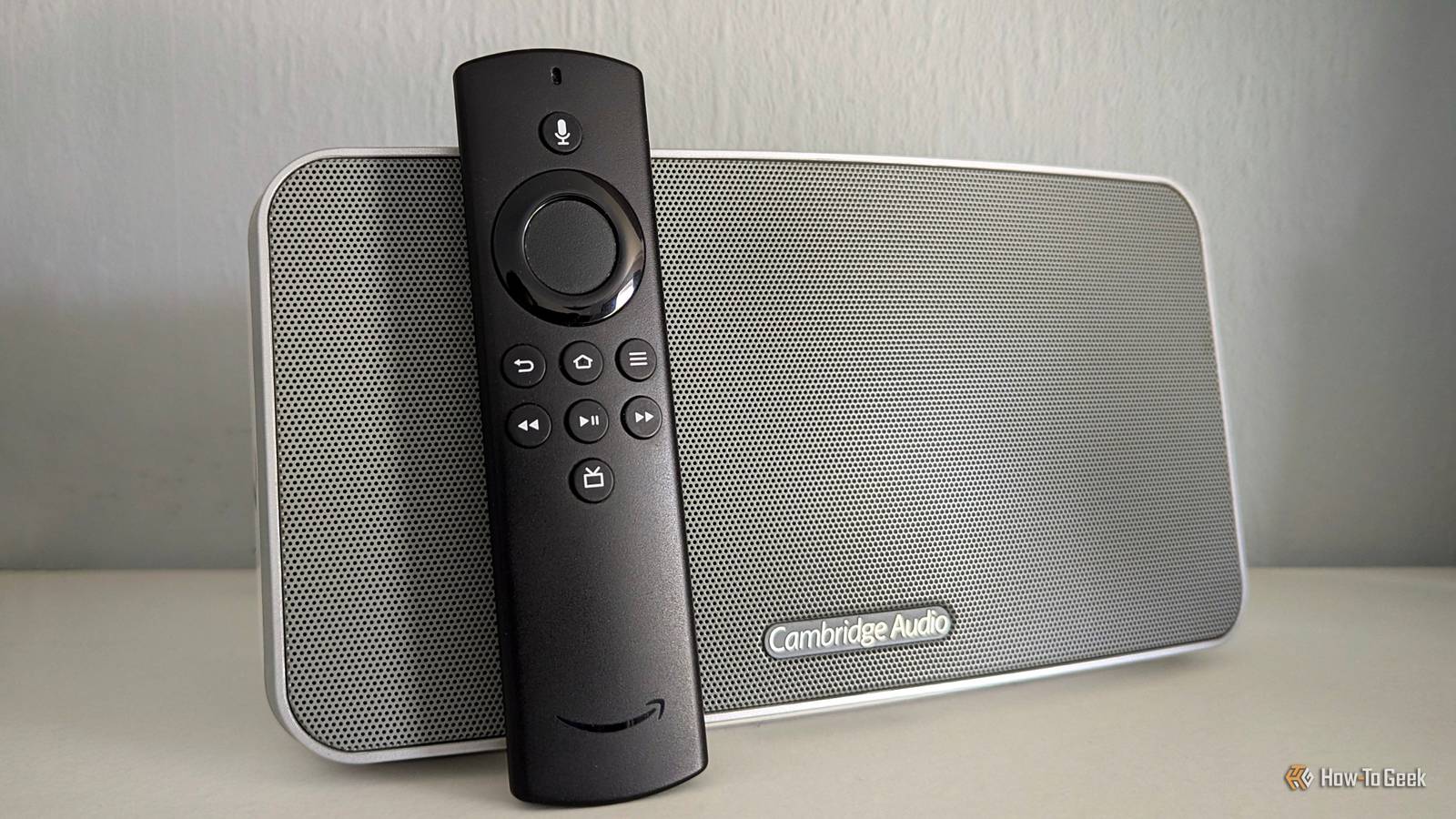
Published Sep 12, 2026, 8:43 PM EDT Andy is a senior writer and former Mac editor at HTG. He has over 20 years experience as a consumer tech journalist, and has covered everything from the old Palm Pilots to the original iPhone and Android devices, to the latest gadgets. He has written and edited for UK-based print publications like PDA Essentials and Android Magazine, and online at sites including MUO, Android Tips and Hacks, broadband.co.uk, and Envato. He has a passion for all things mobile and has been a keen Mac enthusiast since 2005. If you've got an old Fire Stick that you no longer need to watch TV with, it doesn't have to become e-waste. With its built-in Alexa functionality, you can disconnect it from your TV and use it as a smart speaker. It's not quite an Amazon Echo, but it can make surprisingly good use of the hardware that you already own. Wait, a Fire Stick is also a smart speaker? It has some limitations, but yes Credit: Andy Betts / How-To Geek To set up your Fire Stick as a smart speaker, you need a few things. First and foremost, you need a Fire Stick with an Alexa voice remote, which most released since 2016 have. Next, you need a Bluetooth speaker to connect to it. Without a TV connected over HDMI, you need another way to hear its audio. You'll have to plug your stick into a TV while you're setting it up. You can disconnect it once that's done. And finally, there's the Alexa app, which you can install on your smartphone. This last part is optional. You don't need it, but it will help you get more out of your makeshift smart speaker. What all of that gets you is something akin to an Amazon Echo. To be clear, it's not quite the same. There are some key differences, but it works surprisingly well. The main distinction is that the microphone is stored in the remote rather than the speaker itself, so you need to press it whenever you want to ask Alexa to do something. It's not hands-free, then, which is an inconvenience, but it comes with the added privacy benefit that the microphone isn't listening all the time. Your "smart speaker" in use Once you've got it set up, you can use it like a basic Alexa device. I could get it to tell me the weather forecast, set alarms, create lists, and I was able to connect it to Spotify so that it could play music. It was able to locate my Spotify playlists very effectively. That's about the extent of my smart speaker needs. If you need more, it can handle things like smart home controls and the other usual Alexa requests. I found asking it questions was a little bit hit-and-miss since it would frequently say it wasn't sure how to respond. And another quirk is that the system often assumes that you're using a display. There were one or two occasions when I didn't get much of a response, and I realized that it was actually showing something on the screen—or would have been if there was a screen attached. I also quickly learned that most problems could be navigated past by pressing the Home button on the remote, which returns you to the Fire TV home screen (even if you can't see it). But on the whole, it works surprisingly well. It probably isn't a replacement for a full-on smart speaker if that's what you want. But if you just want something sat in the corner that can load up music or jot down reminders when you need them, it does the job. How to set up a Fire TV Stick as a smart speaker Alexa, show me the instructions Setting up your Fire TV Stick to use as a smart speaker is pretty straightforward. The first step is to connect it to your TV so that you can see what's going on. Also, if you haven't used it for a while, make sure it's connected to Wi-Fi and the remote is paired and all of that. Then, go to Settings > Remotes & Bluetooth Devices > Other Bluetooth Devices > Add Bluetooth Devices. Make sure your Bluetooth speaker is turned on and put it into pairing mode if you need to, and it should then be detected. Finally, follow any on-screen instructions to pair it. With that done, give it a quick test to make sure that the audio is coming through the Bluetooth speaker. You could do this by loading up a movie or something. If it's working, you can disconnect the HDMI cable and leave the Stick tethered only to the power supply. The Wi-Fi and Bluetooth connections will remain in place. Keep the remote somewhere accessible because you need it every time you want to use Alexa. I also installed the Alexa app on my phone. This is optional, but it let me link it to my Spotify account and manage my lists and alarms. It also opens controls for smart home gadgets and numerous other things you can do, like creating routines or playing basic games. Should it replace your Amazon Echo? As always, it depends... Using a Fire Stick as a smart speaker won't give you a full replacement for an Amazon Echo. An Echo is built specifically for that task, and being able to say "Alexa" to wake it up is certainly easier. The whole experience is likely to be cleaner. But for casual use, it's perfectly workable. Personally, I've never owned an Amazon Echo, so I'm not too fussed about the lack of hands-free access or any potential missing functionality. As something that sits on my shelf and plays music on cue, it's great. The way I see it, it's ideal for a garage or office, or anywhere else you need occasional use. If you've got a device lying around and a Bluetooth speaker, it's absolutely worth setting it up as a smart speaker to see how well it works for you. I wouldn't recommend buying a Fire TV Stick just for this, but it is a fantastic way to repurpose old tech.
Your old Fire TV Stick is secretly a smart speaker—here's how to turn it into one without connecting to a TV
Full Article
Original Source
Read the full article at Howtogeek →KhanList aggregates and links to publicly available news content. We do not host full articles from third-party sources. Always verify important information with original sources.