
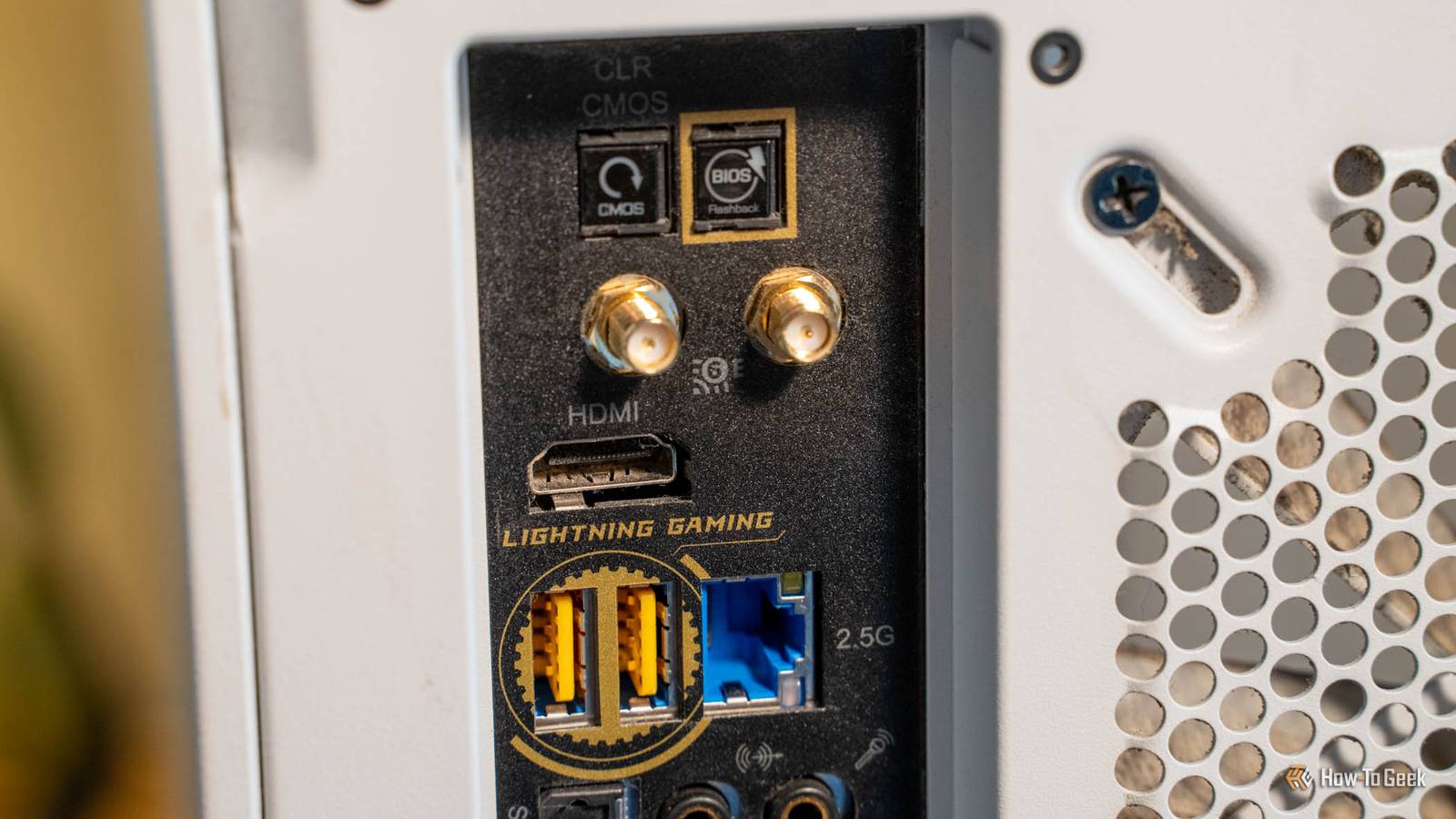
Published Nov 9, 2026, 5:30 PM EST Patrick Campanale has been in the tech space for well over a decade, specializing in PC/gaming news and reviews, as well as maker-focused products to build small businesses. With a start in technology back in 2010 surrounding the Palm/webOS ecosystem, Patrick spent his formative years developing mobile applications as well as blogging for various publications, eventually leading to starting his own website in 2014. After running a technology blog for a few years, he stepped out of that role and into the world of high-end custom PC manufacturing and building, with a focus on YouTube video production and overclocking. Then, in 2017, Patrick joined the 9to5Toys team as an editor/writer/reviewer with over 14,000 articles being published during his time there, ranging from deals and roundups to in-depth reviews on the latest technology, video games, 3D printers, and more. In his free time, Patrick loves to create projects from wood using various robots and methods, including leveraging the technologies of CNCs and lasers. If Patrick isn't working on a computer or playing video games, he's likely in his 2-car garage workshop creating something unique. In addition to all this, Patrick is also the media director at his local church where he feels God has called him to serve, and he loves every minute of it. Even if you’ve never used it before, there’s a very good chance that your CPU actually has a GPU built into it. This extra hardware often goes unused because of dedicated graphics cards, but there are quite a few reasons why you might want to put that integrated GPU to work, like offloading your Plex transcodes or speeding up your video editor’s timeline. Your side monitors don't need your main graphics card Plug them into the motherboard and the big card only drives your game Every pixel that your graphics card has to drive takes resources away from something else. For instance, if you have two 4K144 displays at your desk and have both plugged into your graphics card, then both are driving approximately 8.3 million pixels for each display, refreshing 144 times per second. Often, when a dedicated graphics card is installed in a system, the integrated graphics system on the CPU is still enabled, just not used. Every one of the displays at your desk that you can remove from your main graphics card actually has the potential to add performance back to that graphics card. So, try plugging your second or third monitors into the iGPU of your system (the HDMI or DisplayPort on the motherboard instead of the GPU) and see if it makes any changes. It’ll probably only add a few frames per second back to your performance, but it could impact your 1% lows more than you’d think. Your PC still works when the graphics card dies A spare display output beats waiting on an RMA I’ve seen some pre-built gaming desktops come with graphics cards pre-installed and the onboard HDMI covered up so it couldn’t be used. This makes sense for systems with F-series processors, as F-series CPUs lack an integrated graphics processor. But, if your CPU has an iGPU, there’s a good chance that port is covered up just to prevent people from plugging into the iGPU instead of the dedicated graphics card. Now, for gaming, you shouldn’t ever plugging into the iGPU if you have a dedicated graphics card. However, if your graphics card stops working for whatever reason—the card dies, there’s a bad driver update, or anything else—then that integrated graphics output could be your saving grace. When I used to do PC repair, that was the first thing I would check when a customer brought a desktop in that “wasn’t working.” I would start by removing the dedicated graphics card and plug into the onboard graphics to see if that fixed it. This isn’t the game-changing answer you might want to find here, but, if your dedicated graphics card stops working, integrated graphics could keep your system usable while the main card is being replaced. Video editors get smoother timeline playback for free Quick Sync decodes your footage while the main card handles everything else Credit: Blackmagic Studios Video editing is something that graphics cards can drastically speed up—at least, partially. Every video editor has two video engines powering it: the encoding and decoding engines. Encoding is what happens when you export a video file and the video editor is having to compile the finished video from the raw footage. Decoding is what happens when you import a video and try to play it back. While Premiere Pro won’t let you choose Intel’s Quick Sync for encoding when you have a dedicated graphics card installed, it will let you choose one for decoding. Resolve lets you choose either the iGPU or dGPU for both encoding or decoding. Why would you ever want to choose the iGPU when video editing? In certain cases, like with 10-bit 4:2:2 H.265 or HEVC H.265 footage, Intel’s Quick Sync can actually outperform NVIDIA’s NVDEC for decoding on all graphics cards prior to the RTX 50-series line. This could mean better overall performance on the timeline if you switch the decode engine to Quick Sync from NVDEC. Just leave the encode engine set to NVENC because NVIDIA has done a great job at optimizing that side of things. Plex can transcode on the iGPU while you game Quick Sync handles the streams so your graphics card doesn't have to While I’m a big advocate of running Plex on its own hardware, sometimes you just have to run it on the same system as your main computer if that’s the most powerful PC you have. The problem is, a transcode in Plex could take frames away from your game. If you have an Intel processor and use Plex or Jellyfin, then you can actually manually set the transcoder to be the integrated graphics instead of your dedicated graphics card. Running Plex on the iGPU is a great way to keep your gaming performance in tip-top shape if you plan to use your gaming rig as your media server. Discord and your browser can stop borrowing your graphics card Windows 11 lets you pick a GPU for every app Credit: Discord Windows 11, for all its faults, actually has some nice features in it. One of the features that I most like about it is being able to pick a GPU for every app. This means that you can set things like Discord, your browser, Spotify, wallpaper engines, and more to all use the iGPU instead of the dGPU. They’ll still be shown over the cable plugged into your graphics card, but, they’ll process on the CPU's integrated graphics instead of the dedicated GPU. Some of the apps I mentioned (or maybe apps I haven’t mentioned) can really take processing power away from the GPU for no good reason. So, pushing those processes over to the iGPU when you have a dGPU is a great way to regain a little bit of that performance without sacrificing anything else. One BIOS setting wakes it up All of the reasons above are predicated on two things: your motherboard supporting an integrated graphics processing unit, and it being enabled in the BIOS. These days, most motherboards support iGPUs just fine. The thing is, it’s sometimes disabled from the factory if you bought the system as a pre-built. This means you’ll need to dive into BIOS and enable the iGPU. It’s worded differently in every BIOS, but it should be easy to spot somewhere. If you’re unsure of whether it’s enabled or not, just look at Task Manager and see if you have two GPUs listed or just one. If it’s just your dedicated card, then your iGPU is disabled. But, if it shows both the integrated and dedicated, you’re good to go.
Your gaming PC has a second GPU, and it's probably switched off in the BIOS
Full Article
Original Source
Read the full article at Howtogeek →KhanList aggregates and links to publicly available news content. We do not host full articles from third-party sources. Always verify important information with original sources.