
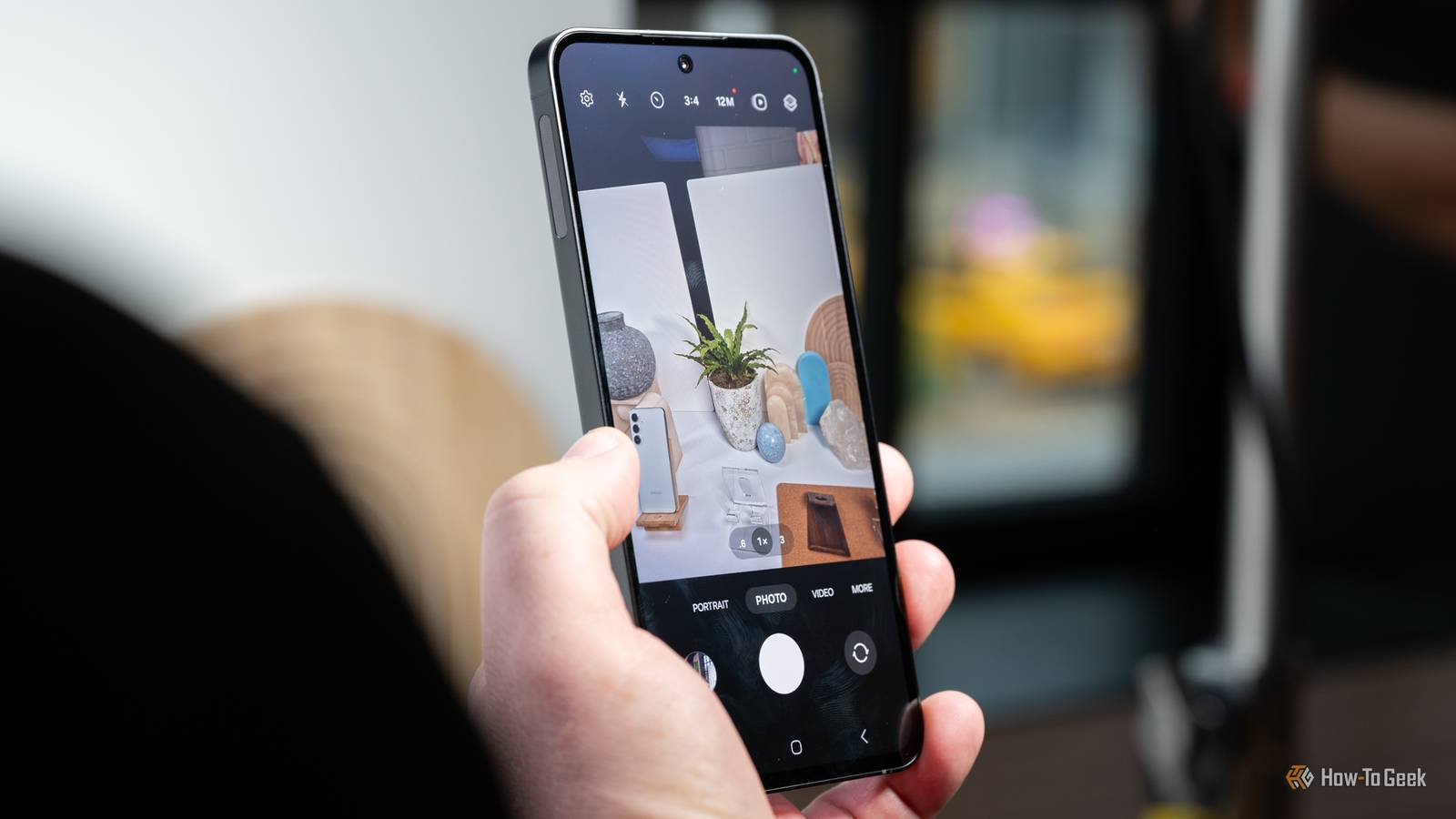
Published Oct 1, 2026, 6:30 AM EDT Tyler is an journalist and content contributor at How-To Geek with over three years of experience covering the automotive and tech industries. His work focuses on delivering clear, well-researched, and engaging content that helps readers better understand the vehicles they drive and the technology that they use everyday. Before entering automotive media, he spent five years as an academic editor, developing a strong foundation in research methodology, factual accuracy, and structured analysis. This background informs his journalistic approach today, ensuring that every article balances technical insight with accessibility for a broad audience. I've taken a lot of photos with Samsung Galaxy phones over the years, and I've learned that getting better results isn't necessarily about having the latest camera hardware. Some of the biggest improvements I've made have come from changing the way I use the camera and taking advantage of features that are already built into the phone. Once I started paying attention to a few of the camera settings and tools Samsung gives you for free, I found myself getting consistently better photos without buying any accessories or upgrading my phone. These range from simple changes to the way you frame a shot, to using Samsung's software to do some of the work for you. Don't change the ratio from 3:4 You're losing out by choosing any other aspect ratio A lot of people think that by selecting an aspect ratio in their camera app where the photo fills more of the screen, they're capturing more of the subject. The truth is actually the opposite. The camera sensor on Galaxy phones has a 4:3 native image area, or 3:4 depending on which way you're holding your phone. Using a different ratio essentially actually crops off part of the image. This isn't to say that using 3:4 produces a higher quality image, but more that it is the least destructive setting. It's better to take the photo at 3:4 and crop it after the fact. Use the preset zoom settings rather than pinch-zooming Don't zoom at all if you can avoid it The best way to look at zooming is that you're using different lenses/sensors. For example, on my Samsung Galaxy S24 FE, the 0.6x zoom uses the ultrawide camera, the 1x zoom uses the main sensor, 3x zoom is the telephoto camera, and 10x zoom is a longer telephoto lens. If you pinch to zoom, and you go outside these presets, then your phone is essentially cropping the image rather than switching lenses. To take better photos, you're best off choosing from the presets and then physically moving closer or farther away from the subject. As mentioned, 1x essentially uses your phone's main sensor. Sticking with your main camera produces the best images in most cases, so if you can avoid it, don't zoom in or out at all. Don't use your flash at night Rather use Night mode Using your flash for photos at night can completely ruin them. The LED light of the flash is harsh and flat, and it limits your range by quite a lot. The light from the flash washes out shadows and makes things feel flat. It also bounces off shiny surfaces, creating glare spots. The flash also only really has a range of between five and ten feet, meaning that things up close are overexposed and that the background becomes pitch black. The best alternative is to use Night Mode instead. This allows your Galaxy phone to make use of long smart exposures rather than a big burst of light. Your camera takes a burst of photos at different exposures and then intelligently combines these photos to give you the best result. When capturing a moving subject, use tracking auto focus Lock on to your subject Trying to take clear and high-quality photos of a subject that is moving isn't always easy. Whether you're taking shots of your kid at a sports game or your dog running around your garden, photos can often come out blurry. Samsung Galaxy phones have a built-in feature called 'tracking auto focus' which makes this a lot easier. It is super easy to use when enabled. You tap on your subject, and your phone will automatically track them, highlighting them with a yellow box. It will automatically adjust the camera in real time to give you the best dynamic shot, even when they move through the frame or you move your phone. Stop taking crooked photos with Samsung's shot suggestions An AI-powered tool to help you take the best photos If you're not an avid photographer, one of the best features you can make use of on your Galaxy device is shot suggestions. It is a simple toggle in your photo settings that can make a big difference. It guides you in real time on how to best compose your photos. Using machine learning and professional photography rules, it guides you with an on-screen graphic. You'll see a circle with a crosshair in the middle. When you align your phone correctly, the circle and crosshair will go yellow, meaning that you've achieved the ideal composition. Make use of Best Face to improve your selfie game Combine some features to get the most out of it There is nothing worse than taking a group photo, or snapping off a quick selfie, only to realize later that someone had their eyes closed or they were pulling a face. Best Face is a Galaxy AI tool that aims to fix that. It pulls from a pool of other photos taken at around the same time, giving you the option to swap and fix facial expressions after the fact. When editing your photos, you'll find the setting under the 'more' tab on the far right. To make the best use of this feature, you're going to want to do one of two things. Either, you simply take multiple photos when capturing these shots, or you can turn on 'Motion Photo', a setting similar to Apple's Live Photos. Motion Photo essentially records a short three-second clip every time you take a photo. When this is enabled, Best Face can draw alternative expressions from the recording as well. Download Camera Assistant A downloadable app that gives you more customization If you want to take things a step further, you can download Samsung's Camera Assistant app. It is an official customization app that can be downloaded directly from your camera settings menu, allowing you to fine tune a bevy of settings. You can also alter the image processing behavior of your phone. The idea is essentially to give you deeper control. Below are some of the key features you get with Camera Assistant: Quick shutter tap Auto lens switching Picture softening Prioritize focus over speed Add more zoom shortcuts Take videos in photo mode Samsung gives you a ton of tools to improve your photos If you're an amateur photographer looking to improve the quality of the photos your phone produces, the above tips are some of the best ways to get the most out of your Galaxy phone. Using the above techniques helped me take much better photos in general. There is a lot more that you can do if you're willing to put effort into learning some more advanced settings, like Pro Mode, but the above serve as a great starting point.
Your Galaxy phone's camera is better than you think: Here's what you're missing
Full Article
Original Source
Read the full article at Howtogeek →KhanList aggregates and links to publicly available news content. We do not host full articles from third-party sources. Always verify important information with original sources.