
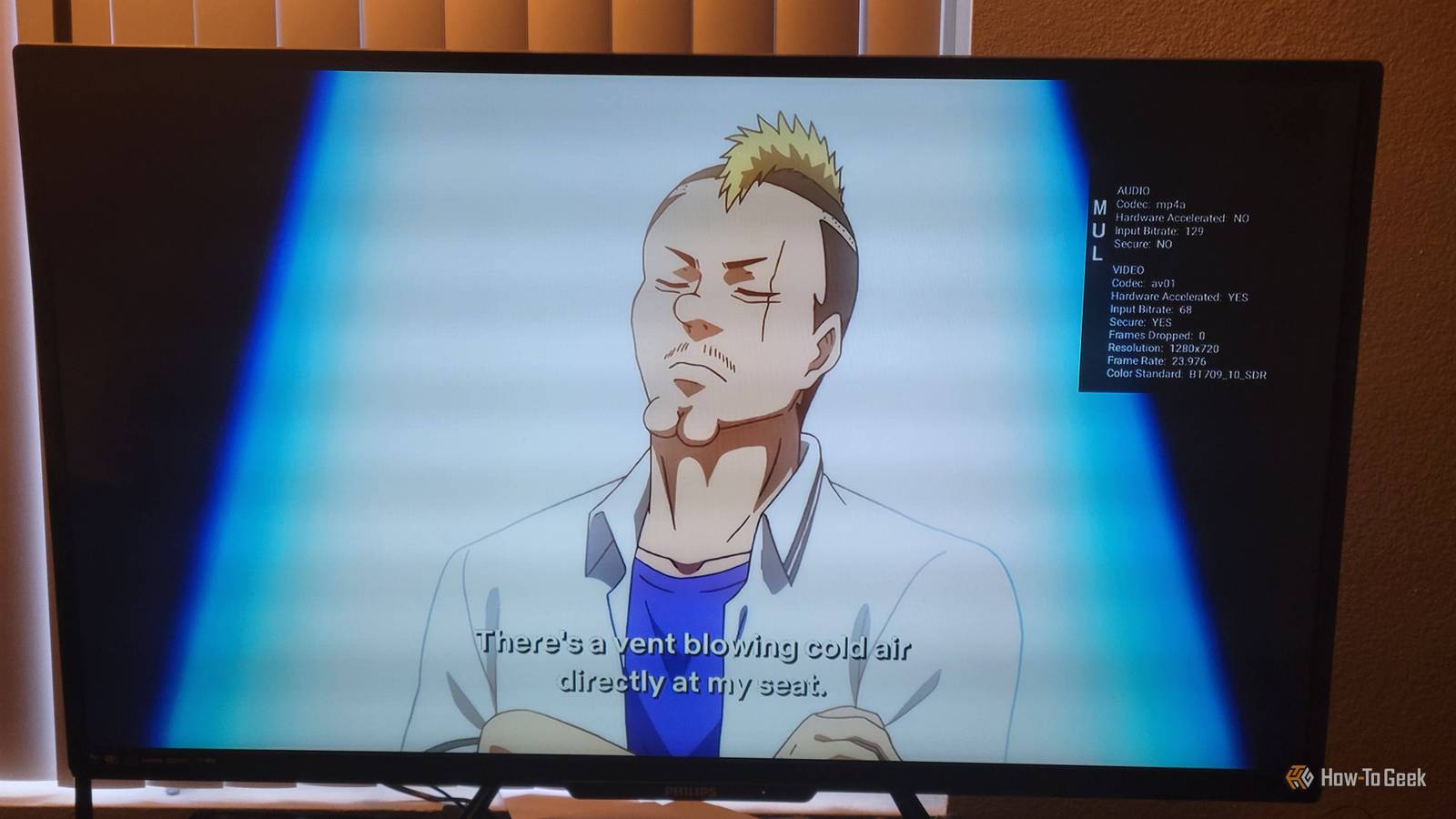
Published Oct 4, 2026, 7:00 PM EDT Aggy is a veteran writer and editor in the technology and gaming space. Having served as a Managing Editor for high-traffic digital publications, alongside being an editor and consultant for over a dozen sites. Aggy's published work spans a wide and respected array of tech and gaming outlets, including WePC, Screen Rant, How-To Geek, Android Police, PC Invasion, and Try Hard Guides. Beyond editorial work, Aggy's direct experience in the tech sphere extends to app development. Aggy has published two games under Tales and is always eager to learn and do more. He also likes working on computers and researching in his spare time. He knows about Windows, Linux, Audio, Video, and much more. Your Fire TV has some great diagnostic tools that you probably didn't know about. They answer pretty much every question you have about why your Fire TV isn't working well. Being able to see developer settings and tools is one of the features you really should already be using. System X-Ray tells you what your hardware is doing You can see how hard your stick is working To get to this menu, hold the Select button and the Down button on your Fire TV remote at the same time for about four seconds. Let go of both at once, then immediately hit the Menu button. The menu pops up on the left side of your screen with all your options. Once you unlock System X-Ray through the hidden Developer Tools Menu, it puts a live diagnostic banner at the top of your Fire TV screen. It stays there while you go through the launcher, browse menus, and even watch something. It shows Display, CPU, Memory, and Network. Display shows your HDMI output resolution height in pixels and the refresh rate in fps. It also tells you which HDCP revision is pushing DRM encryption over the HDMI connection. The CPU shows a vertical bar for each physical core on the chip. That way you can see exactly which cores are being hit hard, which helps you find out why something feels slow or choppy. Memory is a horizontal bar that breaks down how your RAM is being used, measured by Proportional Set Size. Network keeps tabs on your Wi-Fi signal, your overall download speed, and how much of that bandwidth your current app is eating up on its own. Everything is color-coded, which is confusing at first. For your CPU, green is 0 to 33 percent, orange is 34 to 66, and red is 67 to 100. Green is good and red is bad. On the memory bar, blue is what the foreground app is using. The gray represents memory used by other applications, and white is free memory that's ready to be used right away. Network's bar is a lot like the CPU's, but for Wi-Fi quality. Green means strong, orange is average, and red is a warning. You need to make sure you get real surround sound Advanced audio options show if your sound is downmixed When you're streaming surround sound or spatial audio, you tend to assume your gear is getting the exact format the app claims to give. Sometimes that isn't true, and the app might be downmixing your audio. The way to actually see what's going on is the Advanced Options in the Fire TV Developer Tools Menu. Turn that on, and you get a Multimedia diagnostic overlay on the right side of the screen whenever media plays. This overlay shows you live hardware decoding stats. You'll get the audio codec being used, whether hardware-accelerated DSP decoding is active, the current input bitrate in kilobits per second, and whether the stream is running inside a DRM-protected secure environment. So while something's playing, you just glance at that readout. It tells you right away whether Dolby Atmos ('eac3-joc') or multi-channel Dolby Digital Plus ('eac3') is actually being sent as a raw bitstream, or whether it's been downmixed to plain 5.1 ('ac3') or 2-channel stereo PCM. When passthrough is working right for object-based spatial audio, the Multimedia overlay will show eac3-joc or raw bitstream data. Your receiver's screen will also confirm Atmos or Dolby Digital Plus on its own. If the Multimedia overlay is showing stereo PCM or compressed AC3 while you're playing an Atmos source, the system is downmixing it. That means you're losing the height channels and the sense of where sounds are coming from. Your television might be cropping the screen The safezone overlay helps you see the whole picture Flip on the Safezone toggle in Fire TV's hidden Developer Tools Menu, and you get a semi-transparent red border with a grid around the edges of your screen. It shows you the safe zone, which is basically where UI elements should sit if you want them visible on any TV. Most streaming and Fire OS apps already stay inside those lines on their own. The grid is mainly useful for checking whether your TV is actually showing the full picture or quietly chopping off the edges. That clipping usually comes down to overscan, which is a leftover from old CRT televisions. TV makers back then would zoom the picture in a few percent on purpose to hide noise and junk data along the edges of analog broadcasts. The problem is, plenty of modern flat panels, especially older ones or ones nobody ever reconfigured, still have that feature turned on by default for HDMI inputs. So your Fire TV sends a full signal, and the TV crops it before you ever see it. It gets really annoying with sideloaded Android apps. Regular Android apps are built for phones and tablets where you can touch the very edge of the screen, so they shove buttons, search bars, and nav menus right up against the borders. To fix it, go to Settings, then Display & Sounds, and pick Display. From there, you can go to Calibrate Display and then nudge the edges until everything lines up with the physical frame. Once the red Safezone grid sits right at the edge of your screen without spilling off, turn Safezone back off, and you're done. Network Advisor and Audio Focus sort out connection drops Fix weird sound issues and slow streaming speeds Hardware metrics and screen calibration only cover what's happening on your end. Streaming problems are different because they show up as network slowdowns you can't see or audio that randomly cuts out. Network Advisor is hidden in the Developer Tools Menu and works like a better connection test. It checks your Wi-Fi signal strength, noise level, channel utilization, and signal-to-noise ratio, and includes a speed test. Once it figures out the problem, it gives you simple recommendations to fix it. Audio Focus covers the other half. If a video plays with no sound or the volume acts weird, this is where you'll find out why. It shows you in real time which app has control of the audio and how that app is behaving. After you figure out the issue, just go to your Settings, then Applications, and finally, Manage Installed Applications. You can pick the app and press Force Stop. It's like a restart, which should fix the issue. Don't treat these like they're toys None of these tools are meant for daily use, and leaving overlays running during normal watching can get annoying. All you have to do is run them once to confirm things are working the way you expect, then turn them off. If you paid for a good receiver and a 4K TV, take ten minutes to make sure your Fire TV is sending them what they can handle.
Your Fire TV is hiding diagnostic tools that fix streaming problems you can't solve any other way
Full Article
Original Source
Read the full article at Howtogeek →KhanList aggregates and links to publicly available news content. We do not host full articles from third-party sources. Always verify important information with original sources.