
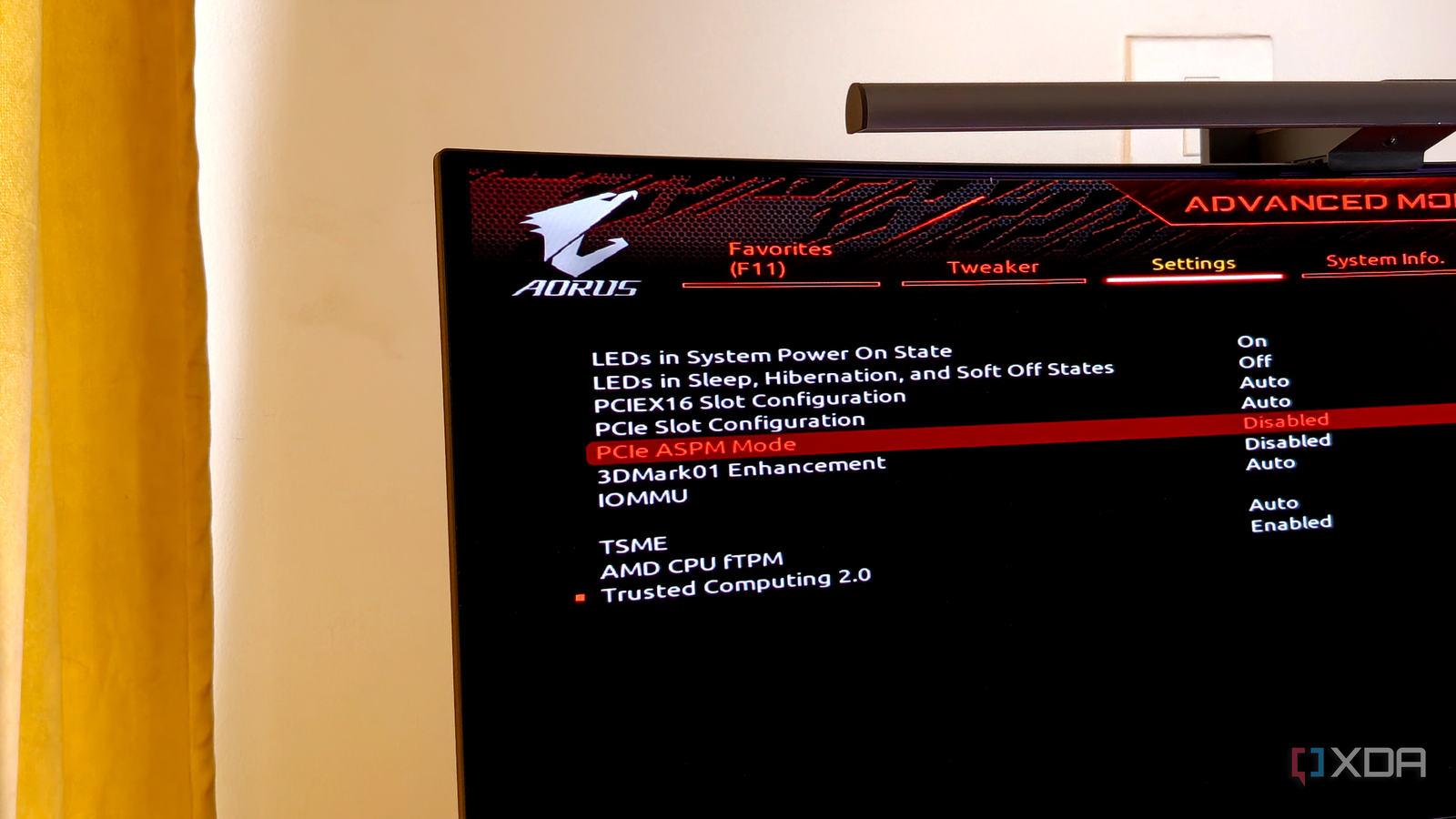
Published Aug 31, 2026, 7:00 AM EDT After a 7-year corporate stint, Tanveer found his love for writing and tech too much to resist. An MBA in Marketing and the owner of a PC building business, he writes on PC hardware, technology, and Windows. When not scouring the web for ideas, he can be found building PCs, watching anime, or playing Smash Karts on his RTX 3080 (sigh). You probably have a Gen4 or Gen5 SSD inside your gaming PC right now, which houses your OS and most-played games. It performs fine most of the time, but there are always those random microstutters in-game, or an app or file transfer that stalls for a fraction of a second. You may ignore this behavior as normal Windows shenanigans, but there could be a deep-seated BIOS setting at play. Your PC's firmware could be set to put your SSD into a low-power state when it's not being actively used. This saves power, but it can introduce unwanted latency during heavy workloads or simply when the drive needs to wake from a sleep state. Disabling ASPM in your motherboard's UEFI can minimize these delays by ensuring the SSD stays at peak performance always. ASPM reduces your SSD's PCIe link speed when it's idle It avoids needless activity, but there's a cost Active State Power Management (ASPM) is a power management setting in your PC's firmware that puts your PCIe devices into various sleep states, depending on the current load. It turns off or throttles the PCIe lanes feeding into your graphics card and NVMe SSD during idle moments. So, when your hardware isn't under constant load, the BIOS quietly scales back performance for power efficiency. The problem isn't the feature itself. It's what happens when you move from an in-game menu to active gameplay, launch an application, or initiate a file transfer. Since the PCIe link needs to transition from the sleep state to full power, your SSD (or GPU) experiences a small amount of delay. This can introduce microstutters in gaming or a perceptible lag in other regular PC functions. It helps save power on laptops, but desktop users can disable it If you're really experiencing random SSD hiccups The energy savings on laptops due to ASPM can't be discarded, which is why it's a feature that's often enabled by default. On desktops, where battery life isn't a thing, ASPM becomes much less necessary. If you're indeed experiencing unexplained microstutters and performance delays on your system, disabling ASPM should be considered. Many users have reported better stability, frame times, and responsiveness after turning it off. Disabling it keeps the PCIe link between the motherboard and your SSD at full strength. Whenever your game needs to stream textures from storage, or the system needs to launch an application, the SSD is already active. Your gameplay can realistically benefit from disabling ASPM, so it's not inconsequential at all. Unless your system starts throwing errors or power-related anomalies after toggling ASPM off, I suggest keeping it disabled. SSDs have their own power management Tweaking your BIOS may not be enough Unfortunately, disabling ASPM may not guarantee that your SSD will never enter a sleep state. The BIOS can only control the PCIe link between the motherboard and the SSD, not what happens on the SSD itself. Your drive has its own power management settings, such as Autonomous Power State Transition (APST), which allows the controller to switch between active and low-power states. So, the SSD can still enter a sleep state when it detects a lack of activity. Disabling ASPM alone won't guarantee peak responsiveness, but it still helps users improve system latency. The best way to go about it is to run a few synthetic and real-world benchmarks before and after disabling ASPM, so you can judge the impact properly. If it improves performance on your build, you can keep it disabled. Power saving is your PC's default behavior, but changing it can improve performance ASPM or other power-saving mechanisms on your PC are meant to balance performance and efficiency. However, if you want to avoid latency ruining gameplay or other regular workloads, disabling these settings is worth exploring. The downside is that you'll have to enable them again if things don't end up well. The upside is that you get improved reliability for free.
Your BIOS is probably throttling your SSD, and a single toggle can fix it
Full Article
Original Source
Read the full article at Xda-developers →KhanList aggregates and links to publicly available news content. We do not host full articles from third-party sources. Always verify important information with original sources.