
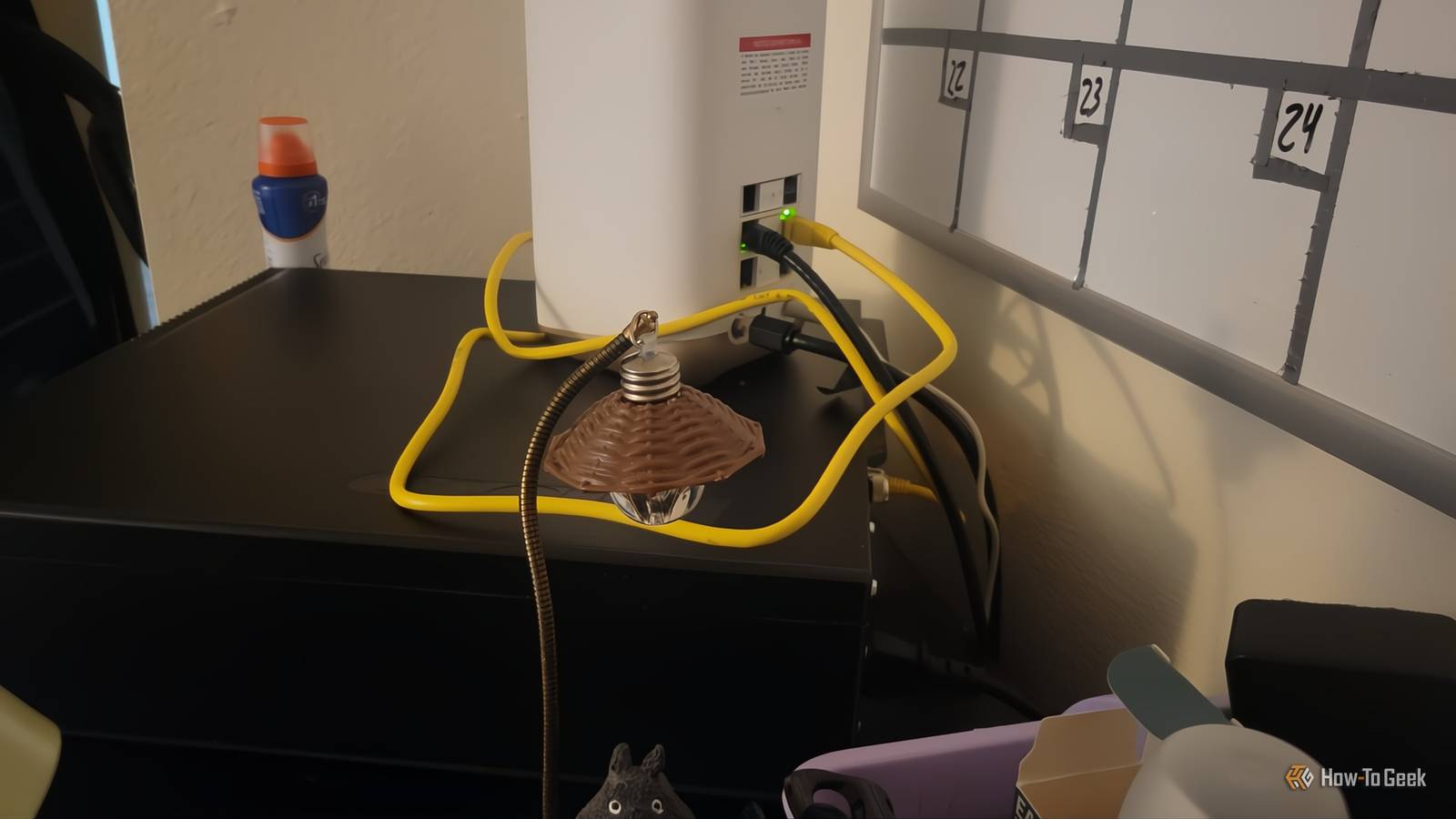
Published Nov 8, 2026, 2:30 PM EST Aggy is a veteran writer and editor in the technology and gaming space. Having served as a Managing Editor for high-traffic digital publications, alongside being an editor and consultant for over a dozen sites. Aggy's published work spans a wide and respected array of tech and gaming outlets, including WePC, Screen Rant, How-To Geek, Android Police, PC Invasion, and Try Hard Guides. Beyond editorial work, Aggy's direct experience in the tech sphere extends to app development. Aggy has published two games under Tales and is always eager to learn and do more. He also likes working on computers and researching in his spare time. He knows about Windows, Linux, Audio, Video, and much more. I plugged my NAS into the first open port on the back, watched the lights blink, and assumed the job was done. The shares mounted, nothing threw an error, and I moved on. However, I later found out the connection was crawling at a fraction of what the hardware could do, and nothing ever warned me. That's what makes this mistake so annoying. Any server or storage can look perfectly healthy while running slowly. Your NAS ports aren't all the same Two devices will agree on the slower speed Getting a NAS running looks easy, but there's a mistake that's simple to make and tough to spot. Most NAS units from companies like Synology and QNAP have a mix of port speeds on the back. You could have a few standard 1GbE ports right beside a 2.5GbE or 10GbE port, and they all share the same RJ-45 connector and identical-looking cable. Nothing on the outside lets you tell them apart just by looking. When I set mine up, I plugged my new server into the first open port on my router without thinking. I honestly thought that they were all just extra ports and they all meant the same thing. The link came up, the lights blinked, my file shares mounted, and nothing complained. It seemed totally fine, but I was running at under a tenth of the speed I should've been at and didn't realize it. When two devices link up, they talk briefly and agree on the fastest speed they both support. If your NAS port is 10GbE, but your switch port is only 1GbE, they'll settle on 1GbE and leave it there. You don't get an error or a warning because it still works. It's just a speed limit you didn't know existed. Keep an eye on the difference between link speed and negotiated speed. What the port can do on paper means nothing compared to what it actually runs at after the two devices talk. Even that isn't the final number. Throughput is the transfer rate you see when moving files, and it's always a bit lower than the negotiated speed because of protocol overhead. Also, check the NAS port and the switch port separately, since you'll be stuck with whichever one is slower. You can check your port speed in a few minutes A bad cable can quietly slow you down Unfortunately, the check isn't as simple as looking at the ports. Start by checking the negotiated speed in your NAS software. Just open the network settings and look at the status of each port. It'll tell you plainly whether you're connected at 10Gbps, 2.5Gbps, 1Gbps, or 100Mbps. If you want to check your own PC, just go to your control panel and head to the network page and click on your Ethernet to see where your cable is. On the switch side, if it's a managed switch, you can check the port status through the admin interface. The LEDs on the ports themselves can also give you a hint, since many switches use different colors or blink patterns for different speeds. If anything shows 1Gbps or 100Mbps on a port that should be faster, something's wrong. All you need to do is plug your cable into the fastest port on the NAS and connect it to a switch port that matches. While you're at it, make sure your cable can handle the job. Cat5e works fine for 2.5GbE. For 10GbE, Cat6 will get you there up to about 180 feet, but if you're running longer than that, you need Cat6A to avoid signal problems. Once you've made the change, run a large file transfer or a tool like iperf3 to confirm you're actually hitting the speeds you expect. One problem worth knowing about is a damaged cable that doesn't fully drop the connection. Gigabit and faster connections need all four wire pairs working. Old-school 100Mbps only needs two. So a cable with a damaged pair can quietly fall back to 100Mbps without telling you. Your link stays up. Everything looks fine, but you're pushing files at about 11 MB/s and wondering why. If you suspect this, a managed switch with cable diagnostic tools can test the individual wire pairs and tell you where the problem is. A slower port is fine for some people Other parts of your setup can still hold you back To be fair, 1GbE is enough for a lot of home use, and I wouldn't have noticed a difference if I hadn't been reading so many guides that warned about this. Really, it tops out around 110 to 118 MB/s, which is plenty for 4K streaming or backups running overnight. All I did was move files around, so I didn't really have to change anything. Where it breaks down is when your storage can outrun the network. If you're doing video editing, running a home lab, or have multiple people hitting the NAS at once, 1GbE becomes the thing holding everything back. One common fix that sounds good but doesn't quite work the way people think is port bonding, where you bundle multiple 1GbE ports together with LACP. The problem is that a single file transfer between you and the NAS still travels down one cable. Bonding helps when multiple clients are connected at the same time, but it won't make your own transfers faster. For that, you'd need something like SMB Multichannel, which splits a single transfer across multiple network connections. And even if you sort out the port and the cable, other things in the chain can still cap your speed. If your computer or switch only does 1GbE, that's your ceiling no matter what the NAS can do. If you turn on SMB encryption and the NAS CPU doesn't have hardware support for it, encryption alone can tank your throughput. So pick the fastest port that matches your gear and leave the rest empty. You may also find your cable is in the wrong port, and moving it could be a free speed boost. Just make sure it's connected correctly Not every home setup needs a faster port, and you likely don't need the super-fast speeds the faster ports offer. Chasing more speed could cost you money for no real gain, and won't help if your computer, switch, or settings hold the connection back somewhere else. However, it only takes a few minutes to check the negotiated speed on your own server or storage. It's better to find out now than after you've wondered for months why big transfers feel slow.
You plugged your NAS into the wrong Ethernet port, and I know because I did too
Full Article
Original Source
Read the full article at Howtogeek →KhanList aggregates and links to publicly available news content. We do not host full articles from third-party sources. Always verify important information with original sources.