
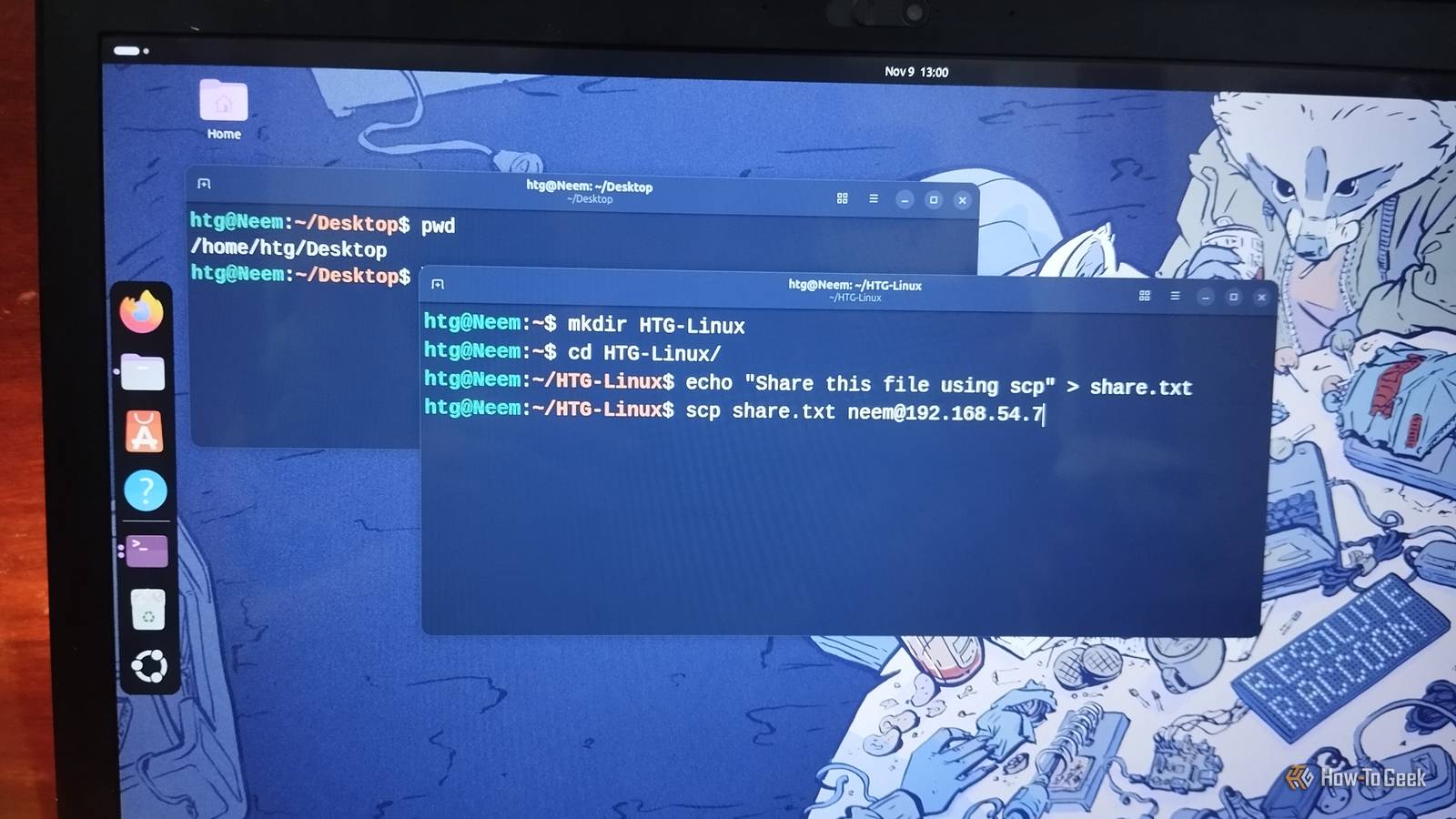
More people are trying Linux distros these days. Modern desktop environments make Linux easier to use than ever, while offering the freedom and flexibility that Windows users often crave. But there's still one thing that intimidates newcomers: the terminal. Search for Linux commands online, and you'll probably find a 100-command cheat sheet or an ebook waiting for you. The problem is that most everyday users won't need or use all those commands. I know because I've been using Linux for over a decade, and I still forget plenty of them. I've even written an ebook covering 100 Linux commands myself. But those guides are written for users with different experience levels and needs, so they cover a little bit of everything. You don't need to memorize hundreds of commands or understand complicated syntax to get started. A handful of everyday commands can give you more control over your system and help you complete certain tasks faster than clicking through menus. Whether you're managing files, finding something buried in your system, or checking what's eating your RAM, these 13 commands will help you get comfortable with the terminal without feeling overwhelmed. Move around the file system pwd: see where you're Ever opened a terminal, run a few commands, and then wondered which directory you're actually in? The pwd command answers that question. It stands for print working directory and displays the full path to your current location. pwd Now you know exactly where you are without having to open your file manager or guess which folder you're working in. ls: See what's inside a directory Think of ls as opening a folder to see what's inside, except you don't have to leave the terminal. It lists the files and directories in your current location. ls You can also use flags to change how a command behaves. The ls command offers several useful ones, but let's start with three. Use ls -l to see more details, including file permissions, ownership, sizes, and modification dates. By default, Linux hides files and directories whose names begin with a dot (.). Use ls -a to show those hidden items, too (useful when you're looking for any configuration files). Finally, ls -R lists the contents of the current directory and its subdirectories recursively. You can also combine flags, so ls -la shows detailed information about all files, including hidden ones. cd: move between directories Now that you know where you are and what's around you, it's time to move. The cd command stands for change directory and lets you navigate your filesystem directly from the terminal. cd Projects Give it a folder name, and you’re there. Want to go back one level? Run cd ... Want to return to your home directory? Just enter cd without specifying a path. Learn about relative and absolute paths if you're unfamiliar with them. Once you get comfortable with cd, navigating to specific directories through the terminal can feel more natural than using a file manager. Managing files without opening a file manager mkdir: create new directories Need a folder for a new project? The mkdir command creates directories without making you open your file manager. mkdir photos That's it. Your system will create a directory named photos in your current location. The -p flag comes in handy when you want to create nested directories or multiple directories along a path, even if their parent directories don't exist yet. cp: copy files and directories The cp command copies a file. Give it the source first, then the destination. To copy a whole folder, add -r (recursive), or cp will politely refuse. cp Documents/budget.txt Backups/ cp -r Documents Backups/ You can also copy multiple files at once by listing their paths before the destination directory. cp img1.jpg img2.jpg img3.jpg Backups/ cp command is useful when you want to create a backup of a document or duplicate something without disturbing the original. mv: move or rename files The mv command is a multitasker. It can move files between directories and rename them without requiring a separate command for each job. mv Documents/todo.txt Backups/ This moves todo.txt into your Backups directory. You can also rename a file by specifying its current and new names: mv Documents/budget.txt Projects/monthly-budget.txt Unlike cp, mv doesn't leave another copy behind. The original file is moved or renamed, so double-check the destination before pressing Enter. rm: delete files you no longer need The rm command removes files from your filesystem. It's straightforward, but it's also one of the commands you should treat with a little respect. rm readme.txt This deletes the specified file. There's no Trash, no "Are you sure?", and no Ctrl+Z. The file (or directory) is simply gone, so be mindful of using the rm command. To remove a directory and everything inside it, use rm -r. If you want to review each deletion before it happens, use rm -ri for interactive confirmation. rm -r Photos/ rm -ri Photos/ If the directory is empty, you can use rmdir instead. It only removes empty directories, giving you a safer option when you don't want to delete their contents accidentally. Read and search through files cat: quickly display the file's contents The cat command dumps a file’s contents straight into your terminal. It’s perfect for short files like notes, configs, and logs. For longer files (which can fill your terminal with more text than you'd want to scroll through), you'll want something else. But we're keeping things simple here. cat todo.txt You can also pass multiple filenames to cat to display their contents together. grep: find specific words inside files Searching through a lengthy file to find one particular line isn't fun for anyone. That's where grep comes in. It searches text for a word or pattern and displays the matching lines. grep "Rich Woods" Documents/meeting-notes.txt Instead of printing the entire document, grep only shows the lines containing your search term. grep is case-sensitive by default, so add the -i flag to make your search case-insensitive. You'll often see this command in online tutorials, and for good reason. It's particularly useful when troubleshooting errors, searching configuration files, or finding specific information in lengthy logs. You can also pipe the output of one command into grep using the pipe symbol (|). It's one of Linux's most useful features, letting you pass one command's output to another and combine simple tools to handle more complex tasks. Send files to another computer scp: copy files over an SSH connection Remember cp? scp works on the same idea, but across machines. If both computers can communicate over a network and the receiving computer has an SSH server running, you can securely transfer files (as the connection is encrypted) without needing a USB drive, cloud storage, or a third-party file-sharing app. scp Backups/share.txt user@192.168.56.1:Documents/ For this demonstration, I transferred a file from my Ubuntu system to my Windows machine. First, I made sure the Windows machine had an SSH server running. I then tested the SSH connection from Ubuntu to confirm that both machines could communicate (this step isn't necessary, but I wanted to make sure everything was working). After running the scp command, you'll be prompted for the remote machine's password unless you're using an SSH key. A progress indicator shows the transfer as it happens. You can also transfer files in the opposite direction by reversing the source and destination. For larger or repeated transfers, power users often prefer rsync, which is a good next-step command once you're comfortable with scp. For now, you're good with scp. Keeping an eye on your system top: see what's consuming system resources top is the Linux Task Manager, just in text. It shows running processes, CPU usage, and memory, all updating live. top It's great for spotting apps that are eating up your CPU and investigating an unusually busy system without opening a graphical system monitor. Press q to exit when you're done. df: check how much storage you've left Running out of disk space can cause all sorts of headaches, from failed downloads to applications refusing to update. The df command reports available and used storage space across your mounted filesystems. By default, it displays sizes in confusing blocks, so add -h for human-readable output in GB and MB. df -h Pay attention to the Use% column. If your main drive is nearing 100%, it's time to free up some space. free: check your RAM and swap usage Want to know whether your computer is running low on memory? The free command gives you a breakdown of your RAM and swap usage. Again, -h makes the output easier to read. free -h You'll see the total, used, free, and available memory, along with swap usage. Pay attention to the available column rather than free, as Linux uses spare RAM for caching and releases it when needed. Don't memorize commands. Learn to look them up. You don't need to memorize 100 Linux commands, or even these 13, by heart. You can learn as you go, and the more you use a command, the easier it becomes to remember. When you get stuck, just type command --help to see its available options and a brief usage guide. For more detailed documentation, run man command (replace command with the name of the tool). That's the whole trick. Learn a few commands, keep these two lookups handy, and the terminal won't feel so intimidating.
You don't need to memorize 100 Linux commands, just these 13
Full Article
Original Source
Read the full article at Howtogeek →KhanList aggregates and links to publicly available news content. We do not host full articles from third-party sources. Always verify important information with original sources.