
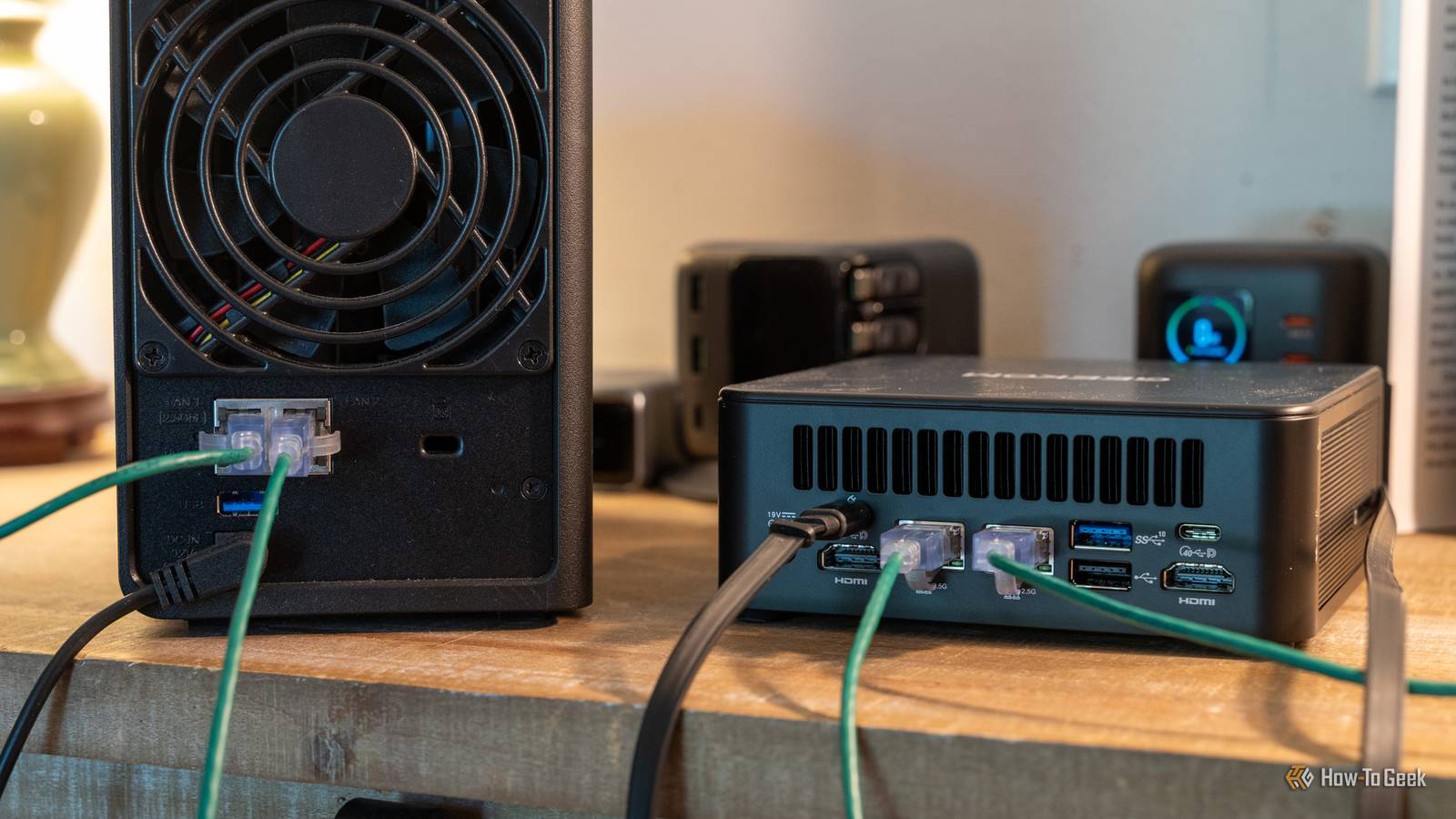
Published Oct 29, 2026, 2:30 PM EDT Nick Lewis is an editor at How-To Geek. He has been using computers for 20 years --- tinkering with everything from the UI to the Windows registry to device firmware. Before How-To Geek, he used Python and C++ as a freelance programmer. In college, Nick made extensive use of Fortran while pursuing a physics degree. Nick's love of tinkering with computers extends beyond work. He has been running video game servers from home for more than 10 years using Windows, Ubuntu, or Raspberry Pi OS. He also uses Proxmox to self-host a variety of services, including a Jellyfin Media Server, an Airsonic music server, a handful of game servers, NextCloud, and two Windows virtual machines. He enjoys DIY projects, especially if they involve technology. He regularly repairs and repurposes old computers and hardware for whatever new project is at hand. He has designed crossovers for homemade speakers all the way from the basic design to the PCB. Nick enjoys the outdoors. When he isn't working on a computer or DIY project, he is most likely to be found camping, backpacking, or canoeing. A 4-bay NAS isn't cheap—they'll often cost you around $500 before you start including hard drives, which are now quite pricy. Even budget 2-bay NASes come in at around $200. But why buy a NAS at all? At the most basic, a NAS is just a low-power PC with a few USB ports, an Ethernet port, a custom operating system, and a special case. There really isn't anything "irreplaceable" about a NAS that warrants the price except for convenience. When you consider that a mini PC, an old laptop, a retired gaming or office PC, or even an old Mac can all make admirable NASes with about an hour of work, it becomes difficult to justify paying the commercial NAS premium. A mini PC is the best all-rounder Mini PCs give you NAS-class power draw with full PC flexibility Most NASes are designed to consume little electricity and run silently. Fortunately, there is an entire class of desktop PCs designed to do the same thing: mini PCs. Most mini PCs come with low-power CPUs, 8–16 GB of RAM, and a handful of ports—basically the same as a NAS without the fancy case and without the NAS premium. However, mini PCs run regular operating systems, which means you can run any of the open-source NAS operating systems; Docker, Home Assistant, or even Proxmox. That makes them significantly more flexible than most commercial NAS units. The only snag is the storage. Standard 3.5-inch hard drives won't fit in a mini PC, which means you'll need to use external USB enclosures for your drives (DAS). USB enclosures don't make an ideal fit for ZFS or RAID setups, but you can easily set up manual mirroring with rsync to make sure your data is stored safely. Mini PC models popular in offices—like the Lenovo ThinkCentre Tiny series, Dell OptiPlex Micro, or HP EliteDesk Mini—are often the best value. They typically feature 8th-10th gen Intel chips with Quick Sync for transcoding and two RAM slots, allowing you to get to 32GB or more, which puts them ahead of most NASes. You can find them on Ebay for an excellent price. An old laptop is a free server with a built-in UPS A laptop is a NAS in a different form factor If you have a laptop made in the last 5–8 years sitting around, you already own half of a NAS. Like mini PCs and NASes, laptops usually come equipped with CPUs designed to minimize energy use to avoid draining the battery too quickly. In the case of a DIY NAS, that battery also functions as a backup UPS so that an unexpected power loss doesn't corrupt any of your data. To convert a laptop into a NAS, I'd recommend starting with OpenMediaVault or TrueNAS Community Edition—they're both flexible and work well on almost any hardware. Once you have that, just add an external hard drive enclosure and you have yourself a DIY NAS. Since many laptops lack a dedicated Ethernet port, you'll probably want to pick up a USB to Ethernet adapter too. I'd recommend tweaking your BIOS settings to limit how much the battery will charge. Continuously keeping a laptop battery at 100% is bad for it; it may even make it swell up. An old gaming desktop is the ultimate home NAS If you need a powerful NAS with a ton of storage, you can't beat a gaming PC Credit: Ismar Hrnjicevic / How-To Geek If you need a ton of storage and want a powerful NAS, a used gaming PC is your best option. A gaming PC with a 6-8-core CPU and 16GB+ of RAM provides far more computing power than any regular NAS. Even medium cases usually support 4-6 3.5-inch hard drives, and the motherboards tend to support at least that many, too. That means you can use real RAID or ZFS pools, both of which are good ways to protect yourself against data loss. Gaming PCs also almost always have spare PCIe slots for HBA cards (for SAS drives), faster network cards (NICs), or extra NVMe drives. The downside is the electricity bill. A gaming desktop can idle at 50–100W, which can add up over a few years. If you're not going to use the GPU for a self-hosted app like Immich (which has AI features) or for transcoding, I'd remove it to save power. Like with a laptop, OMV and TrueNAS Community Edition are your best bets for operating systems. Proxmox is another good option, though it isn't a dedicated NAS OS. A used M1 Mac mini is a powerful PC macOS already includes file sharing and Time Machine If you're a fan of Macs, you could turn an old Mac mini into a respectable home NAS. If you shop for used deals diligently, you can pick up an M1 Mac mini for less than $300. Models with more RAM will cost more. In theory, you don't even need a dedicated NAS OS to use a Mac mini as a NAS. macOS already supports SMB file sharing, and Time Machine can be used to create automated backups. The real selling point is the hardware. The M1 was extraordinary when it was released and holds up well even today. It idles at very low power, runs silently, provides hardware encoding support for Jellyfin, and can handle many light AI workloads without missing a beat. No entry-level NAS even comes close to an M1 Mac's capabilities. The RAM and storage in Mac minis are soldered, which means you can't upgrade them. Make sure to account for that when you buy one. Like other mini PC form-factor DIY NASes, you'll need to use external hard drive bays for bulk storage. On the plus side, M1 Mac minis have Thunderbolt 4 ports that support transfer speeds up to 40Gb/s, which is more than fast enough for NAS use. Only buy a dedicated NAS if you definitely need one A spare or cheap PC covers almost every home NAS use case. OpenMediaVault excels when you're stuck using external USB enclosures to add storage; TrueNAS is a bit more flexible all around, but it prefers internal storage. Opting to DIY a NAS also gives you a lot more room to change up your setup. Most of these devices can be upgraded more than a NAS, and most of them also support a much wider range of operating systems and applications. Considering that hardware is increasingly expensive, it doesn't make sense to spend hundreds on a device that basically only does one thing.
You don’t need to buy a NAS. These 4 computers do the job for less
Full Article
Original Source
Read the full article at Howtogeek →KhanList aggregates and links to publicly available news content. We do not host full articles from third-party sources. Always verify important information with original sources.