
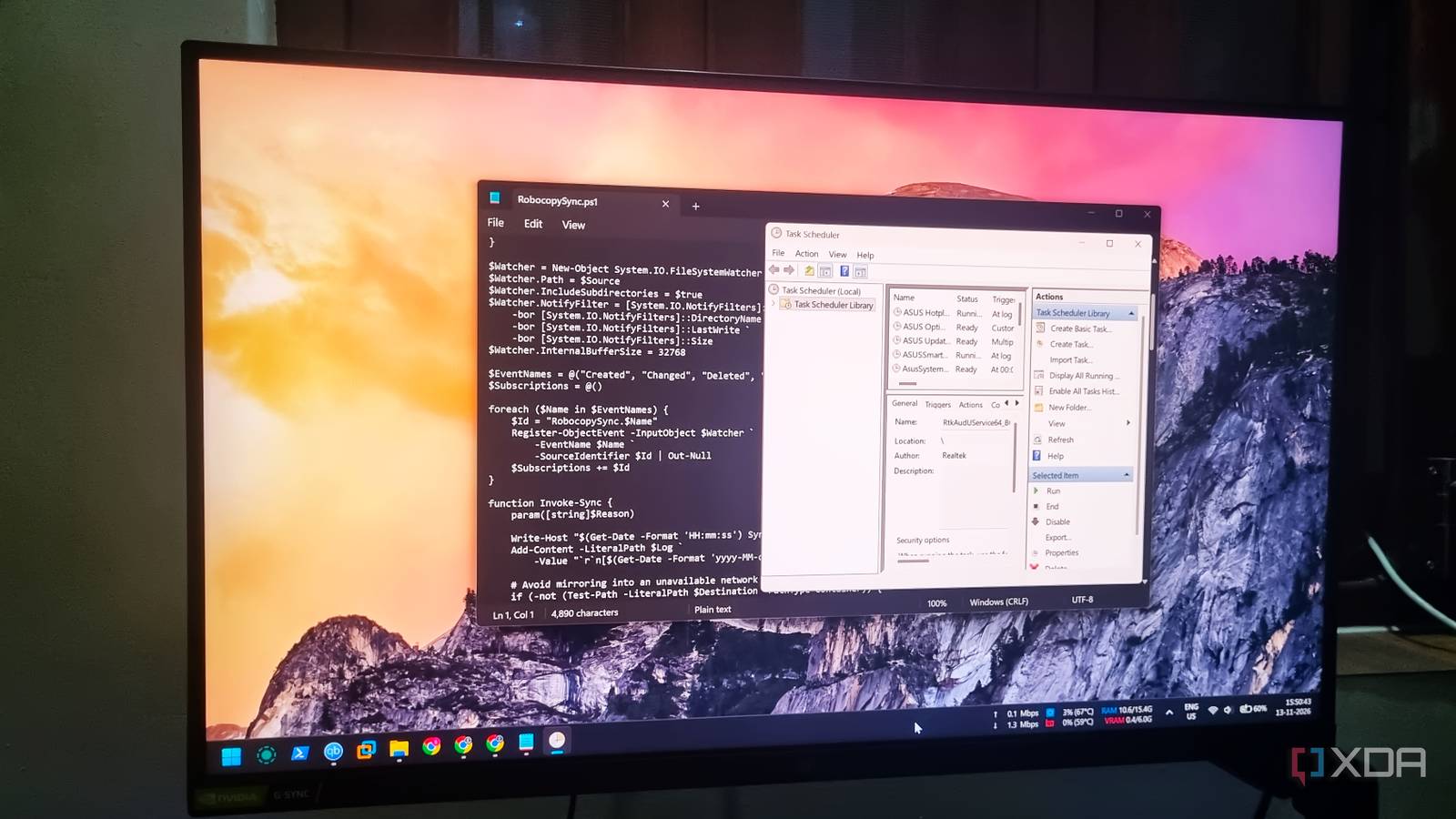
Published Nov 14, 2026, 5:00 PM EST Abhishek is an author at XDA who covers computing. He has loved computers since he got the Lenovo G570 in 2012. Abhishek holds a master's degree in computer applications and began his writing career in 2018. He loves writing how-to articles, listicles, and informational posts on popular operating systems and web services. He closely follows the Windows Insider program and tests new Insider builds to discover upcoming experimental features and upgrades. His past work includes long-term collaborations with reputed publications like Tom's Hardware, and Windows Latest. When not writing anything, he is busy watching new episodes of One Piece or searching for something binge-worthy. You might already use common Windows tools like Task Manager, Windows Security, and Control Panel. These are general-purpose tools that you might need to manage features, active processes, and services, and analyze security settings. There are several less popular and seldom-used ones, like Resource Monitor, Event Viewer, and Task Scheduler. You might not use them as frequently as the ones I mentioned before. I began using Task Scheduler very late in my automation journey and dabbled with third-party tools. Then I started building and using custom scripts for some less common OS actions. But running scripts manually is time-consuming, and Task Scheduler can offer a simpler way to implement automation strategies. Scripts are the actual backbone Don't confuse Task Scheduler with a tool like Task Till Dawn. The latter has a task builder with numerous actions that you can chain together to build an automation. Task Scheduler might lack a visual builder, yet it can run any program or script. The tool also supports multiple built-in trigger types and conditions, and includes task settings. The script is the core of the task because it defines all the actions that will happen once the task starts. I have multiple scripts that run on my Windows PC via the Task Scheduler. Another benefit of this approach is that the script and its automation stay separate. It’s easy to fix either of them without hurting the other. If I need to add new features to the script, I can add more commands and code snippets without touching the task properties. The same goes for tasks because I can change the execution and trigger without breaking the script. However, a task builder tool cannot offer the same kind of flexibility. I might have to build a new automation to incorporate the changes. One of them is a Robocopy script to periodically back up the personal files to the connected external disk. Task Scheduler runs it every hour and doesn't keep it in memory all the time. A few more relatable use cases include setting up a task for a winget script to update third-party apps, or running a delete operation on the downloads folder for bigger files. One script handles my morning routine Task Scheduler handles its timely execution Another thing that I've automated via Task Scheduler is my morning routine. You can relate to the pain of opening multiple browser profiles, apps, and other tools before you can even start the actual work. My routine involves most of these things in addition to powering up virtual machines, accessing the home servers, and a few other actions. The script automatically opens different Chrome profiles, which are mapped to launch select URLs. Similarly, the SSH session is ready for me to interact with the dashboard directly. My Linux virtual machine powers up slowly in VMware without any manual input and is ready for experiments. Task Scheduler doesn't have any say in the script's logic and is more concerned with its timely execution and triggers. I've mapped the morning script to run when I log into the system and only power off my PC at night. So, it has simple instructions to run at logon with PowerShell and a few other conditions. Similarly, you can define a task based on power-related settings, network availability, and idle-state requirements. My Robocopy script, on the other hand, can be made as complex as I want. If I want to match the pace of a file sync tool, I can modify the script to continuously run in the background and watch for file changes. I did one such project for a network transfer to a different Windows machine. Task Scheduler runs the task at a designated time with predefined triggers, and does so until I want. All of this silently happens in the background and never asks me for any kind of input or approval. I don't need to interact with the terminal window while the script executes, and there's a small wait time between each action in the file. I've used it to give proper time for one action to execute, like launching a virtual machine or opening several URLs before proceeding to the next one. I understand that building complex scripts can be challenging, but it’s a learning curve that becomes faster with AI tools. Uncertain future and paywalls It’s no secret that there are more powerful automation tools available for Windows. Task Scheduler can seem like a less exciting option with the bland UI and basic design. However, you don’t need graphical automation tools for basic system automation. In my case, I can achieve the desired results with a simple script rather than downloading a new tool, understanding its features, and then building anything inside it. Task Scheduler lacks presets, which can look very useful for beginners. When I tried Task Till Dawn for the first time, the presets made no sense at all. I learned action chaining and automation and saw mixed results in the initial stage. Task Scheduler doesn’t try to mimic these tools, which explains its lack of presets. It could benefit from a more user-friendly UI, though. Third-party tools can also isolate actually useful features behind a paywall, and there’s always a risk of obsolescence. Projects become abandoned after some time, and that means no new features or updates. So, you have to switch your workflow to a new one, and it's another ordeal. I prefer to stick to native tools because they stay with the OS for a long time. Leverage Task Scheduler for Windows automation I’m content with the capabilities of Task Scheduler and occasionally dedicate time to refining the scripts. Earlier, I needed to enter the password to log in to the servers, and sometimes VMs would launch if I failed to sign in in time. Now, the SSH authentication happens via keys, and the terminal loads directly. Modifications happen all the time, and the task’s properties remain untouched. Windows 11 Pro A USB installation drive and license key for Windows 11 Pro, with additional features like Hyper-V and Windows Sandbox support.
Windows Task Scheduler can automate half the things people install third-party utilities to do
Full Article
Original Source
Read the full article at Xda-developers →KhanList aggregates and links to publicly available news content. We do not host full articles from third-party sources. Always verify important information with original sources.