
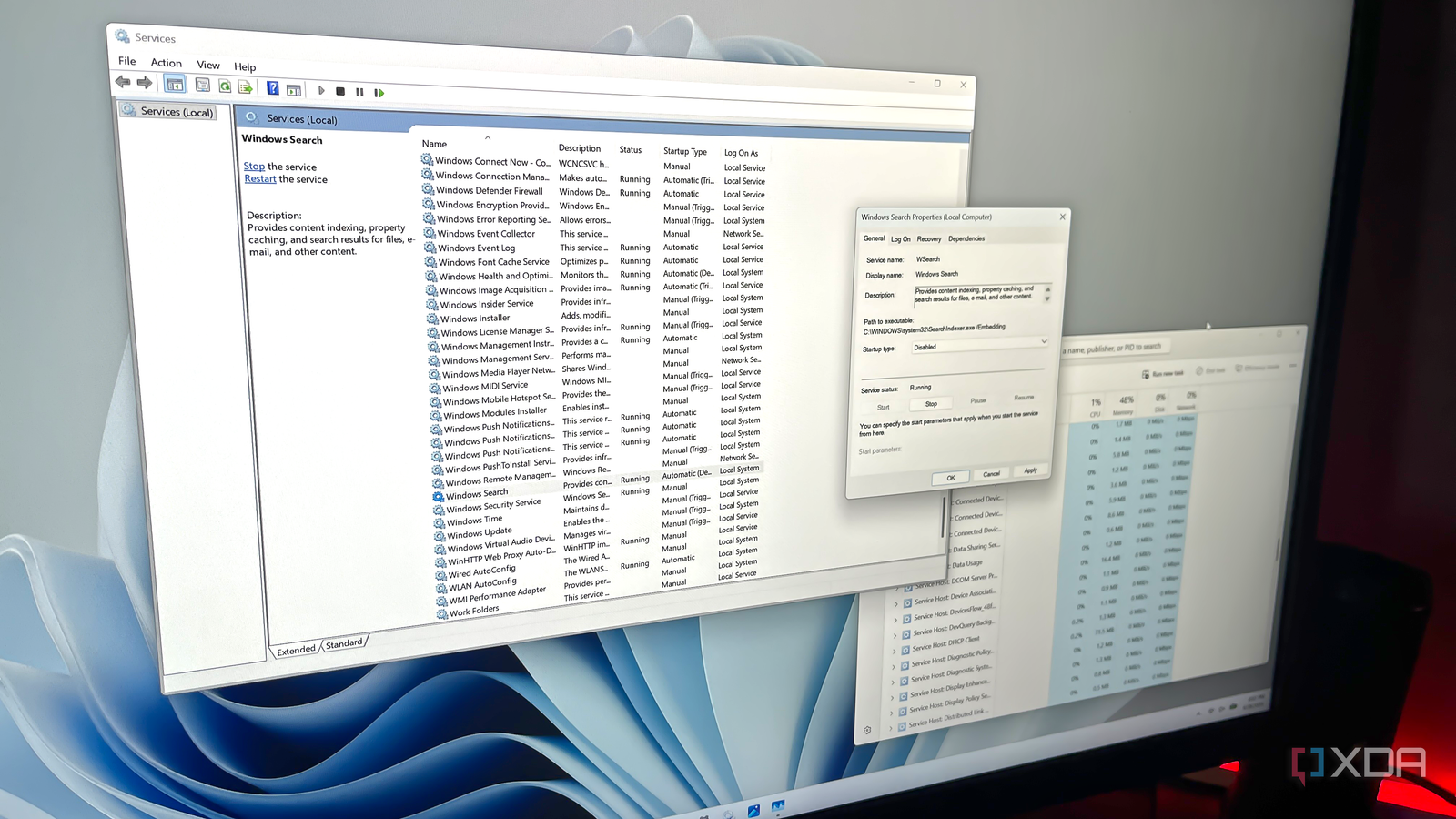
Published Oct 1, 2026, 9:00 AM EDT With over five years of experience in the tech industry, Kazim excels at simplifying complex topics, making them accessible to tech enthusiasts and general readers alike. He has extensively covered the Windows ecosystem, from Windows 7 to Windows 11. When he’s not writing, you’ll find Kazim planning weekend getaways or diving into tech verticals beyond his expertise. Your computer, whether it's on Windows 10 or Windows 11, has a bunch of services running in the background. Many of these are system services, meaning that they are related to Windows and related components, while others are linked to third-party programs. Believe it or not, you don't need them all, and disabling the non-critical ones can give your system some breathing room, especially on older PCs that might be running low on memory. Before we proceed, it's vital to understand what a Windows service is and the role it plays on your PC. Think of services as tiny programs that load alongside Windows, are responsible for different hardware and software-based functions, and require little manual intervention. This means you don't have to enable a service every time the operating system needs it; Windows takes care of that. Of course, there are cases where manual reconfiguration can resolve system-related errors, as we will see later. But for now, let's focus on the ones that you don't need. Your Windows PC doesn't need every service Some simply hog background resources If you have ever opened the "Services" utility, which is the simplest way to view and modify services in Windows, you must have noticed that there are usually about 100 or more services. Some of these will read "Running" under the status column (the active ones), while for others, this space will be blank (the inactive ones). You can also view active services and check their individual resource consumption in the Task Manager by scrolling down to "Windows processes." Now, the important part: Windows doesn't need all these services running, and neither do you. The idea is simple: if a service doesn't benefit the system or your workflow in any way, you can disable it, provided the service is not linked to any critical functionality. And there are several of these. For instance, you have the Connected User Experiences and Telemetry service, which collects and sends your PC's diagnostic and usage data back to Microsoft. And honestly, you are better off without it, not just for performance, but also from a privacy standpoint. Similarly, there's the Delivery Optimization service, which allows your PC to share downloaded updates with other computers. You can adjust how it works within the dedicated "Delivery Optimization" settings, but, generally speaking, most of you, especially the average user, are better off without it. You also have Windows Search and SysMain, two other services that users sometimes disable. And these are generally the more resource-intensive ones. If you are not into gaming, you can safely disable services linked to Xbox. I do that on every PC. Additionally, if you don't have a printer connected to the system, you can disable the related services. Disabling services is fairly straightforward The dedicated Services utility comes to your rescue When you actually get to disabling the services, you will see that the process is fairly simple and, ideally, shouldn't take more than a few minutes. To do that, open the Services utility > identify the service(s) you want to disable > double-click it > select Disabled under the Startup type dropdown menu > click Stop under Service status > click Apply and OK to save the changes. It's important that you set the startup type to "Disabled." Otherwise, Windows will reload the service the next time you turn on or restart the computer. If you want to disable services linked to third-party programs, there's an easier way. Open the System Configuration utility > navigate to the Services tab > tick the Hide all Microsoft services checkbox > identify ones that are running > uncheck any you don't need > save the changes. Keep in mind that the Services utility also works, but this way, you get a filtered view of third-party services, which saves a lot of time. You shouldn't disable every service, though A few are critical to Windows Up until now, we have discussed disabling services, primarily to minimize background activity and free up system resources. But there are two other things you must remember. First, you shouldn't disable every service, even if it seems responsible for significant CPU or RAM consumption. For instance, when your PC searches for or downloads updates, the Windows Update service may show a spike in resource consumption, but it's normal. And disabling the service will do more harm than good. Second, don't expect a massive performance boost from disabling a handful of services. Although these run in the background, most services don't consume a lot of resources, as can be verified in the Task Manager. So, disabling them doesn't make your PC significantly faster. There are performance benefits to it, but not as big as many will tell you. Every system benefits from reduced background activity That said, you must also realize that freeing up system resources by minimizing unnecessary background activity is still helpful, particularly on older systems. Besides, there's no harm in disabling non-critical system and third-party services. Nothing stops working, no error codes show up, and the Windows PC remains perfectly healthy. As a matter of fact, Windows doesn't even let you easily configure the more important services. So, if disabling a bunch of services gives your PC a performance boost, however small, I don't see a reason you shouldn't proceed. Personally, I do it on both my 12-year-old laptop that runs Windows 10 and a 4-year-old Dell 2-in-1 running Windows 11. Because, in the end, every system benefits from reduced background activity.
Windows has 100+ services running right now, and this built-in tool lets you safely disable many of them
Full Article
Original Source
Read the full article at Xda-developers →KhanList aggregates and links to publicly available news content. We do not host full articles from third-party sources. Always verify important information with original sources.