
Published Oct 7, 2026, 7:00 AM EDT Jesse is a lifelong technology enthusiast who has been exploring smartphones and mobile tech for more than two decades. He began his career in IT consulting and project management before making a career change into tech journalism in 2007 with iLounge. During that time, he authored three editions of iPod & iTunes Portable Genius for Wiley Publishing and has since written for iDrop News, Lifewire, SlashGear, and Digital Trends. While Jesse remains strongly immersed in the Apple ecosystem, you'll commonly find him rocking both an iPhone and a Pixel at the same time, where he likes to live on the edge with the latest iOS and Android betas. His tricked-out smart home also responds equally well to "Hey Siri," "Alexa", and "OK Google." His other hobbies include reading, curating his Plex library, and helping out at his local church with everything from live video production to governance. Google Docs has always been at the bleeding edge when it comes to collaborative and connective features. That's why I rely on it for everything from writing letters and articles to taking meeting notes. However, Google recently took it to a whole new level thanks to integration with Gemini Notebook (the service formerly known as NotebookLM). I'd already learned to speed through my writing and note-taking thanks to liberal use of the "@" sign for inserting accurate dates, images from Google Drive, callouts for other collaborators, and assigning Google Tasks. Now, I can use a similar technique to call up information from my collated sets of research notes that I keep tucked away in Gemini by referencing Notebooks. Gone are the days of copying and pasting stuff into a separate Gemini chat. Not only is this handy, but it's also given me a new reason to use Gemini Notebook: pulling disparate chats into common collections, so I can link to them as an entire batch. The power of the '@' Smart Chips and Building Blocks The "@" in Google Docs powers a whole array of cool features that help you collaborate and get things done quickly and efficiently without flipping between tabs or windows. For example, I chair the board for my church. We use Google Workspace for Non-Profits, so everyone has a Google account. When I'm putting together the meeting minutes, I can use the @ sign to link the document to everything present and assign tasks in Google Tasks. I can also quickly insert images, draft an email, or create a calendar event — all without leaving Google Docs. And that's just the tip of the iceberg. There are a dozen other actions I haven't even started exploring. Mixing in Gemini Notebooks The '@' slides up to the Gemini bar While the in-line "@" doesn't tie directly into Gemini just yet, it gets a new job in the Gemini side panel or bottom bar. Now, instead of referencing other Google Docs, you can reference entire Gemini Notebooks. Those are collections that can include dozens of source links and documents as well as any chats you've had while exploring those topics. I've been writing professionally for nearly two decades, and I have too much self-respect to let any AI tool write a single sentence for me. But Gemini is an incredibly valuable tool for collecting research. I'm still not naive enough to rely on everything it tells me verbatim, but as I explore the sources and correct its mistakes, a Gemini Notebook can become a useful repository of knowledge on a given topic. Being able to easily reference that personal library is a massive win when I'm writing content related to those topics. While Google's examples suggest using it to draft an entire document, it has other, more nuanced uses. Refining, not creating Triggering this capability is as simple as typing an AI prompt and working in the "@" sign followed by the name of the Gemini Notebook you want to reference. The most obvious thought is something like "Write a report about the new Kindles based on @Kindle Research Notes." However, that would be cheating. But I'm not above using Gemini to do the mundane work of inserting statistics. "Please insert a table of the top five sources of iPhone minerals based on @Apple's Supply Chain" gives me a nice summary that I can refine further. If I want to get especially creative, I can ask it for a pie chart instead. That won't be editable, and I'll be the first to admit I'm not always happy with the results, but I can usually get Gemini to tweak it to my liking. What's even more useful is using my existing research to check my work. Until now, after I finished writing a report or an article, I'd open a Gemini Notebook in a separate tab and copy and paste it into a new chat. That's extra work, and it also risks cluttering up the Notebook. Alternatively, I can pull the Notebook into a standalone Gemini chat, but that's still an extra step. But now? All I do is open the Gemini bottom bar and type something like "Please check this document against my research in …" and specify the name of the relevant Gemini Notebook. Gemini checks the current Google Docs file against the referenced Notebook and reports any discrepancies it finds, while also summarizing the points that align with the research notes. That's a huge time-saver. Still, this assumes my research is accurate and up to date, but as long as I'm careful about curating my Notebooks and what goes into them, it's more accurate than letting Gemini be misguided by information from the World Wild Web. How to get Gemini Notebooks in Google Docs The Gemini Notebook integration in Google Docs rolled out in late September and should now be live for most paid Gemini plans. This includes the Standard and Plus editions of Google Workspace Business and Enterprise, and the Plus edition of Google Workspace Education. It's also available for consumers with Google AI Pro and Ultra, but not the entry-level AI Plus plan. Using it is as simple as typing an "@" in the Write with Gemini prompt in the Google side panel or bottom bar. As long as you have at least one Gemini Notebook in your account, it should appear at the top of the autofill window. This may seem like a small change on the surface, but it's transformed how I interact with Gemini by bringing it even deeper into my Google Docs writing experience.
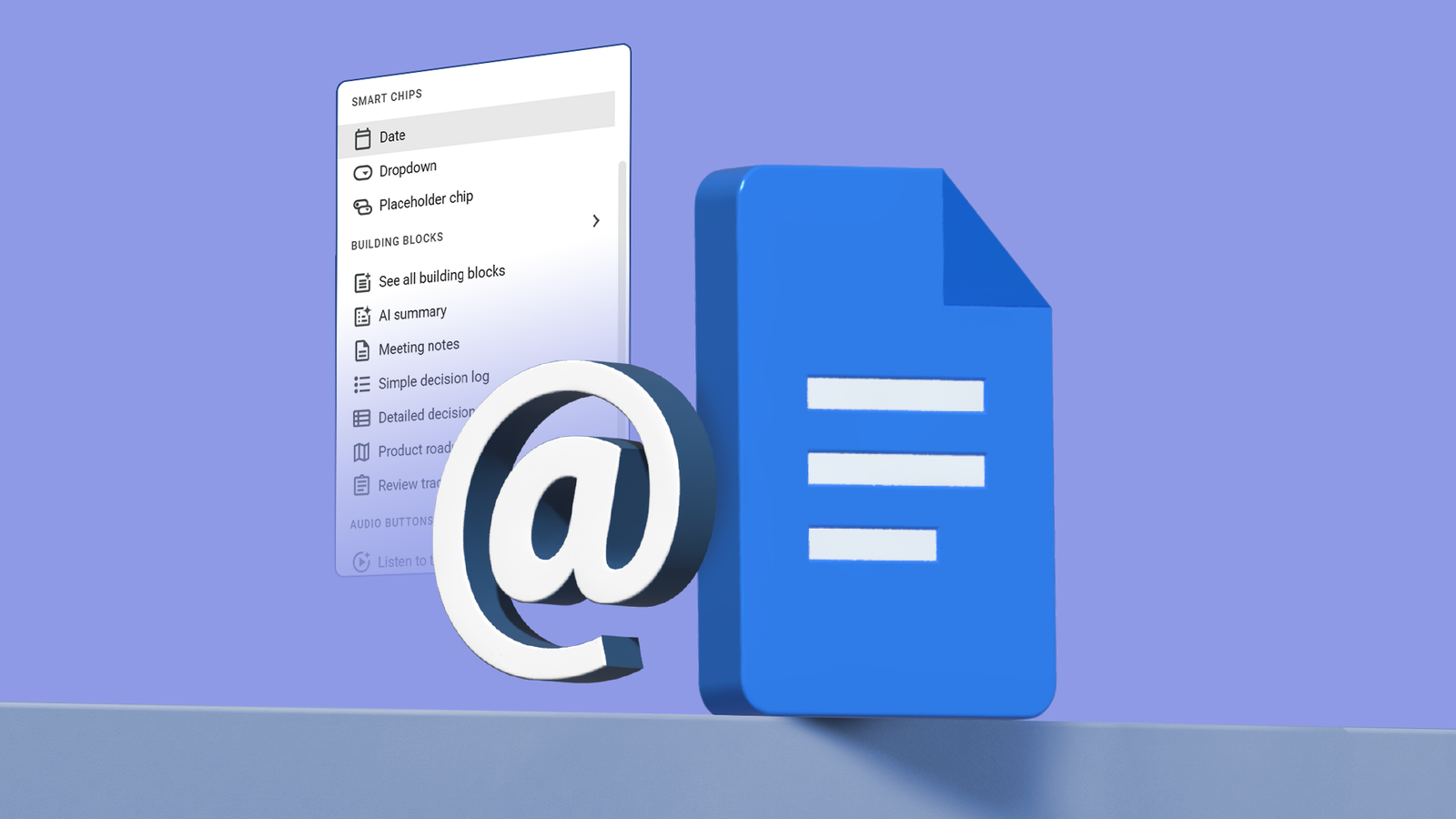
Why typing '@' in Google Docs completely changed how I draft my documents
Full Article
Original Source
Read the full article at Androidpolice →KhanList aggregates and links to publicly available news content. We do not host full articles from third-party sources. Always verify important information with original sources.