
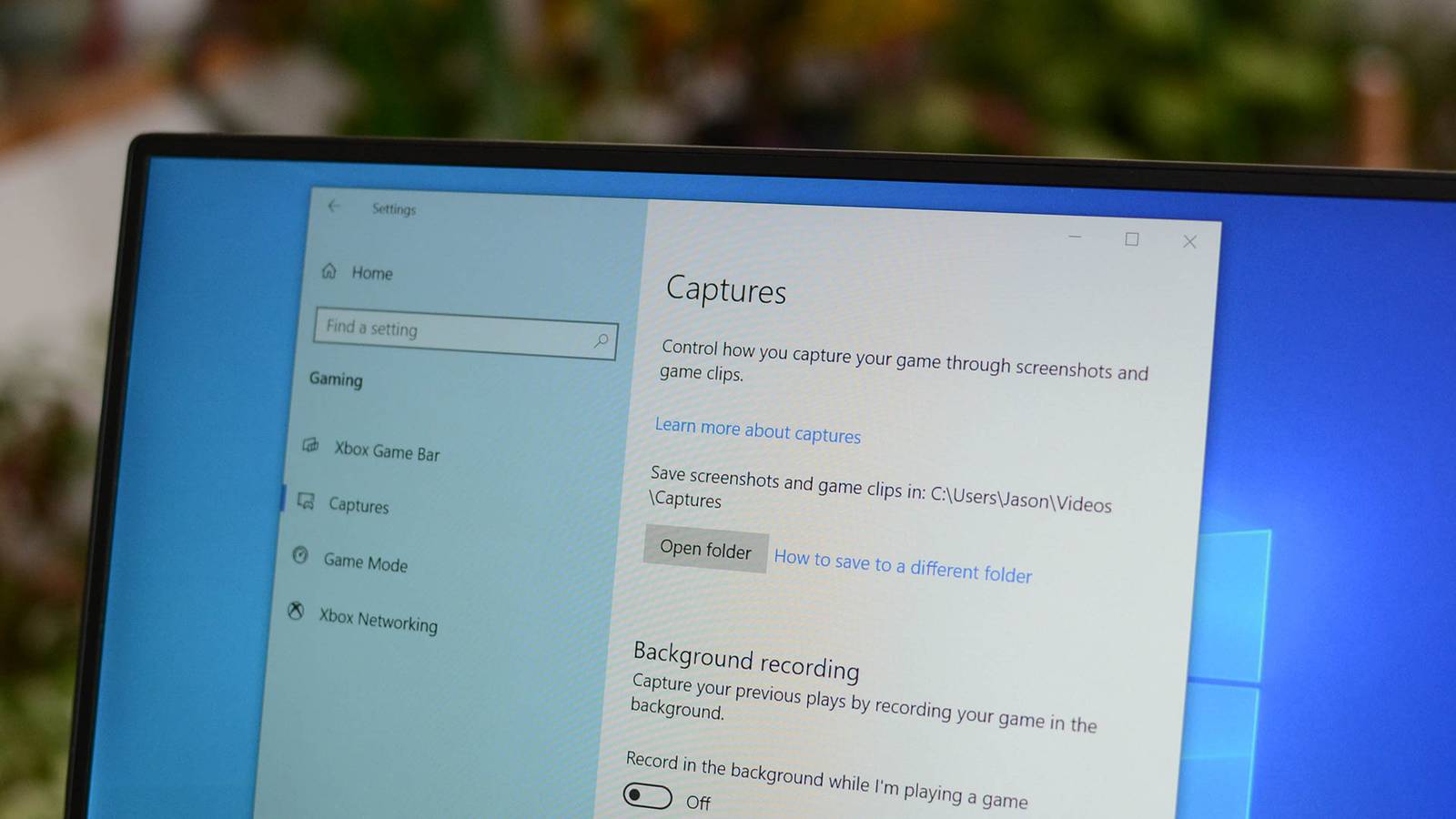
Where do screenshots go on Windows 10 and Windows 11? The answer depends entirely on how you capture the image. There is no single central folder for all screenshots, but every method has a specific default location. Where are screenshots saved using Print Screen (PrtScn)? In Windows 10 and pre-23H2 versions of Windows 11, pressing the PrScn key copies the entire screen to your clipboard. It does not save to a file. You must paste it into an image editor like Paint to save it. However, on Windows 11 build 23H2 and later, Microsoft changed the default behavior. Pressing PrScn now opens the Snipping Tool overlay. This makes capturing custom areas much faster. If you prefer the old behavior where the key copies directly to the clipboard, you can toggle it in Settings > Accessibility > Keyboard and turn off "Use the PrtScn button to open screen snipping." The same is true if you use Alt+Print Screen to capture the active window. They go to your clipboard and not a file. If you use Windows+Print Screen If you use the Windows+Print Screen keyboard shortcut to capture screenshots in Windows 10 or 11, Windows will save the image as a PNG file in your Pictures > Screenshots folder. On laptops and tablets, the physical keyboard layout often requires a modifier key. You may need to press Fn + Windows + PrtSc, Fn + Windows + Space (on Dell models), or Power + Volume Up (on tablets). The save location remains identical. Using Windows+Print Screen, Windows takes a full-screen screenshot and saves it as a PNG file named "Screenshot (#).png". The number at the end of the file name counts up over time based on the number of screenshots you've previously taken. Windows uses the same "C:\Users\[User Name]\Pictures\Screenshots" save location if you use Windows+Fn+Print Screen on an older Surface device, Power+Volume Down on certain tablets, or Windows+Volume Down on other tablets. Windows 10 and Windows 11 include a tool called Snipping Tool that allows you to capture custom screenshots. By default, every screenshot you take will be stored in "C:\Users\[User Name]\Pictures\Screenshots" and saved to your clipboard, just like if you used the older Print Screen method. Pressing Win + Shift + S launches the Snipping Tool overlay. This method behaves differently depending on your Windows version. In Windows 10, the tool copies the selection to your clipboard. You must click the notification that appears to open the editor and manually save the file. It does not auto-save. In Windows 11 (versions 11.2310 and later), the Snipping Tool includes an auto-save feature. If enabled, every snip is automatically saved to C:\Users\[Your Name]\Pictures\Screenshots. You can toggle this in Settings > Accessibility > Keyboard or within the Snipping Tool settings under "Automatically save screenshots when I snip." Your older screenshots might be there. If not, you could also check your Documents or Pictures folders under "This PC" in File Explorer. If you took a screenshot with the Game Bar If you use the "Capture" tool in the Game Bar (which opens when you press Windows+G), then Windows will save your screenshot to C:\Users\[User Name]\Videos\Captures, where "[User Name]" is the name of the user account you used to capture the shot. If you don't want to navigate to that folder manually, press Windows+G, click the camera button to open the Capture window, then select "See My Captures." Many users assume Win + G takes a screenshot, but that shortcut only opens the Game Bar overlay. To capture a screenshot instantly, you must press Win + Alt + PrtSc. Game Bar saves all screenshots and video clips to Videos > Captures. The path is C:\Users\[Your Name]\Videos\Captures. You can also change where the Game Bar saves your captures by editing the registry. Open up the Registry Editor, head to the following path: Computer\HKEY_CURRENT_USER\Software\Microsoft\Windows\CurrentVersion\Explorer\User Shell Folders Once you're there, double-click the string value "{EDC0FE71-98D8-4F4A-B920-C8DC133CB165}" and change the path to wherever you want. If that string doesn't exist, right-click empty space and select New > String Value, then name it {EDC0FE71-98D8-4F4A-B920-C8DC133CB165}. I set mine to a location on my E:\ drive, which is a 12TB hard disk drive. It isn't as fast as an SSD, but when you're just storing game clips, the extra volume is more important than speed.
Where are screenshots saved on Windows 11 and Windows 10?
Full Article
Original Source
Read the full article at Howtogeek →KhanList aggregates and links to publicly available news content. We do not host full articles from third-party sources. Always verify important information with original sources.