
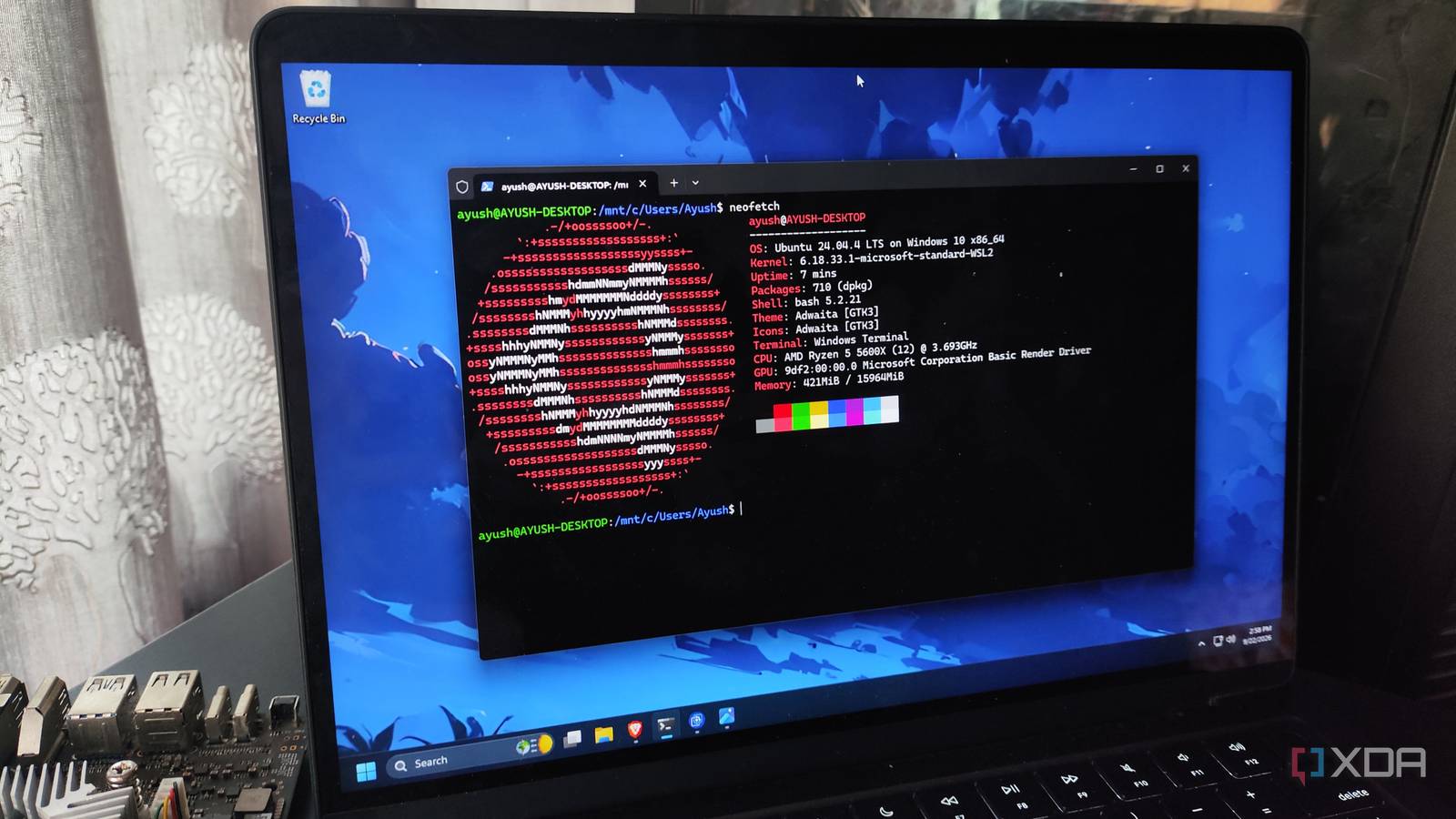
Published Sep 24, 2026, 8:00 PM EDT Ayush Pande is a PC hardware and gaming writer. When he's not working on a new article, you can find him with his head stuck inside a PC or tinkering with a server operating system. Besides computing, his interests include spending hours in long RPGs, yelling at his friends in co-op games, and practicing guitar. My first encounter with the Windows Subsystem for Linux was when I had to install it to run Docker containers for uni projects. For the longest time, WSL was merely the backend engine for my Windows-powered containerization experiments, while a dedicated Ubuntu partition was responsible for housing typical Linux apps. But over time, I realized such a setup had plenty of caveats, and began tinkering with virtual machines. Sadly, VM-only projects had a major drawback in the form of extra performance overheads, and that’s when I finally turned my attention to WSL. Although it took me a few days to get accustomed to WSL’s quirks and commands, it single-handedly replaced my dual-boot partition for my Linux workloads. Maintaining dual-boot environments on the same SSD is really annoying And I’d rather not buy yet another drive for Linux with current SSD prices On the surface, setting up Linux and Windows boot partitions on the same drive doesn’t take a lot of effort. For my setup, I installed Windows 11 first, and then went down the Linux rabbit hole with good ol’ Ubuntu. This configuration worked pretty well for a few weeks, until a major Windows 11 update overwrote the GRUB bootloader and rendered my Linux installation unusable, and I had to rely on a live USB to repair it. An easy way to circumvent this problem would be switching to a different SSD, which isn’t as easy as it used to be a few years ago. After all, the prices of SSDs have gotten extremely out of hand as of late. If I wanted a second drive specifically for my Linux shenanigans, I’d be shelling out well over $150 just to get a decent 1TB SSD for an Ubuntu installation. And since I already have a 2TB primary drive that I bought aeons ago, letting it run a handful of Windows apps and grabbing a new SSD just for Linux isn’t very economical. Another minor gripe I have with dual-boot setups is that I’d have to switch between operating systems a handful of times during projects. It’s not a deal-breaker by any means, but having to reboot my PC, change the bootloader, and log into another OS just to run a single application can get a little tedious. WSL lets me use Windows and Ubuntu seamlessly It’s also more responsive than typical VMs Switching to WSL got rid of the problems I’d faced with my dual-boot setup. For one, running Ubuntu (or any other Linux distro) on top of Windows 11 means I don’t need to deal with the problems of a shared SSD or allocate an entire boot drive to a Linux flavor. Plus, if I want to switch to my Windows 11 e-sports titles, I can just close the WSL window, and the same holds true about swapping back to my Linux escapades. Technically, running virtual machines via VirtualBox, VMware Workstation Pro, or even good ol’ Hyper-V would net the same results. But I’d have to contend with the extra resources drained by such a setup. After all, running a full-on virtual machine siphons a lot more resources than WSL2, even if said VM has a minimal CLI OS. I’d also have to look into shared clipboard settings, install an OS, and tinker with the finer management aspects of the VM before I can get any meaningful work done. Of course, running a CLI distro bare-metal will have even less overhead than WSL2. But for everything from regular coding work and Linux terminal misadventures to DevOps projects and even GUI apps, WSL2 delivers a responsive experience. That’s something I’ve started to prioritize ever since the rising PC hardware prices stopped me from upgrading my old daily driver. Not to mention, sharing files between my WSL instances and Windows is extremely straightforward, and setting up a fresh distro on WSL takes a lot less than it does in a typical VM. Even GUI apps mesh well with WSL And the same goes for services that support GPU acceleration Over the years, I've started relying more on CLI apps and services featuring web UIs for my Linux projects. But when push comes to shove and I need to access FOSS Linux utilities that are designed around, I can simply launch them from WSL, and they work fine without needing any tweaks whatsoever. The same holds true for GPU accelerated tasks, which is something I can’t even imagine on typical virtual machines. As long as I’ve got the CUDA toolkit up and running within my WSL distros, I can use my RTX 3080 Ti for my LLM training workloads, CAD tools, and even random Python environments. WSL is the sole reason I use Windows 11 on my daily driver Since my everyday tasks involve a healthy mixture of Linux and Windows, I can’t ditch either OS family. Thanks to WSL, I can experiment with Linux projects at near-native performance, tinker with Ubuntu’s filesystem, and run GPU-accelerated tasks directly on top of my Windows 11 setup.
Ubuntu on WSL finally replaced my Linux partition, and my Windows 11 PC no longer needs dual-boot
Full Article
Original Source
Read the full article at Xda-developers →KhanList aggregates and links to publicly available news content. We do not host full articles from third-party sources. Always verify important information with original sources.