
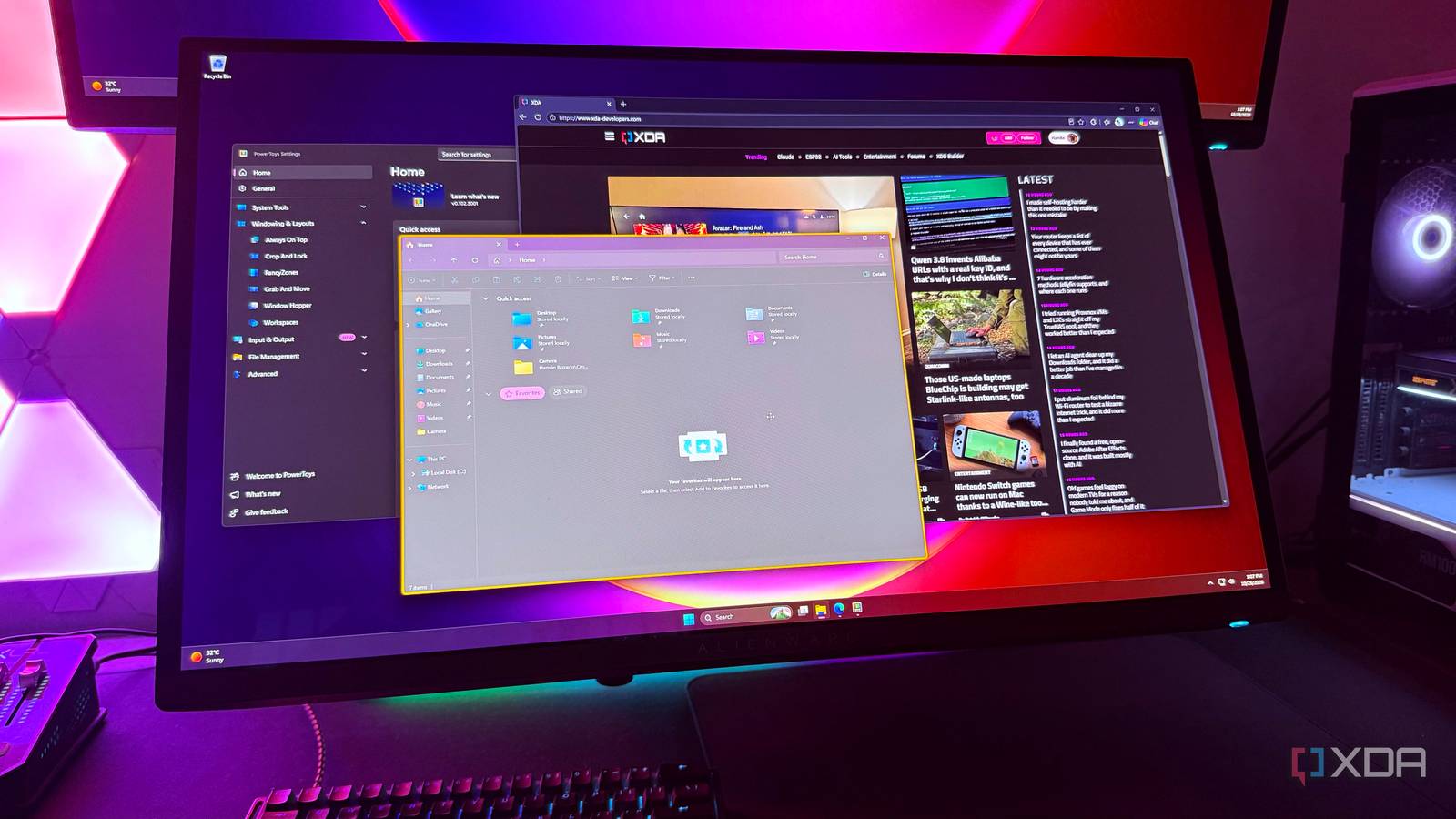
Published Oct 28, 2026, 3:30 PM EDT Hamlin has been in the tech field for over nine years. Since 2017, his work has appeared on MakeUseOf, Android Police, OSXDaily, Beebom, and more. He served as the Senior Editor at Valnet's MakeUseOf for over two years before joining XDA. He uses a high-end gaming rig for desktop use and a MacBook for traveling, but dislikes some of the quirks of macOS. You're more likely to catch him at the gym or on a flight than anywhere else. Whether you're a Windows, Mac, or Linux user, you probably don't even think about the way you move windows around. After all, we've been doing it pretty much the same way for years. You click the title bar and drag the window wherever you want it. While this isn't necessarily a hassle, having to reach for the title bar every time I want to rearrange windows gets a little annoying, especially since I have two 27-inch monitors and a 34-inch ultrawide on my desk. As someone who's been using Windows for almost two decades, I never really questioned whether there was a better way to move windows. Even after I started using PowerToys recently for FancyZones and Command Palette, I never messed with it enough to realize it had a tool that could make dragging windows easier. Then, when I eventually came across the name "Grab And Move" in the list of utilities, curiosity got the better of me, so I decided to try it out. And now, I use it way more often than FancyZones. Grab And Move makes the title bar optional I can now drag windows from practically anywhere inside them Using Grab And Move is pretty simple. Just hold the modifier key (Alt by default) and drag anywhere inside the window with the left mouse button. That's it. You don't have to position your cursor over the title bar or look for an empty spot between the tabs in your browser. As long as you click somewhere inside the window, you can grab it and move it wherever you want. You can also change the modifier key to the Windows key if you'd rather not use Alt. You can also exclude apps if you don't want Grab And Move interfering with their shortcuts or mouse controls. I haven't excluded anything myself, but if you have apps that use Alt in combination with mouse clicks, you may want to add them to the exclusions. By default, Grab And Move is disabled when Game Mode is on, so you don't have to worry about accidentally triggering it while playing first-person shooters. And none of this changes how you normally drag windows. You can still drag by the title bar if you want, but I haven't done that in weeks. Resizing windows also gets an upgrade You no longer need to drag from the edges or corners Moving windows isn't the only thing Grab And Move has going for it. You can also resize them without having to position your cursor along their edges or corners. To resize a window, you need to use the right mouse button instead of the left one while holding down the same modifier key (Alt by default). You can drag from anywhere inside the window, and Grab And Move automatically determines which edge or corner to resize based on where you start dragging. I'll admit this feature is a bit finicky compared to simply moving windows with Grab And Move. You still need to pay some attention to where you position your cursor, and sometimes, resizing diagonally can be a little tricky. I've had multiple instances where I wanted to adjust both the width and height of a window, only to end up resizing one side because I didn't start dragging close enough to the corner. Still, I'd much rather deal with this than reach for the edges or corners every time I want to resize. It's not like Windows makes moving windows difficult But this convenience is hard to give up now that I'm used to it Windows may have a lot of problems, but I wouldn't necessarily count moving windows around as one of them. Dragging a window by its title bar is hardly a hassle, and we've been doing this for so many years without even thinking twice about it. Let's not forget that we now have Snap Layouts to quickly arrange multiple windows on our screens anyway. Not to mention keyboard shortcuts like Win + Left/Right Arrow for snapping a window to either side. So I get why you may think Grab And Move is mostly unnecessary. But as someone who drags about a hundred windows in a day, that extra second I save by not reaching for the title bar surely adds up over time. I'm not saying Grab And Move has made me significantly more productive or anything like that, but it's the kind of convenience I notice every time I use my PC now. I've gotten so used to holding Alt that I don't even think about the title bar anymore. So if you spend a lot of time moving windows, I'd say Grab And Move is well worth trying. And if you don't like it, you can still drag the old-fashioned way. A simple tool that I now use more than the ones I installed PowerToys for I didn't think I needed a feature like this until I tried it, and I had no clue it would become one of my most-used PowerToys utilities. At this point, it's safe to say that Grab And Move has made me unlearn the traditional way of dragging windows. It's not like I can't go back to using the title bar, but why would I when I can just press an additional key and drag from anywhere inside the window? If anything, I just wish Microsoft would make this a native feature so I wouldn't have to keep PowerToys running in the background for something so basic. Microsoft PowerToys is a collection of free, open-source tools that can improve Windows productivity.
This PowerToys feature lets me move windows without touching the title bar, and now I can't go back
Full Article
Original Source
Read the full article at Xda-developers →KhanList aggregates and links to publicly available news content. We do not host full articles from third-party sources. Always verify important information with original sources.