
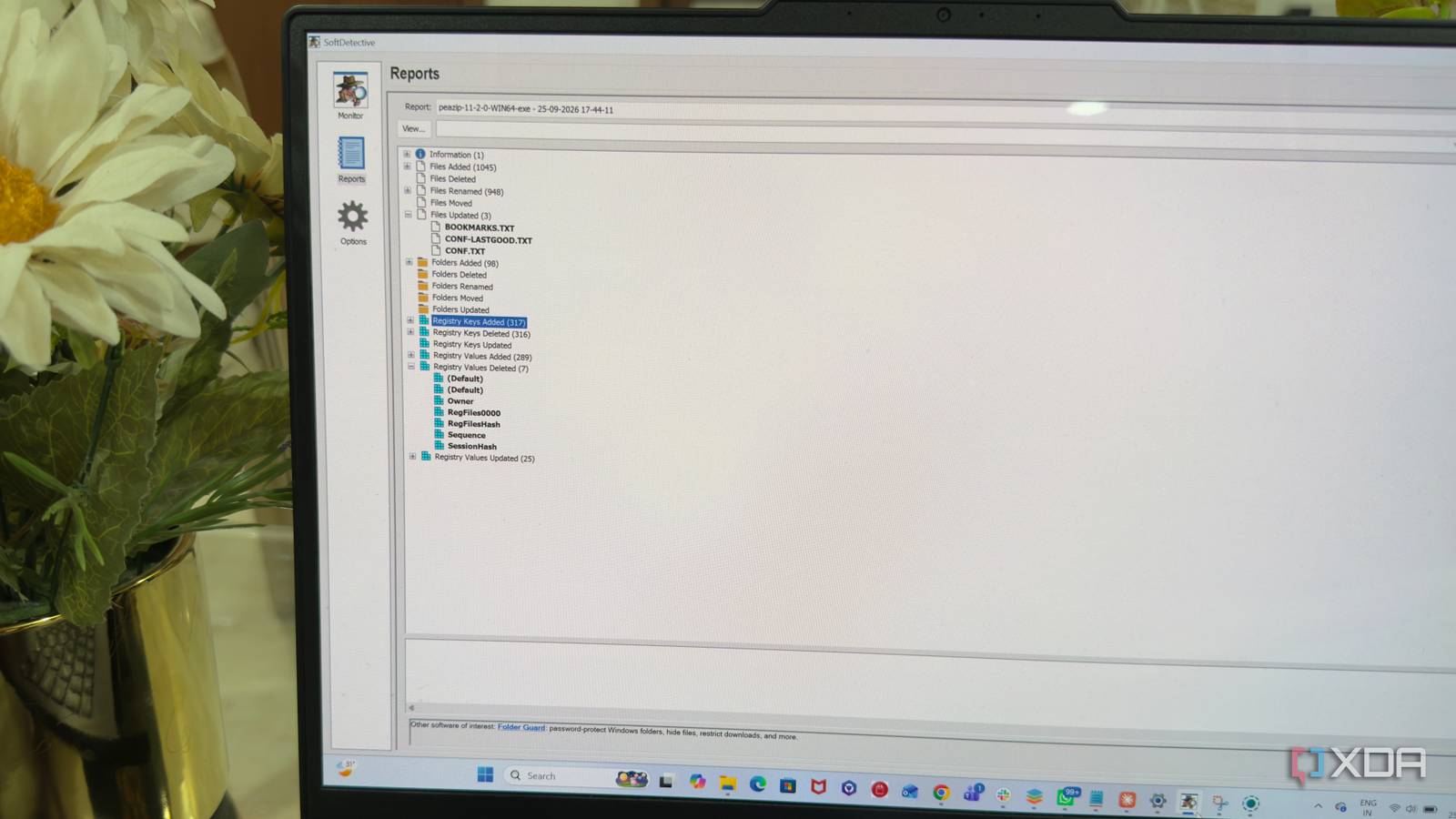
Published Sep 27, 2026, 10:30 AM EDT Beginning his professional journey in the tech industry in 2018, Yash spent over three years as a Software Engineer. After that, he shifted his focus to empowering readers through informative and engaging content on his tech blog – DiGiTAL BiRYANi. He has also published tech articles for MakeTechEasier. He loves to explore new tech gadgets and platforms. When he is not writing, you’ll find him exploring food. He is known as Digital Chef Yash among his readers because of his love for Technology and Food. I install plenty of Windows apps for work, testing, and everyday use, and I usually don't think twice about what happens after I click the Install button. The installer finishes, the app opens, and I move on. But recently, I became curious about what is actually happening during those few minutes. Where does the app put its files? What else does it add to Windows? And how much activity happens that I never see? That's when I came across SoftDetective. It gave me a simple way to look behind the scenes of a Windows installation, and the results were more interesting than I expected. What is SoftDetective? A closer look at Windows apps SoftDetective is a small Windows utility that helps me to understand what happens when I install software. It monitors software activity and gives me a clearer view of what an application is doing on my PC while it runs. It doesn't feel like another complicated Windows diagnostic tool. The interface is fairly straightforward, and I don't have to spend a lot of time learning how everything works before I can use it. I can launch the tool, choose the program I want to monitor, and let it do its job in the background. The tool can be useful for both installations and uninstallations. I can point it towards an installer before running it, or select an existing program when I want to monitor its removal. It then gives me a report I can review after the process finishes. I found SoftDetective interesting because it gives me another way to investigate software instead of relying entirely on what an installer tells me. For someone like me who regularly tests Windows software for my work, it feels like a useful utility to keep around when I want to take a closer look at an application. It turns an app installation into an investigation I put the installer under surveillance Using SoftDetective is straightforward, and I didn't need to spend much time figuring it out before starting my first test. After installing and launching the tool, I clicked the [...] button next to “Which file or program do you want to monitor?” and selected the installer I wanted to test. I left Run as Administrator checked because most Windows installers need elevated permissions. If SoftDetective doesn't monitor the activity properly or the program doesn't work as expected, I can try toggling this option and running the test again. Once everything was ready, I clicked Start. SoftDetective then hid its main window and continued running from the system tray. I could carry on with the installation normally without having another window sitting in front of me. I completed the installation just as I normally would, without changing anything specifically for the test. When I was finished, I double-clicked the SoftDetective icon in the system tray to stop the monitoring. The tool then generated a report from the activity it had captured. This is where the experiment became useful, because I could go back and examine the results instead of trying to remember what happened during the installation. SoftDetective can also be used when uninstalling software. Instead of selecting an installer, I can choose a program from the Windows Uninstall list, and SoftDetective automatically fills in its path. For me, this simple workflow makes it easy to test an application without changing my normal installation process. I can start the monitor, install or uninstall the software, stop the monitor, and then examine the resulting report. It shows me every file and Registry change Made me rethink what happens behind the “Install” button What I found most useful was the level of detail in the report. Instead of simply telling me that an application had made changes, SoftDetective showed me the individual files, folders, and Registry entries involved. The file information helped me understand the application's footprint beyond its main installation folder. I could see additional items associated with the software, which gave me a better idea of how much of Windows the application actually touched. The Registry section was even more interesting. SoftDetective showed the Registry entries associated with the activity, including items that were added, deleted, renamed, or moved. I didn't have to open the Registry Editor and manually search through different locations to find them. I also liked that the report separates different types of changes, making the results easier to go through. When I found an entry I didn't recognize, I could look at its location and name to understand what it was related to. This level of visibility is particularly useful when I'm testing unfamiliar software. I can see the changes in a much more organized way instead of relying on assumptions about what an installer did behind the scenes. I’ll be watching my installs from now on SoftDetective turned out to be one of those small Windows utilities that became more useful the longer I used it. I like having a clearer way to understand software instead of simply trusting that everything is happening as expected. It doesn't try to overwhelm me with unnecessary features either. For anyone who regularly installs, tests, or removes Windows software, it is a handy tool to keep around. And considering it is free, I think it deserves a spot in my toolkit.
This free Windows tool monitors app installations and reveals changes you never see
Full Article
Original Source
Read the full article at Xda-developers →KhanList aggregates and links to publicly available news content. We do not host full articles from third-party sources. Always verify important information with original sources.