
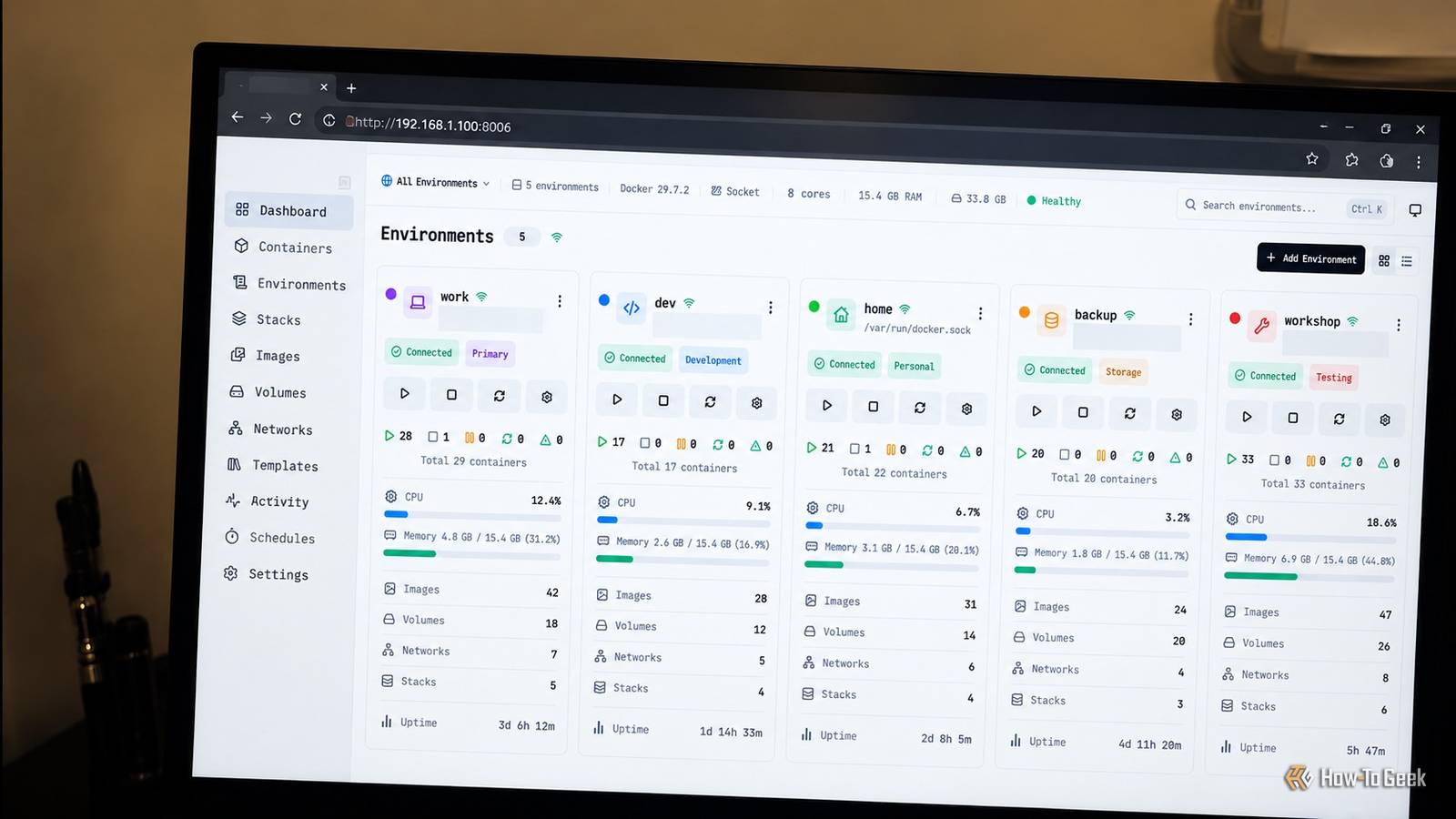
Published Oct 21, 2026, 10:30 AM EDT Umair Khurshid is a technology writer and developer with a strong focus on Linux, FreeBSD, cloud infrastructure, and automation. Before focusing on writing, Umair worked as a developer and DevOps engineer building and automating cloud-native systems. In most homelabs, Docker management involves more than running the applications you actually want to use. One container manages your other containers, another checks for image updates, and a separate service handles logs. Before long, you have several containers dedicated to managing the rest of your containers. Dockhand caught my attention because it brings several of those administrative tasks into a single web interface. After looking at how it handles container management, image updates, Compose stacks, logs, and monitoring, I found that it could take over the jobs of over 5 tools I relied on. That makes it worth considering if you want to simplify your Docker setup while keeping the features you use every day. Dockhand handles my Docker management One interface for containers and Compose stacks Like many homelab enthusiasts, I started with Portainer to manage my Docker containers through a web browser. It provides an easy way to manage Docker without relying on the command line for every task. As my collection of applications grew, I also added tools that covered more specialized parts of the workflow. Dockhand brings many of these administrative functions together. Its container view shows running services and their resource usage, while its Compose management interface lets me work with application definitions and deploy stacks. The ability to work with Compose files is particularly useful for a homelab. You can keep the configuration for an application in a file, make changes when necessary, and redeploy the stack without rebuilding your workflow around a separate management interface. Dockhand also supports Git-based deployments, which makes it useful for setups where configuration files live in a repository. Dockhand supports multiple Docker environments, so the same interface can manage containers on different hosts. This is handy when applications run across a home server, a NAS, and another Linux machine. Instead of maintaining a separate management dashboard for every host, I can bring those environments together in one place. Watchtower and Dockpeek became less necessary Managing image updates from Dockhand Watchtower and Dockpeek address an important part of Docker maintenance. Container images change over time, and keeping track of those changes can become tedious when several applications need regular updates. Watchtower automates image updates, while Dockpeek helps identify updates that are available for existing containers. Dockhand includes image-update checks and scheduled update functionality. It can identify containers with newer images available and let me decide how to handle them. I can also configure scheduled checks and automatic updates for environments or individual containers, depending on the workflow I want to use. This gives me more control over the update process within the same interface I use to manage applications. I can review pending updates, inspect the relevant containers, and handle deployment without opening another dashboard. Dockhand’s vulnerability scanning integrations add another useful layer to this process. Depending on the configuration, it can scan images and apply vulnerability criteria when deciding whether an automatic update should proceed. That gives me more information when maintaining a collection of self-hosted applications. I can inspect container logs without Dozzle Troubleshooting services in the same dashboard As many of you might know, Dozzle provides an easy way to inspect Docker logs through a web browser, making it easier to troubleshoot applications without switching to the terminal. Dockhand also has log streaming built into its management interface. You can select a container, review its output, and access an interactive shell when you need to investigate the problem further. Since container management and logs are available together, you spend less time switching between applications during routine troubleshooting. This is especially useful when several services depend on each other. A failed database connection, for example, might affect an application that depends on the database. Being able to inspect the relevant containers from one interface makes it easier to follow the problem through the stack. Dozzle remains a good option for people who want a dedicated log viewer with its own focused interface, but Dockhand makes more sense for my setup when the main requirement is to inspect logs as part of a broader container-management workflow. Container monitoring needs a closer look What Dockhand can replace from container-mon Container-mon gives you a way to keep an eye on your running services. Dockhand already displays container status and resource information, so it can cover much of the basic monitoring I need while managing Docker. For everything else, I still use Uptime Kuma because seeing that a container is running does not necessarily mean the application inside it is responding correctly. A web server might remain active while its application returns errors, and a container’s health status depends on the checks configured for it, but Dockhand, for me, is a good replacement for the container visibility I actually use from container-mon, while evaluating any uptime checks separately. Dockhand makes my homelab easier to maintain Replacing 5 containers with one management application sounds like a straightforward way to reduce a homelab’s footprint, although the real benefit comes from reducing the number of interfaces and maintenance workflows I need to manage. For a homelab built around Docker Compose, Dockhand is worth trying because it combines several routine tasks in a single interface.
This free Docker management tool replaced 5 of my most essentail containers
Full Article
Original Source
Read the full article at Howtogeek →KhanList aggregates and links to publicly available news content. We do not host full articles from third-party sources. Always verify important information with original sources.