
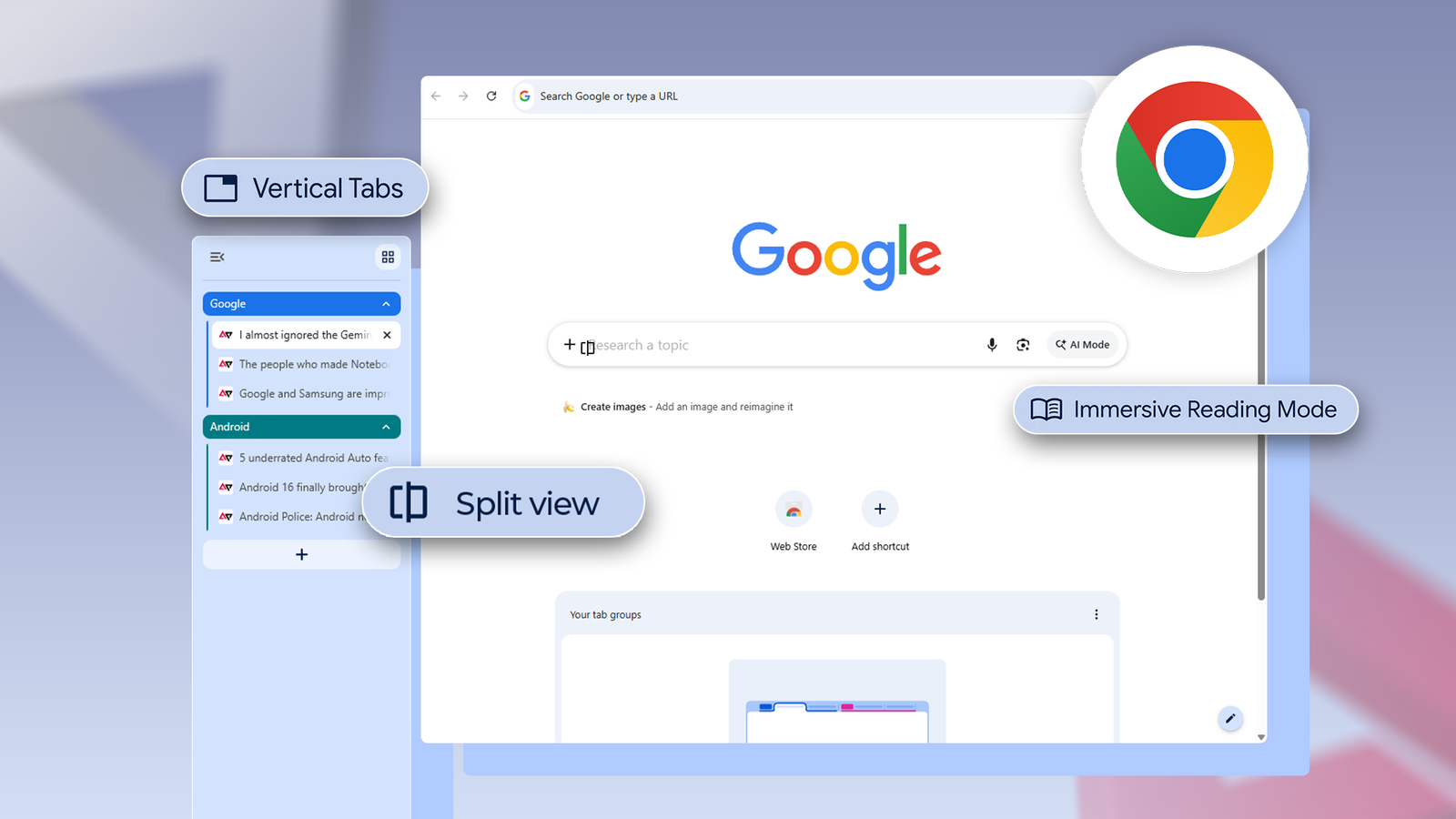
Published Sep 23, 2026, 8:30 AM EDT I cover Android with a focus on productivity, automation, and Google’s ecosystem, including Gemini and everyday apps. With a background in engineering and software development, I tend to go beyond surface-level tips and focus on how features fit into real workflows. Before joining AP, I wrote for tech publications such as Gizbot in 2023 and iJunkie (formerly known as iPhoneHacks) from 2021 to 2022. Chrome used to be the place where I opened websites and somehow ended up with a dozen or more tabs vying for my attention. However, that changed when I started using some of Chrome's less obvious features. I decided to use my browser for more of my daily work instead of constantly switching between tabs, apps, and tools to complete my tasks. Now, I can keep two pages open side by side while researching, use Gemini without leaving my current page, and reduce distractions from unnecessary tabs. With the right features turned on, Chrome has become the place where I do a surprising amount of my work. Gemini turned Chrome into more than a collection of tabs It cut out a surprising amount of tab switching The biggest change to my workflow came when I started using Ask Gemini from the browser. If I'm reading a long article and don't want to dig through every paragraph, I can ask Gemini to pull out the key points. If something is confusing, I can ask it to explain that section in simpler terms without copying the text into another search bar. Gemini uses the content from my current tab as context, so I don't have to explain what I'm looking at. I can also share multiple open tabs with Gemini and ask it to work with information across them. For example, if I'm researching a trip, I can keep hotel pages, attractions, map information, and other useful pages open and ask Gemini to help me make sense of them. On Android, you can open Gemini in Chrome by tapping the three-dot menu icon and selecting Ask Gemini. I've also found this useful when I have several versions of the same information open. I can ask Gemini to find it in the tabs I've shared instead of manually hunting through each page for a particular detail. Gemini in Chrome integrates with Calendar, Keep, Maps, Gmail, and YouTube using its Connected Apps feature. That means I can check information on a web page and use the side panel to take the next step without constantly bouncing between applications. Say I'm reading about an event and need to figure out whether I can actually attend. Instead of opening Calendar in another tab, I can use the integrated tools to check my schedule and work out where the event fits. I stopped treating tabs like a to-do list I gave all my unfinished browser tasks a better system I used to keep tabs open because I was afraid I'd forget about them. A hotel page meant I still needed to book it, an article meant I wanted to read it later, and a product page usually meant I hadn't decided whether to buy it. Eventually, my tab bar became a visual to-do list. Tab groups changed that. I now group related tabs around what I'm doing, such as trip planning, research, or shopping, instead of letting everything pile up together. To create one, right-click a tab, select Add tab to new group, give it a name, and drag other relevant tabs into it. Click the group name to collapse or expand it. I also use vertical tabs when a project gets tab-heavy. Right-click the tab strip and select Show tabs vertically, and Chrome moves the tabs to the side so I can see their full page titles. Reading Mode helps me focus when a web page gets too distracting It makes long articles much easier to get through Some web pages can be surprisingly hard to read because advertisements, suggested stories, videos, large headers, and other distractions compete for attention. Chrome's reading mode strips much of that away and gives me a cleaner reading environment. On the desktop, I right-click anywhere on a supported web page and select Open in reading mode. Chrome turns the page into a text-focused view, and I can adjust the font, text size, line spacing, letter spacing, and background theme to make it more comfortable to read. I like using it for long articles or research pages when I don't need the other website elements. Instead of fighting the page's layout, I can concentrate on the information. There's also a Read aloud option on the desktop, which lets me listen to the content while following along. I can change the playback speed and voice, and Chrome can highlight the text as it's read. Split View made Chrome much better for multitasking I stopped losing my place every time I switched tabs I used to constantly switch between two tabs when I was working. I'd read something on one page, switch to another for reference, then jump back again. Doing it repeatedly made simple tasks feel unnecessarily fiddly. Chrome's split view lets me keep two web pages visible inside the same browser window. I can keep a document or instructions on one side while browsing on the other, follow a tutorial while keeping the relevant page visible, or watch a YouTube video while taking notes. To use it, right-click a tab and select Add tab to new split view, then choose the other tab you want beside it. You can also right-click a link and select Open link in split view. My browser became my productivity workspace Chrome has become my primary tool for researching and organizing information, reading, and multitasking without constantly switching between apps or windows. For example, reading mode helps me concentrate, while Gemini helps me understand the information in my browser. Its integration with other Google apps makes Gemini even more useful. I can use it with Gmail, Google Keep, Calendar, Maps, and YouTube without leaving the web page I'm viewing.
These Chrome features turned my browser into a productivity powerhouse
Full Article
Original Source
Read the full article at Androidpolice →KhanList aggregates and links to publicly available news content. We do not host full articles from third-party sources. Always verify important information with original sources.