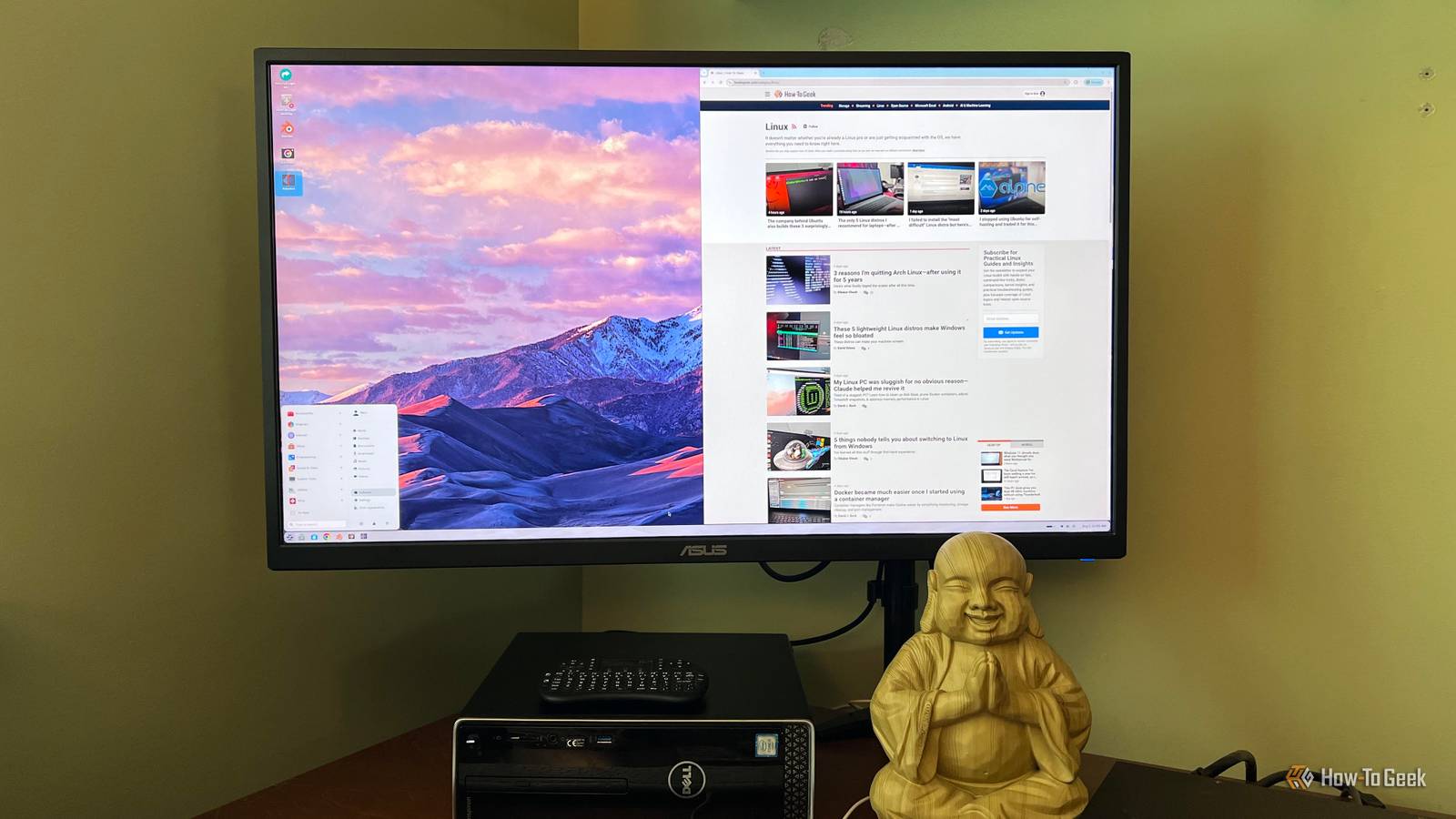
Published Aug 11, 2026, 10:30 AM EDT Rich Hein is a veteran technology journalist with more than two decades covering developer, consumer and enterprise topics. Rich's career has been dedicated to service journalism, connecting readers to content that informs and delights. Previously, Rich was vice president and editor-in-chief for Simpler Media Group, director of audience development for IDG and editor/writer for sites like CIO.com, ComputerWorld, CodeGuru and other tech-centric publications. He's received numerous accolades, including the IDG Summit and Azbee awards and has been covered by Medium for his work in audience development. When not at his desk, Rich lives in Daytona Beach with his wife and three dogs. He enjoys playing guitar, surfing and staying abreast of the latest in tech. I've used Windows for most of my life, but I've become increasingly frustrated with the way Microsoft expects me to work. Search is still unreliable, useful context-menu options are hidden behind an extra click, and Windows can use my internet connection to help distribute updates to other PCs through Delivery Optimization. Add in Microsoft's recommendations I never asked for and constant interface changes, and there's no shortage of reasons to consider leaving Windows. The biggest reason not to is the learning curve. Switching operating systems sounds like it means relearning basic tasks, replacing familiar apps, and spending hours figuring out the terminal. That may have been true years ago, but desktop Linux has come a long way. With the right distro, switching can feel less like starting over and more like moving into a cleaner version of the desktop you already know. You’ll still need to check that the apps and hardware you rely on work with Linux, but the desktop itself no longer has to be the difficult part of the switch. These distros deliver a familiar application menu, taskbar, file manager, system tray, and settings app. Each one takes a slightly different approach, though, and the right choice depends on whether you want the most familiar experience, the simplest setup, or the most control. Zorin OS feels the most like Windows It keeps the familiar desktop without bringing Windows' baggage with it Zorin OS is my favorite Linux distro and the one I usually recommend Windows users try first. The desktop feels very familiar, with an application menu in the bottom-left corner, a taskbar along the bottom, a system tray, and window controls where you expect them to be. To me, it feels a little like an improved version of Windows XP. It's simple, clean, and easy to understand. You can open apps, browse files, switch between windows, and change basic settings without first learning an entirely new way of using a computer. Zorin goes beyond making the desktop look familiar by helping with the software transition too. Its optional Windows App Support uses Wine to run many compatible .exe and .msi installers, and Zorin prompts you to install the feature the first time you open one. That doesn't mean every Windows program will work, and I'd still choose a native Linux version or alternative when one is available. However, it gives you a better chance of keeping an older or specialized Windows app that you aren't ready to give up. You can also install many common Linux apps through the built-in Software store, which feels much closer to using a phone's app store than hunting around websites for installers. Linux Mint makes everything simple Cinnamon keeps the desktop familiar and gets out of your way Linux Mint is probably the safest all-around recommendation for someone leaving Windows. Its Cinnamon desktop follows the same basic layout Windows users already understand, with an application menu in the lower-left corner, a taskbar, pinned apps, a system tray, and familiar minimize, maximize, and close buttons. The Nemo file manager also works much like File Explorer, so common habits such as right-clicking files, dragging them between folders, creating desktop shortcuts, and keeping several windows open carry over naturally. Mint includes graphical tools for installing software, managing updates, changing settings, and handling drivers, which means most users can get through everyday tasks without having to use the terminal. The biggest differences appear when you install applications or troubleshoot something. Instead of downloading most programs directly from websites, Mint encourages you to use its Software Manager, and some Windows-only programs will require an alternative, a web version, or a compatibility tool such as Wine. The names and locations of certain settings will also be different, even when the underlying feature is familiar. Still, Mint is designed to make routine maintenance approachable, with a dedicated Update Manager and built-in tools for drivers, codecs, and system snapshots. You can also test it from a live USB before installing or place it alongside Windows in a dual-boot setup. Mint is best for someone who wants Linux to behave like a dependable everyday computer rather than a project. It suits people who are looking for stability, simplicity, and a familiar desktop, while Zorin puts more emphasis on presentation and helping newcomers bring some Windows software with them. Mint feels less like a knock-off of Windows and more like a traditional desktop that is easy to understand and live with over time. Kubuntu gives Windows power users more control KDE Plasma lets me shape the PC around the way I work One of my biggest complaints about Windows is that too often it tries to force me into its workflow instead of the other way around. Kubuntu takes the opposite approach. It combines Ubuntu's broad software support with KDE Plasma, a desktop that gives users far more control over how the computer looks and behaves. The default layout still feels familiar, with an application menu, taskbar, system tray, pinned apps, and window controls where a Windows user expects them. Dolphin, its file manager, also supports familiar habits such as tabs, right-click menus, and working with several folders at once. If you're at a computer all day, this is where Kubuntu makes the most sense. I can move panels, create shortcuts, change how windows behave, and set up the UI around the way I already work. There are more options to sort through than you'll find in Zorin OS or Linux Mint, and some of the built-in apps will take a little getting used to. For Windows power users, that extra control is what makes Kubuntu worth considering. Which Windows-friendly Linux distro should you choose? Zorin OS is the best choice for most Windows users because it makes the transition feel familiar from the start. Linux Mint is a better fit for anyone who wants a simple, dependable desktop with very little fuss, while Kubuntu is the strongest option for power users who want to shape the system around the way they work. Of the three, Zorin OS is still the one I’d recommend trying first.
These 3 Linux distros make leaving Windows feel natural
Full Article
Original Source
Read the full article at Howtogeek →KhanList aggregates and links to publicly available news content. We do not host full articles from third-party sources. Always verify important information with original sources.