
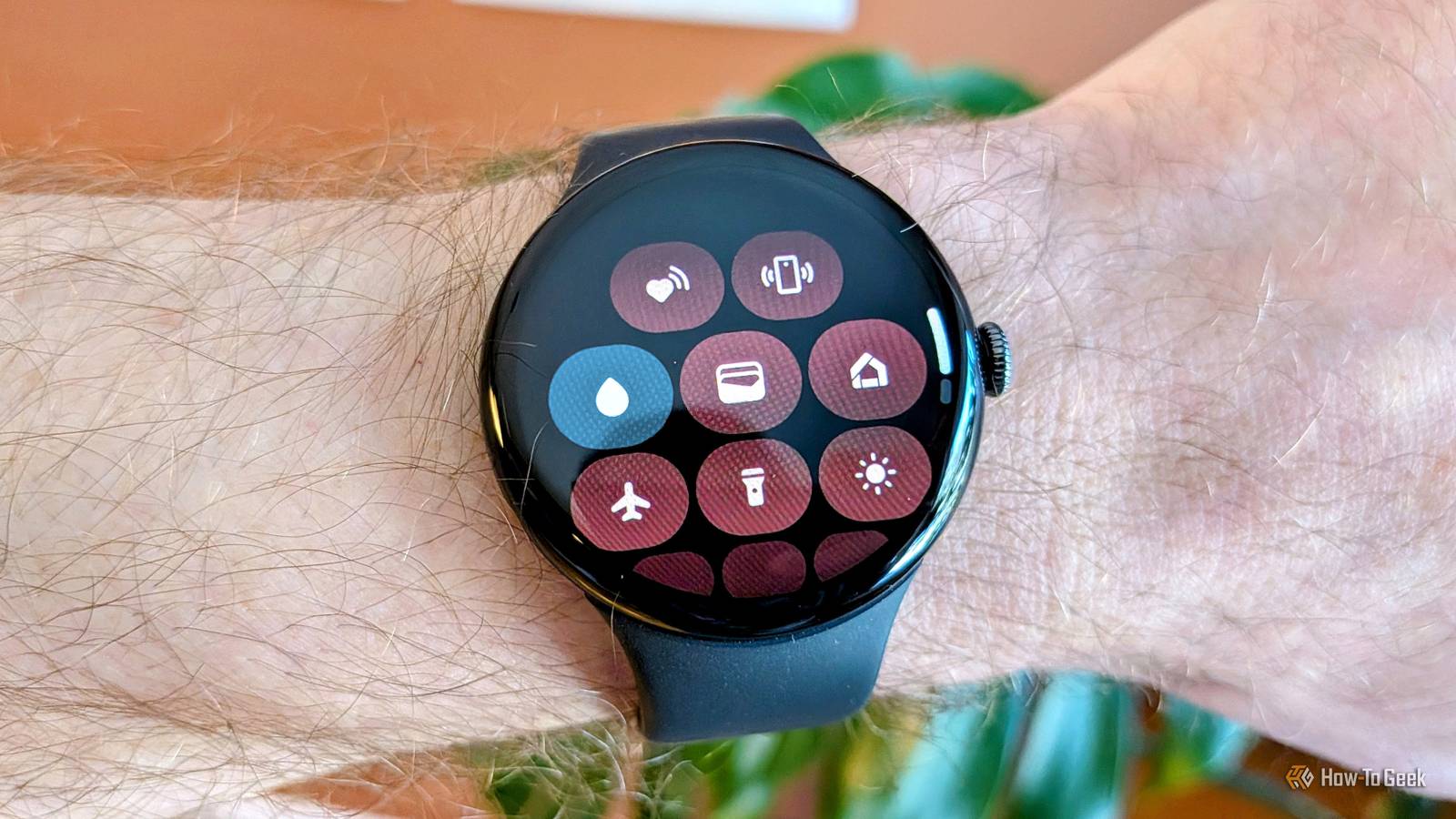
Published Oct 22, 2026, 6:30 AM EDT Joe Fedewa has been writing about technology for over a decade. Android and the rest of the Google ecosystem have been a focus for years, as well as reviewing devices, hosting podcasts, filming videos, and writing tutorials. Joe loves all things technology and is also an avid DIYer and food blogger. He has written thousands of articles, hundreds of tutorials, and dozens of reviews. Before joining How-To Geek, Joe worked at XDA-Developers as Managing Editor and covered news from the Google ecosystem. He got his start in the industry covering Windows Phone on a small blog, and later moved to Phandroid where he covered Android news, reviewed devices, wrote tutorials, created YouTube videos, and hosted a podcast. From smartphones to Bluetooth earbuds to Z-Wave switches, Joe is interested in all kinds of technology. After several years of jailbreaking and heavily modifying an iPod Touch, he moved on to his first smartphone, the HTC DROID Eris. He's been hooked ever since. One of the downsides of having a touch screen on your wrist is that it can be inadvertently touched. In certain situations, you really don't want that to happen. Thankfully, the Pixel Watch has a solution for this, but it's not weirdly labeled. Personally, this is something I use quite often. It's useful to turn off the touch screen when sleeping with the watch on, working out, and doing activities that involve water. The latter is a clue as to where you can find the Pixel Watch's touch lock button — it's actually called "Water Lock." A recent, confusing change Swapping icons and functionality If you stumbled upon this article because you can't find the "Touch Lock" toggle on your Pixel Watch, you're not alone. About a year ago, Google rolled out Wear OS 6 to all Pixel Watch models, and with it came a small but noticeable change. “Touch Lock” became “Water Lock.” Before Wear OS 6, the Touch Lock toggle in the Quick Settings was an icon of a hand with a finger pointing up and a padlock in the corner. It clearly depicted the ability to turn off touch interaction. The new Water Lock toggle is an icon of a drop of water, which is not nearly as obvious as what it does (or why you might want to use it). In addition, Google also recently changed how Touch Lock/Water Lock works. Previously, it would only disable the touch screen, but you could still scroll with the rotating crown. Now, Water Lock disables the touch screen and crown rotation. The only thing you can do is press and hold the crown for two seconds to turn off Water Lock. Sometimes it's automatic — but not always When it turns on by itself, and when it doesn't Despite the icon, Water Lock is useful for more than just wet situations. In fact, it's when water is involved that you can be least involved. The Pixel Watch 4 and Pixel Watch 5 (assuming future models as well) automatically enable Water Lock when excessive moisture is detected. So, it probably won't when you're just washing your hands, but it will if you accidentally fall out of your canoe. You also don't have to worry about manually toggling it on when you're tracking a swim. Tapping the start button on a swim workout will automatically enable Water Lock — this goes for all Pixel Watch models. Sleep is another activity for which you might want to disable the touch screen. Weirdly, the touch screen isn't disabled when sleep is detected, and tracking is started automatically. However, touch input, tap-to-wake, and tilt-to-wake are turned off when you start Bedtime Mode (the crown remains active). The good news is Bedtime Mode can be easily automated, so you don't have to think about it. Useful for more than just water The Water Lock icon and name don't adequately describe the full scope of what it can be used for. I'm assuming many people overlook it or think Google removed the Touch Lock functionality completely. As I said, I think this feature is great for more than it's being labeled as. For example, when I'm playing a sport, doing yard work, or doing any sort of activity that involves a lot of movement, I like to disable the touch screen. On more than one occasion, I've looked down to see some random app or conversation open on the screen when I forget to do this. It's also great even when water isn't the star of the show. Little drops of water can be worse than full submersion because they're mistaken for touches. When I go kayaking, I rarely ever get truly wet above the knees, but there are enough splashes to interfere with the touch screen. One time, in the middle of a relaxing paddle, I heard my sister's voice coming from my Pixel Watch — it had accidentally called her. All of this is to say that Water Lock is about more than just water, and if you didn't know where Touch Lock went, now you do!
The Pixel Watch's water drop toggle is more useful than you think
Full Article
Original Source
Read the full article at Howtogeek →KhanList aggregates and links to publicly available news content. We do not host full articles from third-party sources. Always verify important information with original sources.