
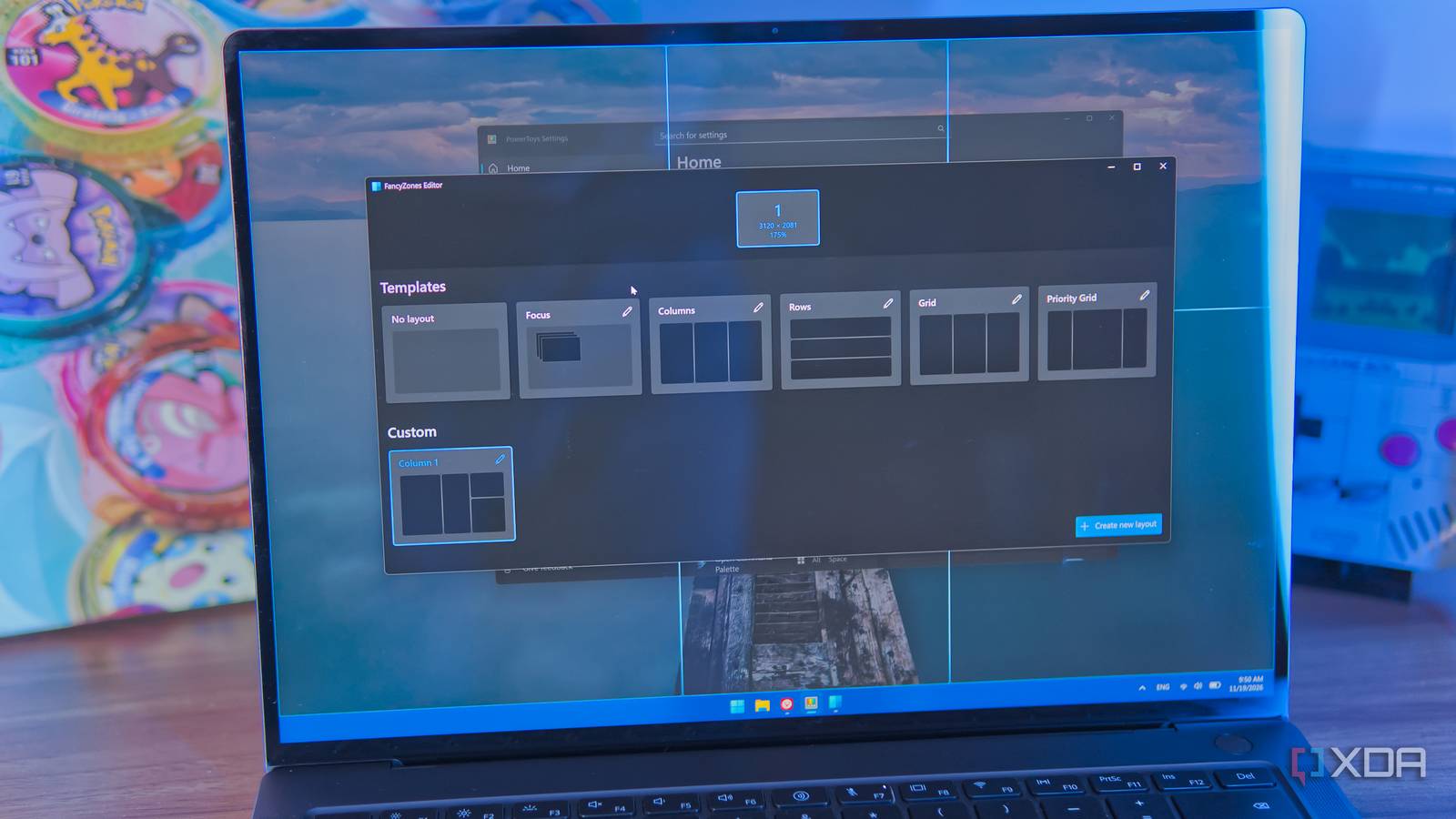
Published Nov 19, 2026, 7:00 PM EST João has been covering the tech world for over 7 years, with a heavy focus on laptops and the Windows ecosystem. I also love all things tech and videogames, especially Nintendo, which he's always happy to talk about. Prior to joining XDA in 2021, he worked at Neowin: https://www.neowin.net/news/poster/jo%C3%A3o-carrasqueira/ Juggling windows on your computer can be a hassle with the default controls Windows 11 gives you. Snap Layouts are definitely a big improvement over how Windows used to handle multiple windows, but it's still just too restrictive in terms of options and how you can use them. Enter PowerToys, a tool published by Microsoft that makes managing your open apps much easier. Despite being made by Microsoft, most of its features are still not built into Windows 11 today, so if you haven't yet, I highly recommend installing it as soon as possible. I can't use a Windows 11 PC without it. Why Snap Layouts still isn't good enough It's still too rigid With Windows 11, Microsoft greatly improved window management compared to previous versions with the introduction of Snap Layouts. It builds on many of the improvements in Windows 10 and takes them further. Not only can you snap apps into quadrants now, you can actually see additional layout options when you hover over the restore/maximize icon for a window, and that includes some brand-new options. You can have one app take half of the screen, while two others take the remaining quadrants, or use a three-column design with one app in each. Not only are there some new layouts, but they're easier to access, both through the aforementioned menu or by dragging a window to the top of the screen, which makes this work with touch, too. However, these are still fairly limited options, and on top of that, moving a window into the right area takes too many extra steps. You have to either drag a window along the edges to snap it into the right position or open the layout picker to select where it needs to go. It's not a lengthy process, but that time does add up. FancyZones turns it up to the max Absolute freedom This is where PowerToys, and specifically FancyZones, comes in and makes everything much better. It's actually somewhat surprising that this isn't part of Windows 11 itself considering Microsoft makes this tool, and I've been saying that should change for years at this point. FancyZones addresses my two biggest complaints flawlessly. First, the customization options. Instead of limited preset layouts, FancyZones lets you customize the layouts you want down to the pixel. You can add areas, split them vertically or horizontally, resize them, and even choose whether a specific area should show a single app or a stack of them that you can flip through. To be clear, you can always have multiple apps in the same spot, it's more about how they're displayed. This flexibility immediately makes FancyZones easy to recommend. I don't usually juggle a ton of apps at the same time, but I need them to be laid out in the ideal way. I usually have my research and writing windows side-by-side in relatively large sizes, and a smaller column for my messaging apps at the edge. But you can get far crazier than that. But then there's the other aspect, which is the ease of using these layouts in the first place. Unlike Snap Layouts, you don't need to carefully drag windows along the edges of the screen or open dedicated menus. Simply hold Shift (or another key of your choosing) and move the window around into the area where you want it to be. When you let go of the window, it will snap perfectly into position, and you're ready to go. You can also just keep dragging windows from one spot to another and it never resets your layout. You always have full freedom. It's hard to imagine using a PC without this capability, to the point where even when I'm using another platform, such as macOS or Linux, I've had to find replacements to do the same thing. You can save specific configurations, too Plus keep apps on top FancyZones may be the best part of PowerToys, but it's actually not the only trick up its sleeve when it comes to window management. Another tool included in PowerToys is Workspaces, and it;s cool because it lets you capture your app and window layout at any time and save it as a preset. That includes your visible windows, but also the minimized apps, too. What this means is you can use FancyZones to set up your apps in the right place, then use Workspaces to capture that layout perfectly, and the next time you turn on your computer, you can launch that workspace, and all your apps will open in the position you saved them in using FancyZones. Of course, you can also keep adjust freely after that. Another notable window management tool is the self-explanatory Always on Top. This allows you to take any app window and keep it on top of all other windows, even as you keep interacting with other apps. But wait, there's more Grab and Move is for everyone Whether you like using more rigid layouts in FancyZones or not, sometimes, you may find yourself using a couple of standard floating windows that don't need to go into a specific zone. Or maybe all your apps are like that. Regardless, there's one more tool in PowerToys that caps off its window management capabilities beautifully. It's called Grab and Move, and what it does is allow you to move and resize windows without having to specifically target the edges of that window. Typically, to drag a window, you'd need to click its title bar, but with Grab and Move, you can hold down a modifier key of your choosing, and then you can grab the window from anywhere and move it around. You don't even need to switch the focus to that window, either, Grab and Move lets you drag a window and move it behind another one. Similar, you can use a different modifier key to enable resizing without reaching for the edges of the window. Hold the key and click the ap's window anywhere, then drag in the direction you want to shrink or expand the window. You may not notice the extra couple of seconds it takes to properly align your mouse with the right are to resize a window, or even move it, but over time, you'll definitely feel faster and more productive using this feature. PowerToys is fantastic I've sung the praises of PowerToys many times in the past, but it always bears repeating. This is an absolutely essential app for any Windows user. You're probably not going to care for all of the features on offer, but there's so much packed into this relatively small package that almost everyone should find enough good to make it worth your time. Window management alone is a great reason to love PowerToys, but you can throw in things like Command Palette or Power Display and the value really starts to add up. You can check it out below if you haven't already.
The best window manager for Windows is a free Microsoft tool most people have never installed
Full Article
Original Source
Read the full article at Xda-developers →KhanList aggregates and links to publicly available news content. We do not host full articles from third-party sources. Always verify important information with original sources.