
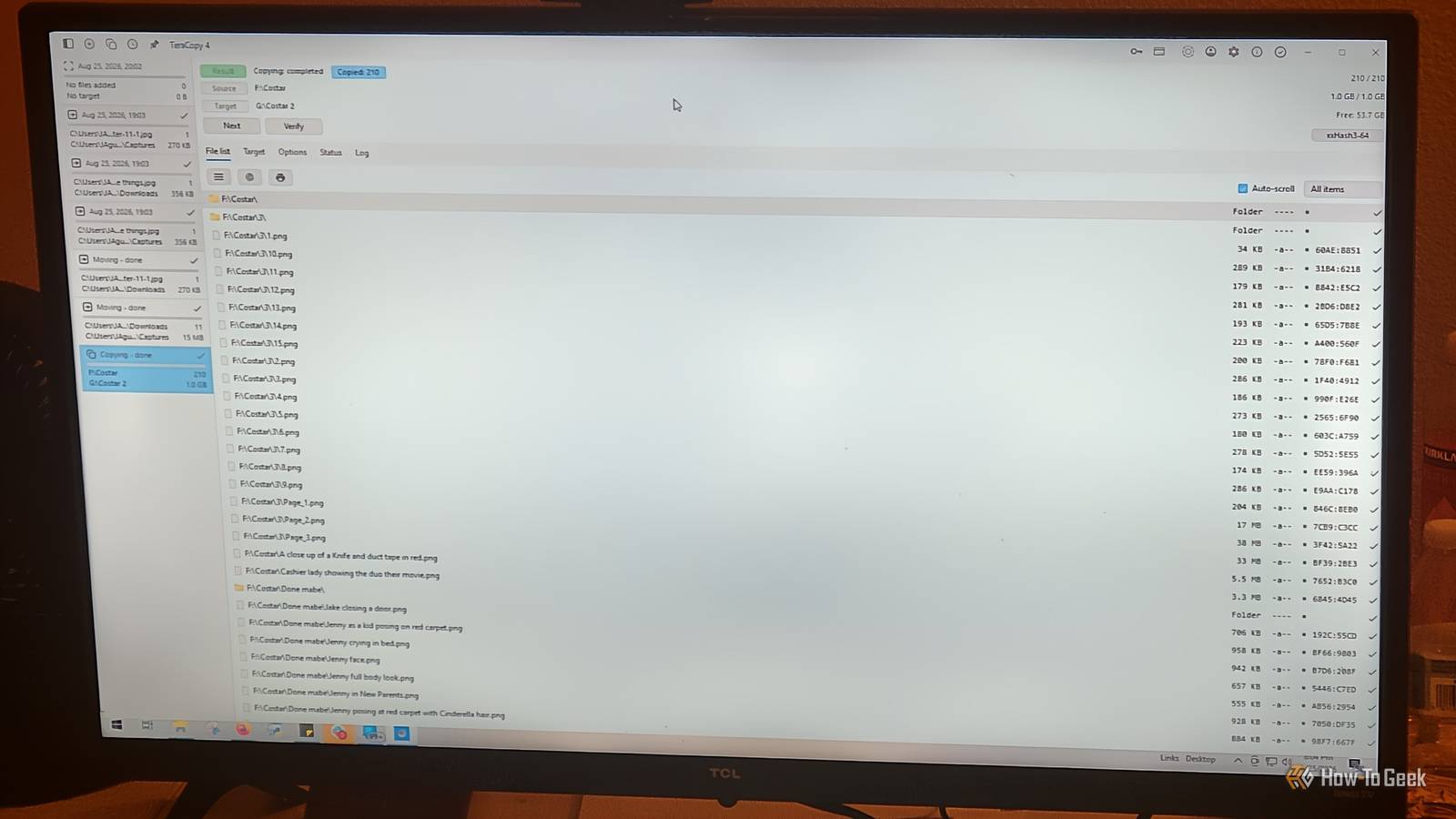
Published Aug 30, 2026, 3:30 PM EDT Aggy is a veteran writer and editor in the technology and gaming space. Having served as a Managing Editor for high-traffic digital publications, alongside being an editor and consultant for over a dozen sites. Aggy's published work spans a wide and respected array of tech and gaming outlets, including WePC, Screen Rant, How-To Geek, Android Police, PC Invasion, and Try Hard Guides. Beyond editorial work, Aggy's direct experience in the tech sphere extends to app development. Aggy has published two games under Tales and is always eager to learn and do more. He also likes working on computers and researching in his spare time. He knows about Windows, Linux, Audio, Video, and much more. Moving files in Windows feels like it should be a solved problem by now, and for small stuff it mostly is. The trouble starts when you're shifting hundreds of gigabytes and can't afford to mess up. At that scale, Windows Explorer is not the best tool around. One issue could ruin your whole transfer, and sometimes you may not know it. I lost a handful of videos once because I trusted the process and deleted the originals. TeraCopy is an old app that makes sure I never make that mistake again. Windows gives up when a single file fails Your transfer keeps going when a file gets stuck Windows' built-in copy tool is a weak point when you're moving a huge amount of data. Explorer's copy handler was written ages ago and uses blocking I/O, so it waits for each operation to fully finish before starting the next one. Hit a bad sector, a network timeout, or a locked file, and the entire transfer just stops cold. Everything behind it in the queue freezes, and you get a dialog box waiting for you to click something. If you're doing a big overnight transfer of hundreds of gigabytes, that gets old fast. One unreadable file can stall a transfer with thousands of items. You either sit there babysitting it, or come back later to find it stopped halfway through with no way to tell what actually copied. When a read or write fails, TeraCopy catches the Windows error code, logs it, and just moves on to the next file instead of stopping. So instead of freezing a huge transfer because one piece is damaged or one file is locked, it lets everything else keep going until the job finishes. That means long multi-gigabyte transfers actually finish without you constantly finding them stalled or failed. Windows never checks if your copy actually worked You can see if a file was corrupted right away Credit: Jorge Aguilar / How-To Geek Windows Explorer and most basic copy tools just assume a transfer worked if the file system doesn't immediately throw an error. That's actually kind of scary, because silent corruption can happen all the time and I've lost videos because of it. I found that out the hard way, since I'd already deleted the originals thinking the copy went through fine. TeraCopy checks to confirm it has made a perfect, uncorrupted copy. This really matters when you're moving irreplaceable stuff. The way it works is a two-pass process. During the first copy pass, TeraCopy calculates a cryptographic hash of each file in memory as it reads the raw data blocks from the source drive. Afterward, it does a second verification pass where it reads the newly written file from the destination, computes its hash, and compares it block-by-block against the cached source hash. If they match, the file is perfect. If not, it gets flagged as corrupted. When verification fails, the file list highlights it with a warning icon and a "Hashes mismatch" status message below the path. Instead of forcing you to restart a multi-gigabyte transfer, you can click "Next," select "Failed," and hit "Copy" or "Move" again to retry only the problem files after you've sorted out whatever hardware or permission issue caused it. You can pause your copy job without losing progress Pausing lets you get your computer back when it slows down Credit: Jorge Aguilar / How-To Geek Copying a ton of files in Windows can just wreck the whole system. I hate how easily everything freezes up as if you asked for something inconceivable. Once you start moving a few gigabytes or even a tenth of a terabyte, you have to wait that whole process out, freezes and all, or cancel the whole thing. While Windows File Explorer finally added a basic pause button in Windows 8, it still struggles with queue management and often fails to release system resources cleanly. If you suddenly need your computer to be responsive, there's no clean way to get your hardware back without killing the entire transfer. TeraCopy gives you a pause function that works. You can freeze an active transfer whenever you want, and your computer gets its speed back right away. It makes file copying something you can actually control instead of a background process. So you can actually get in and out if you have something that comes up or need to do anything else. It's one of those options that feels useless until you actually need it, and then you're glad it's there. Because every file's current state and block-level progress are constantly logged to disk, you can hit resume later, and it picks up exactly where it left off. Clicking resume makes the engine read that transaction database and start the transfer again from the exact byte offset where it stopped. That kind of precise block-level tracking means it doesn't have to recalculate file lists or re-copy data you already moved, which saves a ton of write cycles on SSDs. TeraCopy replaces default copy and paste across your system Drag and drop works without changing how you use Windows Credit: Jorge Aguilar / How-To Geek TeraCopy replaces your native copy and paste functions. It doesn't sit there as some heavy background service you have to activate. It will intercept copy, move, and drag-and-drop operations at the OS level, so it takes over from the default Explorer handler permanently. That means normal drag-and-drop or Ctrl+C and Ctrl+V just trigger TeraCopy instead of native Explorer. When you start a transfer, Windows Shell checks its registered handlers and gives control to TeraCopy's COM object. That handler figures out the source and destination paths and launches TeraCopy.exe with the right command line parameters for the job. You don't change how you work or learn new hotkeys. The shell integration sits in front and manages the data streams, buffers, and queues behind the scenes. Once it takes over, file management across the whole OS just feels more consistent. For example, TeraCopy has a drag-and-drop confirmation pop-up you can enable, which saves you from accidentally dropping a huge folder into some random subdirectory while you're just moving the mouse around, a surprisingly common mistake. This is worth installing TeraCopy isn't a big install, and it doesn't do anything you'd notice on a normal day. It replaces a part of Windows that most people never think about until something goes wrong. The free version covers the core part, and the paid license is a one-time cost that's easy to justify if you've ever lost a file you thought you'd copied safely. If you're only ever moving a few documents around, you probably don't need it. If you move real data in real quantities, you'll see why it's worth having pretty fast. TeraCopy OS Windows and MacOS Developer CodeSector TeraCopy is a reliable alternative to your operating system's default copy paste system.
TeraCopy is still the first app I install on every new Windows PC for 4 important reasons
Full Article
Original Source
Read the full article at Howtogeek →KhanList aggregates and links to publicly available news content. We do not host full articles from third-party sources. Always verify important information with original sources.