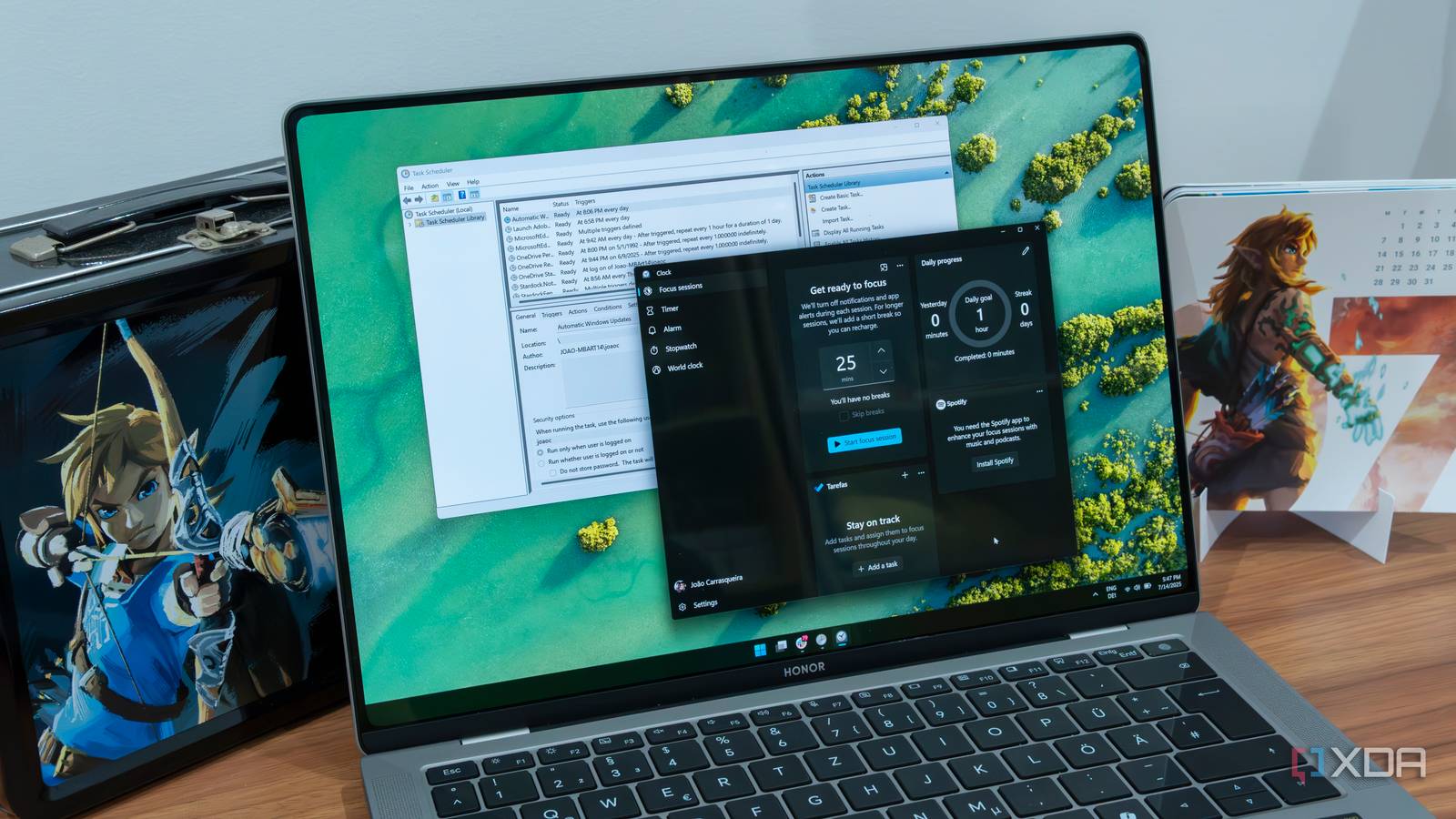
Published Aug 16, 2026, 5:00 PM EDT Korbin is a Linux system administrator who spends most of his time in a terminal figuring out how things actually work. Over the last decade he's written hundreds of articles about Linux configuration, troubleshooting weird problems, and using open-source tools in the real world. He also works a lot with Windows systems and networking, especially in mixed environments where things don't always behave the way the documentation says they should. Writing things down is how he makes sense of it all and hopefully saves someone else a few hours. I'd been running a nightly file sync on my desktop through Windows' Task Scheduler for a few months. One afternoon, I went looking for an older version of a document and found that the newest file in my backup folder was several weeks old. Task Scheduler still listed the job and showed it as enabled. It even reported that the last run (last night) had finished successfully. The culprit was a typo in one of the paths, so PowerShell hit an error on the first operation and exited. The catch is that PowerShell still exits with code 0 (success) in that situation, because the interpreter itself ran fine. Task Scheduler saw it as a process starting and stopping successfully, so it logged 0x0 under Last Run Result. I had a couple months of logs telling me that the process was successful, when the backup script wasn't actually doing anything. After that mishap, I moved everything to cron inside WSL. Windows Subsystem for Linux mounts the system's drives under /mnt, so a Bash script scheduled by cron can access the same files a PowerShell script would. The biggest improvement was the logging. Every job now writes down what it did and whether it exited cleanly or not. Task Scheduler was misleading me for months Success is just the exit code of whatever launched I was putting too much faith in Task Scheduler's result codes, only realizing later on that they're close to meaningless. A Last Run Result of 0x0 basically just tells me that Windows successfully handed my command off to the OS. It doesn't say anything about whether the script found its input files, threw an exception halfway through, or exited with an error. Task History holds a few more details, but it's disabled by default. The Conditions tab also includes a lot of "gotchas" that need careful configuration for the task to run as you expect. By default, a new task only starts if the computer is on AC power, and it stops if the machine switches to battery. There are also options to require the PC to be idle, wake the computer to run the task, and wait for a network connection state. Any one of those can cause a task to skip a run, which never actually registers as a failure. What really pushed me away from Task Scheduler, though, was the total lack of output. I didn't want to delegate an important sync task to the tool if there wasn't any solid way to verify its success rate. Task Scheduler just stores the exit code, and scraps anything else that the script printed during its run. As a kludge, I built logging into some of my scripts by redirecting output, but at that point it no longer made sense to keep the scheduler around in the first place. Cron makes failure easy to trace Every job has its own paper trail Cron solves the logging issue with a simple redirect. To run my sync script on a schedule, with logging, I only need one line in crontab: 0 2 * * * /home/user/sync.sh >> /home/user/logs/sync.log 2>&1 The first half is the schedule (daily at 2 AM), and the rest sends everything the script prints into a log file. The >> operator appends new text to the end of the file, so I retain an ongoing history of each time the job ran. The 2>&1 part instructs it to redirect stderr into stdout, so error messages end up in that same file, rather than disappearing. For especially important jobs, I record the exit code, too. This makes the failure easy to find with grep afterward. Otherwise, it'd be buried in a wall of output. I have a stock wrapper script that I made, which will record success or failure, along with exit codes: #!/bin/bash LOG=/home/user/logs/sync.log if /home/user/sync.sh >> "$LOG" 2>&1; then echo "$(date '+%Y-%m-%d %H:%M') OK" >> "$LOG" else echo "$(date '+%Y-%m-%d %H:%M') FAIL (exit $?)" >> "$LOG" fi Before installing a new job in cron, I'll try running the command or script from my own terminal. I'd do the same in PowerShell, but sometimes there are inconsistencies because of SYSTEM context and stored credentials. I find cron more straightforward: if something runs in my own shell, it will also run fine as a scheduled task. Cron has a big shortcoming that Task Scheduler doesn't Missed jobs stay that way One problem with cron is that it'll miss a job completely if the PC isn't on at the right time. My sync task is scheduled for 2 AM, and cron won't try to circle back if it misses its window to run. Windows lets you check 'Run task as soon as possible after a scheduled start is missed', which is really useful on a desktop that isn't always awake. Cron has no native equivalent. This hasn't been a deal-breaker for me. In practice, I schedule jobs for hours when the machine is realistically on. If it was a real issue, packages like anacron will solve it properly by exposing additional conditions. Even without that, an occasionally missed run sounds better to me than Task Scheduler's empty claims that everything is running hunky-dory. Automation that can be verified Task Scheduler is still a capable tool, but I never liked the investigation I had to do just to determine whether a job failed. Cron gives me a plain-text schedule and a plain-text log, and between those two files I can answer any question I've had about a job. Now I can check a log file anytime I wonder how a task is performing.
Task Scheduler lied to me for months, so I moved everything to WSL cron
Full Article
Original Source
Read the full article at Xda-developers →KhanList aggregates and links to publicly available news content. We do not host full articles from third-party sources. Always verify important information with original sources.