
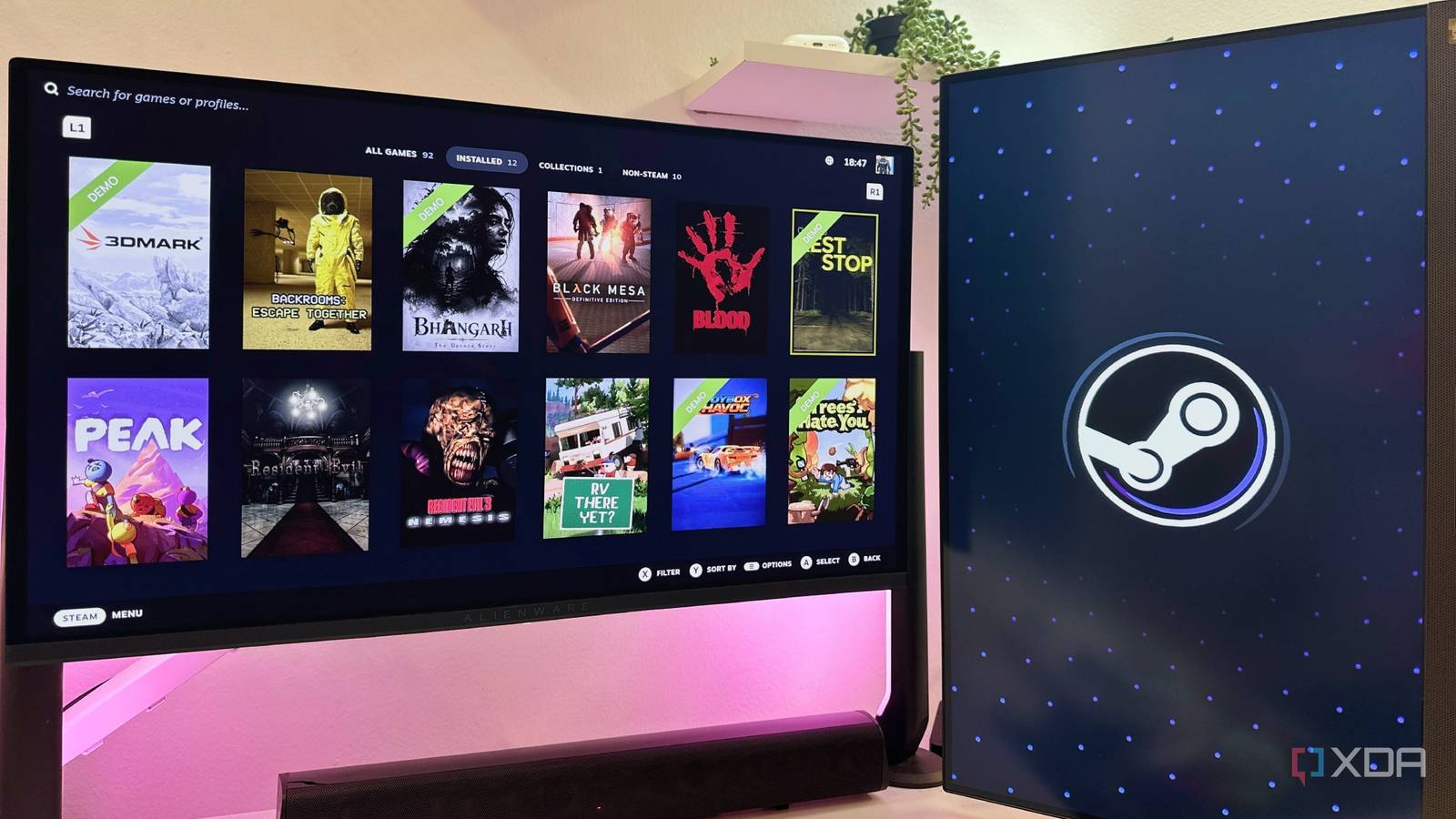
Published Sep 2, 2026, 6:00 PM EDT Gaming has been Samarveer’s greatest passion, and the Literature graduate in him takes immense joy in dissecting games for their themes, messages, and impact. Samarveer holds a deep appreciation of gaming, and considers the platform to be the most immersive and impactful across all media. He can be found engaging with gaming communities online, always ready to debate the finer points of ray tracing or itching to write an 8-page collegiate thesis on any game that impacts him emotionally. I've been using Steam for nearly two decades now. I've watched it evolve from a fairly straightforward PC game store into something that sits at the center of almost everything I do with my gaming PC. It's one of the rare few apps on my PC that have earned startup privileges, and rightly so. What I didn't know about Steam, however, is that apart from being the most user-friendly launcher and storefront, it's also absurdly packed with some great power-user features, as long as you're looking in the right place. All I needed was a way to sort my library in a more tailor-made fashion, and that led me down a rabbit hole of discovering some genuinely remarkable features I never knew existed in Steam. Big Picture mode on one screen, normal Steam on another Steam no longer takes over my primary monitor Steam's Big Picture mode is fantastic, but only when I'm sitting on the couch with a controller in my hand. When Steam decides that my desk monitor needs the same treatment, it does get irritating, to say the least. I now have it configured so Big Picture mode remains exclusive to my 55-inch 4K TV, while Steam opens normally on my 27-inch 1440p display. That distinction makes far more sense for how I actually use my PC. The setup for this arrangement turned out to be surprisingly simple, too. All I needed to do was go to Steam and enter Big Picture mode. From there, I headed to Settings > Display. Here, under the Preferred Display setting, I set my TCL TV as the preferred display for Big Picture mode, while leaving my monitor as my normal Steam display. With the TV connected, Steam boots into Big Picture mode on the big screen, ready for controller-based gaming. While I'm at my desk, it behaves like a normal desktop app on my monitor. This small configuration change is something I never even knew about, and now, I can only wish I'd discovered it sooner. Disable the "friend started playing" notifications I don't need a live feed of everyone's crashes Steam's friend notifications are useful, and on the occasional midnight gaming session, it can even feel comforting to know that a friend is online, too. However, when someone decides to install 47 mods, launch the game, crash within 30 seconds, and then repeat the process ten times, it can get exasperating. I don't need to know about every single one of those failed launches, especially when Steam dutifully tells me about each one as if something meaningful has happened. Turns out, you can turn off these notifications by heading into Steam > Settings > Notifications. Find the "When any friend starts a game" option, and disable it. That's it. Steam will stop showing a notification every time someone launches something, while my friends list and everything else remain intact. It's particularly useful if you have friends who treat launching a heavily modded game as a repeated stress test for their PC instead of an attempt actually to play it. Dynamic Collections automatically organize my library My Steam library is much bigger than what's actually installed Steam's library and my installed games are two very different things, but the client doesn't always make that distinction feel particularly helpful. My library has grown into the triple digits over the years, and manually scrolling through all of those games to find what I can actually play is the kind of busywork I don't want from a game launcher. Steam's Dynamic Collections feature is what fixes that. If I create a new collection, I can choose to make it dynamic, and Steam lets me define filters for it, such as its local install state, genre, playtime, or other library attributes. Once the filters are set, Steam automatically adds every matching game to that collection. If I install something new that meets the criteria, it will appear there without me having to touch the Dynamic Collection again. Again, this is a small feature that not many users actively know about or use, but it does turn a sprawling Steam library into something that actually feels manageable. Someone has probably already fixed your controller problem Steam Input is far more powerful than I realized, and the best part is that I don't necessarily have to learn how it all works. For supported controllers, Steam lets me browse complete controller configurations shared by other players, complete with descriptions, playtime stats, and community votes. In fact, Valve even supports configurations that can remap physical controller inputs into keyboard and mouse commands. To try one, connect your controller, open a game's Properties screen, and select Controller. Click Controller Configurator to see all officially available controller inputs. This is where you can click your current button layout, then select Community layouts tailored to the game and controller you're using. Steam also separates configurations by controller type, so you're not accidentally downloading a layout designed around completely different hardware. This isn't a feature I'll find myself using frequently, but this is particularly handy for older PC games with awkward controller support, or games where the default layout doesn't feel right. Instead of spending half an hour remapping every button myself, I can borrow the setup someone else has already spent half an hour perfecting. I never knew about persistent notes in the Steam overlay The Steam overlay is ridiculously nifty For years, the Steam overlay has been, for me, just the button I pressed when I wanted to invite a friend to a game. I never had much reason to linger there, so I completely missed that Steam has a surprisingly capable notes editor built right into it. In fact, it even has a web browser that can pull up guides without forcing me to Alt-tab out of the game. The notes feature is the one that genuinely caught me off guard. While playing Hell Is Us, I found myself physically writing down clues, locations, and other bits of information because the game expects me to remember things like an old-school action-adventure title. Then, it occurred to me that I could open the Steam overlay, create a note, and keep everything there instead. Even better, those notes can remain visible while I'm playing, effectively turning them into a set of virtual sticky notes. I can keep track of clues, objectives, or anything else I don't want to forget without having my notebook share space with my keyboard on my deskmat. Steam lets you download games over the local network An incredible feature for roommates and second-PC owners For anyone wanting their friend or roommate to hop into a game they like, or even for those with a second PC at home connected to a TV, Steam lets you copy game files from another PC on the same local network. Instead of pulling the game once again from the internet off Steam's servers, this feature can prove particularly useful in places like college dorms, where several people might be downloading the same 100GB game on the same connection. If sharing a game via a local network with another device, you must ensure that the Steam account receiving the game also has a license for the game, i.e., has purchased it via the Steam store. If your roommate or friend already has a game installed, Steam can transfer the files directly to your PC, saving bandwidth and potentially dramatically reducing installation time. Valve says that a wired connection can reach around 100 MB/s. To enable it, go to Steam > Settings > Downloads > Game File Transfer, then choose whether transfers are allowed between your own devices, Steam friends, or anyone on the local network. The PC receiving the game files will automatically check for usable local files before downloading from Steam's servers, meaning there's nothing else to babysit. Steam has been hiding a lot in plain sight I've come to particularly appreciate that none of these features have required me to fundamentally change how I use Steam. All they've done is remove little points of friction or add tiny QoL changes to my usual Steam user experience. After spending this long with the platform, I had convinced myself I already knew where everything was, which makes finding something genuinely useful buried behind an unfamiliar menu all the more satisfying. Steam has become so much more than the storefront it started as, and I suspect I've only scratched the surface. There are probably still settings I haven't opened or shortcuts I haven't pressed, and I can't help but wonder what else I've been missing.
Steam's best power-user tricks are buried so deep most gamers never find them
Full Article
Original Source
Read the full article at Xda-developers →KhanList aggregates and links to publicly available news content. We do not host full articles from third-party sources. Always verify important information with original sources.