
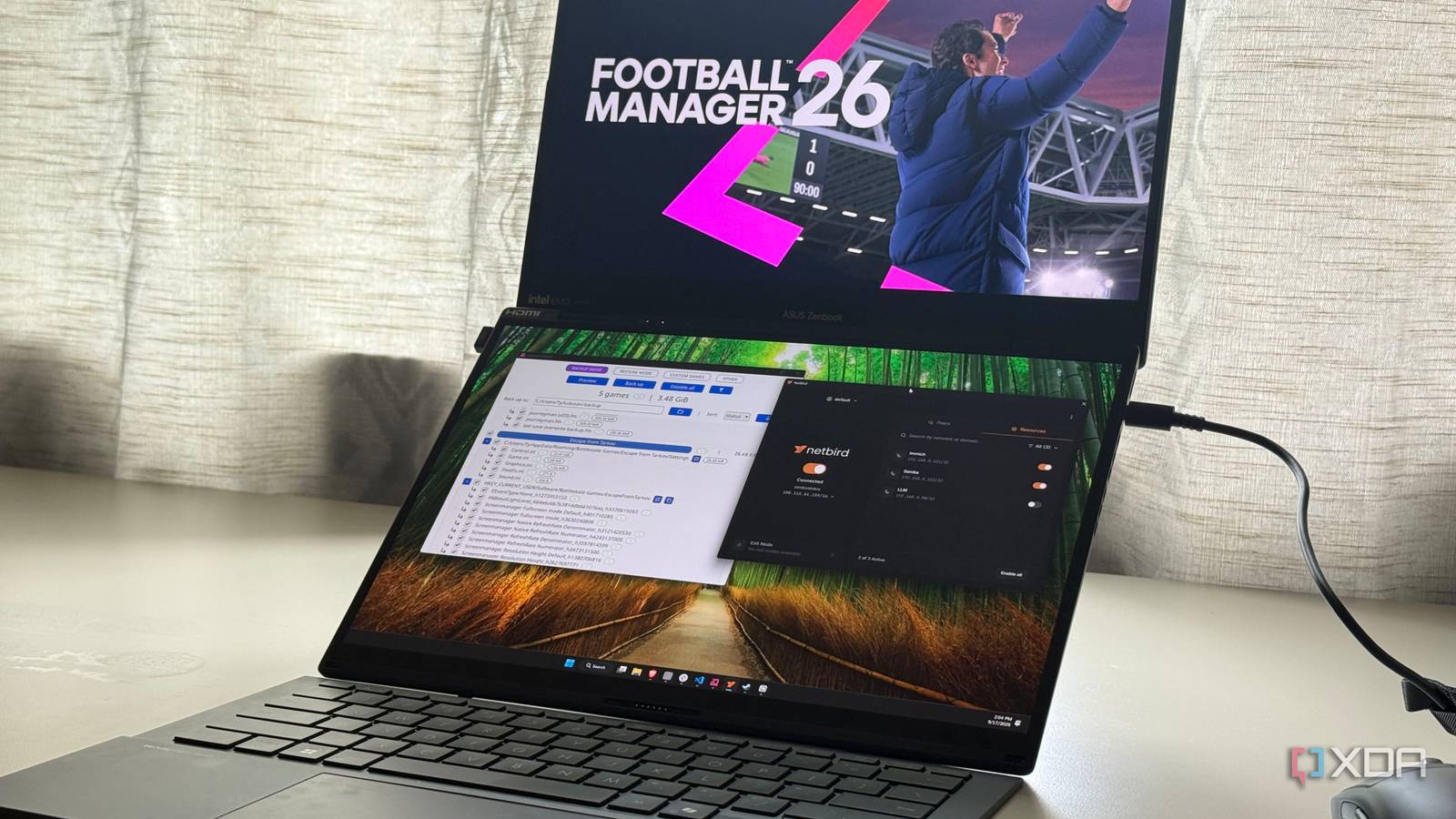
Published Sep 18, 2026, 2:00 PM EDT His love of PCs and their components was born out of trying to squeeze every ounce of performance out of the family computer. Tinkering with his own build at age 10 turned into building PCs for friends and family, fostering a passion that would ultimately take shape as a career path. Besides being the first call for tech support for those close to him, Ty is a computer science student, with his focus being cloud computing and networking. He also competed in semi-pro Counter-Strike for 8 years, making him intimately familiar with everything to do with peripherals. One of the worst parts of playing your favorite single-player titles across multiple machines is carrying your save games across all of them. It's largely a solved problem with games on Steam with virtually all games supporting cloud saves, but even in the cases where it does, I've run into instances where I can't rely on it, and one in particular sent me over the edge. I play an unhealthy amount of Football Manager, and the latest game, Football Manager 26, does support syncing via the Steam Cloud, but there's a limit to how much data it's willing to carry across to other devices. I hit that limit awhile ago, and it silently stopped syncing one of my latest saves, which I only found out about after I had already left for a bout of travel. When I got home, I decided now was as good of a time as ever to set up game save sync through my home server with Ludusavi and Rclone, and it was way easier than I thought. Games can outgrow their limit, and some don't even support Steam Cloud A method to sync those games is a must Football Manager syncs a bit differently to other Steam games. Once you hit save in the cloud location, the save only uploads once the player exits the game. There seems to be a 10GB limit on cloud saves, which is a number you can hit faster than you think, especially if you have a particularly long save or you just like to have a few going at once. This is a common problem you'll see reported all over the FM26 community, and it finally caught up to me. One of my saves was too big for the cloud buffer, and I didn't really give it any notice until I was away from home, tried to load it, and found myself many months behind where I had left off before in-game. I could, of course, just bring a USB stick with me everywhere, or even upload to Google Drive or Dropbox as many players do, but I decided to put my home server to use as a sync location for all my game saves, not just FM. Ludusavi does the copying for me An excellent backup tool Ludusavi is a free, open-source tool that knows where thousands of games keep their saves, using data sourced from PCGamingWiki. It found Football Manager 26 on my laptop and desktop without any custom configuration, along with a handful of other games. On its own, Ludusavi backs up to a local folder. What turns it into a cloud sync tool is its Rclone integration, which can push backups to any Rclone remote. I pointed mine at an SMB share on the Samba container on my Proxmox server, backed by a dedicated dataset on my ZFS pool. With automatic synchronization on, Ludusavi checks whether the local and server copies match before each backup, then uploads the new backup afterward. If the copies don't match, it warns me instead of overwriting anything. Reaching my server from anywhere NetBird takes care of that At home, syncing between devices is automatic with this setup already, but getting it to cooperate while I'm away from home is the bigger challenge. Thankfully, I have external access like this almost entirely sorted out. Since my SMB share doesn't expose itself to the internet at all, the method I use to access it is via a mesh VPN, and for this, I use a self-hosted deployment of NetBird. NetBird allows me to access the entirety of my home server via WireGuard, and through the control plane, I've set the Samba share up as a network resource rather than an actual peer, which saves me another install and overall simplifies the deployment. My Proxmox host simply forwards the traffic it receives from my laptop or any other device wanting to access my saves to the LAN address of the LXC. And because my laptop uses the same LAN address to access at home and away in this instance, the single Rclone configuration covers both. It still works, but there are some hoops My laptop (usually) runs Windows, and my desktop runs CachyOS, where Football Manager 26 runs through Proton because it has no native Linux version. So the same save lives at two very different paths: my Documents folder on Windows, and a Windows-style Documents folder buried inside the game's Proton prefix on Linux. Ludusavi won't restore a Windows path on Linux (or the reverse) until you tell it how the two map to each other. That's what redirects are for. On the desktop, I added a redirect that maps the Proton prefix's Documents folder to my Windows Documents path, so backups from both machines show the save the same way. An easy way to supply cloud sync when there isn't another option Steam Cloud has mostly solved the issue of carrying your saves with you from place to place, but there are limits to it. In some cases, these limits are literal size limits, and in others, it simply doesn't reach to non-Steam titles. Thankfully, my home server fills this gap without giving up any of the convenience that Steam already provides.
Steam Cloud hit its limit, so I built a better sync system with my home server and two free tools
Full Article
Original Source
Read the full article at Xda-developers →KhanList aggregates and links to publicly available news content. We do not host full articles from third-party sources. Always verify important information with original sources.