
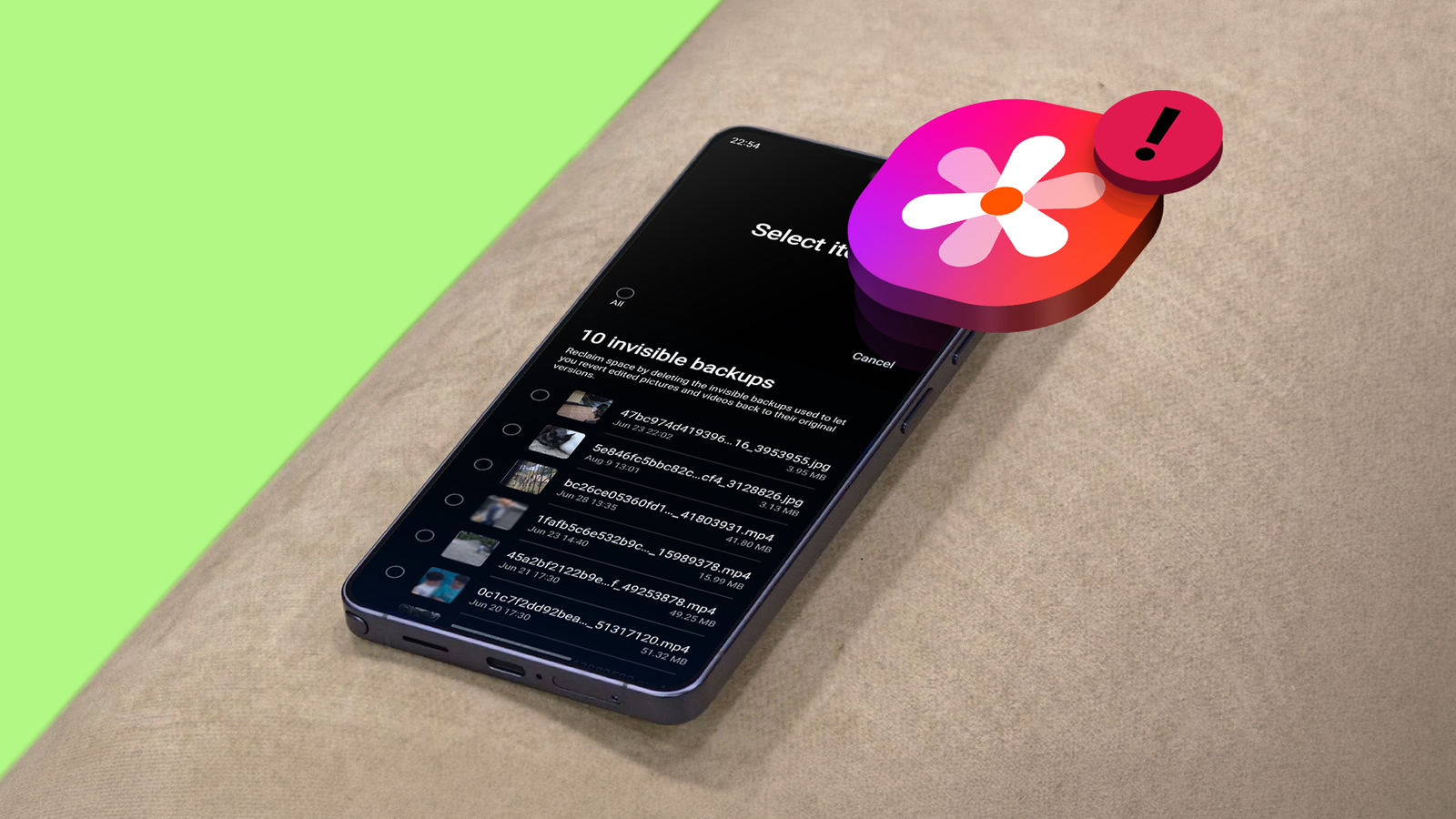
Published Aug 14, 2026, 9:30 AM EDT I’ve been covering Android since 2023, when I joined Android Police, mostly focusing on AI and everything around Pixel and Galaxy phones. I’ve got a bachelor’s in IT with a major in AI, so I naturally view technology differently. I usually take a pro-consumer angle instead of the marketing hype, which you’ve probably noticed in my writing. I opened the new Device Care, and Samsung was already waiting with a suggestion: Review files to free up storage. I said sure, and got a receipt for around 12GB of storage, which I had no memory of using. It's the deleted files, I thought. Something in a deep folder is waiting for its retention timer to expire. That's how we all picture it working. Your phone holds rubbish for 30 days just in case. But no. Most of that 12GB was a hoard of invisible backups that Samsung Gallery had been generating and stashing away for who knows how long. Quiz 8 Questions · Test Your KnowledgeSamsung photo backupsTrivia challenge From Gallery to the cloud — how well do you really know Samsung's photo backup features? GalleryCloudSettingsStorageSecurity Begin Which Samsung service is the primary built-in option for backing up photos directly from a Samsung Galaxy device? ASamsung DriveBSamsung CloudCGalaxy BackupDSamsung Vault Correct! Samsung Cloud is Samsung's native cloud storage service, tightly integrated into Galaxy devices for photo and video backups. You can manage it directly through your Samsung account settings. Not quite. The correct answer is Samsung Cloud. It's Samsung's own cloud platform that lets Galaxy users back up photos, contacts, and other data linked to their Samsung account. Continue How much free storage does Samsung Cloud offer to users for photo and video backups? A5 GBB50 GBC15 GBD100 GB Correct! Samsung Cloud provides 15 GB of free storage for users. Additional storage can be purchased through subscription plans if you need more space for photos and other data. Not quite. Samsung Cloud offers 15 GB of free storage. While that might sound familiar — Google also offers 15 GB free — Samsung's allocation covers Samsung-specific backups like Gallery photos and device settings. Continue Which third-party cloud service does Samsung's Gallery app natively support for photo syncing, in addition to Samsung Cloud? ADropboxBiCloudCOneDriveDAmazon Photos Correct! Samsung has a long-standing partnership with Microsoft, and the Samsung Gallery app supports native syncing with OneDrive. This means your photos can automatically back up to your Microsoft account. Not quite. The answer is OneDrive. Samsung and Microsoft have a deep integration partnership, so Samsung's Gallery app can sync photos directly to OneDrive without needing a separate app to set it up. Continue Where in the Samsung Galaxy settings can you find options to enable or manage Samsung Cloud photo backups? ASettings > Battery and device careBSettings > Accounts and backup > Samsung CloudCSettings > Privacy > Cloud syncDSettings > Display > Gallery options Correct! You can access Samsung Cloud backup settings by navigating to Settings, then Accounts and backup, and selecting Samsung Cloud. From there you can choose what to sync and check your storage usage. Not quite. The correct path is Settings > Accounts and backup > Samsung Cloud. This is where you control which data types — including photos from your Gallery — are being backed up to Samsung's cloud servers. Continue What Samsung feature lets you store sensitive photos in an encrypted, password-protected space separate from the regular Gallery? APrivate AlbumBSecure FolderCHidden VaultDKnox Gallery Correct! Secure Folder is powered by Samsung Knox and creates an isolated, encrypted environment on your device. Photos stored inside it are kept separate from the main Gallery and require authentication to access. Not quite. The answer is Secure Folder. Built on Samsung's Knox security platform, Secure Folder keeps photos and other sensitive files encrypted and completely separate from your regular device storage and Gallery. Continue In 2021, Samsung made a significant change to Samsung Cloud photo storage. What happened? ASamsung Cloud was shut down entirelyBPhoto and video syncing was migrated to OneDriveCStorage limits were reduced to 5 GBDSamsung Cloud merged with Google Photos Correct! In 2021, Samsung ended photo and video syncing in Samsung Cloud and migrated that functionality to Microsoft OneDrive. Users were prompted to transfer their existing photos to OneDrive to avoid losing them. Not quite. The answer is that Samsung migrated photo and video syncing to Microsoft OneDrive. This was part of the broader Samsung-Microsoft partnership, and it marked the end of Samsung Cloud's role as a dedicated photo backup service. Continue Which Google service do many Samsung Galaxy users rely on as an alternative photo backup solution? AGoogle Drive PhotosBGoogle LensCGoogle PhotosDGoogle Backup Correct! Google Photos is one of the most popular photo backup apps on Android, including Samsung Galaxy devices. It offers automatic backup, smart search, and AI-powered features, and integrates seamlessly via the Google Play Store. Not quite. The answer is Google Photos. While it's a Google product and Samsung is an Android device maker, Google Photos is widely used by Galaxy owners as a reliable, feature-rich alternative to Samsung's own backup options. Continue When backing up photos via Samsung Cloud, which file formats are fully supported for backup and restoration? AOnly JPEG and PNGBJPEG, PNG, GIF, BMP, and WBMPCJPEG, HEIC, RAW, and MP4DAll file formats including RAW and TIFF without restriction Correct! Samsung Cloud supports JPEG, PNG, GIF, BMP, and WBMP formats for photo backup through the Gallery sync. RAW files and certain video formats may have limitations depending on your device and plan. Not quite. Samsung Cloud supports JPEG, PNG, GIF, BMP, and WBMP for Gallery photo backups. RAW files are not fully supported for cloud sync, which is something photographers should keep in mind when relying solely on Samsung Cloud. See My Score Challenge CompleteYour Score / 8 Thanks for playing! Try Again Every edit you make leaves a body behind The safety net you never asked for Every crop, every trimmed 4K clip, every filter applied inside Samsung Gallery leaves behind a duplicate of the original file. That's by design. Samsung wants you to be able to revert an edit whenever you like. You won't find these originals anywhere in the Gallery app. Now think about what happens when you switch phones. Smart Switch moves your data across, invisible backups included. That's gigabytes of invisible baggage on a new device, and how you spend money you don't need to spend. A 256GB phone that mysteriously runs tight makes 512GB the safe call, even though 256GB is the sweet spot for almost everyone. How to reclaim the space, and what you give up Clearing them out takes about thirty seconds Credit: Samsung You can free all of this up in about 30 seconds, but after the backups are gone, so is any chance of reverting an edited photo or video to how it originally was. If you're fine with that, here's the process: Open Settings and tap Device care. Select Storage. Tap the Review files suggestion. Select the pre-edit backups you want gone. Tap Delete. Three more corners worth checking The backups have company Credit: Lucas Gouveia / Justin Duino / Android Police The pre-edit backups were my biggest offender, but they have company. One UI stashes deleteable files in a few corners that may never surface in normal browsing. Might as well check them all in one go while you have the gloves on. Pending and uncategorized files The same storage review that exposes invisible backups sorts the rest of your opaque leftovers into two more piles. The Other files breakdown in storage arrived in One UI 8.0 with three categories: invisible backups, pending, and uncategorized files. Pending files are anything caught mid-process, like a download you abandoned halfway or an upload that never finished. Uncategorized is the junk drawer, holding whatever My Files can't sort, and a lot of it tends to be app debris. Neither pile gets a delete button, which is probably for the best. Some of these files have jobs to do in the system, so tread carefully. Tapping a file only shows you its path, so removing anything means hunting it down in My Files. My Files runs its own sweep My Files runs its own sweep, which is easy to miss because it's buried at the bottom of the app. Tap Analyze storage for a breakdown of the device, plus anything flagged as duplicate, large, or unused. Duplicates are the easy win. That PDF you downloaded three times finally gets cleaned up here. A warning before you go all in. If you tick every copy, the original goes down with them, so always leave one standing. Secure Folder hoards separately Secure Folder users have one extra thing to check. The Gallery there keeps a separate recycle bin, untouched by anything you empty on the outside. The only way in is through the front door. Open Secure Folder, go to its Gallery, and empty the bin yourself. The cheapest storage upgrade you'll ever get I keep circling back to this. The used-storage number on an older phone is partly inflated by files nobody chose to keep. Again, the number argues for the pricier storage tier, and it argues convincingly. Run the sweep before paying the gap for the capacity you may already own. Nothing here went wrong. The revert system did exactly what Samsung built it to do, and doing it out of sight was the whole idea. I'd argue a safety net should announce what it costs, but this one doesn't.
Samsung's invisible photo backups just cost me 12GB; here's how I reclaimed it
Full Article
Original Source
Read the full article at Androidpolice →KhanList aggregates and links to publicly available news content. We do not host full articles from third-party sources. Always verify important information with original sources.