
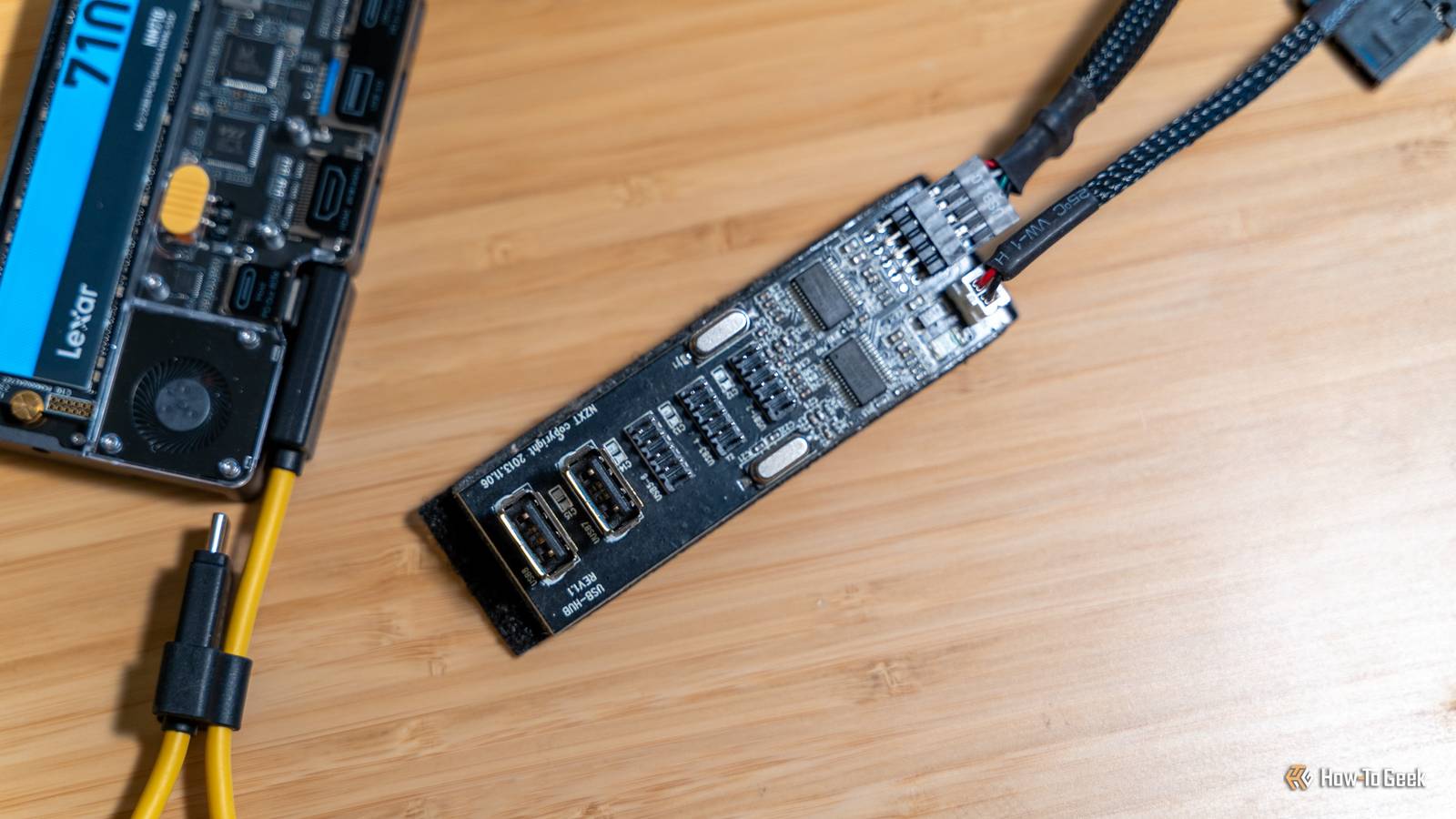
Published Sep 22, 2026, 7:30 AM EDT Patrick Campanale has been in the tech space for well over a decade, specializing in PC/gaming news and reviews, as well as maker-focused products to build small businesses. With a start in technology back in 2010 surrounding the Palm/webOS ecosystem, Patrick spent his formative years developing mobile applications as well as blogging for various publications, eventually leading to starting his own website in 2014. After running a technology blog for a few years, he stepped out of that role and into the world of high-end custom PC manufacturing and building, with a focus on YouTube video production and overclocking. Then, in 2017, Patrick joined the 9to5Toys team as an editor/writer/reviewer with over 14,000 articles being published during his time there, ranging from deals and roundups to in-depth reviews on the latest technology, video games, 3D printers, and more. In his free time, Patrick loves to create projects from wood using various robots and methods, including leveraging the technologies of CNCs and lasers. If Patrick isn't working on a computer or playing video games, he's likely in his 2-car garage workshop creating something unique. In addition to all this, Patrick is also the media director at his local church where he feels God has called him to serve, and he loves every minute of it. Want to add more USB ports to your desktop PC? There are several ways you can do it, from simply connecting a USB hub to adding a PCIe add-in card. Here are four different ways to add extra USB ports to your desktop. Connect a USB hub Sometimes the simplest solutions really are the best No matter what desktop I have, it never has enough USB ports for me, so I actually keep two USB hubs on hand for this very reason. Both hubs I have are 10-port and offer up to USB 3.2 10Gb/s speeds. The thing to keep in mind though is the entire hub is limited to that 10Gb/s speed, so you can't aggregate more than 10Gb/s through it. However, I use my hub mainly for devices that don't rely on heavy data transfers, like my Stream Deck, keyboard, mouse, speakers, printers, and other peripherals like that. These hubs also often come either powered or unpowered. Since you'll be plugging it into a desktop, I'd recommend powered as it will let you use a wider range of devices. Leinsis Powered USB 3.2 Hub Brand Leinsis Connection 3.2 10Gbps Ports 10 USB-C Power Delivery No Power supply included Yes The Leinsis powered USB 3.2 hub features a USB-C connection and 10 USB ports. There's two USB-C 3.2 10Gbps ports at the top, followed by a USB-A 3.2 10Gbps port below that. Then, there are seven more USB-A 3.0 5Gbps ports available to plug in your devices. Each USB port features a dedicated power button so you can turn devices on and off from the USB hub itself, should you want to. It also has a hybrid cable that's USB-C on one end with both USB-C and USB-A on the other, depending on what your computer needs. Use your monitor's built-in USB ports Though often forgotten, most monitors do have USB ports now Credit: Ismar Hrnjicevic / How-To Geek I used to ignore the USB ports on my monitor. I have no idea why, they just felt "inferior" to me. Turns out, they're the same type of ports that you find on USB hubs because that's all it is. These days, I use every USB port my monitor offers! It's just too convenient not to use them. Simply plug the cable from the monitor to your desktop (or use USB-C for both video and data if supported by your monitor) and the USB ports become live. Like the USB hub above, I wouldn't plug data-heavy devices into a monitor. Instead, use it for things like your mouse, webcam, keyboard, and other peripherals that are on top of your desk. It makes it easier to organize cables and can shorten the transmission distance needed for wireless peripherals like a mouse or headset. Install a PCIe expansion card You can even get USB4 this way! Credit: StarTech PCIe can handle USB data just fine. In fact, many newer USB standards are backed by PCIe in some way. There are a number of expansion cards that can be installed in a PCIe slot in your computer. For instance, this 5-port PCIe expansion card offers four external 10Gb/s USB-C and one internal 10Gb/s USB-A ports. Or there's this USB4 card that has two USB4 40Gb/s ports and two DisplayPort 1.4 inputs on it. However, this one does need a special motherboard to work. There are tons of PCIe expansion cards depending on your needs though. There's even a pretty unique one that has four USB-A and three USB-C ports on it, giving you a total of seven additional USB ports on the back of your desktop. Internal or external expansion made easy Credit: Patrick Campanale / How-To Geek Your motherboard very likely has some unused USB headers just chilling waiting to be used. Most often, those USB headers are USB 2.0, which is pretty slow compared to more modern standards. However, you can utilize USB 2.0 ports for things like printers, mice, speakers, and much more. However, there's a chance that your motherboard has a USB-C header going unused, especially if your PC case lacks any front-panel USB-C ports. If so, then you can get something like this USB 3.2 Gen 2x2 adapter that adds a 20Gb/s USB-C port to the back of your PC. The only requirement is that you have a compatible internal header for it to plug into, which is present on many modern motherboards. There are also two different styles of these types of adapters. Some are designed to sit inside of your PC and just add extra ports for things like powering fans or water pumps and the like, and others mount into a PCIe slot but plug into a header. Either way you go, this is a great way to expand your desktop's USB ports, and it's often much cheaper than a dedicated PCIe add-in card because it's translating an existing port to something you can plug into, instead of having to have a bunch of circuitry itself. Your desktop is only as limited as your imagination While I love my laptop, and I love mini PCs, full-size desktops will always have a special place in my heart. They're just so much more upgradable and customizable than smaller form factor systems. It's why, no matter what I do in my setup, I will always have a full-sized desktop around. Mini PCs might only come with a handful of USB ports, but proper desktops can be expanded to have as many USB ports as you could ever want.
Running out of USB ports? Here are four ways to add more to your desktop PC
Full Article
Original Source
Read the full article at Howtogeek →KhanList aggregates and links to publicly available news content. We do not host full articles from third-party sources. Always verify important information with original sources.