
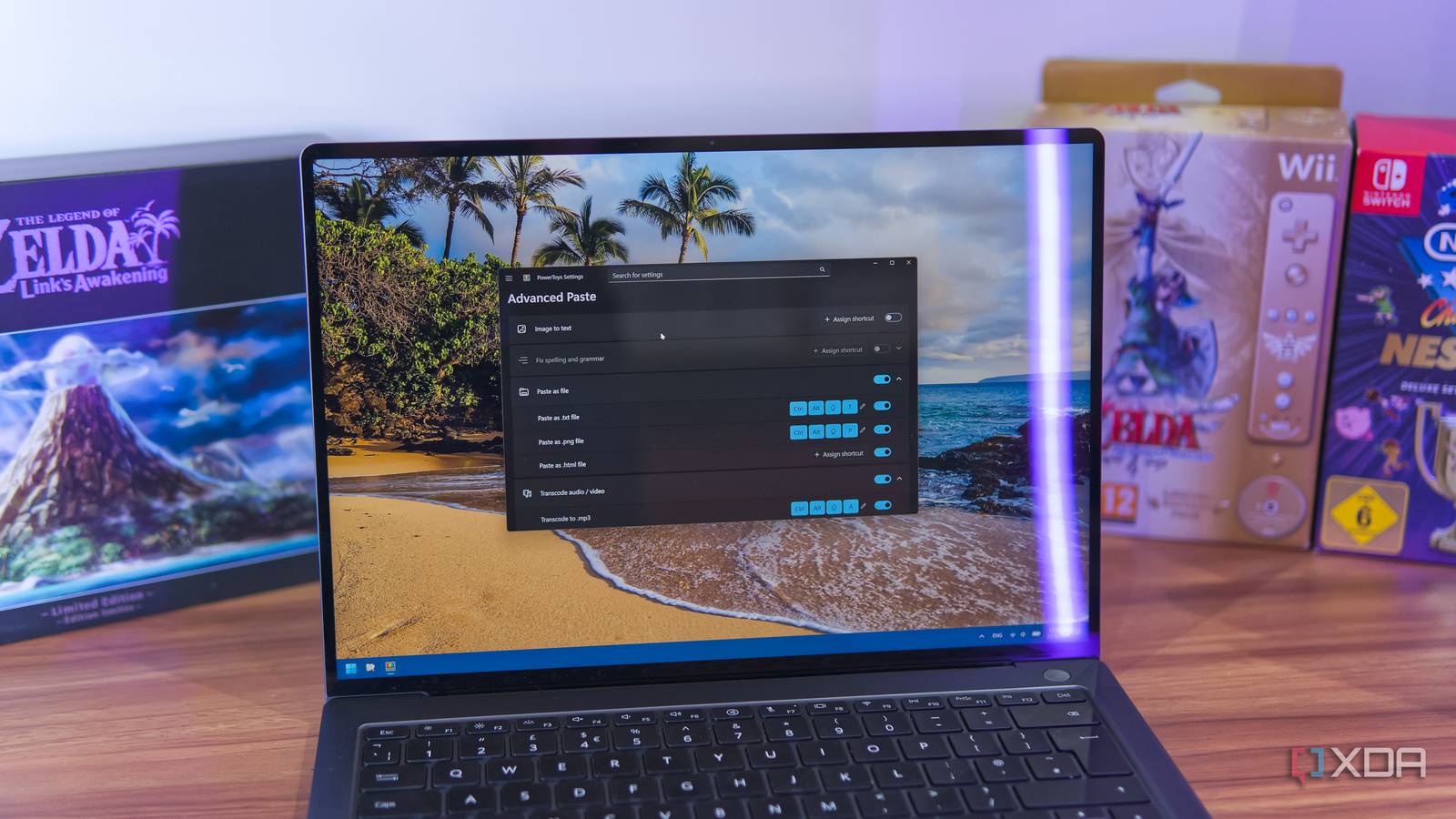
Published Nov 3, 2026, 7:30 AM EST João has been covering the tech world for over 7 years, with a heavy focus on laptops and the Windows ecosystem. I also love all things tech and videogames, especially Nintendo, which he's always happy to talk about. Prior to joining XDA in 2021, he worked at Neowin: https://www.neowin.net/news/poster/jo%C3%A3o-carrasqueira/ Do you never find a piece of text on the internet or take a screenshot on your PC and then jump through hoops to save that content for later? You have to copy the text, paste it into Notepad, and then save it to the location of your choosing, and something similar can apply to screenshots, depending on your setup. But what if you didn't have to go through all that? Well, Microsoft has a solution, and as with many of the company's best tools these days, it's part of the PowerToys suite. It's called Advanced Paste, and it turns the content of your clipboard into a file automatically with a single keyboard shortcut. Turning clipboard items into files It's so easy now Whether you're copying text or an image somewhere on your computer, saving or sharing it as a file can be a bit of a hassle. That's part of what Advanced Paste aims to fix, and it's actually very cool. First, you need to enable the Advanced Paste tool in PowerToys, and then go into its specific settings to find the options under Paste as file. You need to enable the main option, and then also enable the kinds of files you want to be able to paste, which include .txt, .png, and .html. You also have the option to assign specific shortcuts for pasting each of those file types, so you can get the exact result you want with a single shortcut. For example, you can set Ctrl + Alt + Shift + T for pasting a .txt file, like I did. Otherwise, the general Advanced Paste shortcut can bring up a menu with all the options for the current clipboard content. Then, all you need to do is copy any bit of text you come across and want to save, and go into the folder where you want to save it, and press the shortcut you assigned to that action. You can also do this in messaging apps as a way to attach files, which can be helpful when services don't allow you to directly paste image content into a message. They're not that common, but they do still exist, so I appreciate having this option. One particular situation where I can see this being very helpful is when copying the output from a terminal command or logs generated by a program. Discord's character limit (as an example) is very restrictive, but with this tool, I can paste large portions of text directly as a file, which will still be tiny and well under the file size limit on the platform. It's a big time saver for this specific situation. It can even convert files Advanced Paste is a fairly accurate name for this tool because that's far from the end of its capabilities. If you've ever tried to share a video or audio file and for whatever reason the person on the other side wasn't able to open it, it can help here too. Just below the options above, you'll also find options for transcoding both audio and video files to more widely-supported formats. Audio files can be converted to .mp3 and video files are converted to .mp4 using the H.264 codec, and both of those file types should be able to play on almost any device without the need for special apps or plug-ins, making compatibility a non-issue. Conversion happens when you paste the content, so if you have a large video file, it may take some time to be ready to send, but it's still a very cool feature to have. That's still not all In fact, it's not even the main point On top of all of that, it's worth noting that the main goal of Advanced Paste isn't even to do all of these things. It's headlining feature is the ability to handle different formatting use cases depending on your needs. You can define a shortcut for pasting as plain text directly into a text field, or paste text with Markdown or JSON formatting. And there's still more. If you copy an image or take a screenshot, you also have the ability to enable pasting text from that image. This features uses optical character recognition to pull text from the image and make it usable in plain text format. There's even an option to fix spelling and grammar in pasted text. If the original text has a typo or grammatical error, the tool can also fix it automatically to make the text cleaner. I do worry that this could result in some inadvertent errors that are more obvious than a simple typo might be, but perhaps that's why it's disabled by default. I don't care to enable to it, personally. If you want, there's even a Paste with AI option that can use an AI provider of your choice to enable custom actions. This will depend on the provider you select and what capabilities it can enable. Advanced Paste makes PowerToys even better There's already plenty to love in PowerToys, but Advanced Paste is another great tool that helps make this already essential tool even better for Windows users. Being able to easily save text and images as a file, plus the option to automatically convert audio and video files, is a genuinely useful feature that comes in handy in a lot of different situations. I've said it many times before regarding other tools in the suite, but if you're somehow not using PowerToys on your Windows PC yet, it's never too late to start.
PowerToys lets me turn my clipboard items into files instantly, and I stopped wasting time with editors
Full Article
Original Source
Read the full article at Xda-developers →KhanList aggregates and links to publicly available news content. We do not host full articles from third-party sources. Always verify important information with original sources.