
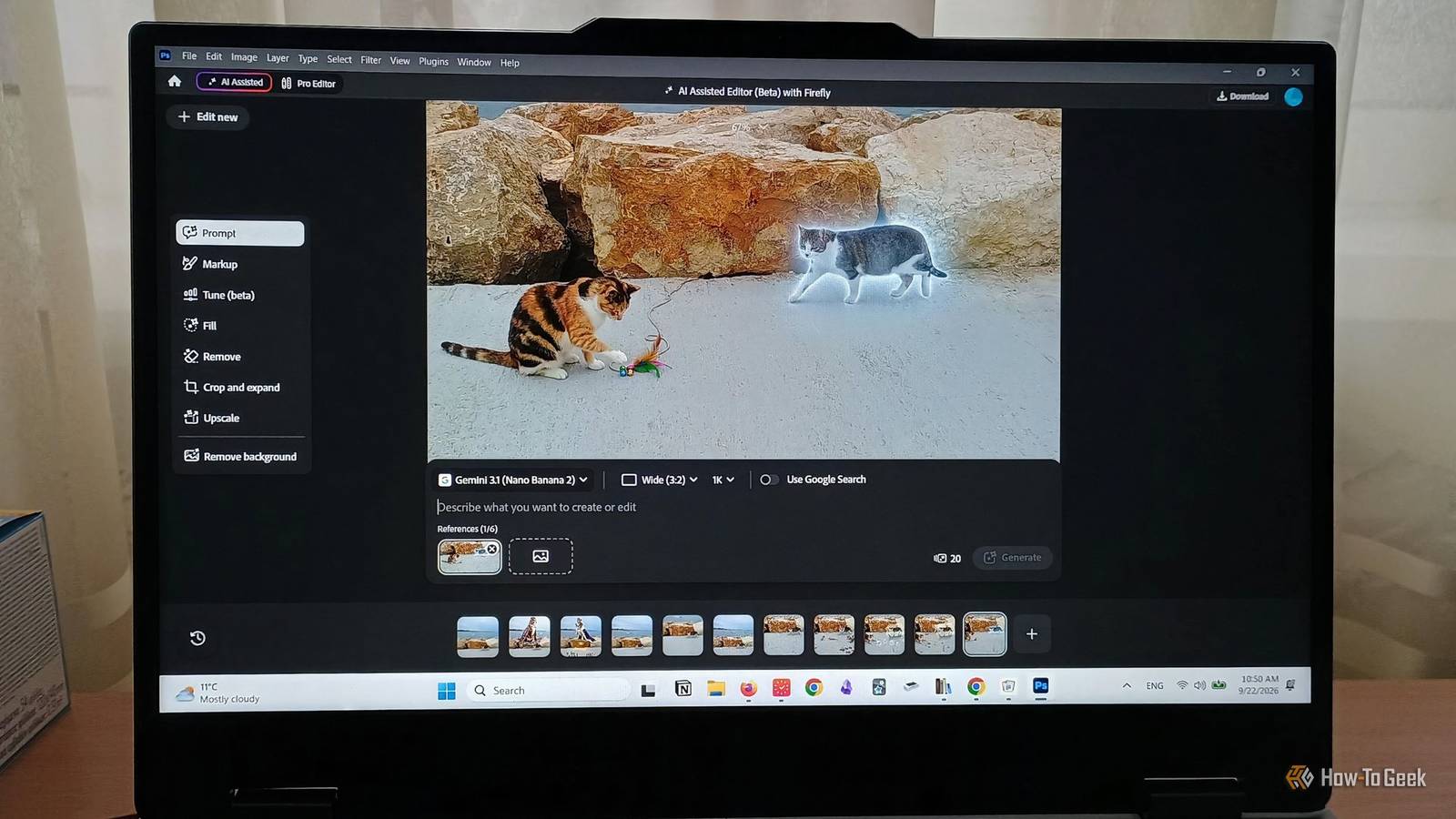
Published Sep 24, 2026, 7:00 AM EDT Diana's interest in technology spans many years. Her favorite areas include consumer software, everything Windows-related, VPNs, and graphic design tools. She's always on the lookout for tools and features that make tasks easier, boost creativity, and improve everyday life. When she finds something interesting, chances are she'll have something to say about it. Adobe is constantly adding new features to its Creative Cloud toolbox, and Photoshop’s new AI-assisted Editor is the latest player in the mix. It should make editing tasks, from background removal to adding new objects, easier and faster. As someone used to the conventional ways of doing things in Photoshop, I was curious about how much time this new addition could save me. After hundreds of hours of learning the old-fashioned tools and techniques (Bézier curves still haunt me), I’m not exactly eager to throw years of muscle memory out the window. On the other hand, I don't want to make things harder for myself just because I can. So I put the AI to the test against techniques I've used for years. New Photoshop AI Editor A stripped-down Photoshop with no learning curve Think of the AI Assisted Editor as a beginner-friendly, friction-free spin on the original. Photoshop is complex and packed with easy-to-overlook features, but this minimalist workspace strips it down to the basics. Your toolbox is made up of 8 main features with varying use cases: Prompts - use a text field to edit through natural language Markup - mark specific areas with a brush or selection for pointed edits Tune (Beta) - prompt your edit and use a slider to decide the intensity Fill - add new objects or textures in a selected area Remove - get rid of unwanted elements and replace them with generative content Crop and expand - crop freely or with presets, or expand and fill in the newly added space Upscale - improve image quality Remove background - identify the subject and place it on a transparent background You can flip between the AI Assisted and the original editor (now called Pro Editor). The AI adjustments transfer into a flattened layer, which isn’t ideal for customization, but it can work. To test it, I chose a picture I took on vacation and tried the most common edits I usually do, but using these new shiny features. I have to say, my impressions are mixed. Removing the background is fast, but not precise Replacing the background is much easier Automatic background removal isn’t new in Photoshop, but the Assisted Editor makes it more accessible. I was almost impressed with it until I zoomed in. The cutout was relatively clean; it singled out the subject well without leaving awkward edges. The photo has its complexities in terms of texture, and the subject is small, so this is solid. But the fact that it completely removed the cat’s whiskers without creating an editable Layer Mask didn’t cut it for me. The traditional method with a Selection Tool and a Layer Mask is better because you have an editable layer you can adjust until you get all details right. It's not instant, but ultimately it is faster to get a result I’m satisfied with in around 15-20 minutes. However, it might just be easier to replace the background. Using the Prompt option in the AI Assisted Editor, I just typed in "add a snowy background." The results are impressive and definitely quick. It considers the photo’s perspective, lighting, and spatial details, producing a very realistic result in about one minute. Manually, this would take me at least an hour, just to look decent. Matching the perspective, texture, lighting, and other relevant details takes a lot with non-AI tools. In this case, AI is definitely faster. Expanding and cropping is hard to beat manually It's easier to just do it yourself Crop and expand is impressive, though it can occasionally have some (minor) issues. In about 30 seconds, I transformed the portrait into a landscape. It blended new information accurately, replicating textures and lighting to match the original. Of course, if you’re nitpicky and like looking for problems, you’ll find them. Zooming in, I noticed some loss of detail in the far-off background. Some buildings were noticeably less defined. However, you can fix that in the Pro Editor in up to 10 minutes with the Spot Healing Brush and Stamp Tool. Those are also the main tools you’d use to replicate similar results were you not to use AI at all, and they take way longer. So here, AI clearly wins, but it may sometimes need a tiny bit of manual adjustment. Adding new elements is fast, but you don’t get much control Removing objects clearly saves time With the Markup Tool, you can either use a brush or annotate over the areas you want to change. I used annotations to add another cat, make the clouds more expressive, give the original cat a shiny aura, and add 2 pink seagulls to the sea. I went a little overboard here, but the results are realistic enough. The only thing is they’re not editable in the Pro Editor. You can get really creative with this, and it only takes a few seconds. Traditional embedding + masking + blending, on the other hand, can easily exceed 30 minutes, but it gives you much more control over the result. On the other hand, removing unwanted objects from a photo is surprisingly seamless. You use a brush to roughly mark the area you want to erase. I used it to remove the buildings in the far back of my photo and got an artifact-free, perfectly blended result in under a minute. You get more control with traditional tools such as the Stamp Tool, but you also have to spend at least 20 minutes and pay extremely close attention to what you’re doing to get as smooth a result. Fine-tuning and touch-ups still call for manual editing Still requires that human touch As for adjustments involving color, lighting, contrast, and the like, you can get fast results with AI, but the traditional tools are just as fast and leave more room for adjustments. Plus, with AI, customization is limited. I tried Prompt and Tune for adjustments, and both work fine. The only thing I wasn’t a fan of is that it sometimes gets creative and makes adjustments you didn’t request. For instance, when I asked for a lens flare effect, it also added more clouds in the sky. For touch-ups, in terms of time saved, I say we have a tie. But if you like having control over your picture, stick with classic. If you don’t mind random additions to your photo, you can experiment with AI. AI and classic tools work better together Even with more people trying open-source alternatives, Photoshop is still the industry standard, and these new, much more beginner-friendly features may help it preserve its position at the top. When it comes to speed, I wouldn’t completely ditch the Pro Editor just yet, but the AI features are solid. I can see myself reaching for the object removal tool and the background replacement options.
Photoshop's new AI Editor is faster, but it costs you something the old way doesn't
Full Article
Original Source
Read the full article at Howtogeek →KhanList aggregates and links to publicly available news content. We do not host full articles from third-party sources. Always verify important information with original sources.